



This screen provides shipment status summaries and real-time map-based monitoring within Cargo Insight.
Key Shipment Status Overview
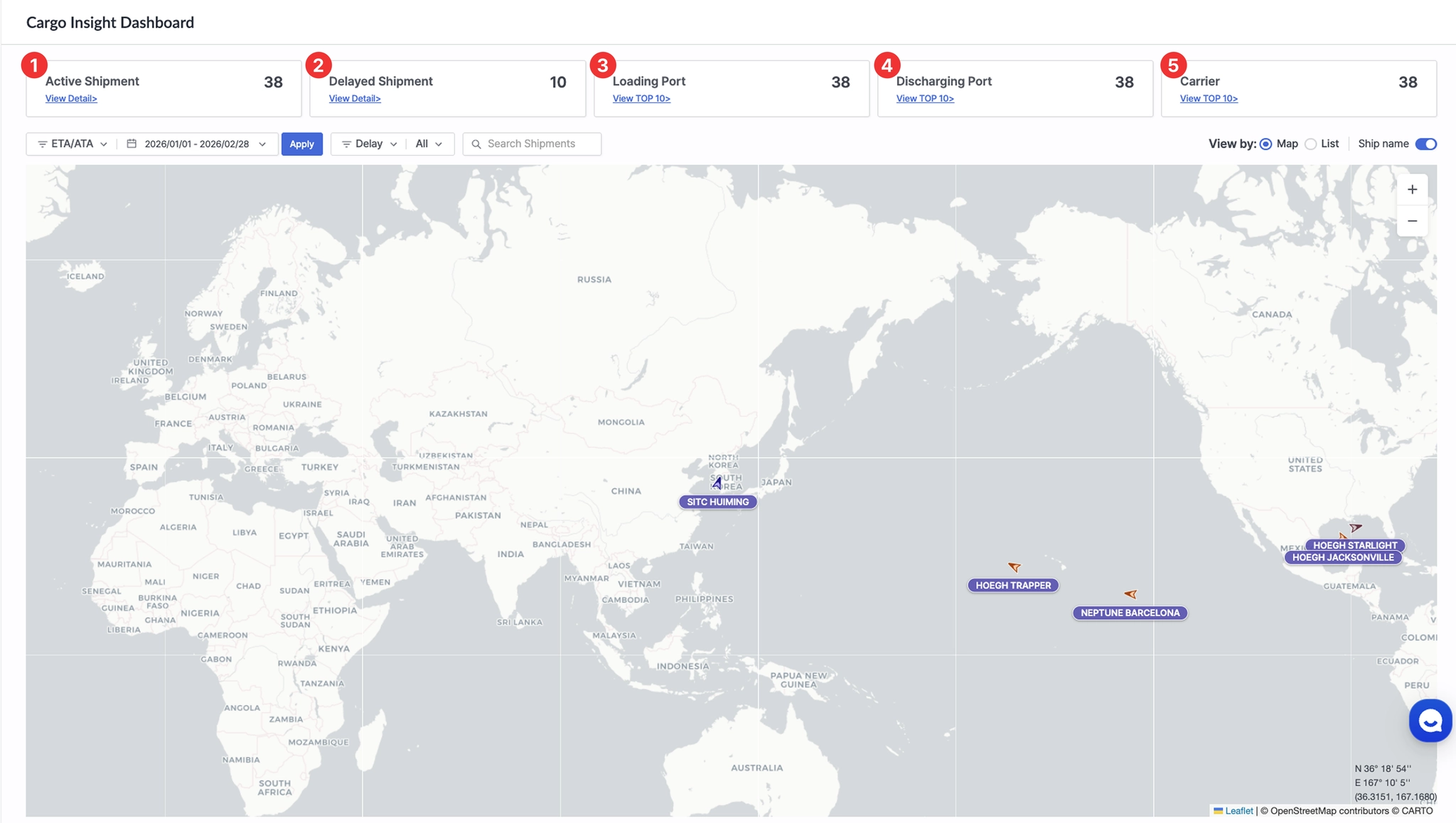
Cargo Insight Dashboard > Shipment Status Overview
No. | Item | Description |
1 | Active Shipment | - Displays the number of shipments currently in transit
- Click View Detail to view the list of active shipments in List View |
2 | Delayed Shipment | - Displays the number of in-transit shipments whose scheduled arrival date (based on POD) has passed
- Click View Detail to view delayed shipments in List View |
3 | Loading Port | - Displays the total number of loading ports for in-transit shipments
- Click View TOP 10 to view the number and ratio of Active and Inactive shipments by loading port |
4 | Discharging Port | - Displays the total number of discharging ports for in-transit shipments
- Click View TOP 10 to view the number and ratio of Active and Inactive shipments by discharging port |
5 | Carrier | - Displays the total number of carriers based on shipments in transit.
- Click View TOP 10 to view the number and ratio of Active and Inactive shipments by carrier |

Shipment status metrics are displayed based on the date range configured in Required Fields.

Search Criteria Setup
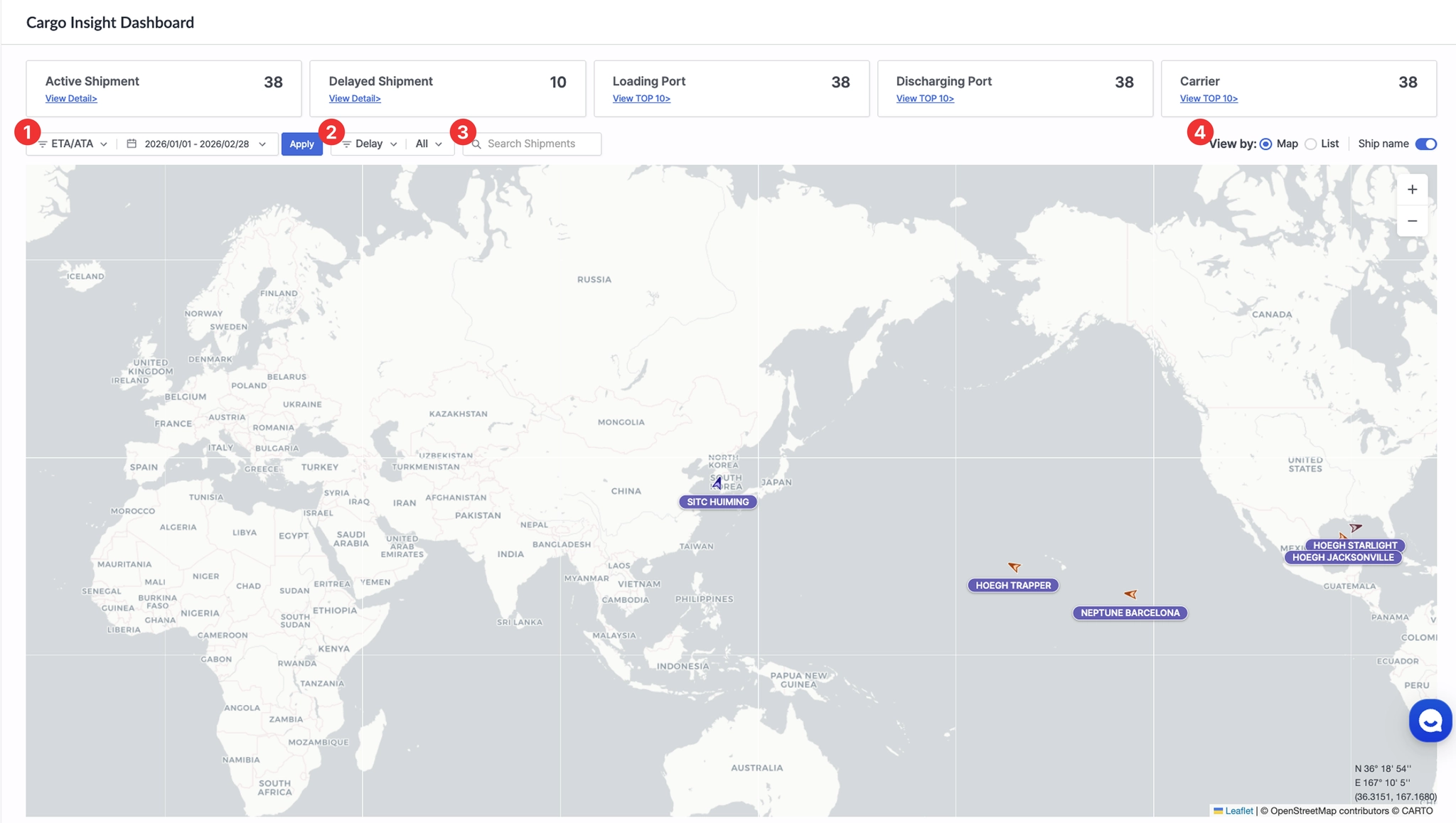
Cargo Insight Dashboard > Search Criteria Settings
No. | Item | Description |
1 | Required Fields | All default queries in the Cargo Insight Dashboard are based on the date type and the from / to conditions set in Required Fields (ETA/ATA, ETD/ATD). |
2 | Filter | After applying the Required Fields, shipment-related information is displayed in the Map View and List View according to the selected filter settings. |
3 | Search Shipments | Search and filter cargo data based on column values. |
4 | View by | Select the display mode: Map View or List View. |
Map View
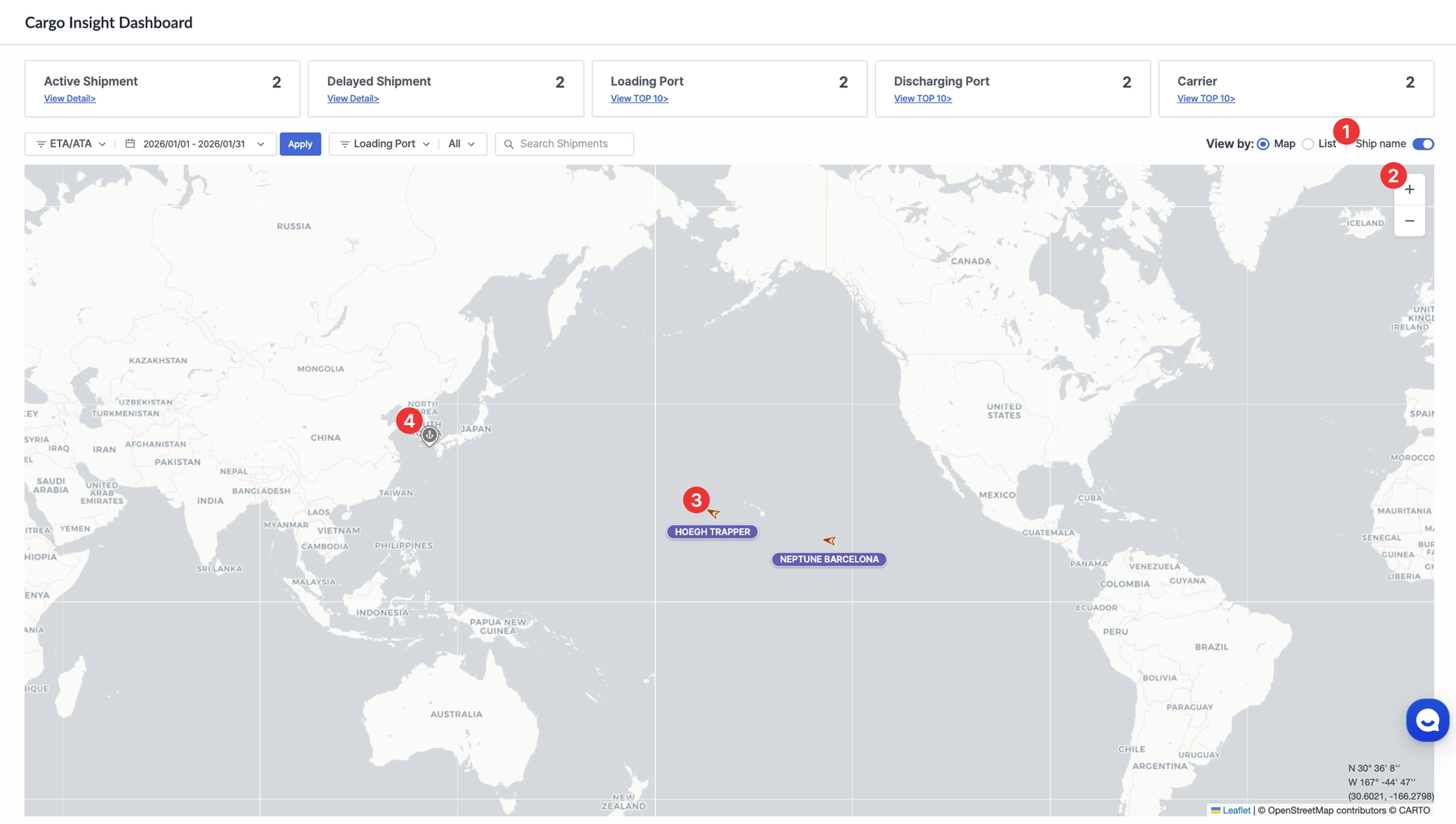
Cargo Insight Dashboard > View by set to Map with the Ship Name toggle enabled
1. Ship name
•
Toggle this option to display the vessel name below the arrow icon on the map.
2. Zoom Controls
•
Adjust the map zoom level to change the visible area.
3. Ship Icon
•
Indicates the real-time position of vessels related to tracked shipments.
•
Vessel status classification

•
Vessel type-based color coding
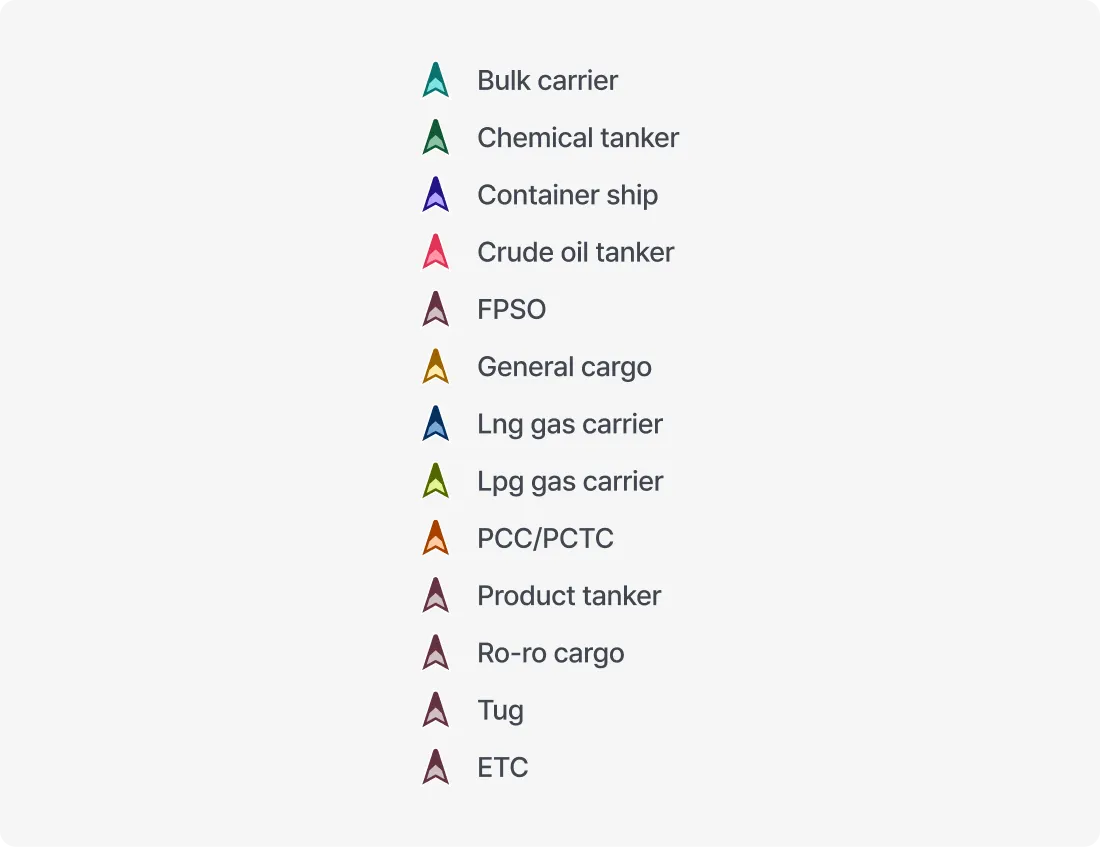
•
Click the ship icon to view shipment-related information for the vessel.
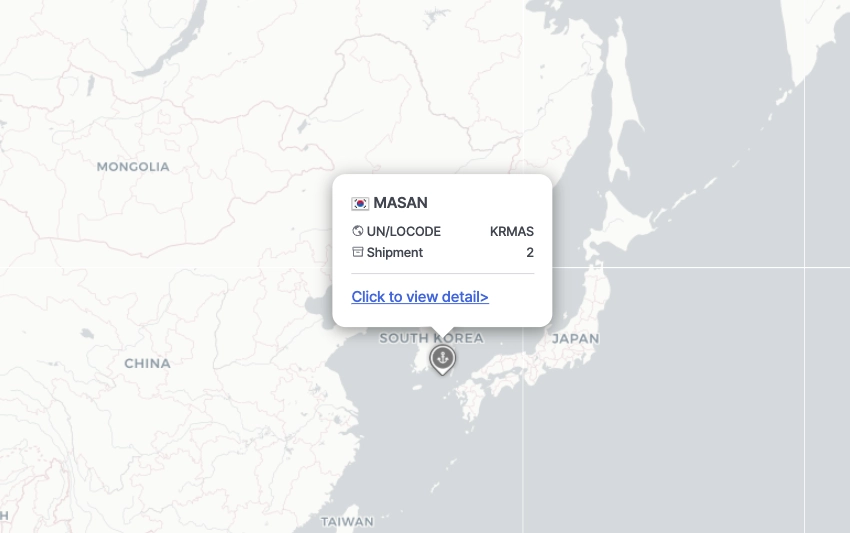
4. Gray Marker

•
Indicates port locations on the map.
•
Click the gray marker to view shipment information associated with the selected port.
List View
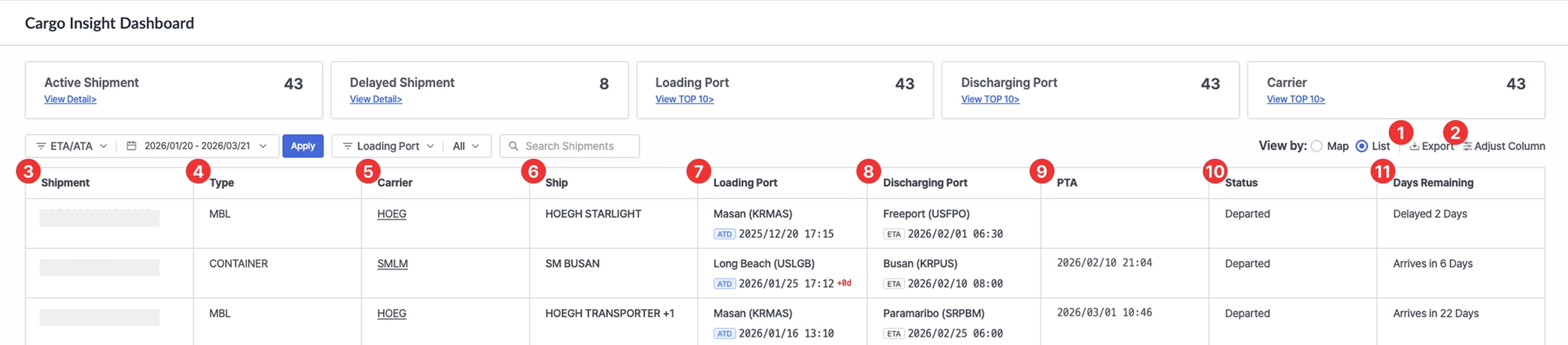
Cargo Insight Dashboard > View by: List
No. | Item | Description |
1 | Export | Downloads the current shipment list as an Excel file |
2 | Adjust Column | Allows users to customize which columns are displayed in the table |
3 | Shipment | Shipment number (one of M-B/L No., Booking No., or Container No.) |
4 | Type | Shipment identification type (M-B/L, Booking, or Container) |
5 | Carrier | Carrier code |
6 | Ship | Vessel information associated with the shipment |
7 | Loading Port | Port of Loading (POL) |
8 | Discharging Port | Port of Discharge (POD) |
9 | PTA | Predicted Time of Arrival |
10 | Status | Current shipment status |
11 | Days Remaining | Number of days remaining until arrival or days delayed |