



List View allows users to review key shipment information and detailed data for each shipment.
Export
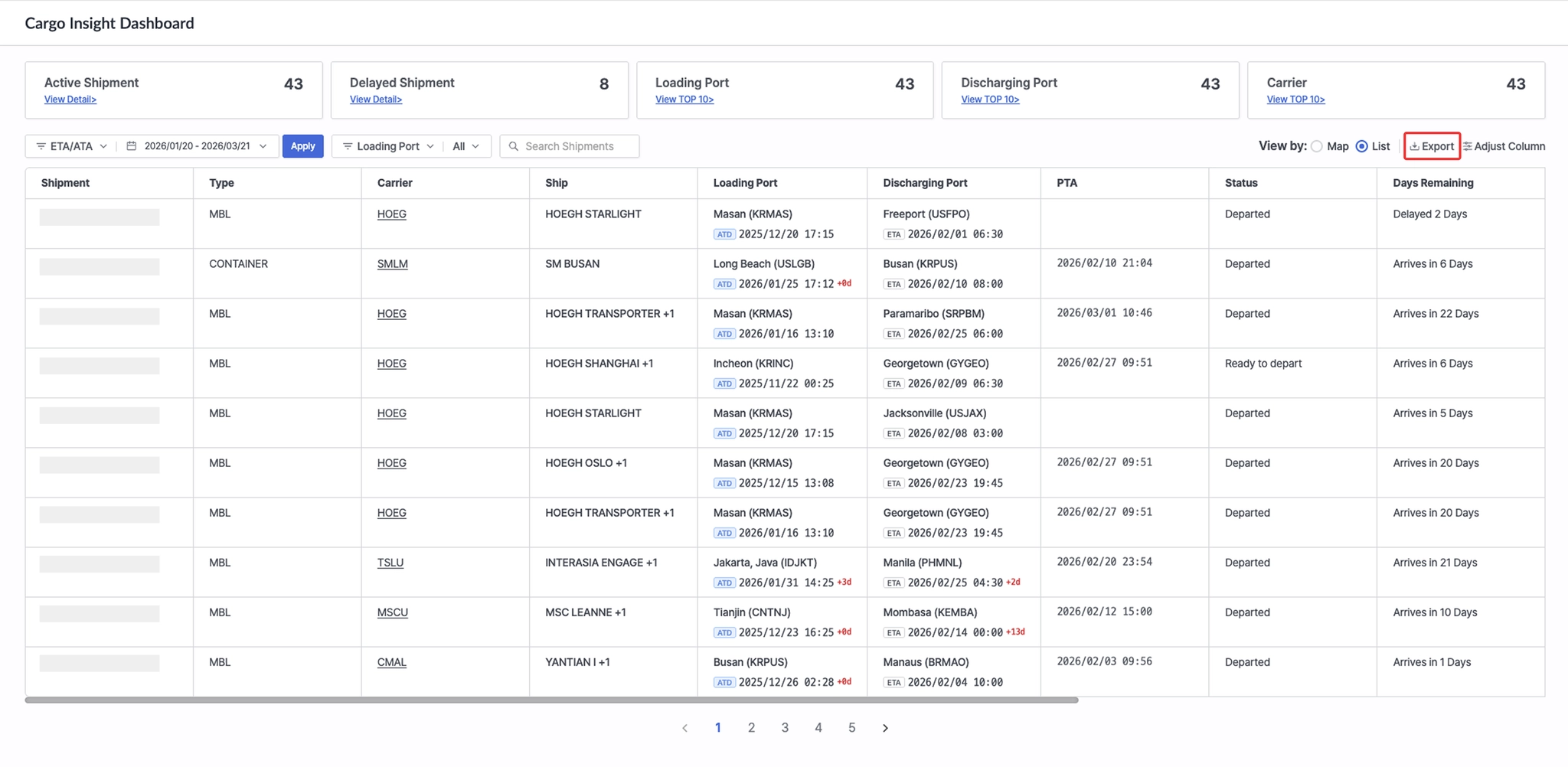
Cargo Insight Dashboard > Export Button (top-right)
•
Downloads the shipments currently displayed in the List View as an Excel file.
Adjust Column
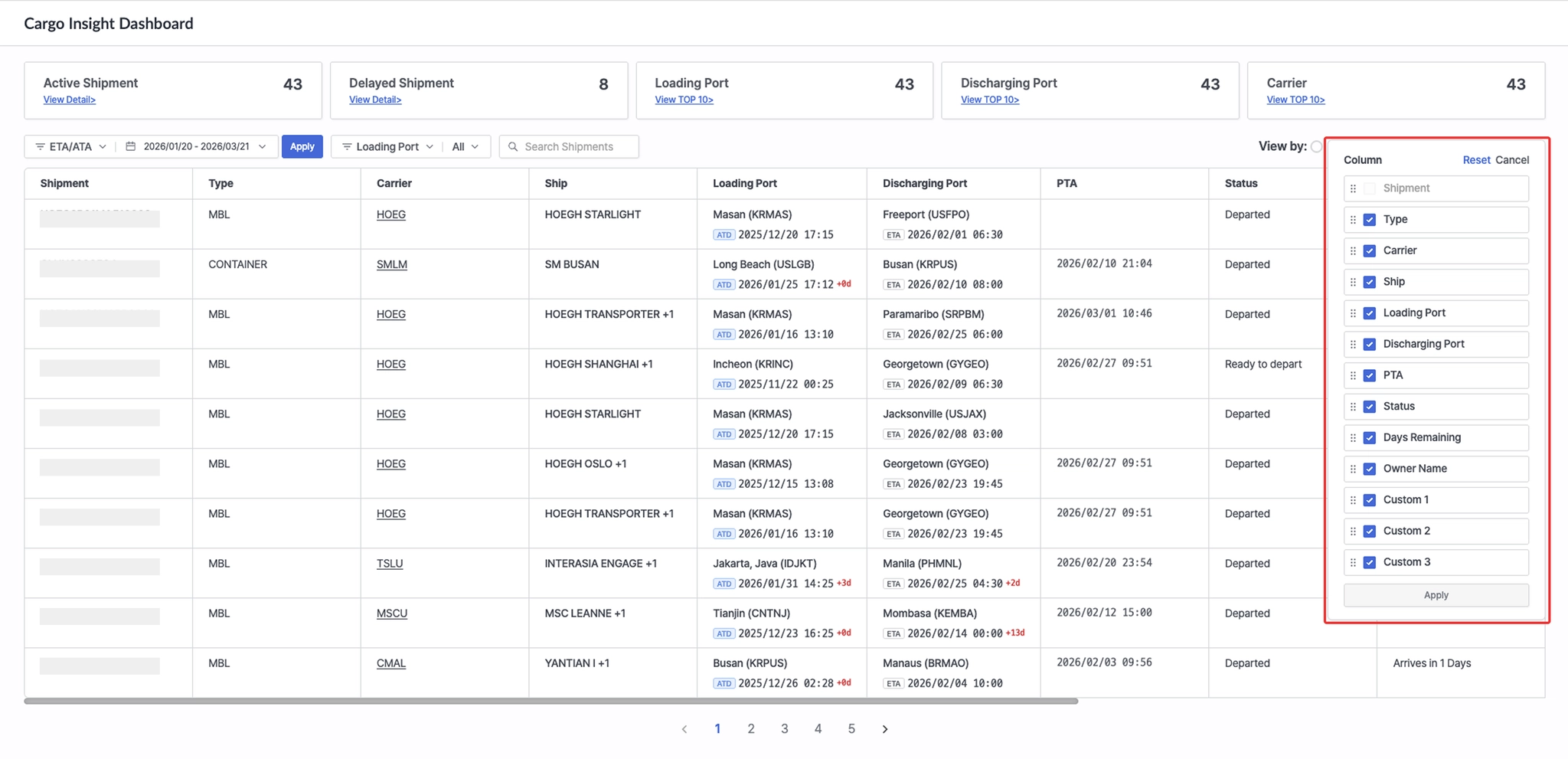
Cargo Insight Dashboard > Adjust Column Button (top-right)
•
Click Reset to restore the default column configuration.
•
Click Cancel to discard any changes and close the Adjust Column panel.
•
Select or deselect checkboxes to control which columns are displayed in List View.
•
Drag and drop columns to change their display order.
•
Owner name: When an H-B/L is registered via the [POST] /cargo API, the first owner name is displayed.
•
Column Description
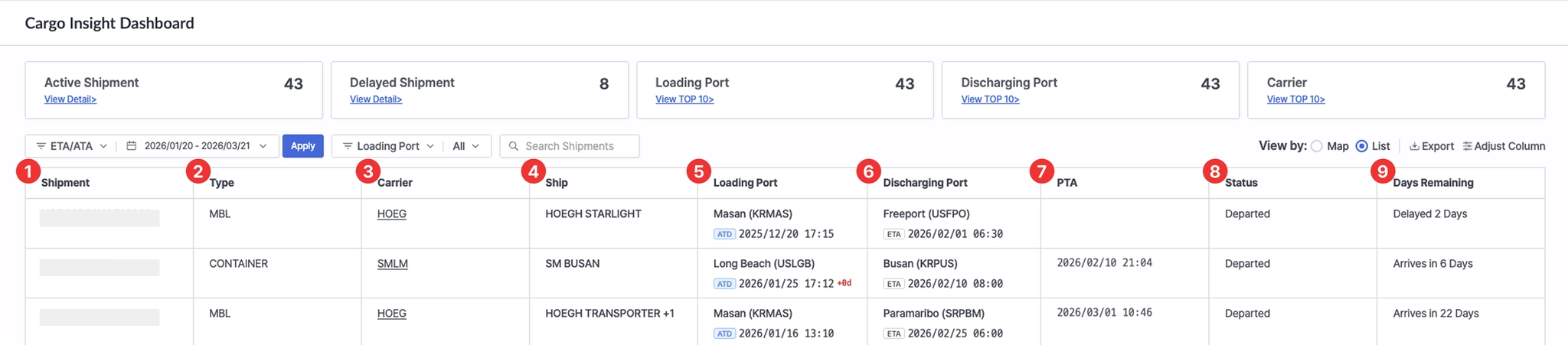
Cargo Insight Dashboard > Bottom Table
No. | Item | Description |
1 | Shipment | - Shipment identifier (one of M-B/L No., Booking No., or Container No.)
- Click the shipment number to open the shipment detail page |
2 | Type | Shipment identification type (M-B/L, Booking, or Container) |
3 | Carrier | - Carrier code
- Click the carrier code to open the carrier’s official website |
4 | Ship | - Vessel information related to the shipment
- Click the vessel to view vessel name, voyage, port name, ETD/ATD, and ETA/ATA |
5 | Loading Port | - Port of Loading (POL)- Click the +d / −d indicator next to ETD/ATD to view schedule differences between the shipment registration date and the current schedule |
6 | Discharging Port | - Port of Discharge (POD)- Click the +d / −d indicator next to ETA/ATA to view schedule differences between the shipment registration date and the current schedule |
7 | PTA | Predicted Time of Arrival |
8 | Status | Current shipment status |
9 | Days Remaining | Number of days remaining until arrival or number of delayed days |