



Cargo Insight is a real-time shipment visibility solution that enables users to track and monitor global shipments using M-B/L, Booking, or Container numbers.
Access shipment status updates, vessel and voyage information, schedule changes, port call events, transshipment status, container milestones, and route visibility throughout the shipment lifecycle.
Shipment Registration
Users can register shipments they want to track by entering a Container number, M-B/L number, or Booking number.
Single
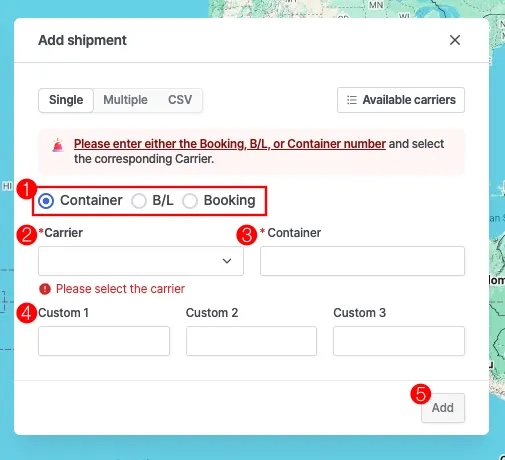
Cargo insight > Add shipment > Single Registration Tab
No. | Field | Description |
1 | Shipment type | Select the shipment type |
2 | Carrier | Enter or select the carrier code.
If the shipment type is B/L or Booking and the carrier code is not entered, the carrier will be automatically predicted. |
3 | Shipment Number | Enter one of the following according to the shipment type: Container number, B/L number, or Booking number. |
4 | Custom 1 ~ 3 | Enter information in the user-defined fields according to your purpose. |
5 | Add | Click Add to register the shipment |
Multiple
Shipment Registration Step
•
To register a shipment, enter at least one of the following: Container number, B/L number, or Booking number.
(For B/L or Booking numbers, the carrier code is automatically predicted after clicking Validate.)
•
To add more shipments, click Add row.
•
After entering all information, click Validate to run the validation check.
•
Click Add to register all valid shipments.
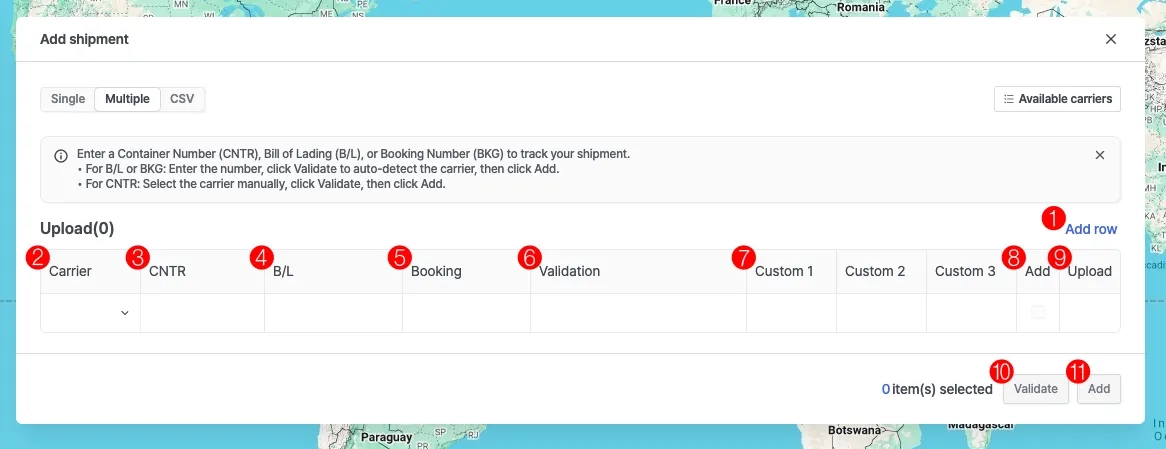
Cargo insight > Add shipment > Multiple Registration Tab
No. | Field | Description |
1 | Add row | Add a new row |
2 | Carrier | Enter the carrier code |
3 | CNTR | Enter the container number |
4 | B/L | Enter the M-B/L number |
5 | Booking | Enter the Booking number |
6 | Validation | Displays the validation result |
7 | Custom 1 ~ 3 | User-Defined Field |
8 | Add | Indicates if the shipment can be added |
9 | Upload | Shows whether the registration has been completed |
10 | Validate | Run validation |
11 | Add | Register the shipment |
CSV
Shipment Registration Step
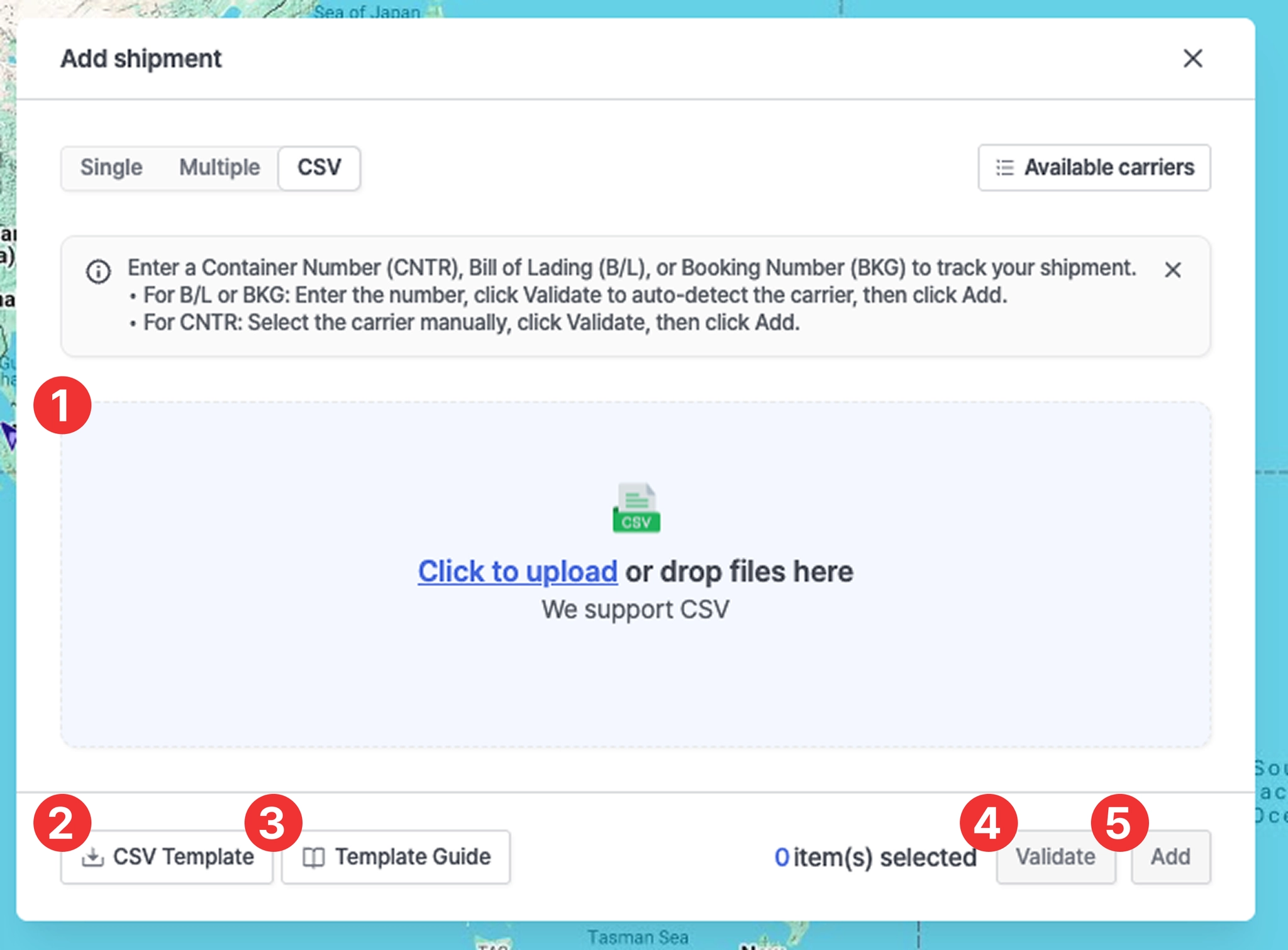
Cargo insight > Add shipment > CSV Registration Tab
No. | Field | Description |
1 | CSV file upload | - Click Click to upload to select a file
- Or drag and drop the CSV file into the upload area |
2 | CSV Template | Download the CSV template file |
3 | Template Guide | CSV Template Creation Guide
Go to the CSV Template Guide |
4 | Validate | Run validation |
5 | Add | Register the shipments |
•
Download the CSV template.
•
Enter the carrier code and one of the following: Container number, B/L number, or Booking number.
(For B/L or Booking numbers, the carrier code is automatically predicted after clicking Validate.)
•
After completing the template, upload the file by clicking Click to upload or dragging the file into the upload area.
•
Click Validate to run the validation check, then click Add to register the shipments.
CSV Template Set-up
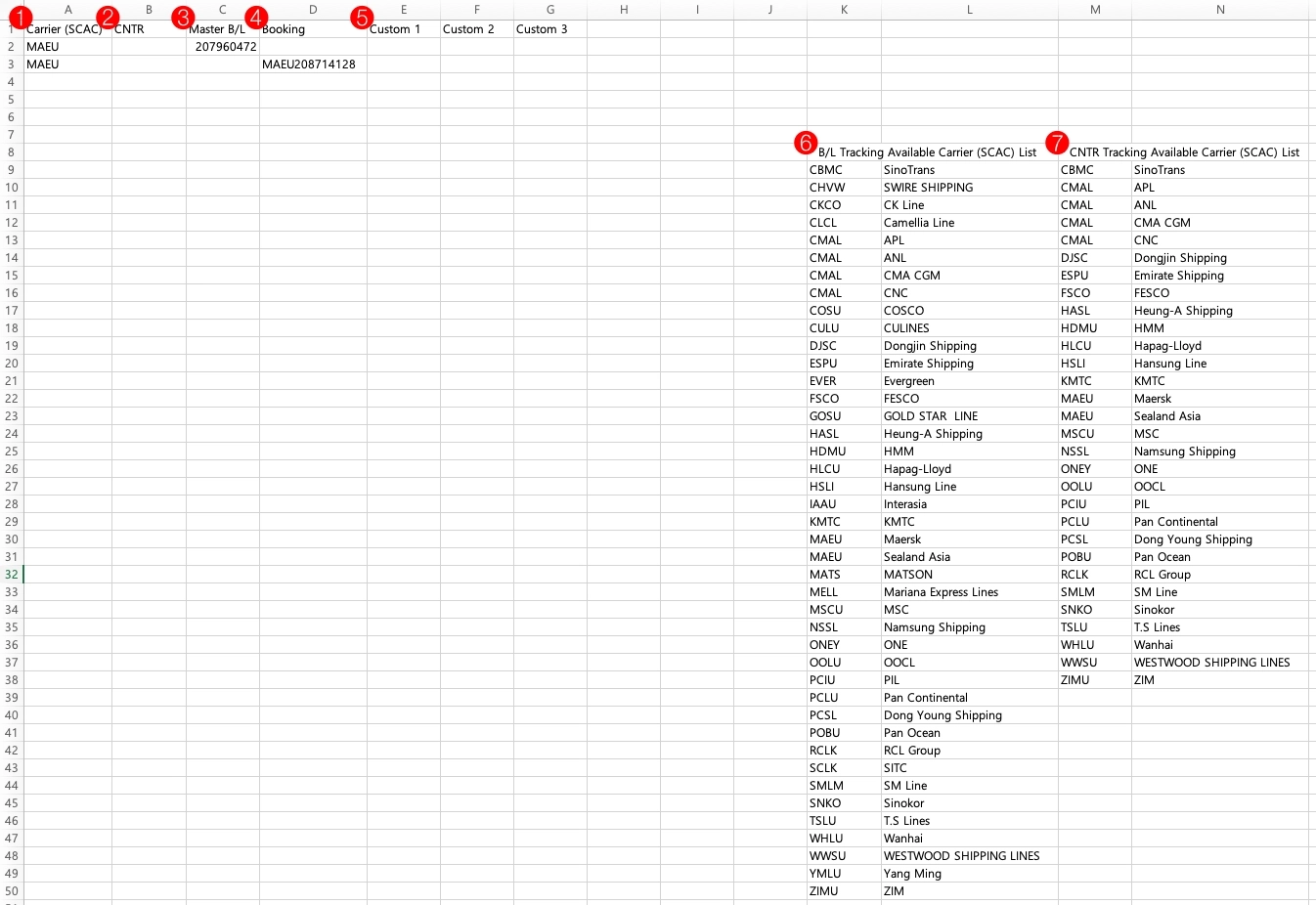
Cargo insight > Add shipment > CSV > CSV Template
No. | Item | Description |
1 | Carrier (SCAC) | SCAC code by carrier
- When entering, refer to the M-B/L · CNTR Tracking SCAC list on the right |
2 | CNTR | Container number |
3 | Master B/L | M-B/L number |
4 | Booking | Booking number |
5 | Custom 1 ~ 3 | User-Defined Fields |
6 | B/L Tracking | M-B/L Tracking SCAC list |
7 | CNTR Tracking | CNTR Tracking SCAC list |

The SCAC code is mandatory. Depending on the shipment you want to register, you must enter one of the following: Container number, M-B/L number or Booking number.
For MSC shipments, entering both the Booking number and the M-B/L number enables faster and more accurate tracking results.
Shipment Search
Users can search for shipments registered in Cargo Insight. Shipments can be searched using the standard search function or the Quick Cargo Search for faster access.
Quick Cargo Search
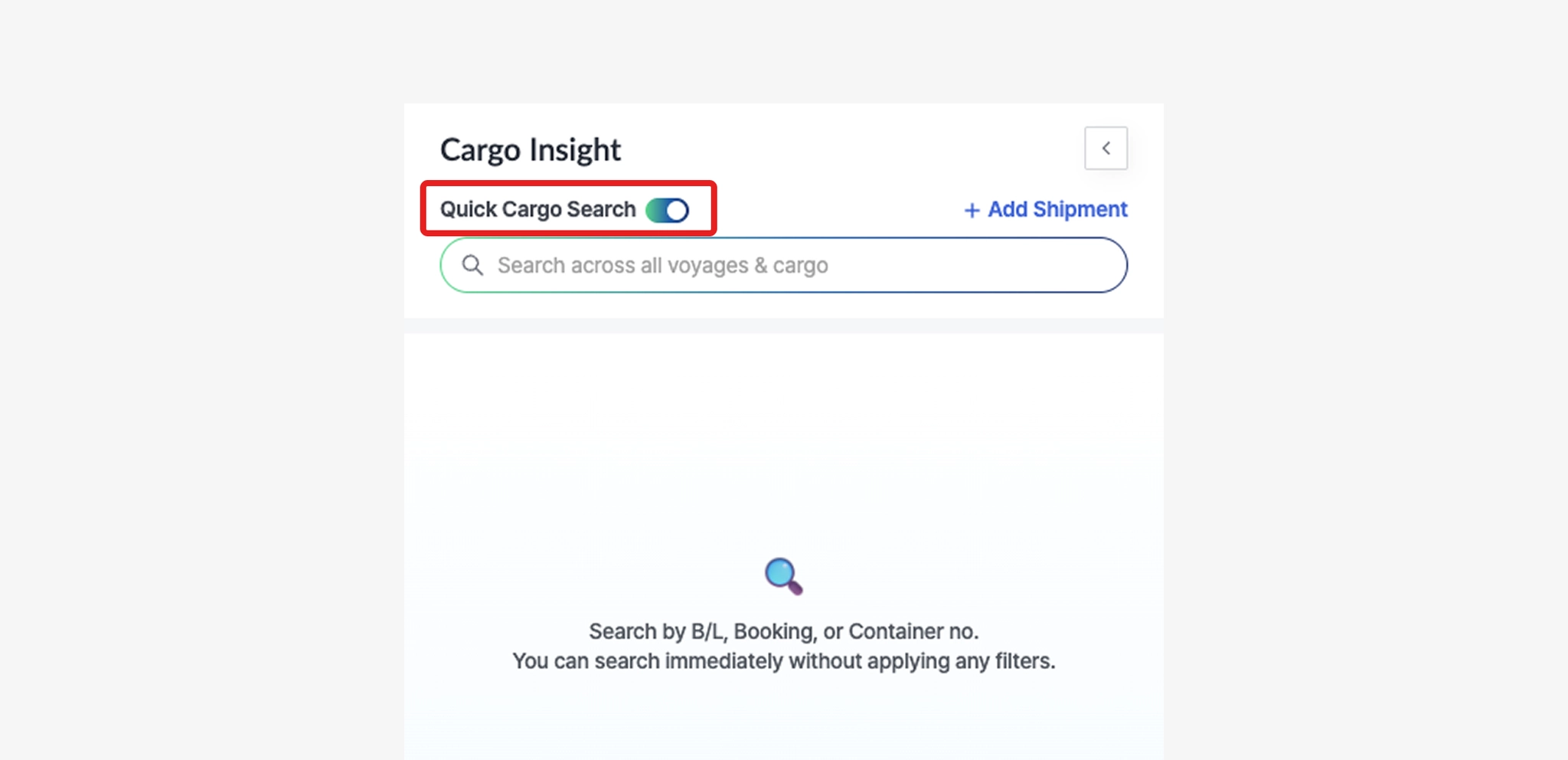
Cargo Insight > Quick Cargo Search
•
Enable the Quick Cargo Search toggle to instantly search shipments by entering an M-B/L Number, Booking Number, or Container Number in the search field.
Search
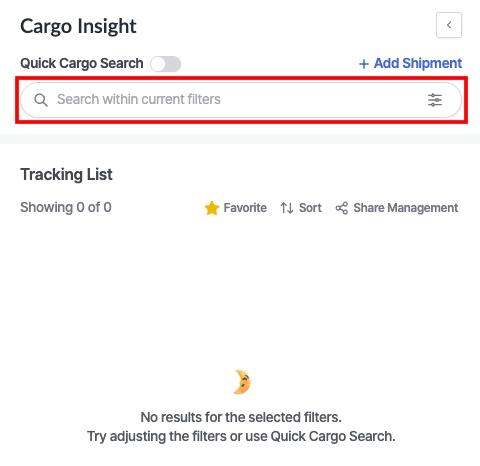
Cargo Insight > Search
•
Within the applied filter conditions, enter an M-B/L Number, Booking Number, or Container Number in the search field to retrieve matching shipments.
Filter
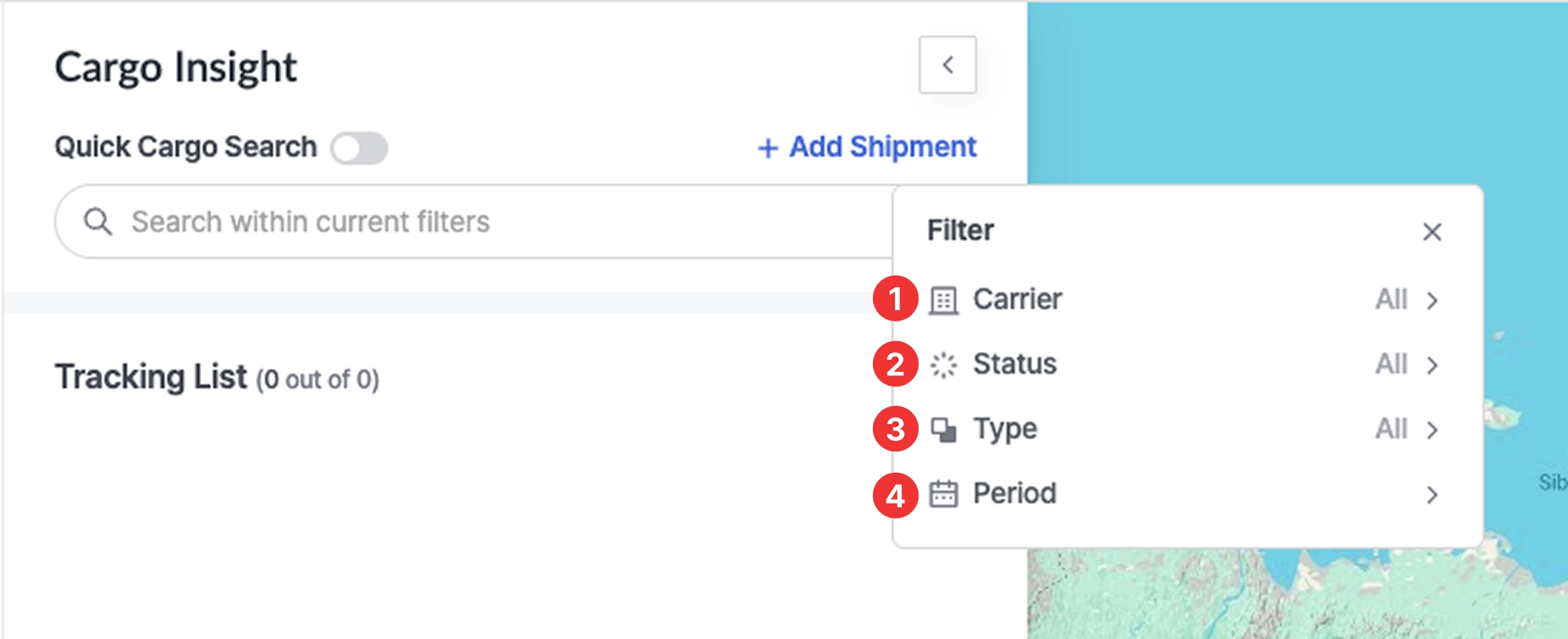
Cargo Insight > Search > Filter
No. | Field | Description |
1 | Carrier | Allows you to filter shipments based on the carrier transporting the shipment. |
2 | Status | Allows you to filter shipments based on their current transportation status.
- Ready to depart : The vessel has not yet departed from the Port of Loading (POL).
- Departed : The vessel has departed from the Port of Loading.
- Arrived : The vessel has arrived at the Port of Discharge (POD).
- Processing : Shipment data is currently being retrieved.
- Pending : Location information is not available.
- Not found : Shipment lookup failed.
- Closed : Container event tracking has ended after arrival at the POD.
- Expired : Container tracking has repeatedly failed and is no longer active. |
3 | Type | Allows you to filter shipments by shipment identification type (M-B/L, Booking, or Container) |
4 | Period | Select ETA/ATA or ETD/ATD, set the desired date range, and click Apply to filter the shipments. |
Tracking List View
Users can quickly review summary information for shipments they have registered.
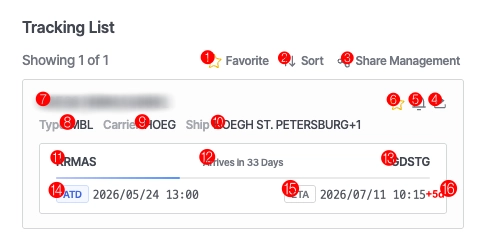
Cargo Insight > Tracking List
No. | Description |
1 | View shipments marked as Favorites |
2 | Sort shipments by ETA |
3 | |
4 | |
5 | Enable or disable email notifications for shipment status changes |
6 | Add or remove the shipment from Favorites |
7 | Shipment number (one of M-B/L, Booking, or Container number) |
8 | Shipment identification type (M-B/L, Booking, or Container) |
9 | Carrier code |
10 | Vessel information associated with the shipment |
11 | Port of Loading (POL) |
12 | Number of days remaining until arrival or number of delayed days |
13 | Port of Discharge (POD) |
14 | Estimated and actual departure dates
(ETD : Estimated Time of Departure / ATD : Actual Time of Departure) |
15 | Estimated and actual arrival dates
(ETA : Estimated Time of Arrival / ATA : Actual Time of Arrival) |
16 | Time difference between the shipment registration date and the current dateT |
Registered shipments can be deleted by right-clicking the shipment card and selecting the Delete option. Please note that deleted shipments are still counted toward the contracted usage volume.
Shipment Detail View
Users can view a shipment’s entire voyage route, current vessel position, port call information, and container events in real time.
Summary Information
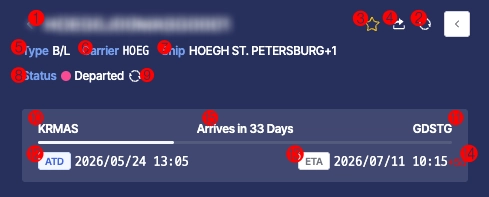
Cargo Insight > Shipment Detail View > Summary
No. | Description |
1 | Shipment number (one of M-B/L No., Booking No., or Container No.) |
2 | Refresh Latest Shipment Information
- First, click the [Update] icon (No. 8) to complete the data update. After the update is completed, click the [Refresh] icon (No. 2).
- Please note that it may take some time for the updated shipment information to be fully reflected in the system. |
3 | Add to / remove from Favorites |
4 | Share Shipment: Users can share shipment tracking information with external parties who are not members of the workspace. Shared shipment details can be accessed after email domain verification. |
5 | Shipment identification type (M-B/L, Booking, or Container) |
6 | Carrier code |
7 | Vessel information related to the shipment |
8 | Current shipment status:
- Ready to depart: Vessel has not yet departed from the loading port
- Departed: Vessel has departed from the loading port
- Arrived: Vessel has arrived at the port of discharge
- Processing:
1. Initial state after shipment registration
(The shipment has been registered and is viewed immediately before any status update is performed.)
2. Shipment information updating state
(After executing No. 9 (Shipment Status Update), the system is in the process of refreshing and updating the shipment information.)
- Pending : Location information is unavailable
- Not found: Shipment lookup failed
- Closed: Container event tracking has ended after POD arrival
- Expired: Container tracking has continuously failed |
9 | Shipment Status Update
- When an update is provided by the carrier, the shipment Status is automatically updated. (Refer to Item 8: Vessel Status Definitions)
- Please note that it may take some time for the updated status to be reflected in the system. |
10 | Port of Loading (POL) |
11 | Port of Discharge (POD) |
12 | Estimated and actual departure dates
(ETD : Estimated Time of Departure / ATD : Actual Time of Departure) |
13 | Estimated and actual arrival dates
(ETA : Estimated Time of Arrival / ATA : Actual Time of Arrival) |
14 | Schedule difference between the shipment registration time and the current time |
15 | Remaining days until arrival or number of delayed days |
Location
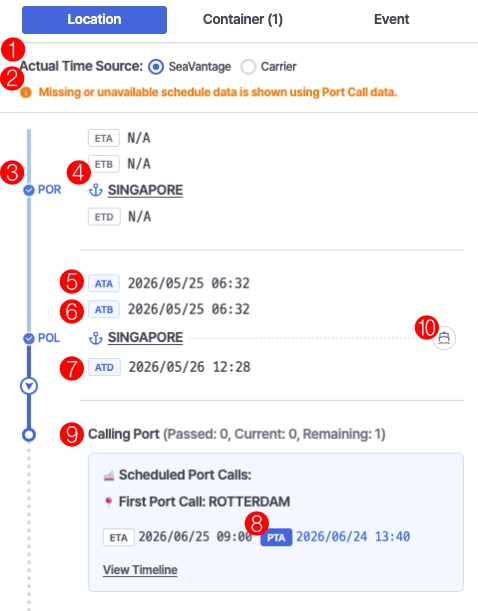
Cargo Insight > Shipment Detail View > Location
No. | Description |
1 | Actual Time Source
- SeaVantage : Actual Time generated based on SeaVantage port call data
- Carrier : Actual Time collected directly from the carrier |
2 | An alert indicator is displayed when the data is provided based on port call data collected by SeaVantage |
3 | Location Type
- POR: Place of Receipt
- POL: Port of Loading
- TSD: Transshipment Discharging
- TSL: Transshipment Loading
- POD: Port of Discharging
- PVY: Place of Delivery |
4 | Port name
- Clicking the port name displays the port location and area on the map |
5 | Estimated and actual arrival dates
(ETA : Estimated Time of Arrival / ATA : Actual Time of Arrival) |
6 | Estimated and actual berthing dates
(ETB : Estimated Time of Berthing / ATB : Actual Time of Berthing) |
7 | Estimated and actual departure dates
(ETD : Estimated Time of Departure / ATD : Actual Time of Departure) |
8 | Predicted arrival date
(PTA : Predicted Time of Arrival) |
9 | Intermediate port call information for the vessel
- Click View Timeline to see detailed port call information |
10 | Clicking the vessel icon displays the vessel’s real-time position on the map |
Container
1. Carrier
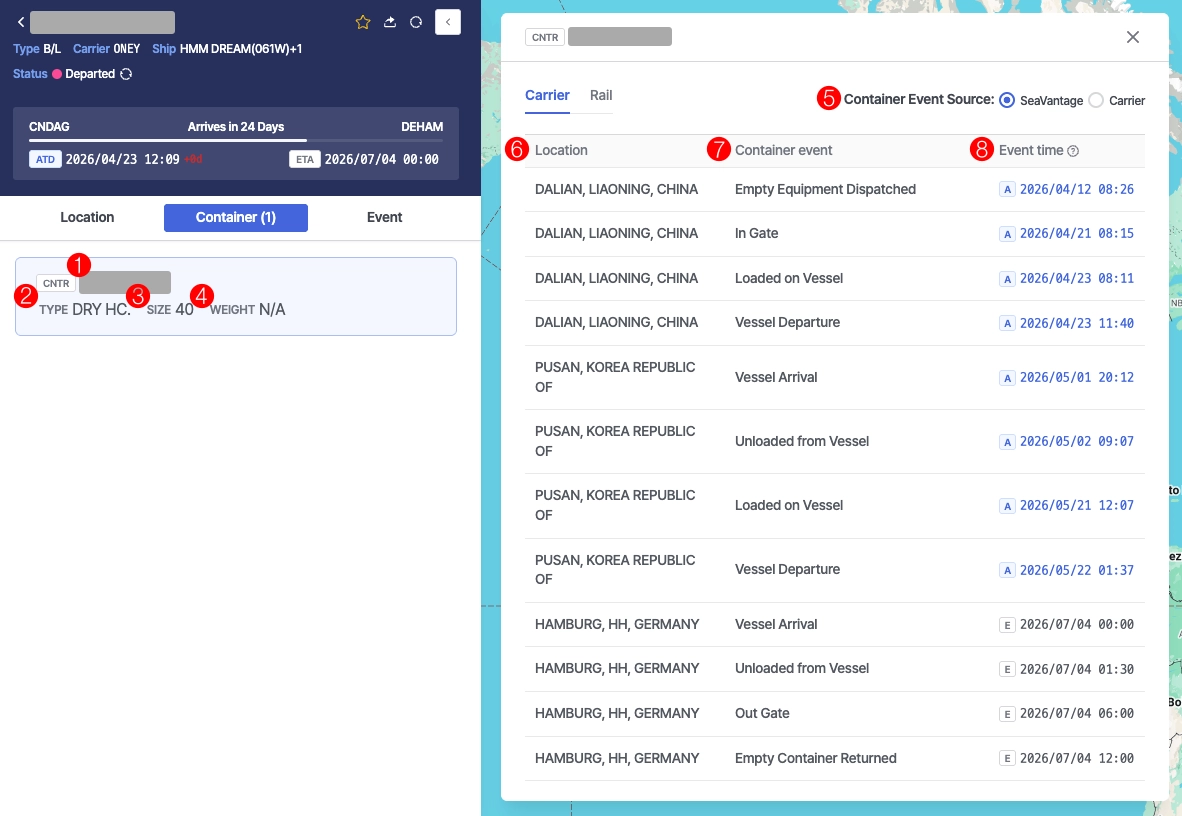
Cargo Insight > Shipment Detail View > Container > Carrier Tab
No. | Description |
1 | Container number |
2 | Container type |
3 | Container size |
4 | Container weight |
5 | - SeaVantage: Container event information analyzed and standardized by SeaVantage
- Carrier: Container event information provided directly by the carrier |
6 | Location where the event occurred |
7 | Container event |
8 | Event timestamp
- A: Actual event time
- E: Estimated event time |
2. Rail
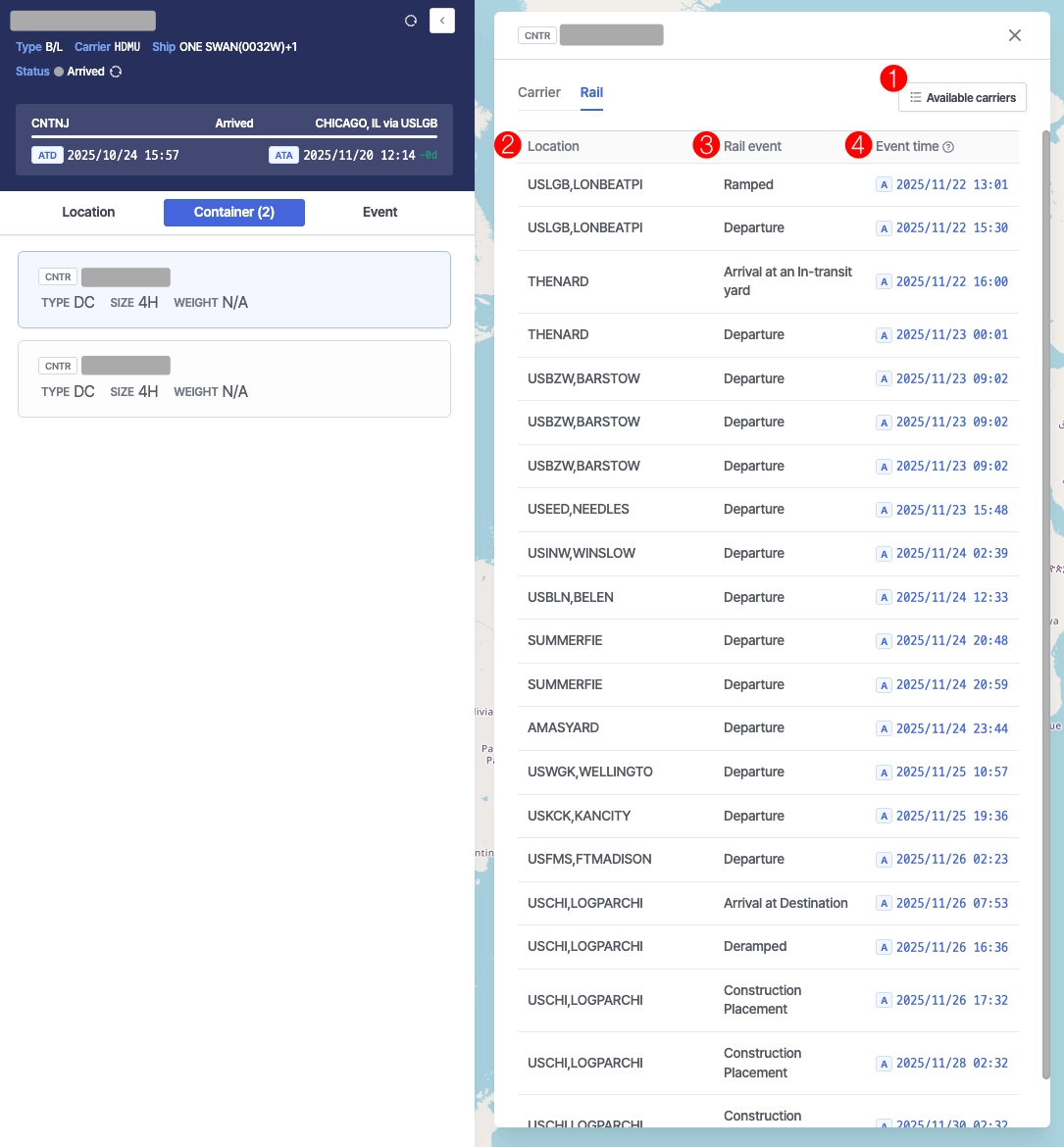
Cargo Insight > Shipment Detail View > Container > Rail Tab
No. | Description |
1 | List of carriers providing rail-related events |
2 | Location where the rail-related event occurred |
3 | Rail-related container event |
4 | Rail-related event timestamp
- A : Actual event time
- E : Estimated event time |
Event
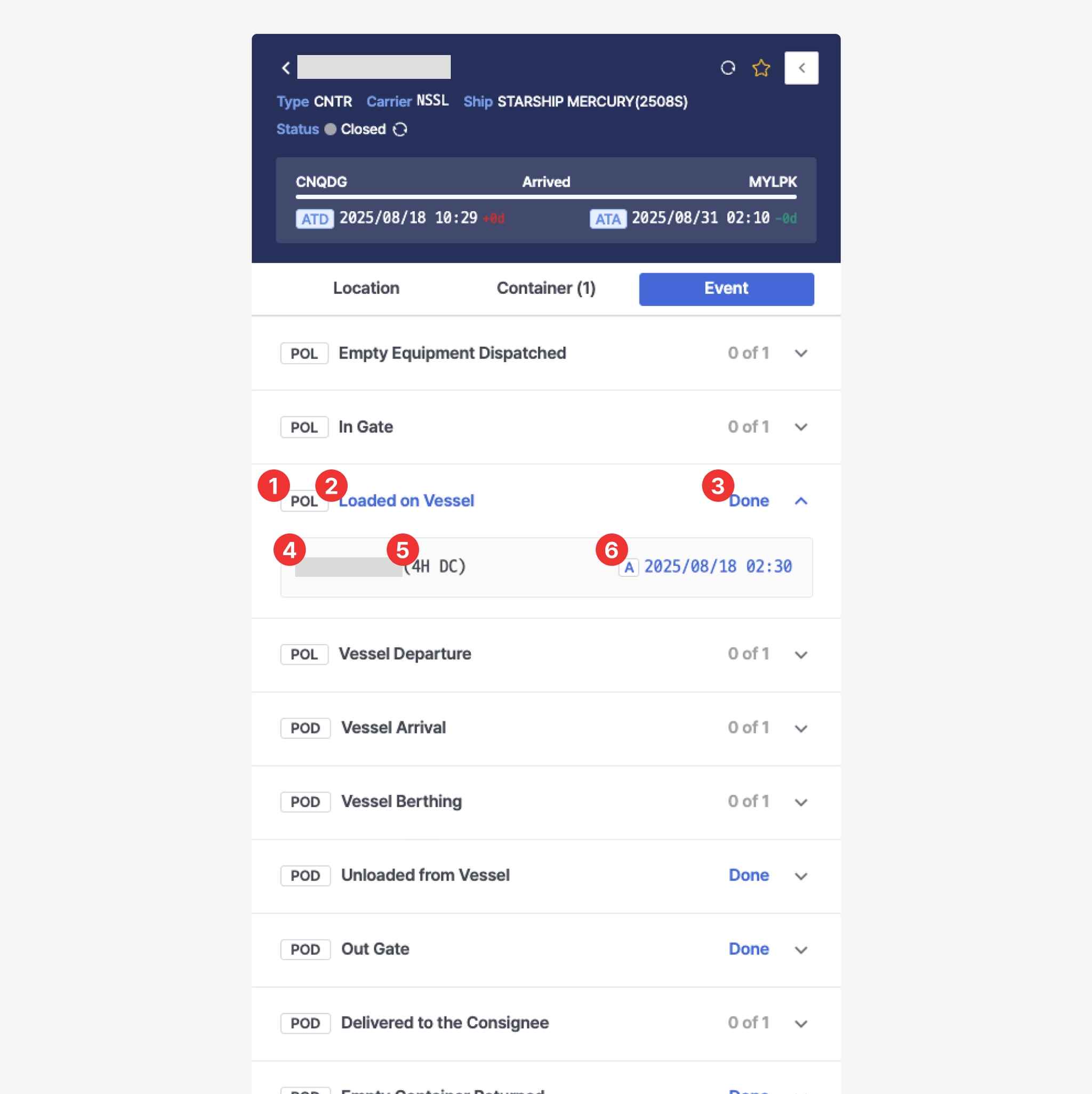
Cargo Insight > Shipment Detail View > Event Tab
No. | Description |
1 | Location Type
- POL: Port of Loading
- TS-N: Transshipment
- POD: Port of Discharging |
2 | Container event |
3 | - Done : All container events for the shipment have been completed
- N of N : Number of containers with completed events out of the total containers in the shipment |
4 | Container number |
5 | Container size and type |
6 | Actual container event timestamp |
Map View
Users can visualize and monitor vessel locations and sailing status in real time.
Map Area
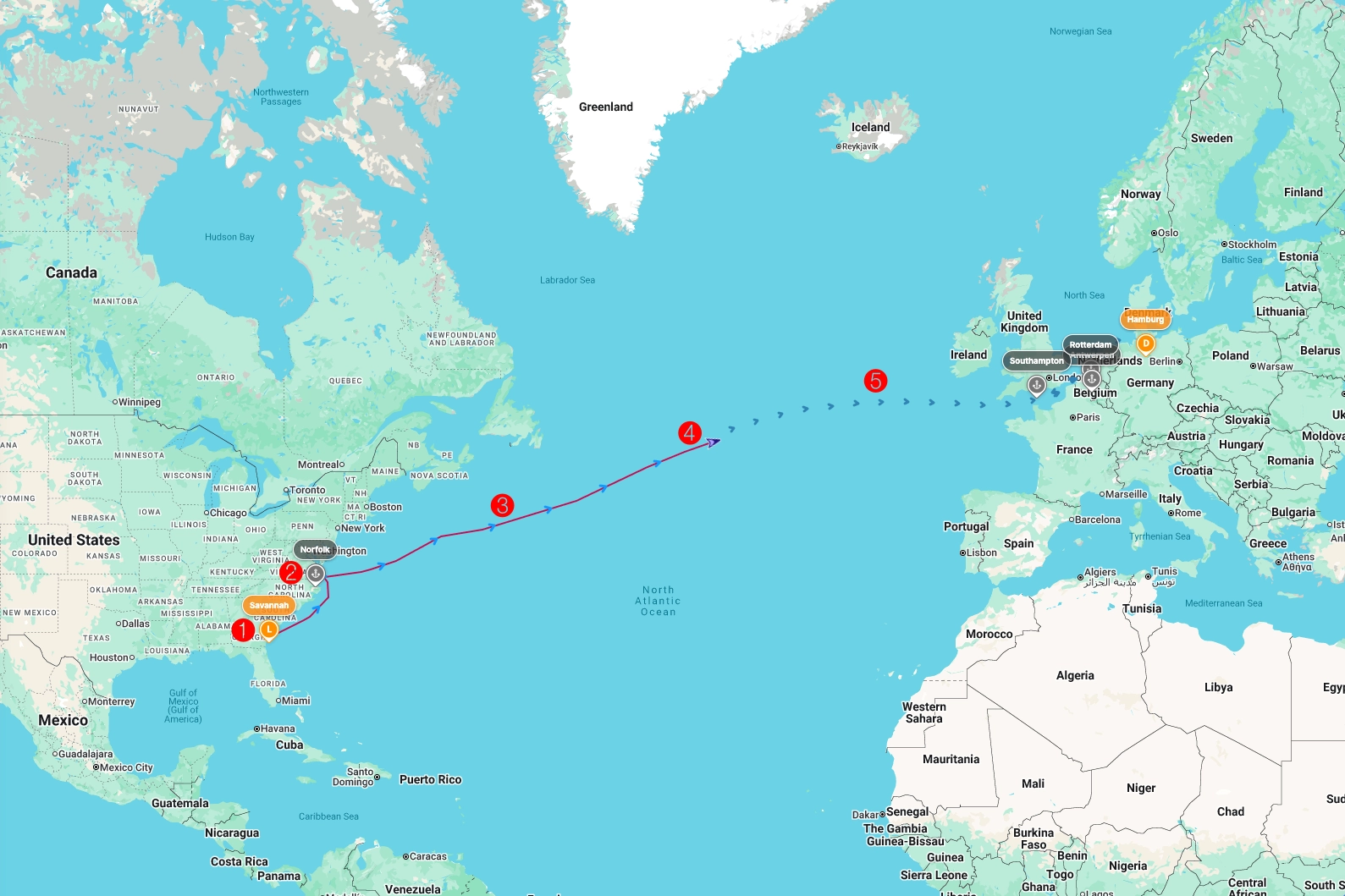
Cargo Insight > Shipment Detail > Map View
1. Orange Marker
Indicates the Location Type
•
POR: Place of Receipt
•
POL: Port of Loading
•
TSD: Transshipment Discharging
•
TSL: Transshipment Loading
•
POD: Port of Discharging
•
PVY: Place of Delivery
2. Gray Marker
Indicates the Calling Port.
3. Red Line
Represents the historical vessel track.
4. Arrow Icon
Indicates the current vessel position.
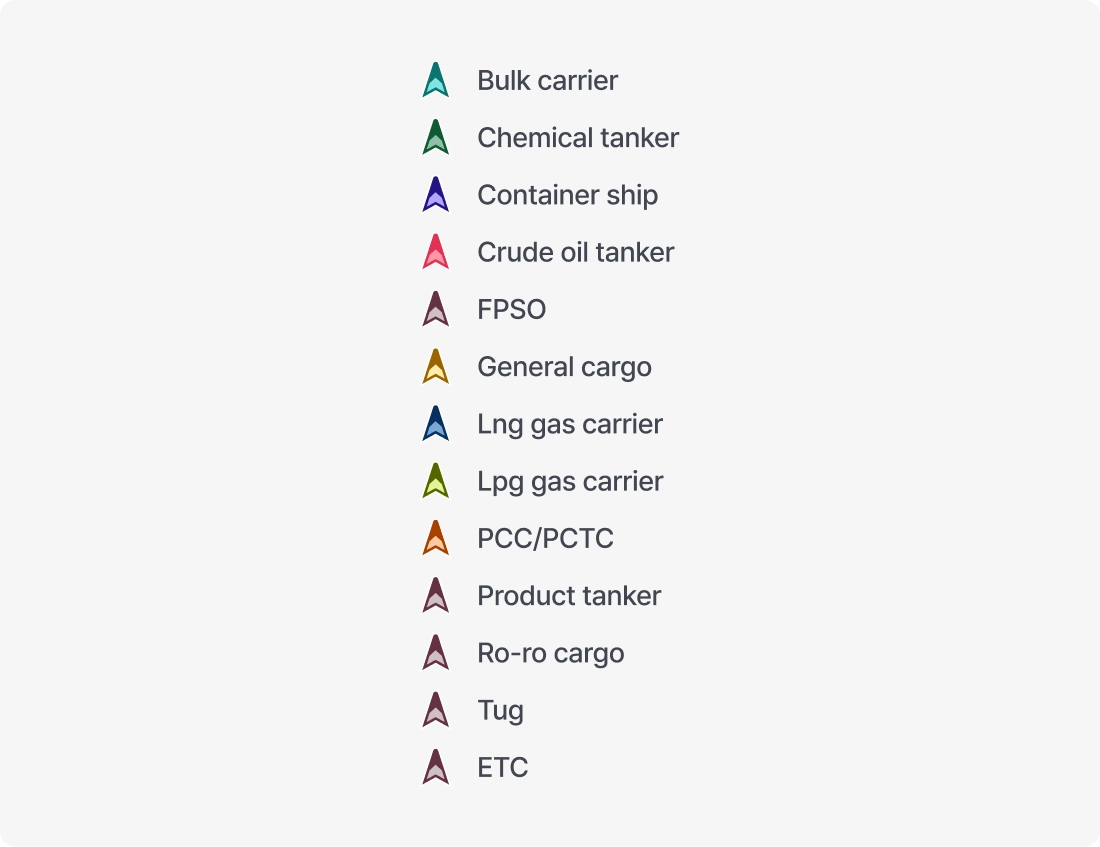
Color Coding by Ship Type
5. Dashed Line
Represents the predicted sailing route of the vessel.
Layer
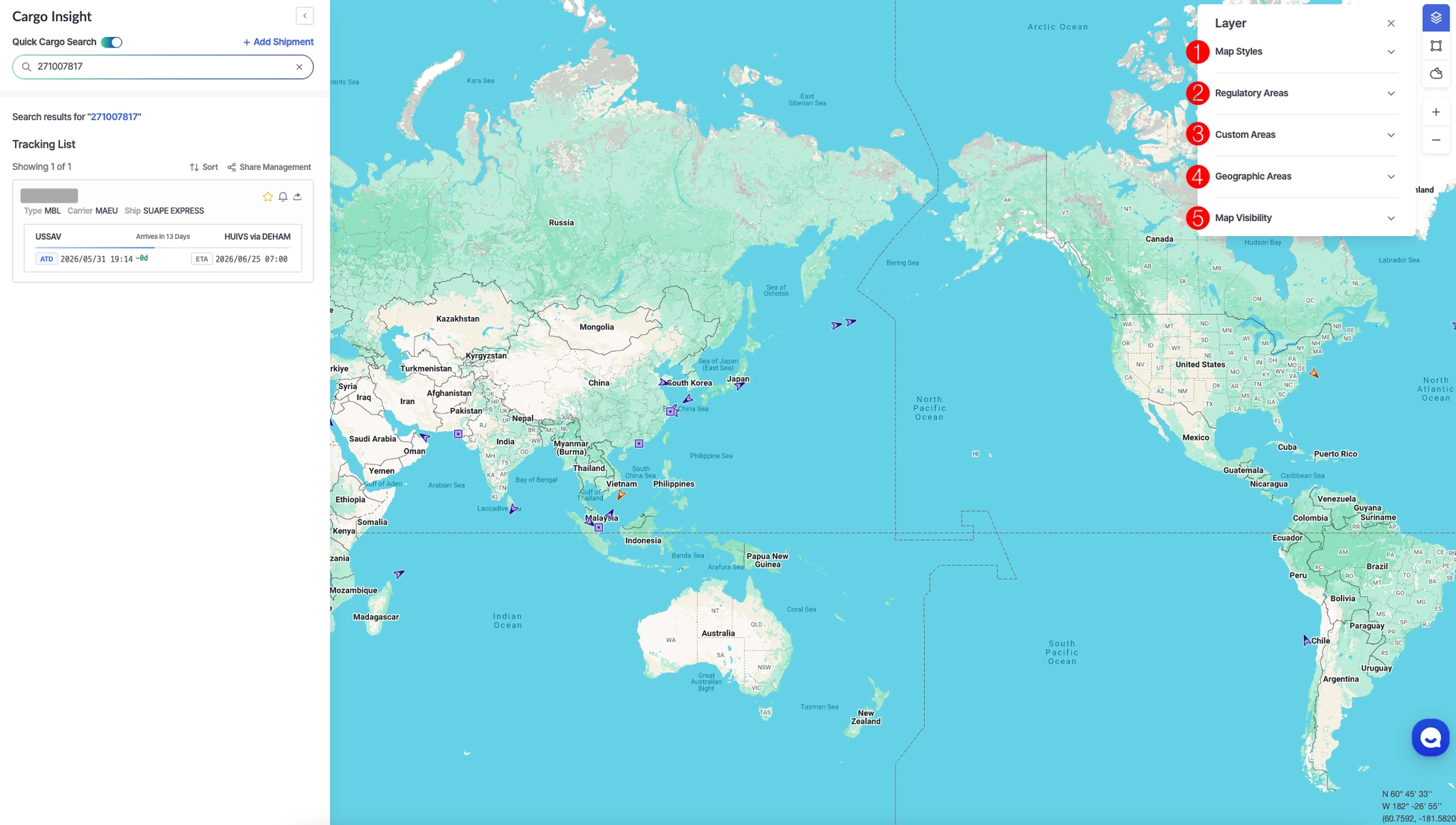
Cargo Insight > Map Area > Layer
1. Map Styles
•
Select the preferred map style for the map view.
•
The list of available map styles can be managed in Settings. You can update which map styles appear in the Layer panel by configuring them on the Settings page.
2. Regulatory Areas
•
Displays specific geographic and regulatory areas on the map:
◦
ECA (Emission Control Area)
◦
EEZ (Exclusive Economic Zone)
◦
JWC (Joint War Committee)
◦
HRA (High Risk Area)
◦
TSS (Traffic Separation Scheme)
◦
GPS Jamming (GPS Interference)
3. Custom Areas
•
Displays user-defined custom areas on the map.
•
Custom areas can be configured in Admin > Custom Areas
4. Geographic Areas
•
Displays incidents, alerts, and risk areas on the map as designated by SeaVantage administrators.
4. Map Visibility
•
Allows users to configure whether vessel names are displayed on the map.
Tools
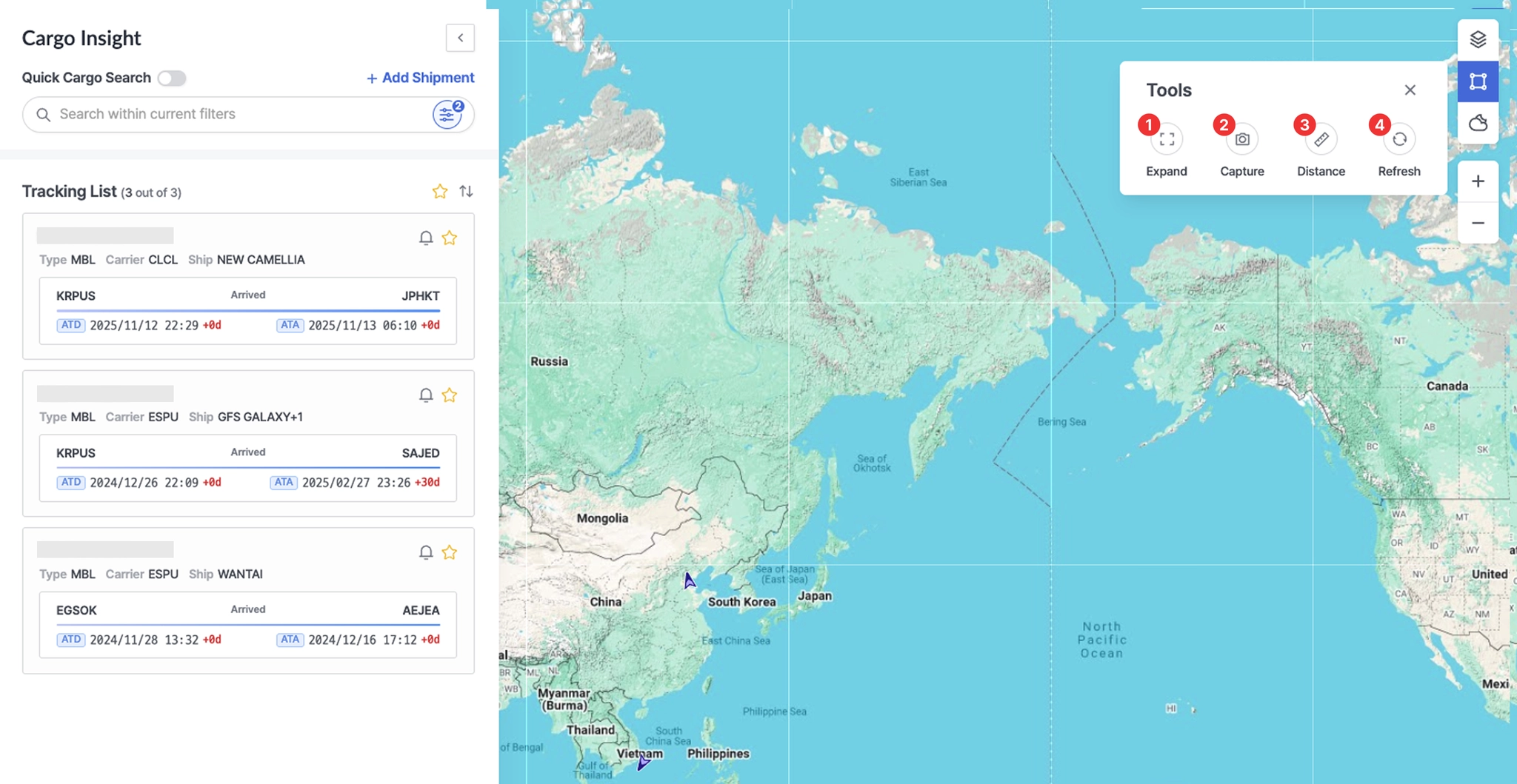
Cargo Insight > Map Area > Tools
1. Expand
•
Switches the map to full-screen mode, allowing key information to be viewed more clearly.
•
Press the Esc key to exit full-screen mode.
2. Capture
•
Saves the current screen as an image, enabling users to share or archive it for reference.
3. Distance
•
A measurement tool that allows users to calculate the distance between selected points on the map.
•
Click the starting point and then the destination point in sequence to view the Bearing, Great Circle Distance, and Rhumb Line Distance.
•
Measurement instructions:
◦
Click to add points along the route while measuring.
◦
Double-click to stop drawing the line.
◦
Click the map again to start a new distance measurement.
◦
To completely exit distance measurement mode, press the Esc key or click the Distance button again.
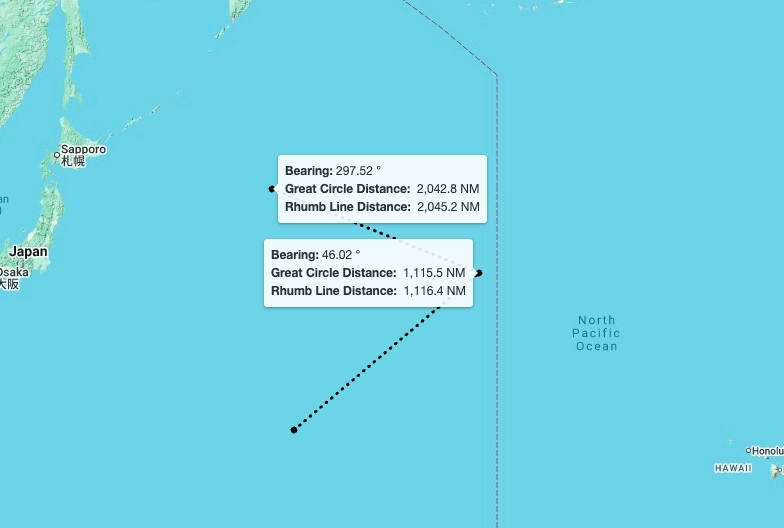
Cargo Insight > Map Area > Distance Measurement View
4. Refresh
•
Reloads the latest data and immediately updates the information displayed on the screen.
Weather
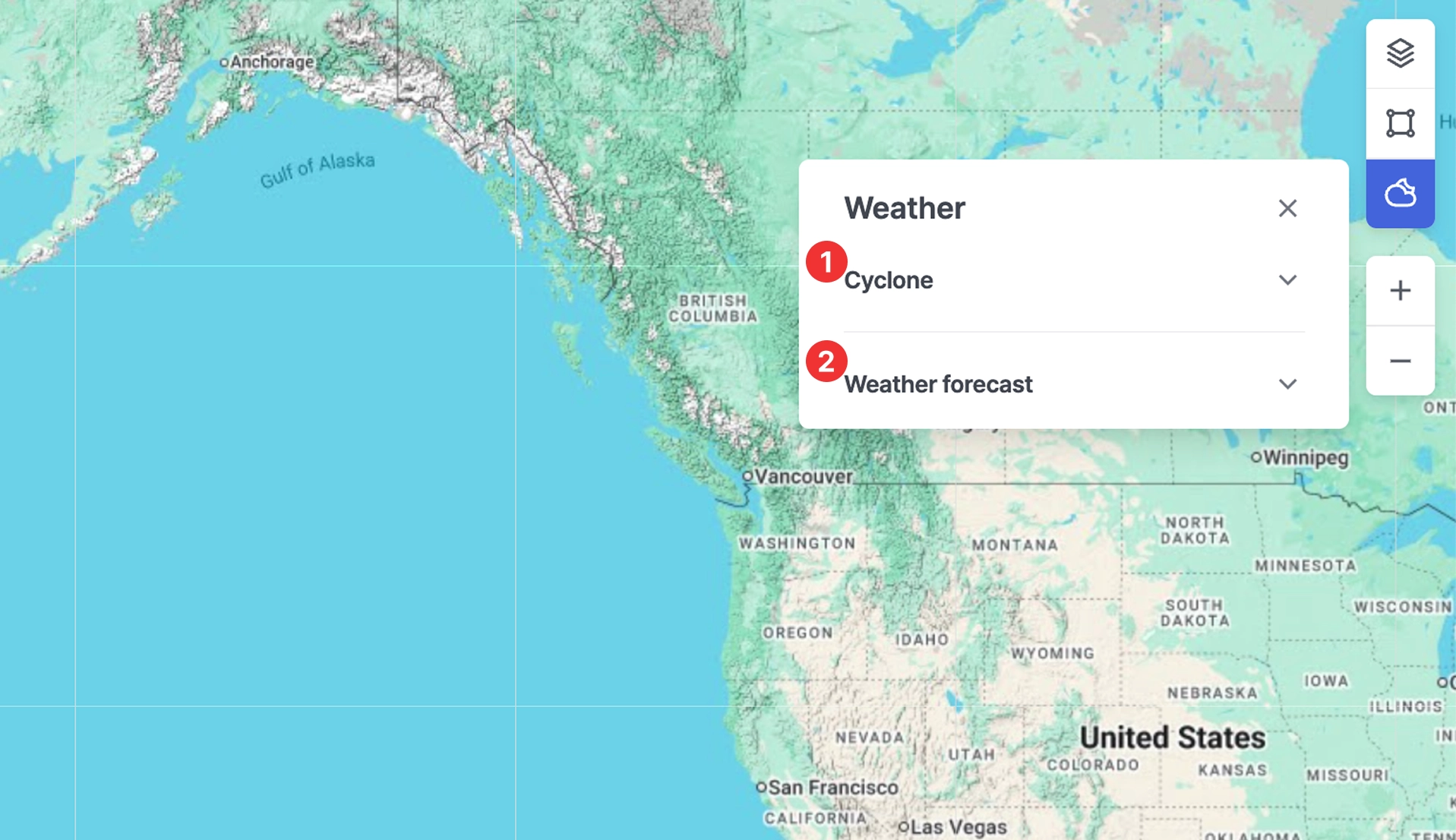
Cargo Insight > Weather
1. Cyclone
•
Displays official cyclone alerts and forecast information issued by the Joint Typhoon Warning Center (JTWC) on the map.
•
Cyclone intensity is indicated by color, allowing users to assess severity.
•
Shows a list of currently active cyclones.
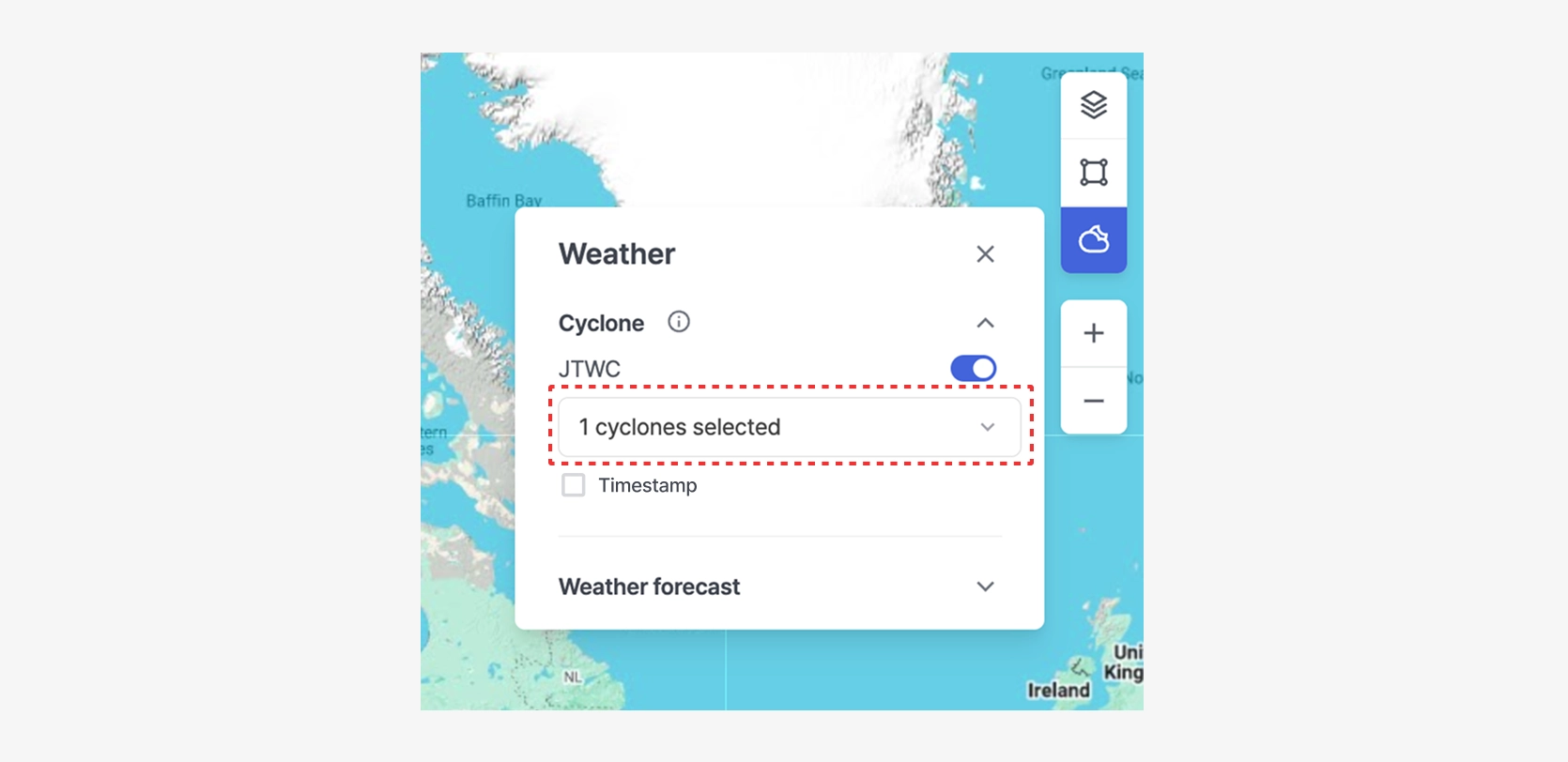
Cargo Insight > Map Area > Weather > Cyclone — View with One Cyclone Selected
•
Displays the timestamp indicating when the cyclone information was received.
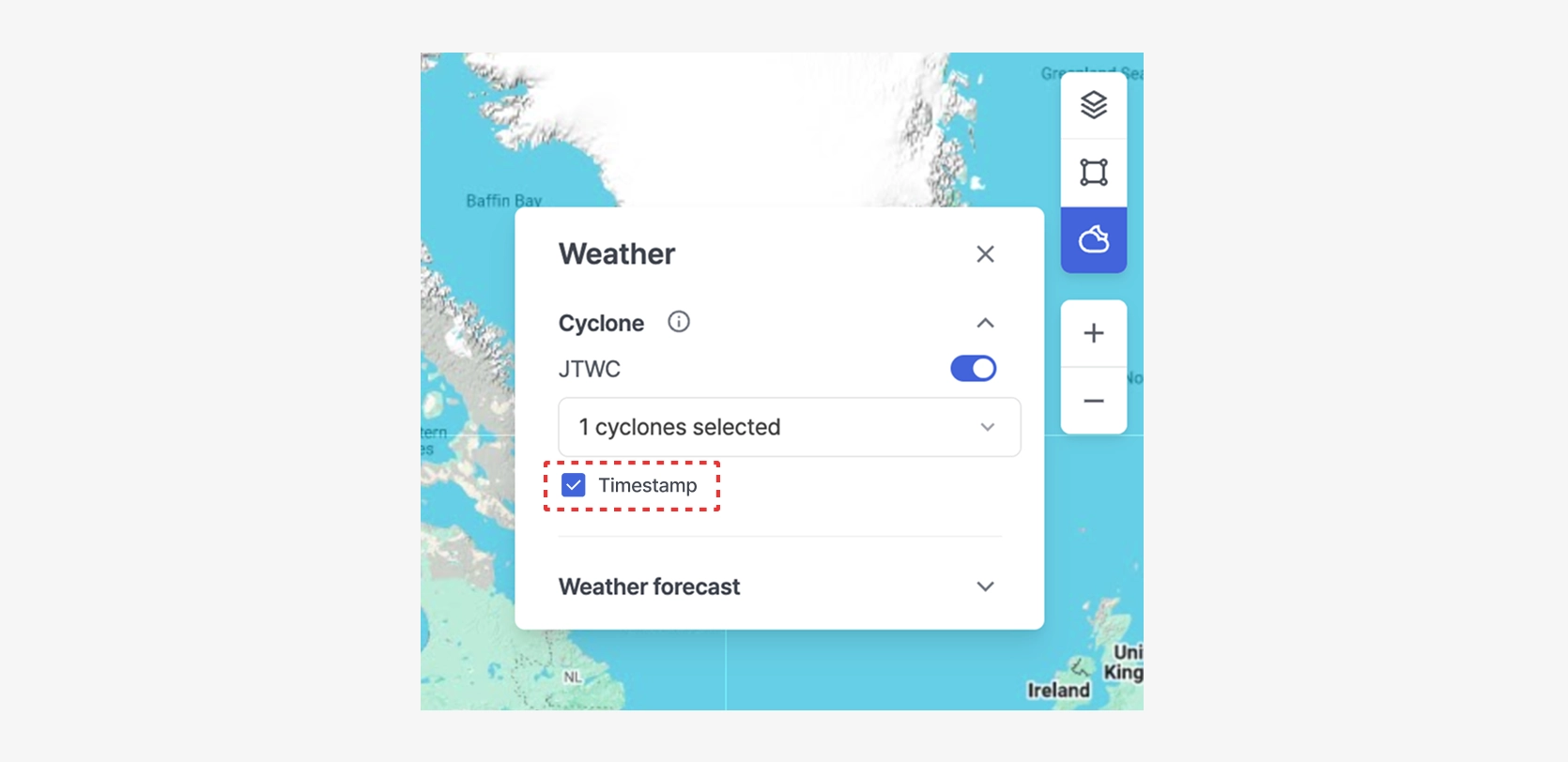
Cargo Insight > Map Area > Weather > Cyclone — View with Timestamp Displayed
2. Weather Forecast
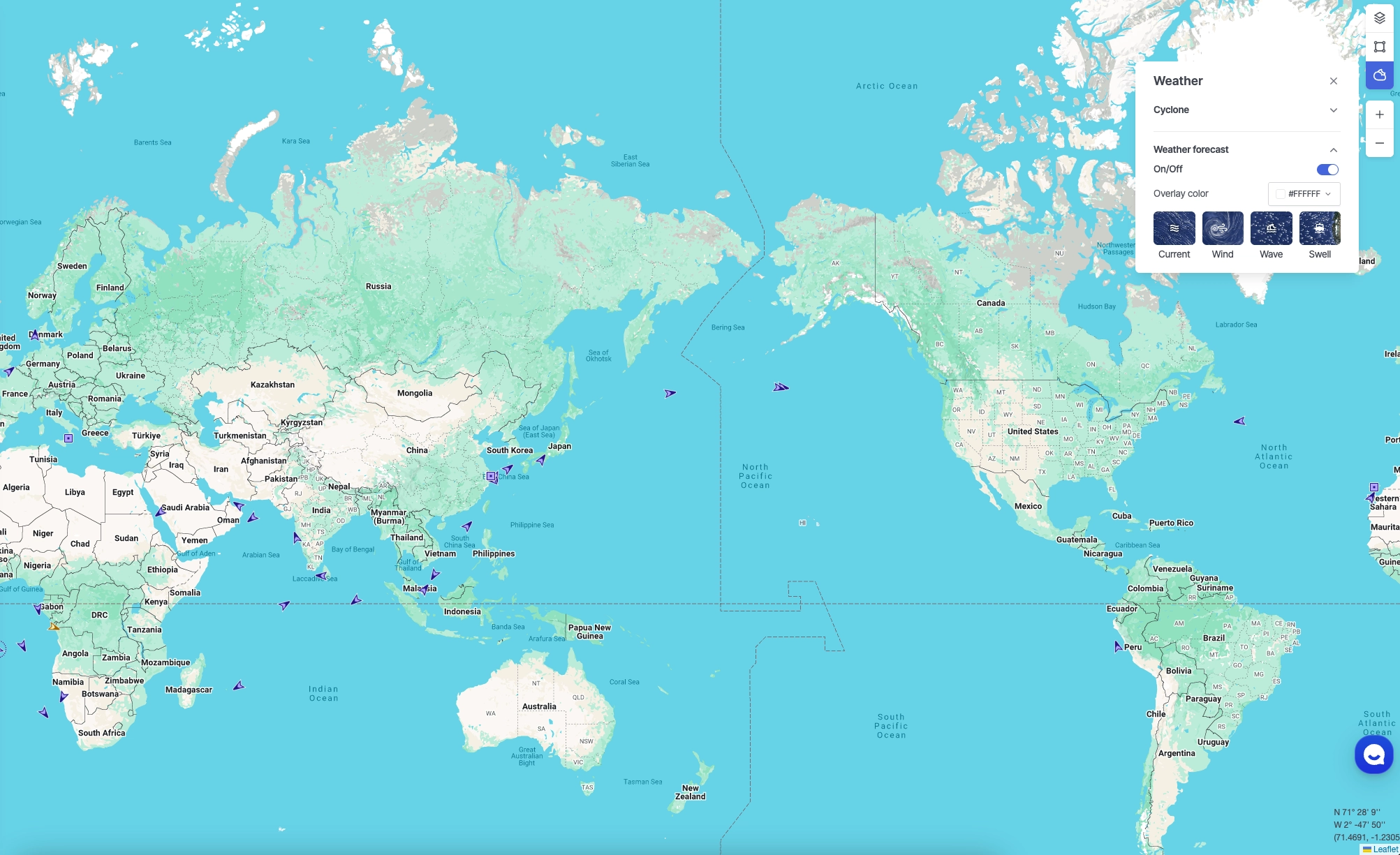
Cargo Insight > Map Area > Weather Forecast
•
Current: Displays ocean current direction and speed.
•
Wind: Displays surface wind direction and wind speed.
•
Wave: Displays wave height and wave direction.
•
Swell: Displays swell height and direction (long-period waves generated offshore).
•
You can select the color used for the animation.
•
Select a date on the timeline to view forecast information for that specific date.
•
Click the play button on the timeline to view animated changes in the forecast over time.
Note: While playback is active, changing the zoom level or performing other interactions is not available.
•
Weather forecast data is displayed at a 1° resolution by default, switches to 0.5° resolution at zoom levels 6–7, and to 0.25° resolution at zoom levels 8 and above.
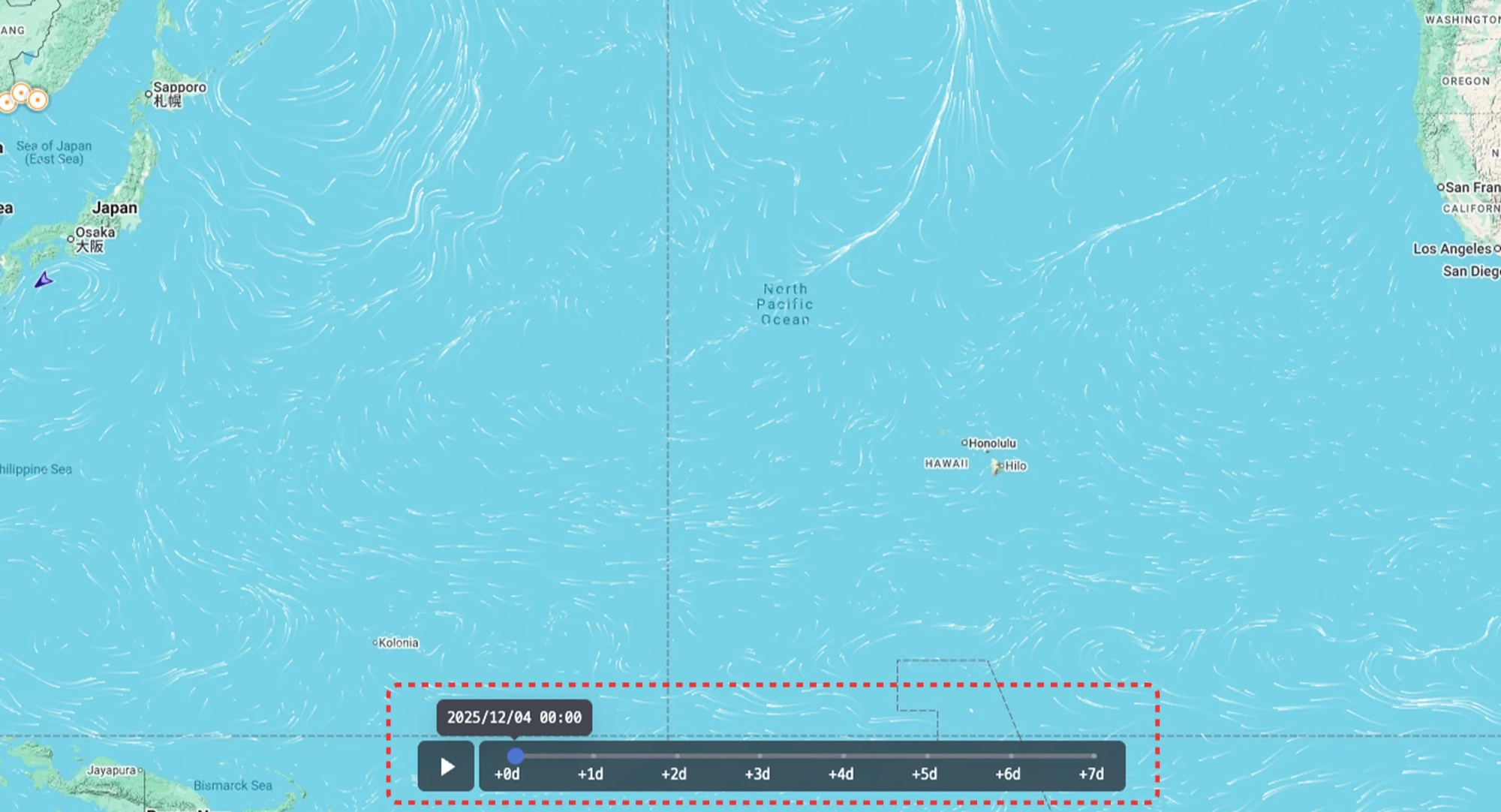
Cargo Insight > Map Area > Weather Forecast — View Enabled
Shipment Alerts & Reports
Users can receive summary reports and status change notification emails for specific shipments.
Summary Report
1.
2.
In the email body, please include the following information:
•
Account name that will receive the summary report emails
(An account created in SeaVantage Insight is required.
To receive emails, please sign up and create an account first.)
3.
The CX team will review your request and configure the alert settings.
4.
Once enabled, summary report emails are automatically sent every day at 9:00 AM (KST, GMT+9) to all active accounts within the workspace.

Note
If you do not receive the email, please check your spam folder. If you are still unable to find it, please contact cx@seavantage.com.
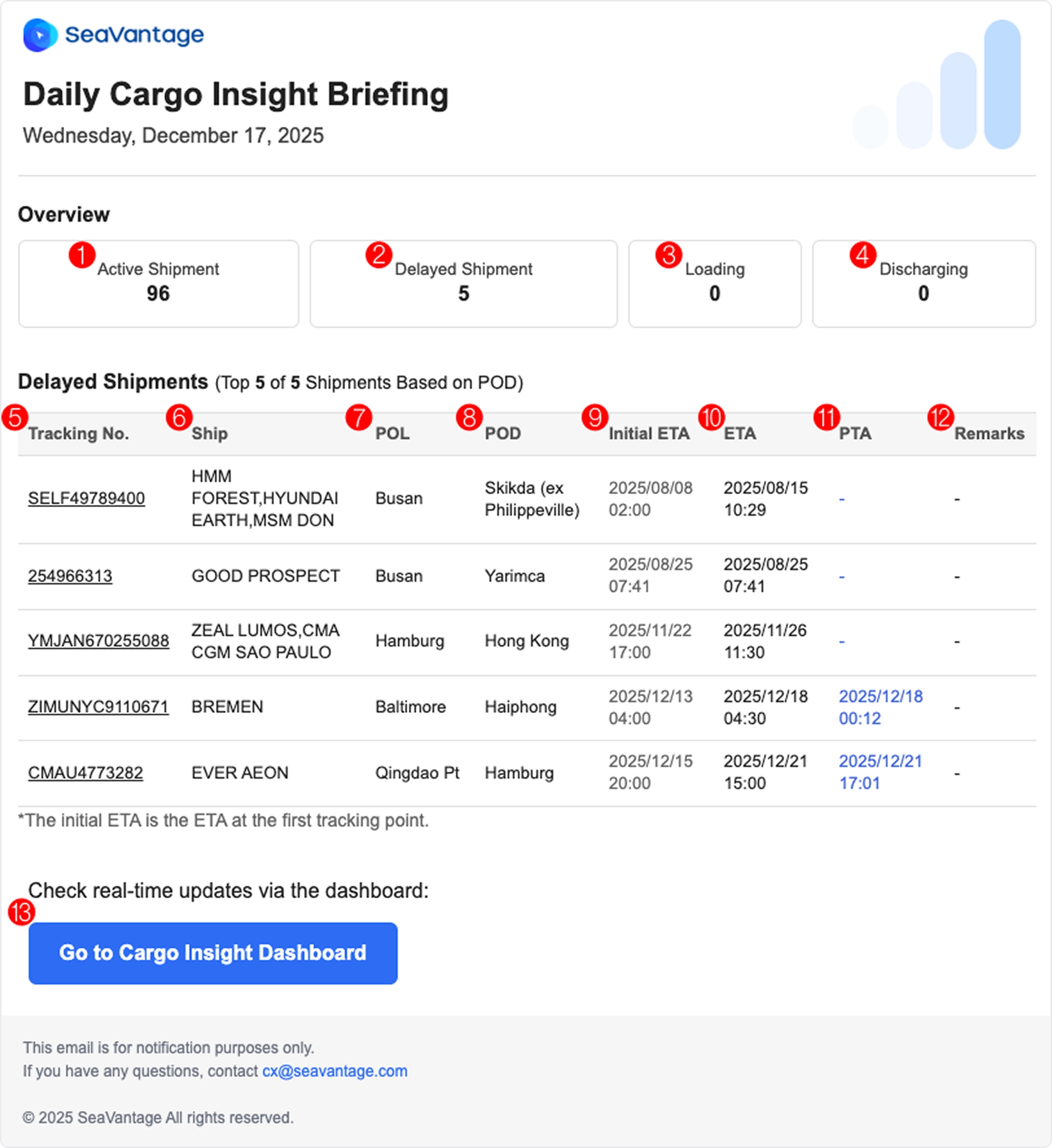
Daily Cargo Insight Briefing Email
No. | Item | Description |
1 | Active Shipment | Number of shipments currently in transit |
2 | Delayed Shipment | Number of in-transit shipments that have passed the scheduled arrival date (based on POD) |
3 | Loading | Number of shipments with a loading event occurring today |
4 | Discharging | Number of shipments with a discharging event occurring today |
5 | Tracking No. | Shipment identifier (one of M-B/L number, Booking number, or Container number) |
6 | Ship | Vessel information associated with the shipment |
7 | POL | Port of Loading (POL) |
8 | POD | Port of Discharge (POD) |
9 | Initial ETA | Initial Estimated Time of Arrival collected at the time of shipment registration |
10 | ETA | Most recently updated Estimated Time of Arrival |
11 | PTA | Predicted Time of Arrival |
12 | Remarks | Data displayed based on customer requirements |
13 | Go to Cargo Insight Dashboard | Navigate to the Cargo Insight Dashboard |
Shipment Status Alerts
1.
Go to SeaVantage Insight, sign up for an account, and log in.
2.
Register the shipment for which you would like to receive alerts.
•
For detailed instructions, refer to the Shipment Registration Guide.
3.
Click the bell ( ) icon (Alerts) for the registered shipment to open a pop-up window. In the pop-up, you can view and configure the following:
) icon (Alerts) for the registered shipment to open a pop-up window. In the pop-up, you can view and configure the following: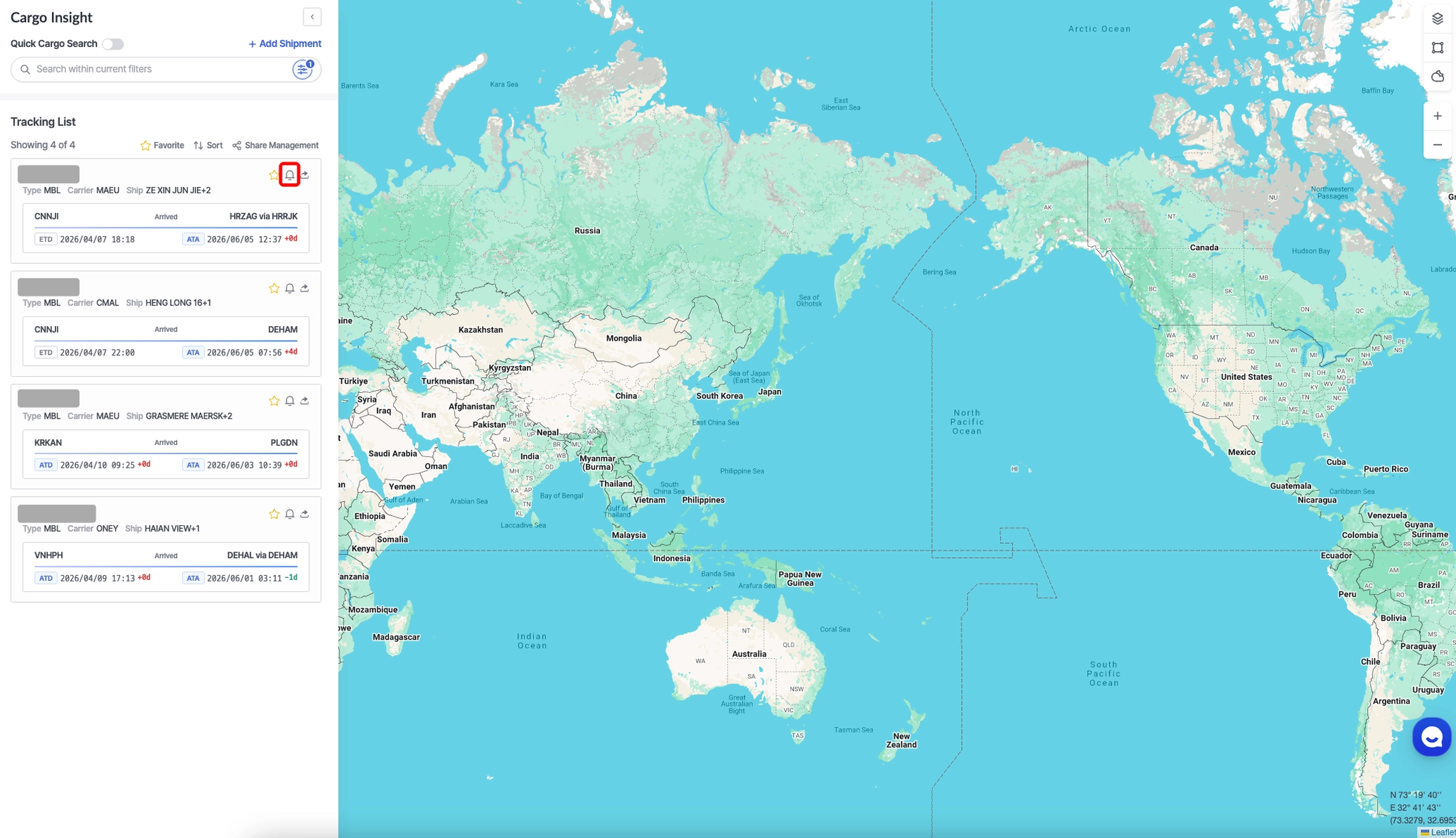
Cargo Insight > Click the shipment bell icon
•
Cargo : Shipment identifier
•
Available Slot : Number of remaining recipient slots for alert emails (up to 2 accounts per shipment)
•
Click the [Get Alerts] button to automatically receive email notifications when the shipment status changes.
4.
Alert emails are sent automatically whenever the shipment status changes:
•
When the shipment departs from POL (Port of Receipt)
•
When the shipment arrives at TSD (Transshipment Discharging)
•
When the shipment departs from TSL (Transshipment Loading)
•
When the shipment arrives at POD (Port of Discharging)
Note
If you do not receive the email, please check your spam folder.
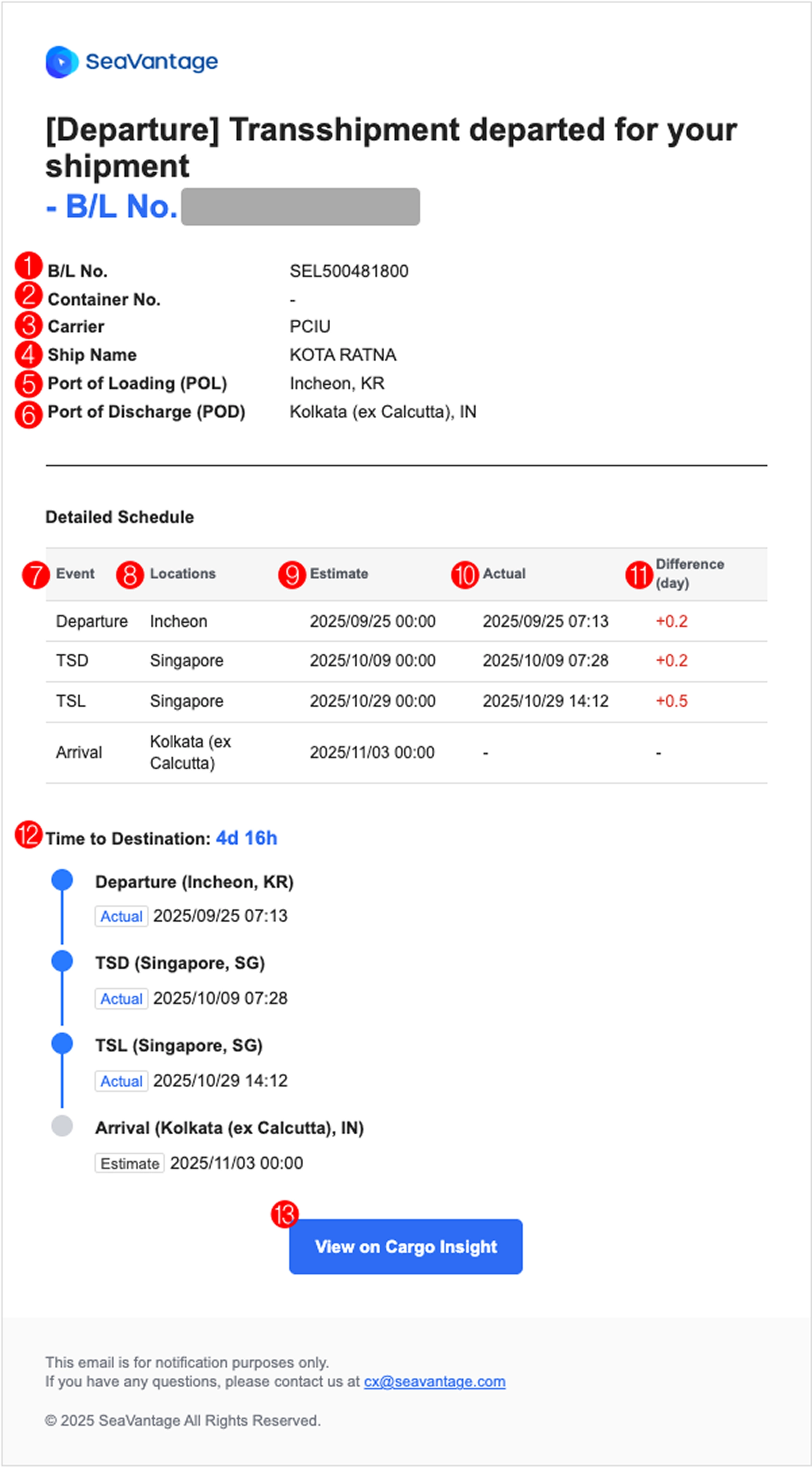
My Shipment Status Alert Email
No. | Item | Description |
1 | B/L No. | Master B/L number |
2 | Container No. | Container number |
3 | Carrier | Carrier code |
4 | Ship Name | Vessel information for the shipment |
5 | Port of Loading (POL) | Port of Loading |
6 | Port of Discharge (POD) | Port of Discharge |
7 | Event | - Departure: Departure from POL
- TSD: Arrival at transshipment port (Discharging)
- TSL: Departure from transshipment port (Loading)
- Arrival: Arrival at POD |
8 | Locations | Port name |
9 | Estimate | - If Event is Departure: Estimated departure date
- If Event is TSD: Estimated arrival date
- If Event is TSL: Estimated departure date
- If Event is Arrival: Estimated arrival date |
10 | Actual | - If Event is Departure: Actual departure date
- If Event is TSD: Actual arrival date
- If Event is TSL: Actual departure date
- If Event is Arrival: Actual arrival date |
11 | Difference (day) | Schedule difference (in days) between the time of shipment registration and the current schedule |
12 | Time to Destination | Remaining days until arrival or number of delayed days |
13 | View on Cargo Insight | Link to the Cargo Insight Dashboard |
Shipment Information Sharing
You can easily share a specific shipment detail view, allowing recipients to view real-time shipment information without logging in.
Single
1.
Click the [Share Shipment] button from the Tracking List or the Shipment Detail View.
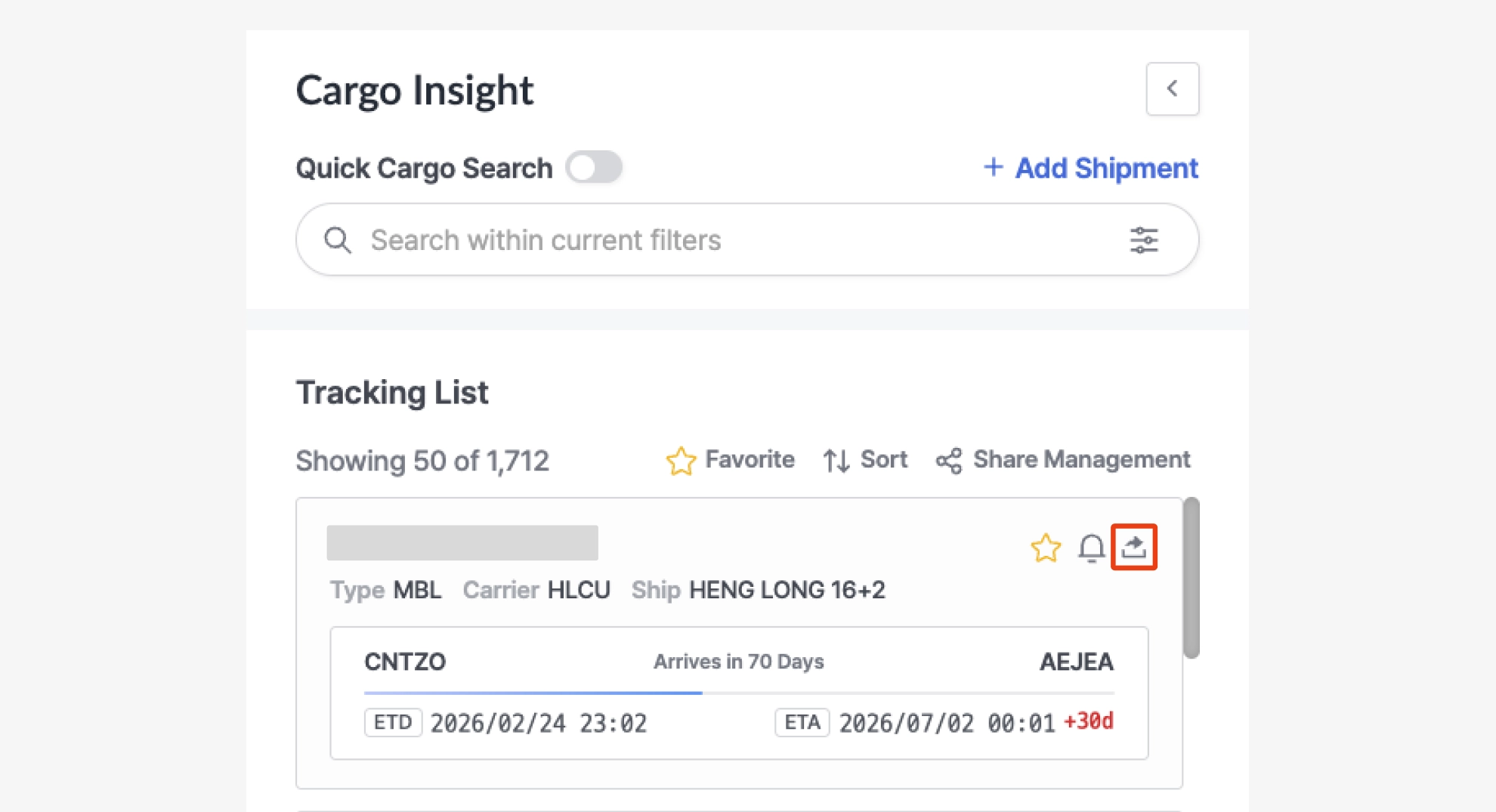
Cargo Insight > Tracking List > Share Icon
2.
The Share Shipment modal will be displayed.
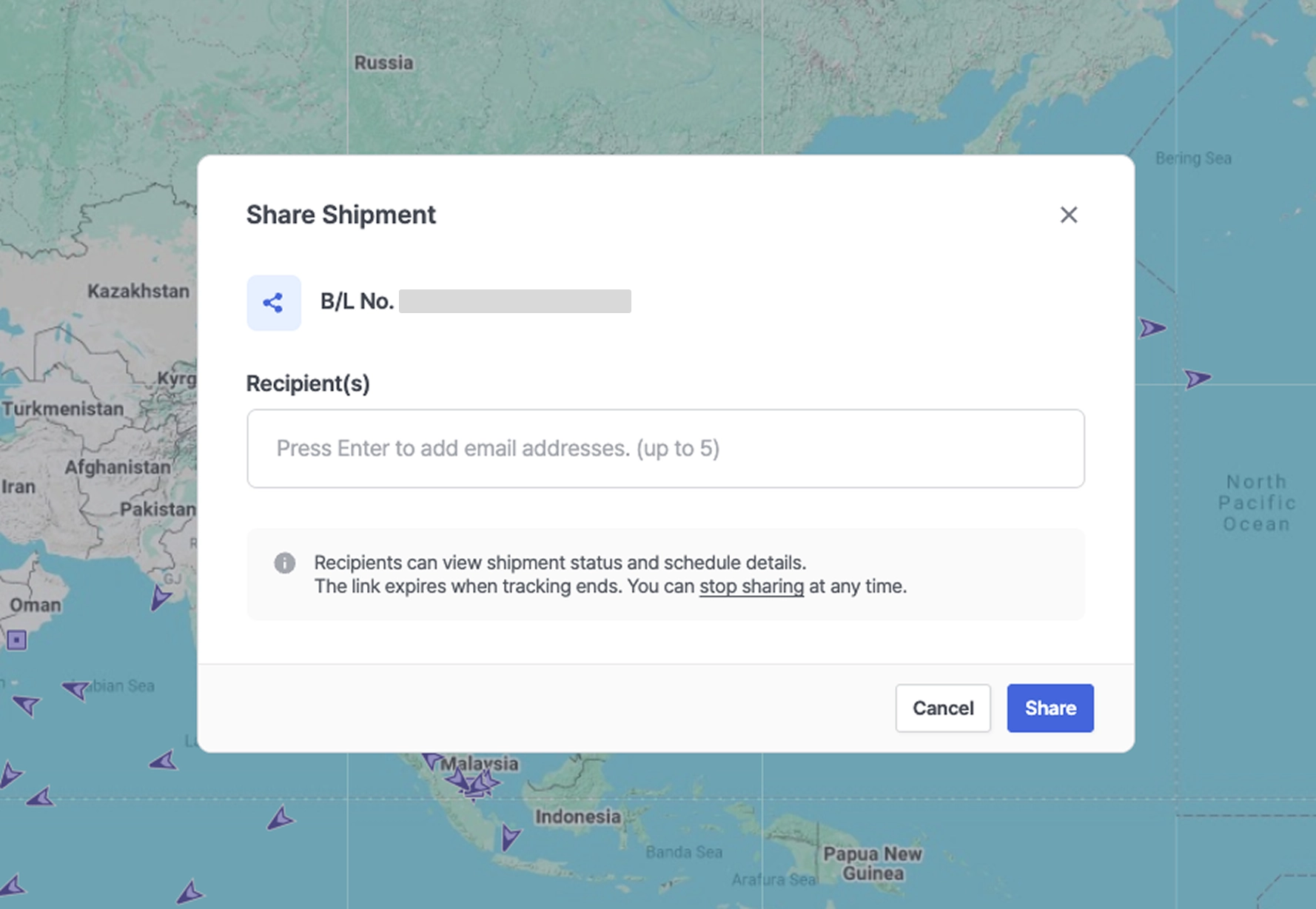
Cargo Insight > Tracking List > Share Shipment
3.
Enter the recipient’s email address. You can add up to 5 email addresses when generating a shared link.
4.
After entering the email(s), click the [Share] button.
5.
A shared link will be sent to the entered email address(es).
Multiple
1.
Click the [Share Management] button in the Tracking List.
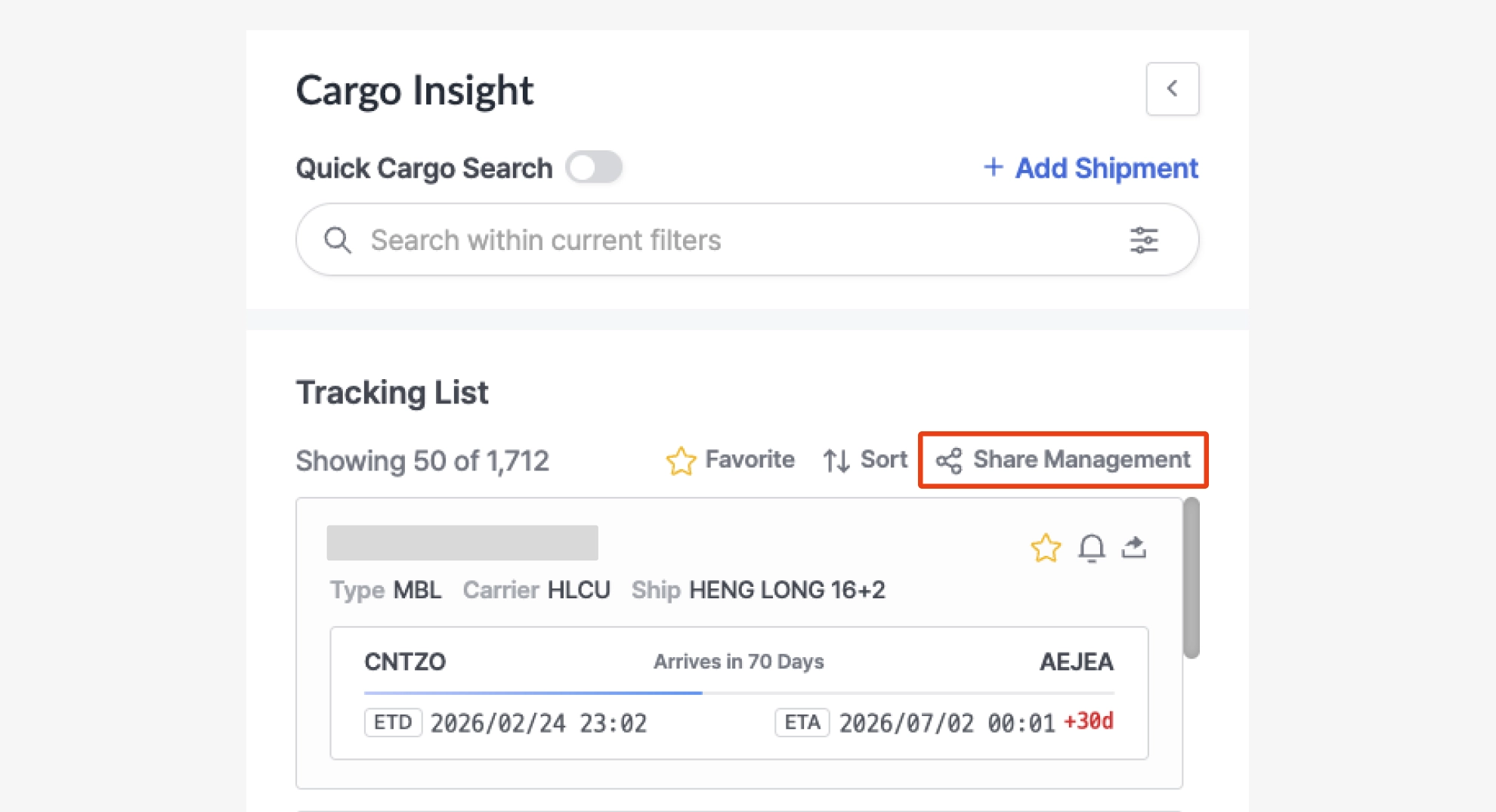
Cargo Insight > Tracking List > Share Management Button
2.
In the Share Management screen, select the checkbox for the shipment(s) you want to share.
•
Click the [Manage] button at the bottom to view and manage the selected shipment(s).
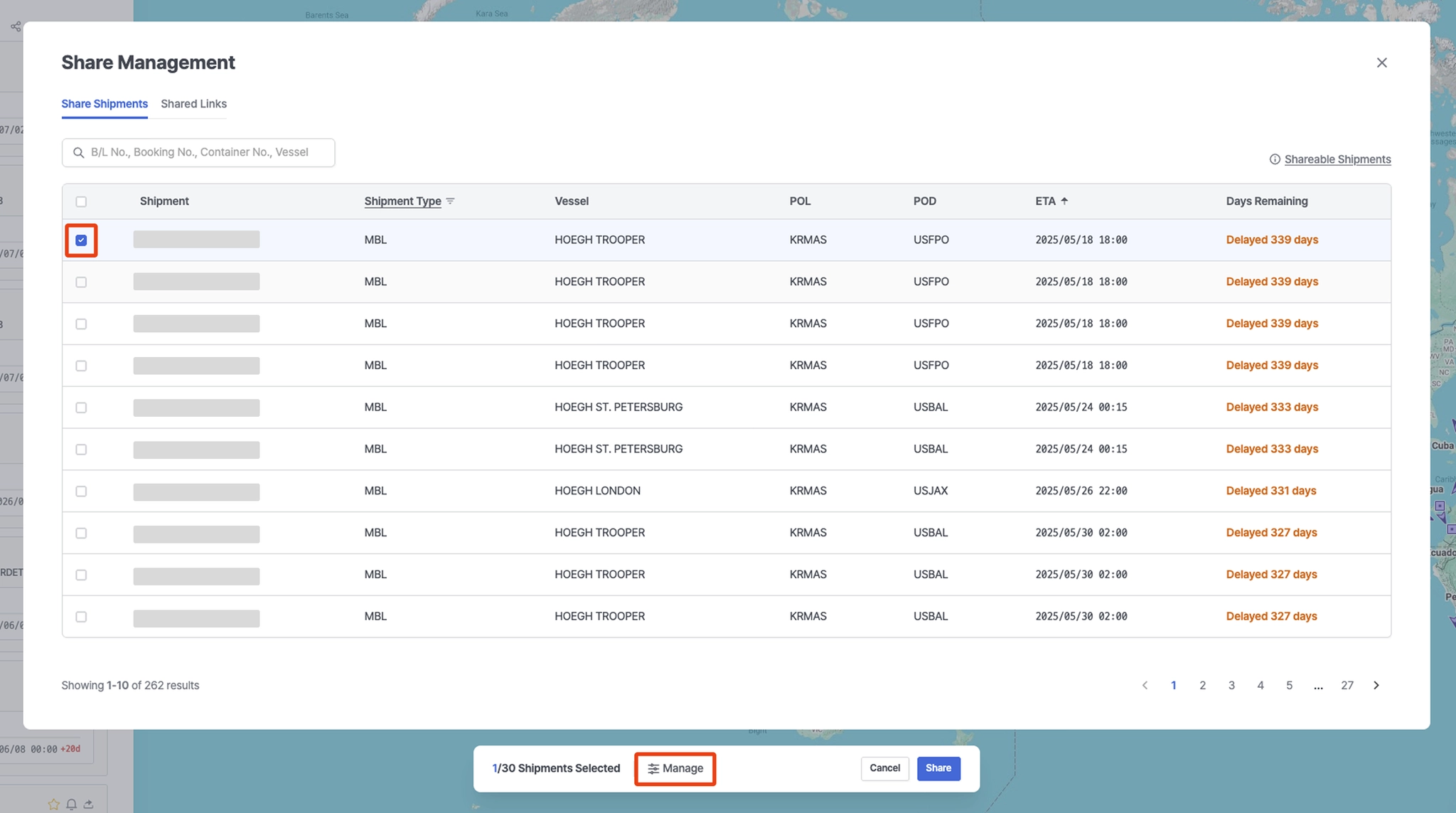
Cargo Insight > Share Management
3.
Click the [Share] button at the bottom.
4.
The Share Shipment modal will be displayed.
5.
Enter the recipient’s email address. You can add up to 5 email addresses.
6.
After entering the email(s), click the [Share] button.
7.
A shared link will be sent to the entered email address(es).
Shared Links (Admin User View)
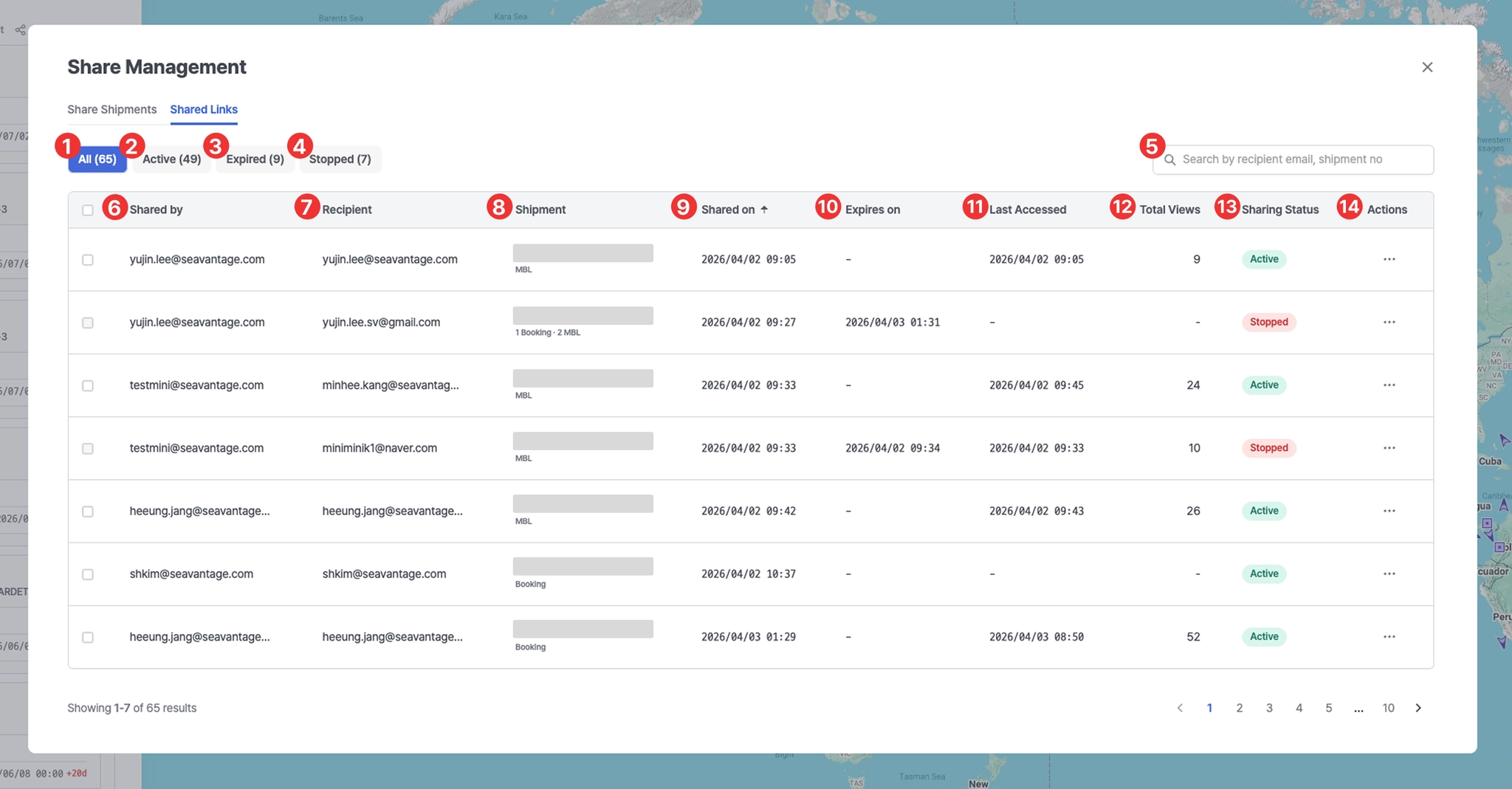
Cargo Insight > Share Management (Admin User View)
No. | Description |
1 | View all shared links |
2 | View active shared links |
3 | View expired shared links |
4 | View links with sharing stopped |
5 | Search by recipient email or shipment number |
6 | User who shared the link |
7 | User who received the link |
8 | Shipment number (M-B/L No., Booking No., or Container No.) |
9 | Shared link creation date |
10 | Link expiration date
- Automatically expires 45 days after POD ATA |
11 | Last access date |
12 | Number of link views |
13 | Shared link status |
14 | Link settings
- View activity log : View link access logs
- Stop sharing : Disable link sharing (multiple selection supported) |
Shared Links (User View)
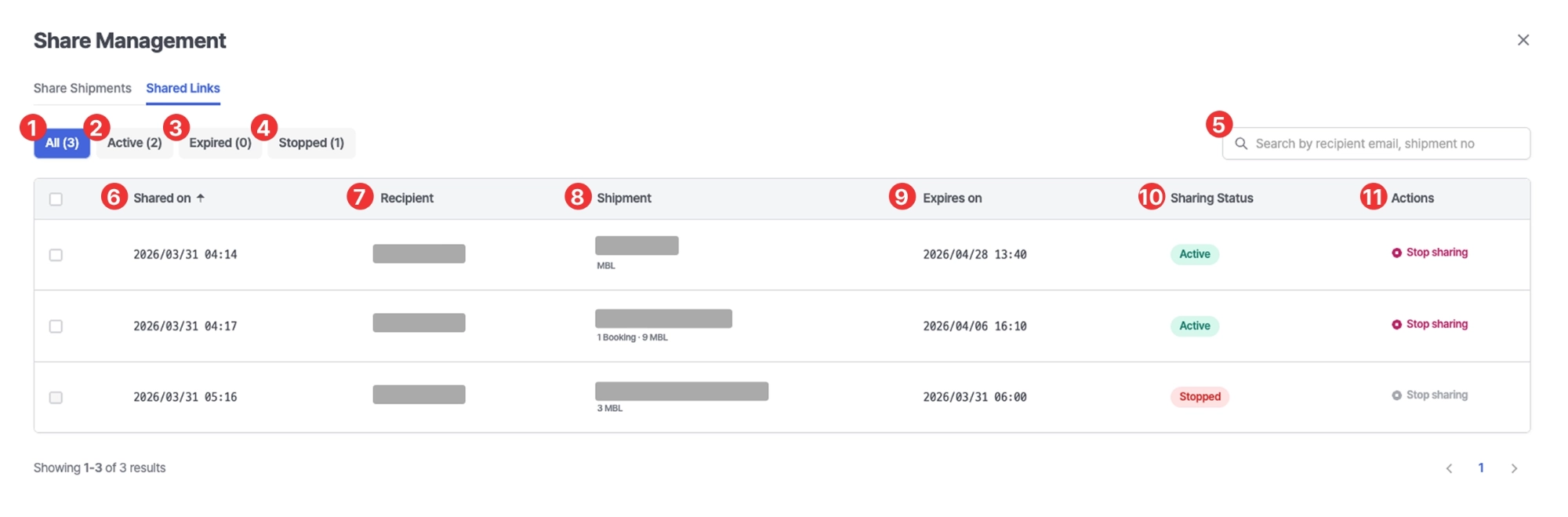
Cargo Insight > Share Management (User View)
No. | Description |
1 | View all shared links |
2 | View active shared links |
3 | View expired shared links |
4 | View links with sharing stopped |
5 | Search by recipient email or shipment number |
6 | Shared link creation date |
7 | User who received the link |
8 | Shipment number (M-B/L No., Booking No., or Container No.) |
9 | Link expiration date
- Automatically expires 45 days after POD ATA |
10 | Shared link status |
11 | Link settings
- Stop sharing : Disable link sharing (multiple selection supported) |
