



Ship Insight is a real-time vessel intelligence and monitoring solution that enables users to track vessel movements and monitor global vessel operations using AIS-based data.
Access vessel information, real-time vessel positions, operating status, port call history, past track data, PTA/PTB route analysis, and map-based vessel monitoring throughout a vessel's voyage.
Vessel Registration and Search
Users can register vessels for monitoring and quickly search for specific vessels using vessel name, IMO, or MMSI information.
1. Search for a Vessel
Enter the vessel name, IMO, or MMSI in the search bar to find the vessel you wish to view.
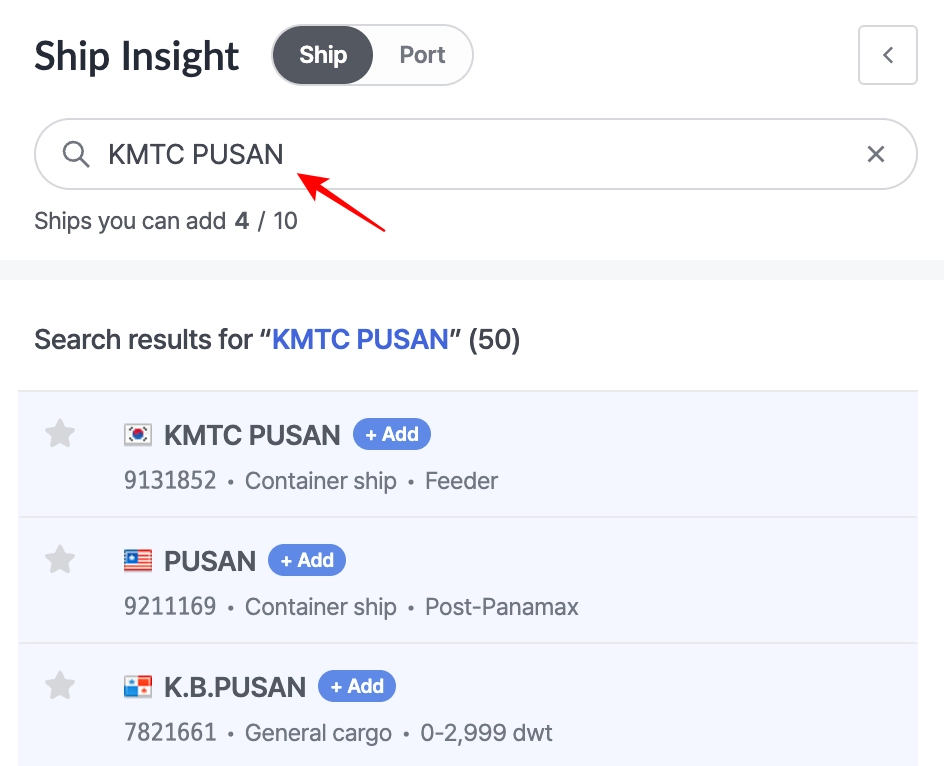
Ship Insight > Ship Search
2. Register a Vessel
Click the Add button next to the desired vessel in the search results to register it.
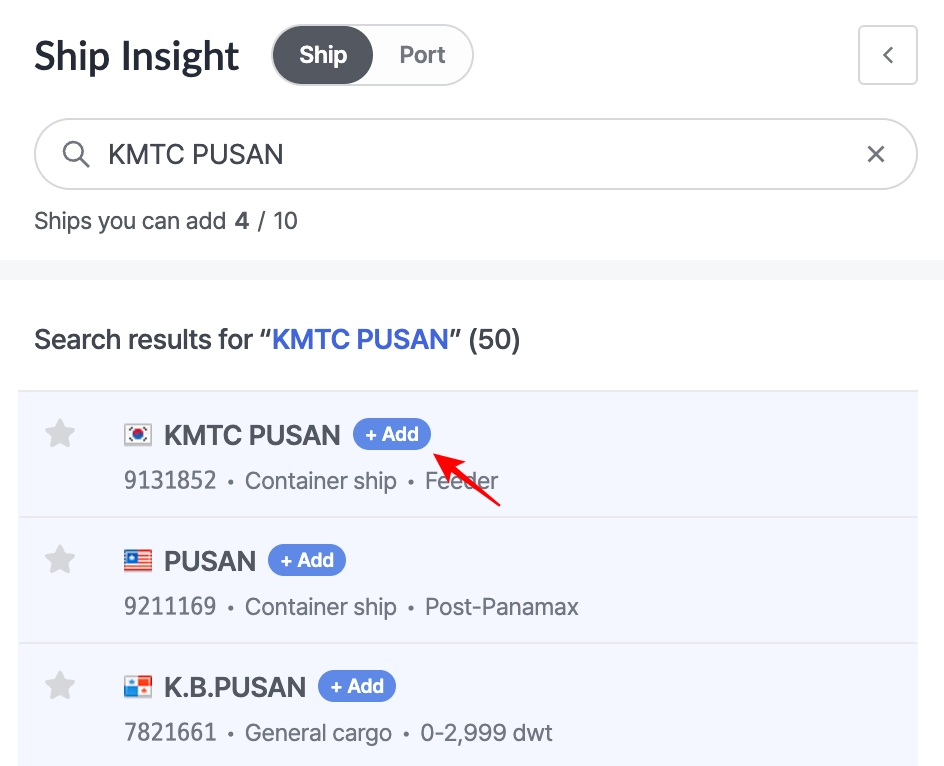
Ship Insight > Ship search > + Add Button
3. View Vessel Location and Details
After registering a vessel, you can view its location and detailed information. If a vessel has already been registered, the Add button won’t appear, and you can simply click the vessel name to view its details.
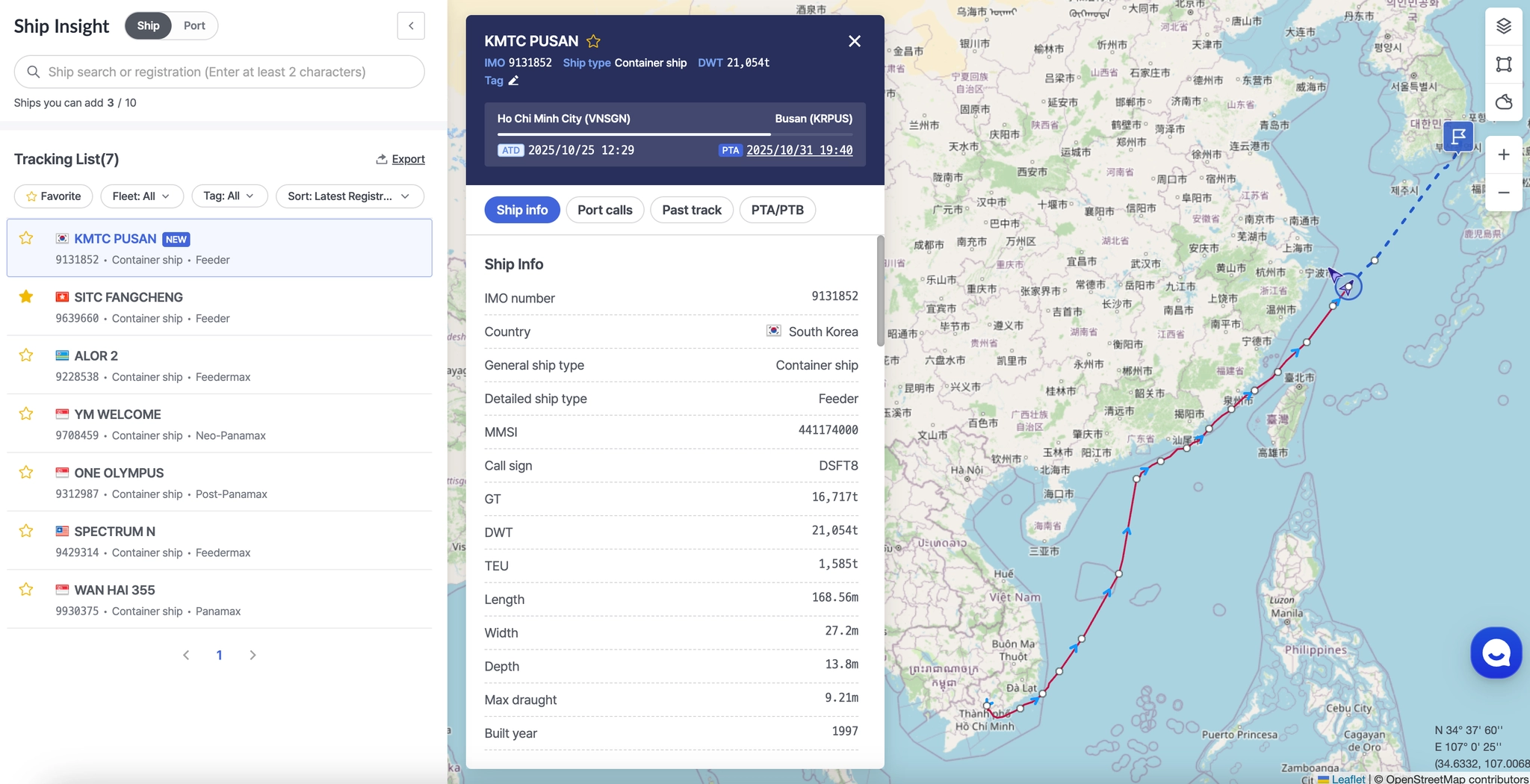
Ship Insight > Tracking List > Vessel Position and Detailed Information
Tracking List Controls
Users can filter, sort, and manage the registered vessel list using features such as Favorites, Tags, and Export.
Favorite
1. Adding or Removing Favorites
•
To easily monitor vessels you frequently track, click the star icon to the left of the vessel name to add or remove it from your favorites.
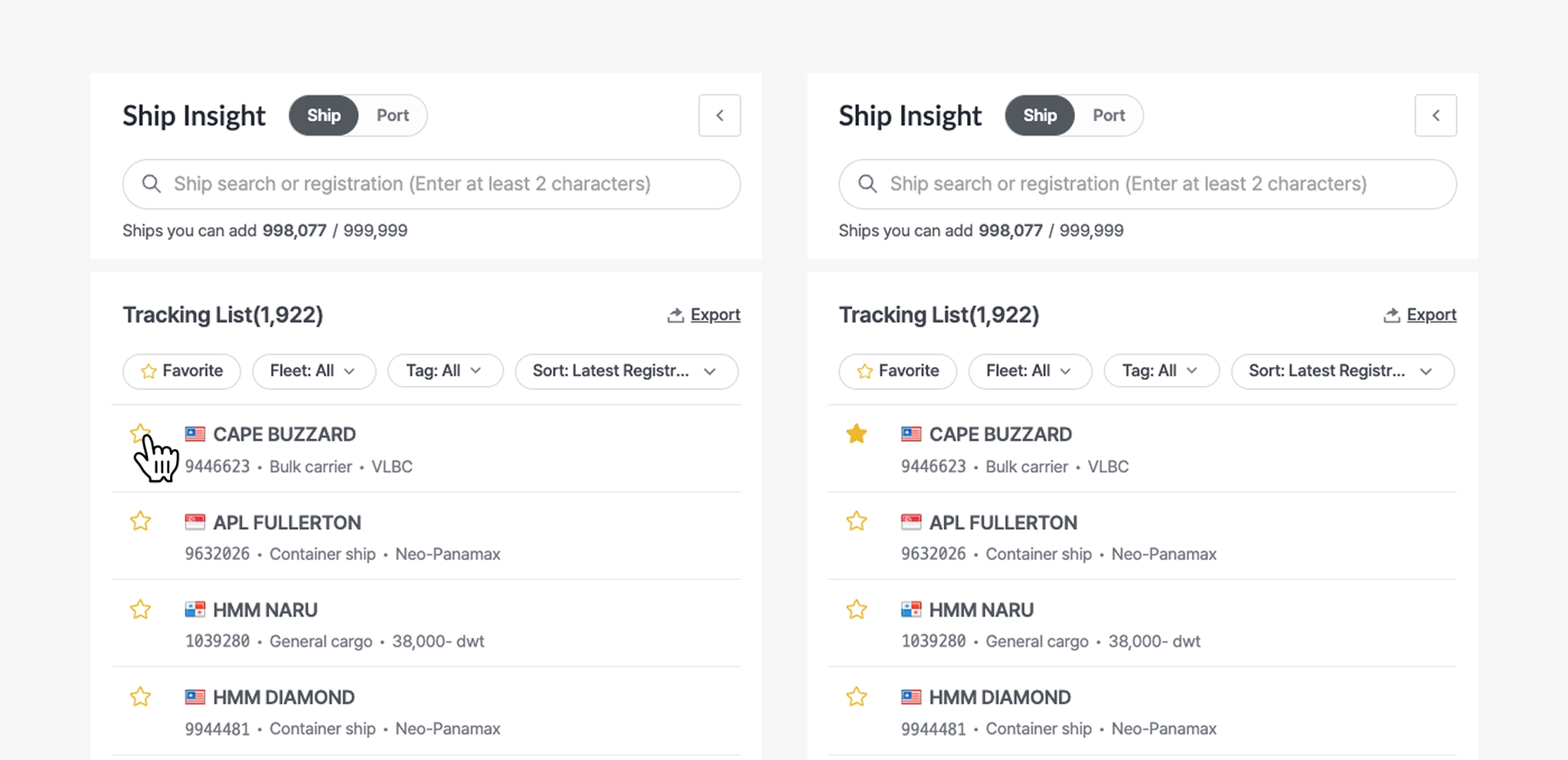
Ship Insight > Tracking List > Add to Favorites
2. Viewing Favorite Vessels
•
By clicking the Favorite button, you can filter the list to display only the vessels marked as favorites.
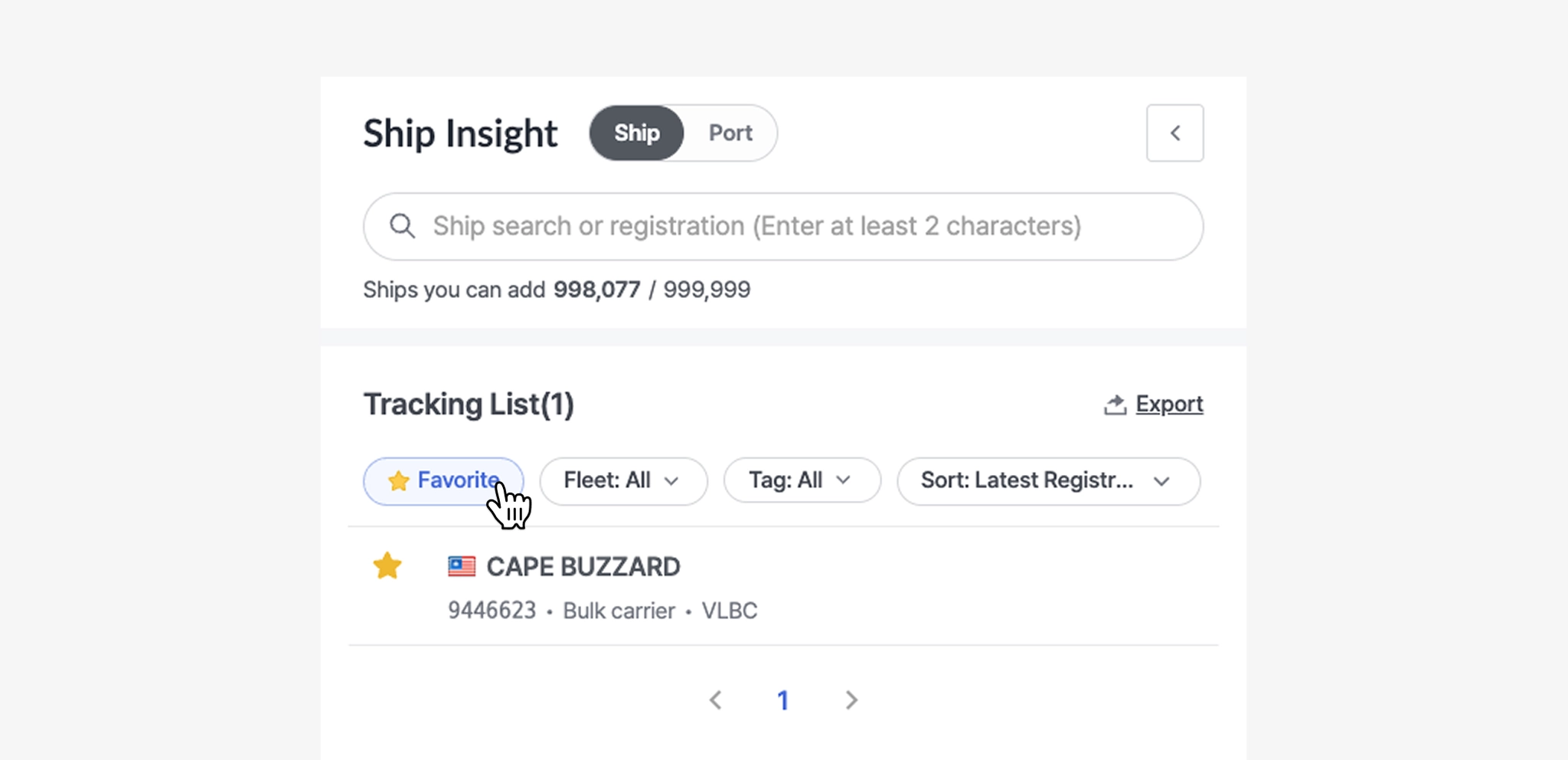
Fleet
•
Fleet is a feature that allows you to group vessels based on your operational purpose.
•
This is a workspace-level shared filter, meaning all users within the same workspace can use the same fleet groups.
•
Fleet registration and configuration can be managed in Admin > Ship Management within the workspace.
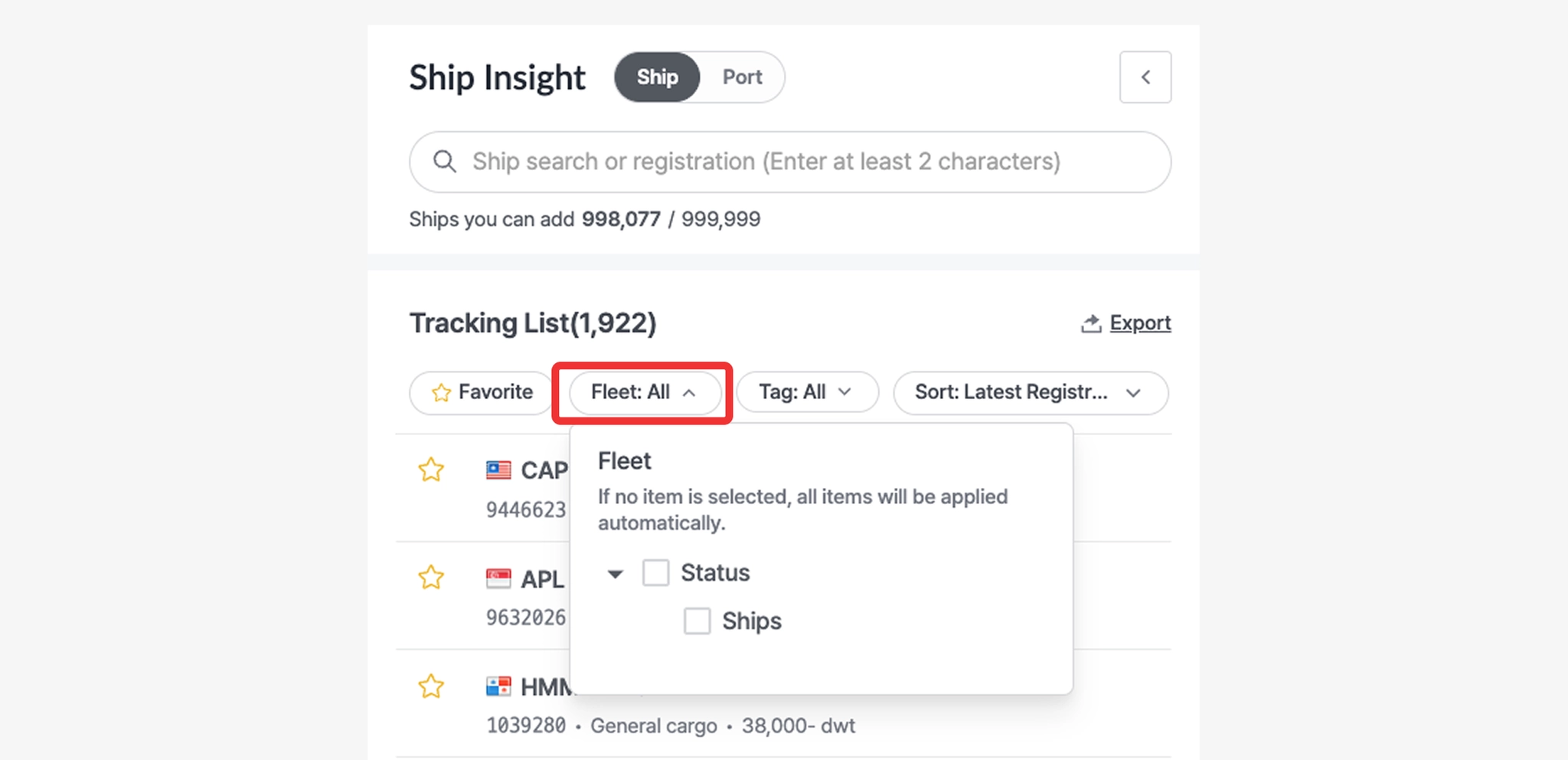
Ship Insight > Tracking List > Fleet Filter
Tag
1. Adding Tags
•
In the vessel popup, click the tag icon.
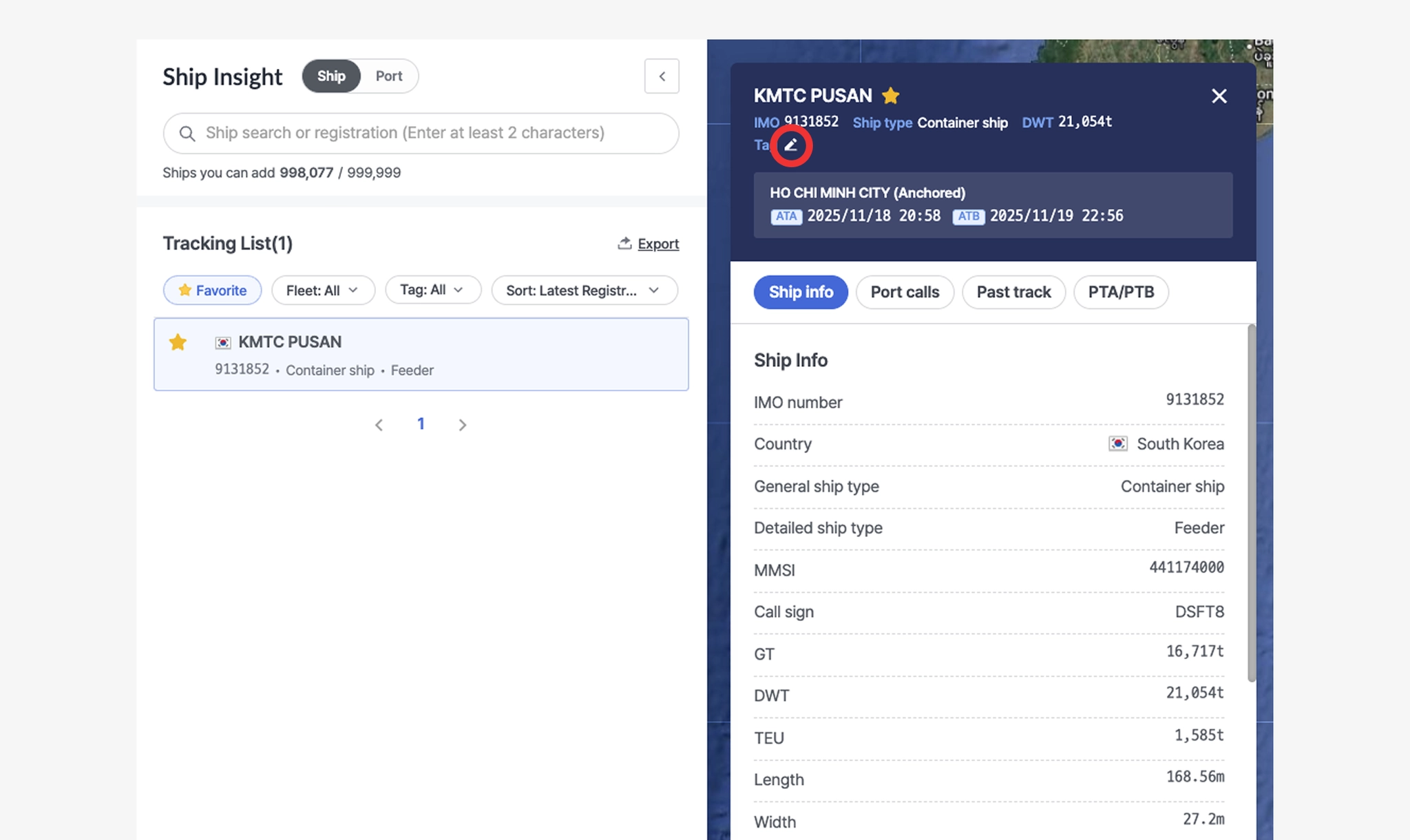
Ship Insight > Tracking List > Vessel Tag Settings
•
When the tag settings pop-up opens, enter the desired tag name in the input field and press Enter. A new tag will be created and applied to the selected vessel.
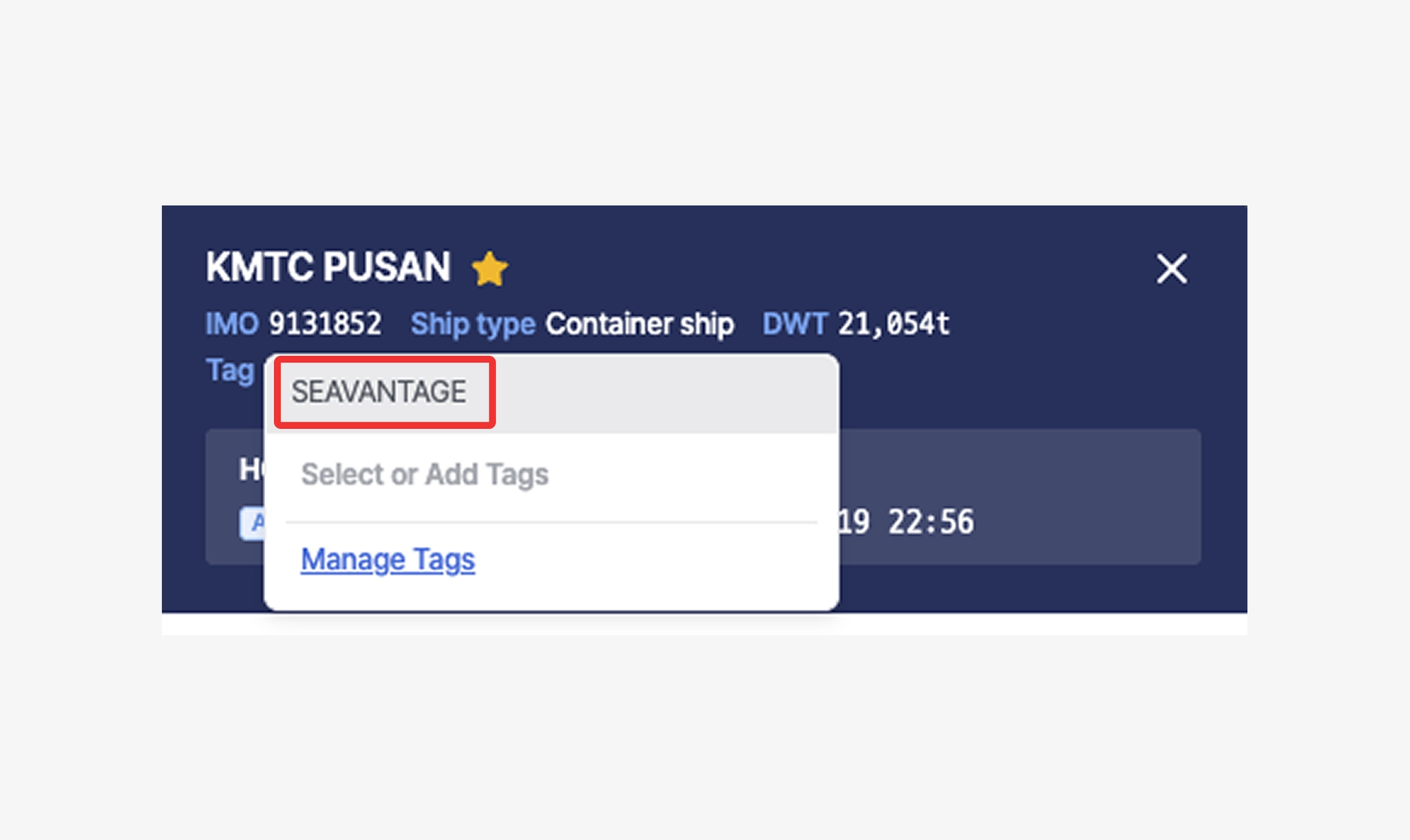
Ship Insight > Vessel Details > Add Vessel Tag
•
To apply an existing tag, simply click one of the tags displayed below the input field.
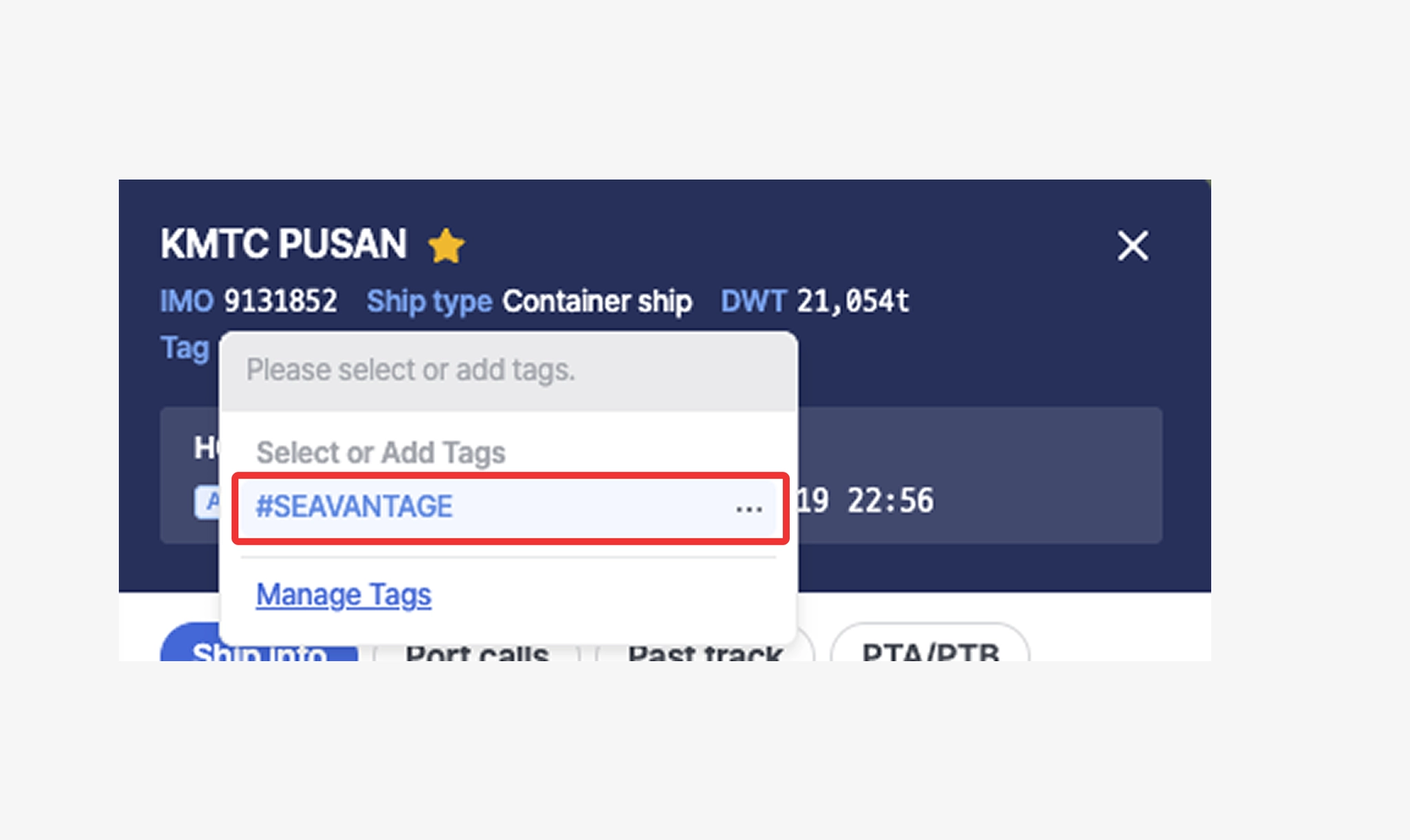
Ship Insight > Vessel Details > Select Vessel Tag
2. Editing and Deleting Tags
•
Click the ellipsis icon (⋯) next to the tag name to edit it.
When edited, the updated name will be applied to all vessels that use the same tag.
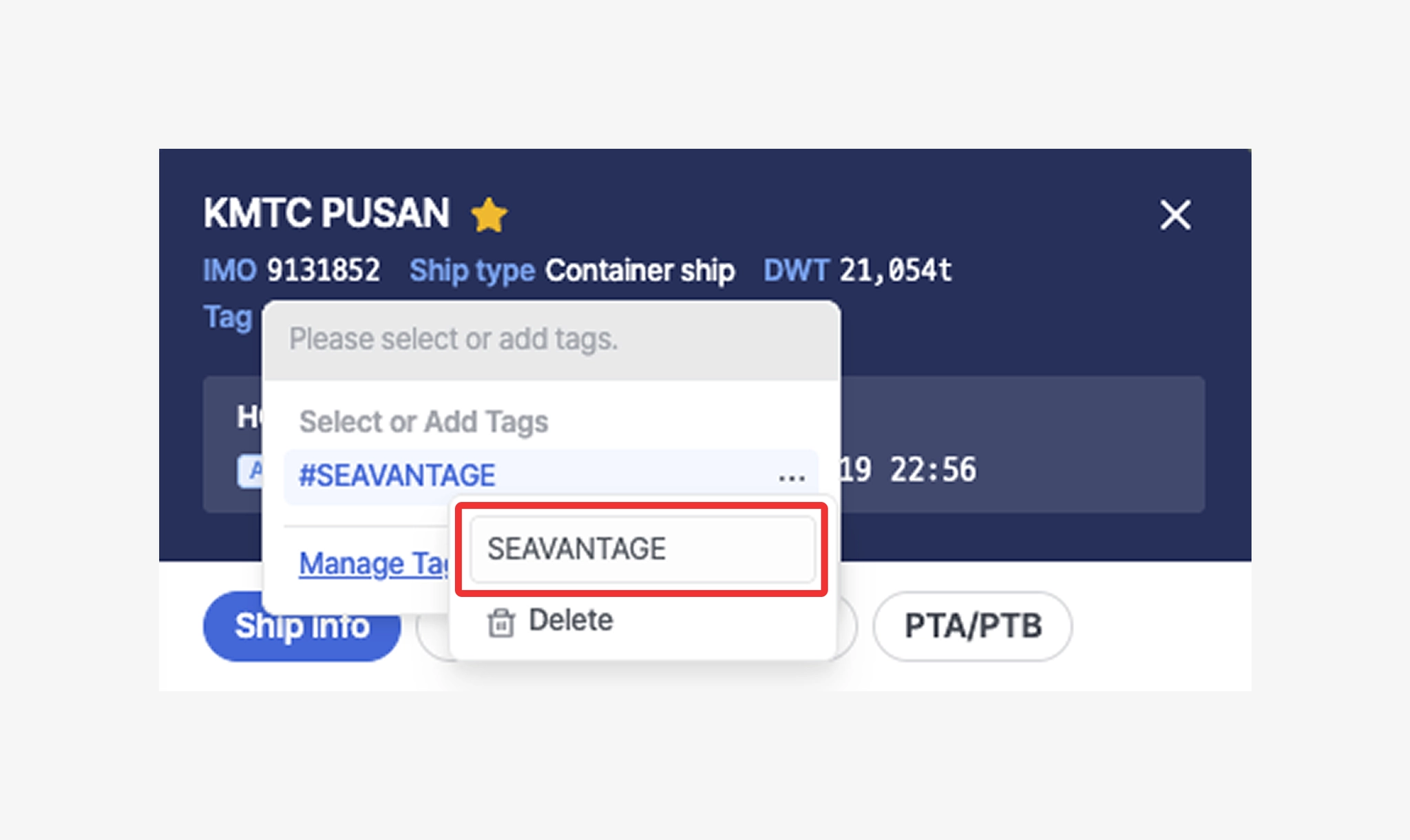
Ship Insight > Vessel Details > Delete Vessel Tag
•
Click the trash icon to delete the tag.
Once deleted, the tag will be removed from all vessels where it was applied.
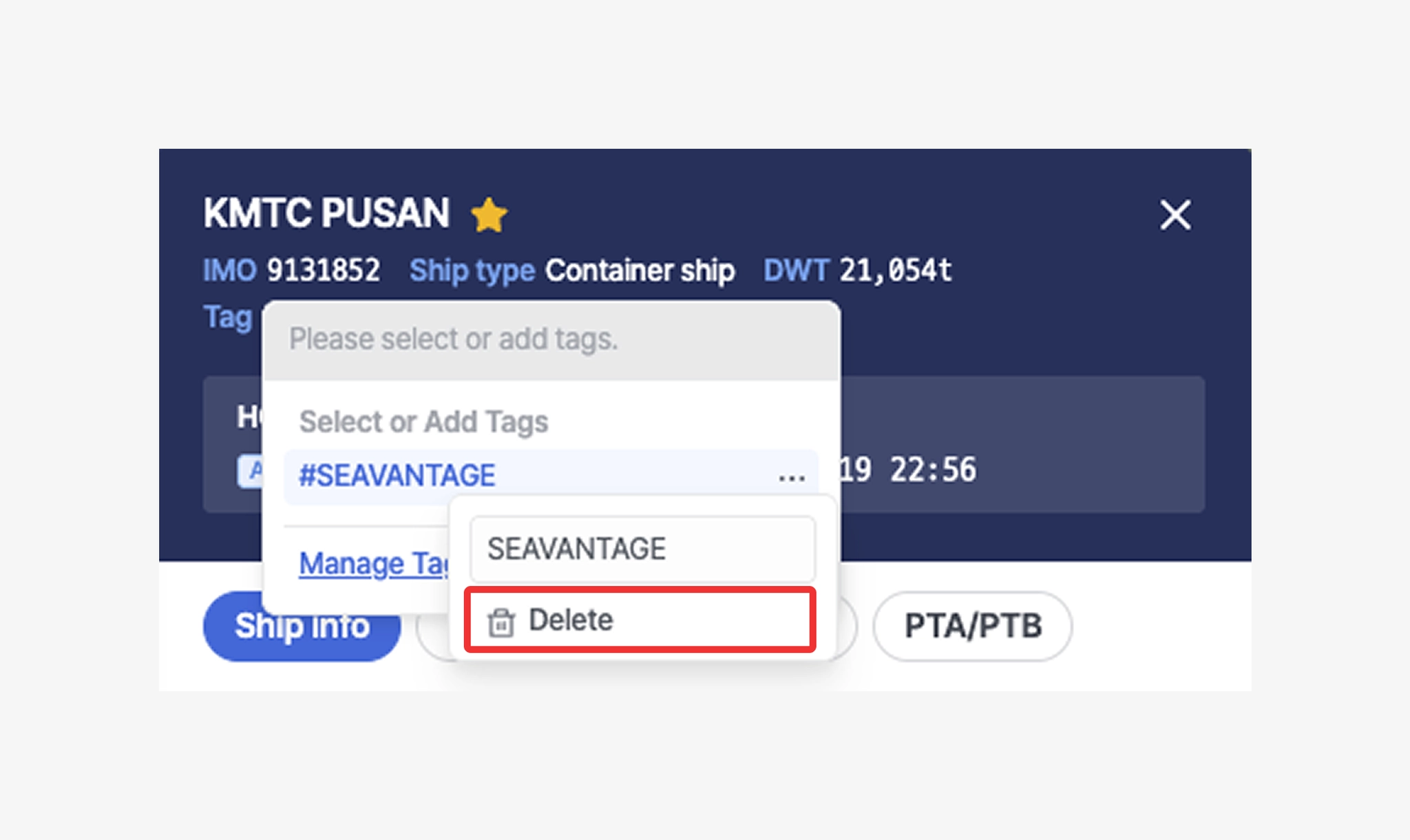
Ship Insight > Vessel Details > Delete Vessel Tag
3. Tag Management Page
•
Click Manage Tags below the input field to view a list of vessels associated with each tag.
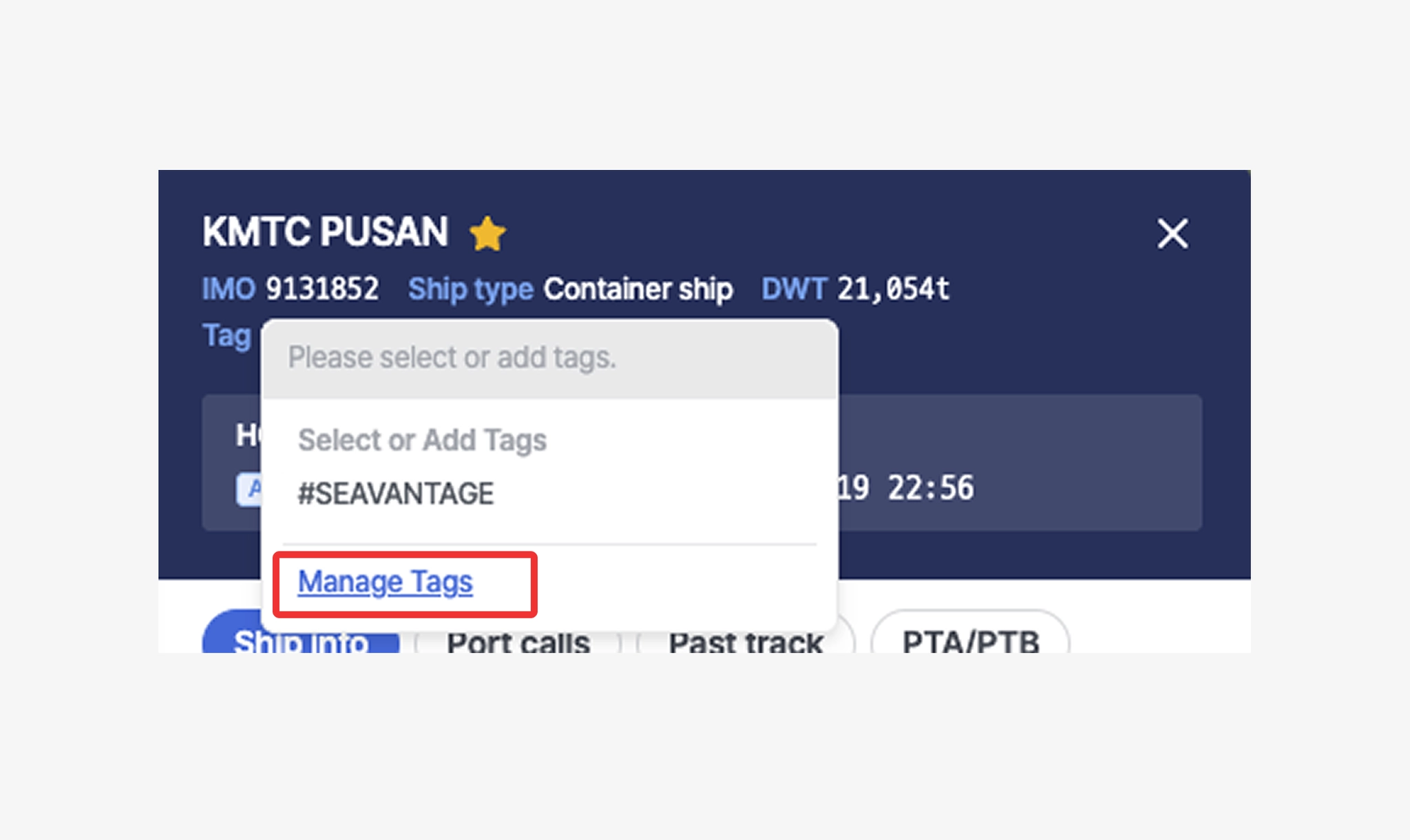
Ship Insight > Vessel Details > Manage Vessel Tags
•
When entering the management page, if no tags exist, all registered vessels will be displayed.
If at least one tag exists, only vessels with applied tags will be shown.
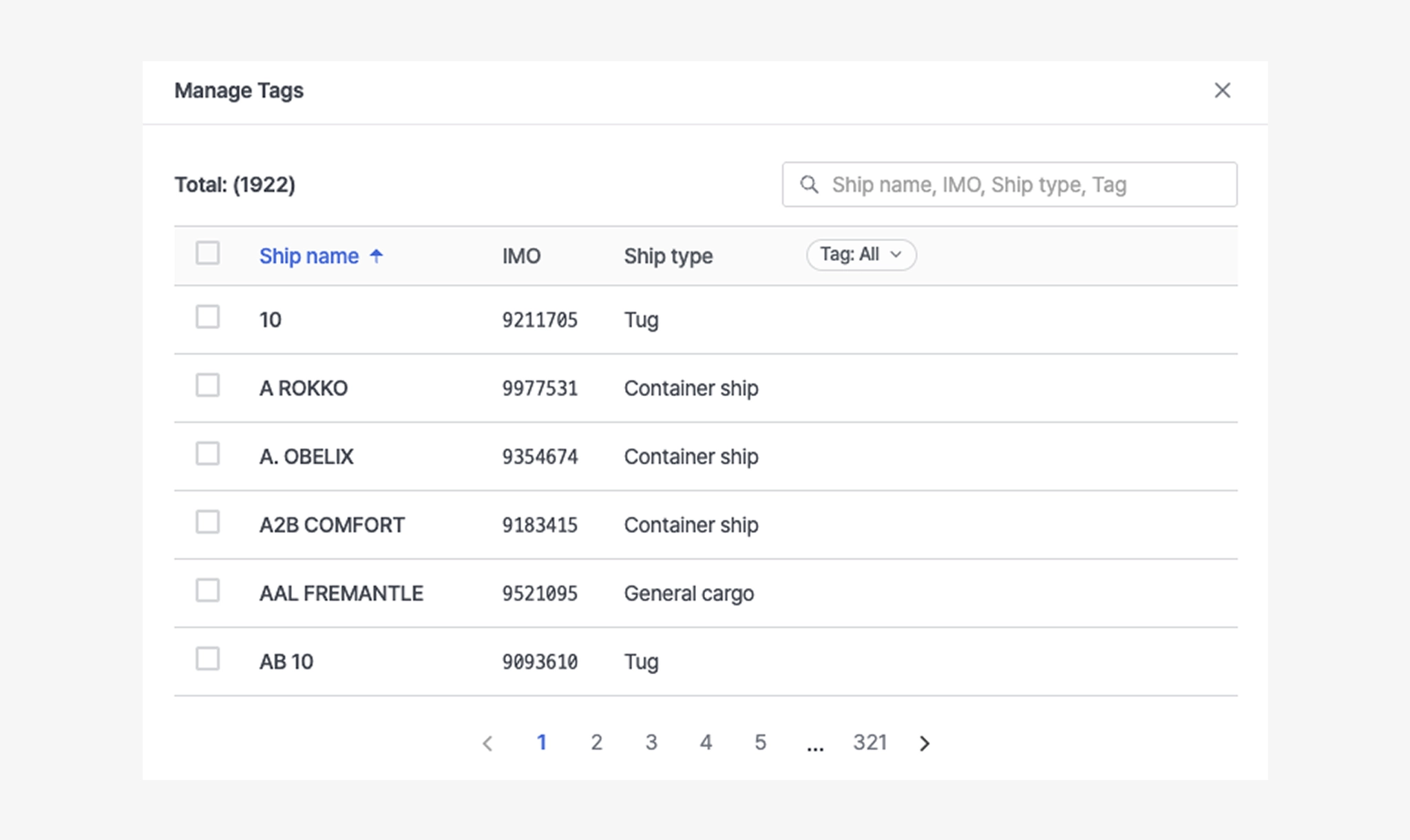
Ship Insight > Manage Tags
•
Click the X button next to a tag to remove that tag from a specific vessel only.
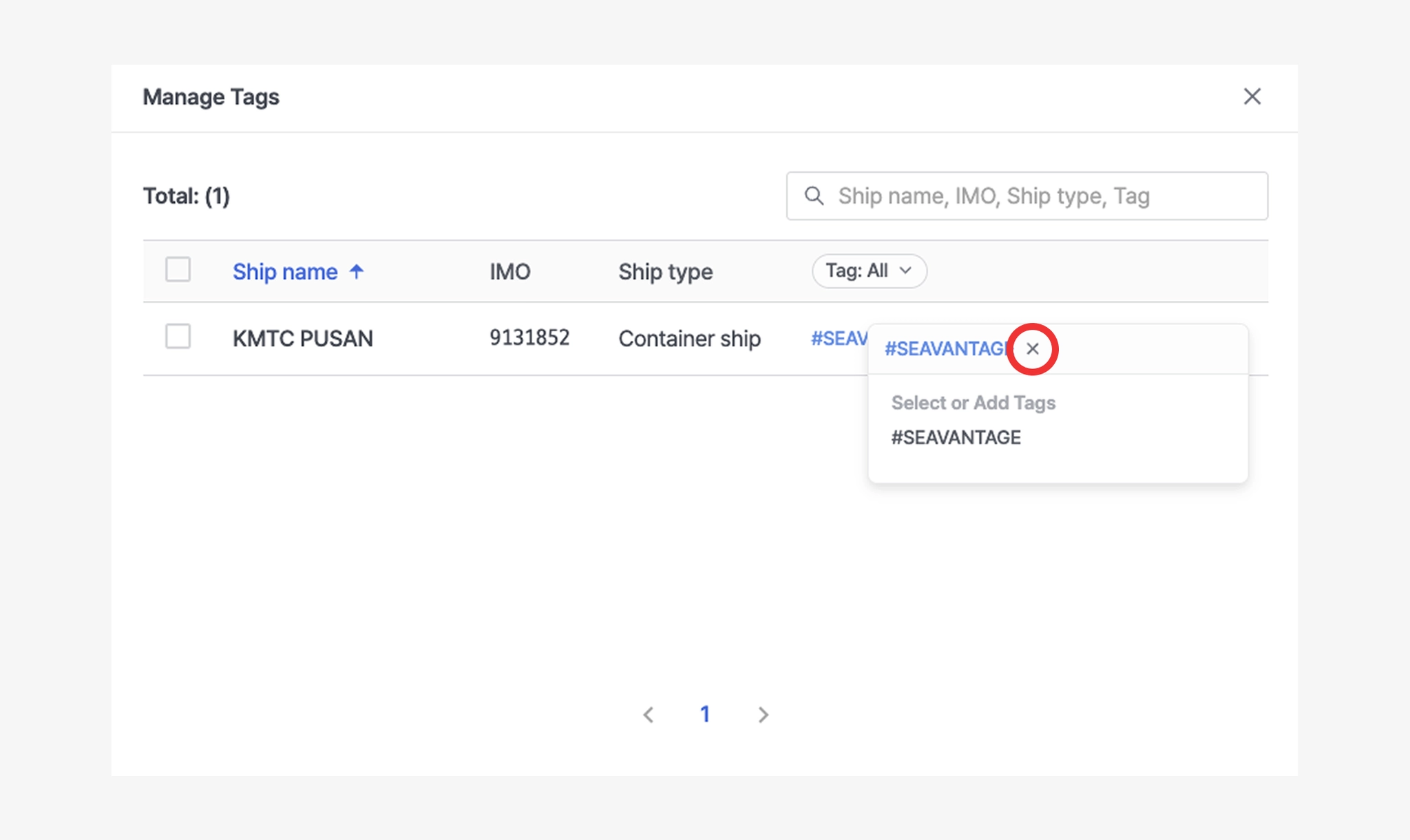
Ship Insight > Manage Tags > Delete Vessel Tag
•
At the bottom, click the ellipsis icon (⋯) to rename the tag in bulk, or click the trash icon to delete the tag from all vessels at once.
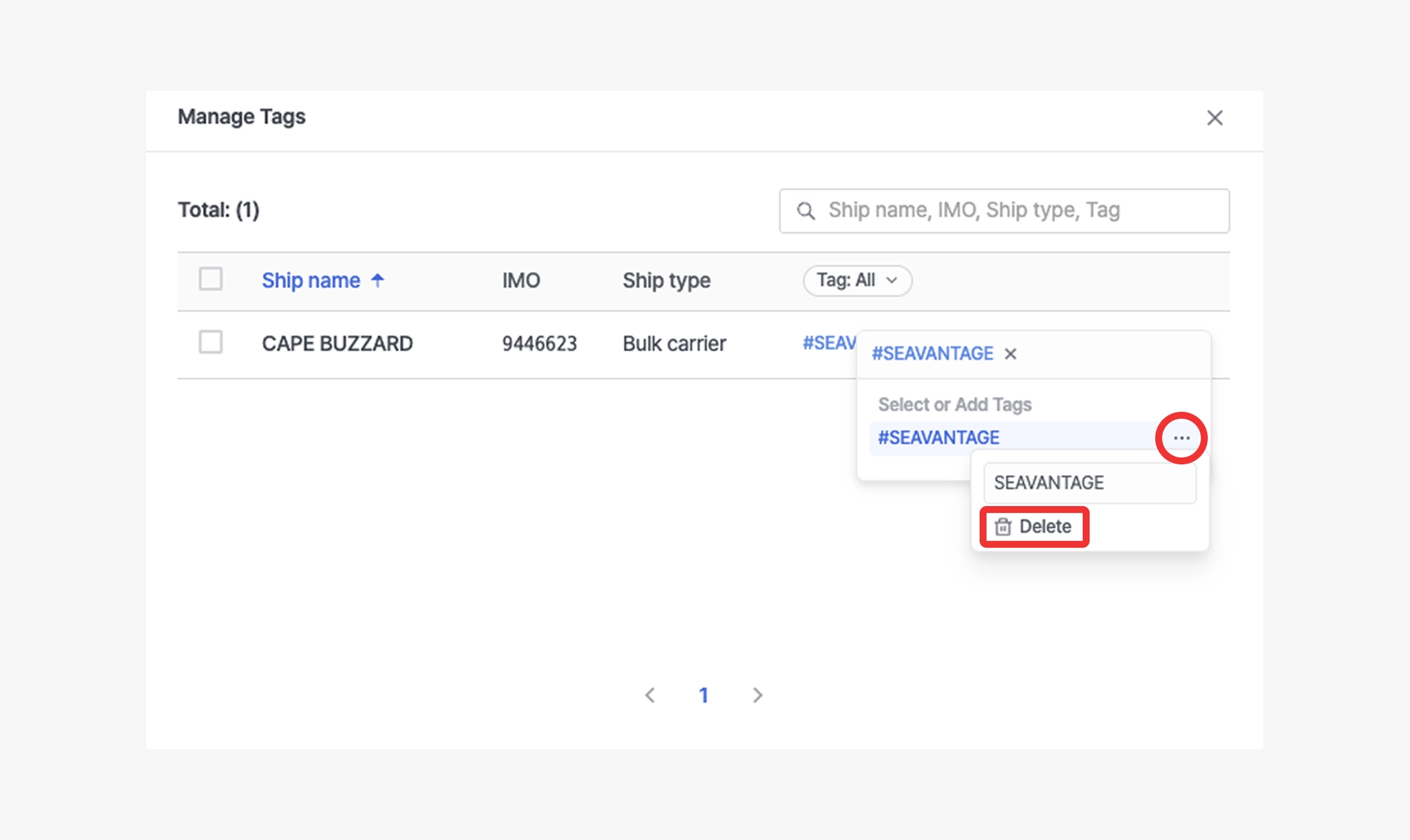
Ship Insight > Manage Tags > Changing and Deleting Vessel Tags
•
To create a new tag, select one or more vessels, click the + button, enter the tag name, and press Enter to add it. (When multiple vessels are selected, the new tag will be applied to all selected vessels at once.)
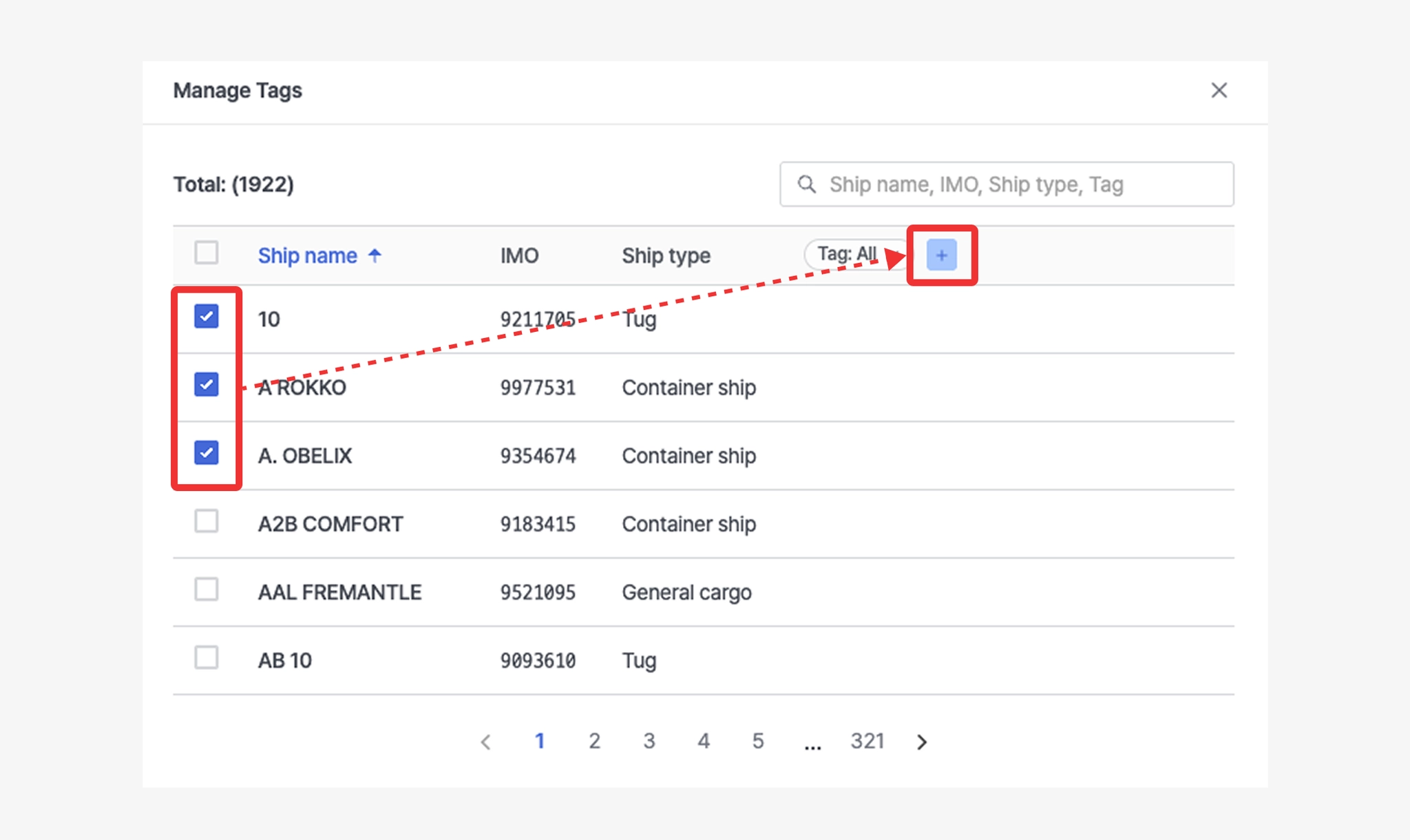
Ship Insight > Manage Tags > Add Vessel Tag
Export
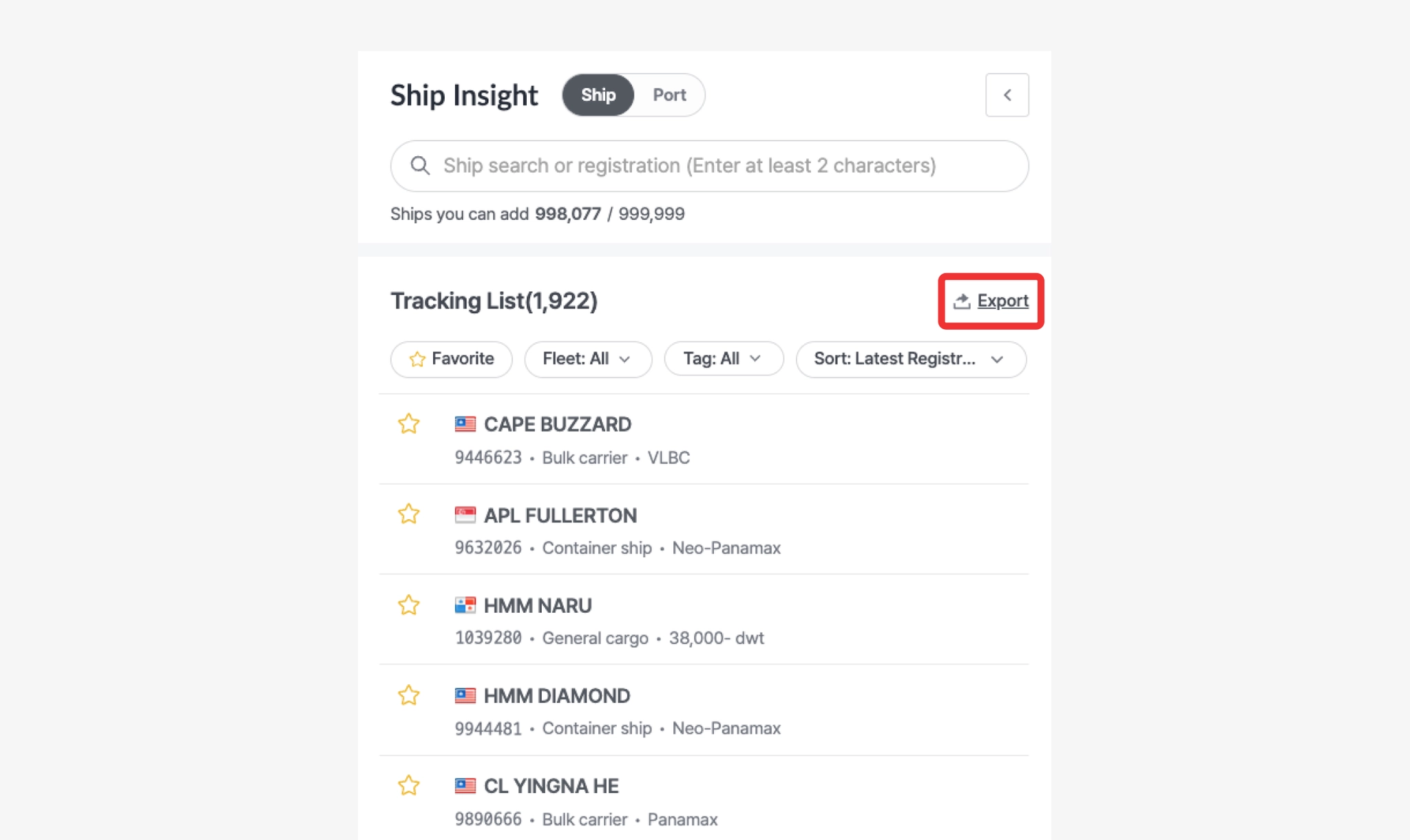
Ship Insight > Tracking List > Export
•
By clicking the Export button, you can download the full vessel list from the Tracking List as an Excel file.
•
The Excel file will include the following vessel information.
Item | Description |
Ship name | Vessel name |
IMO | Vessel IMO registration number |
Ship type | Vessel type |
Country | Country name |
Tags | Tags assigned to the vessel |
Vessel Information
Users can view a vessel’s specifications, real-time AIS operating status, port call history, past track, and PTA/PTB routing information.
Information Overview
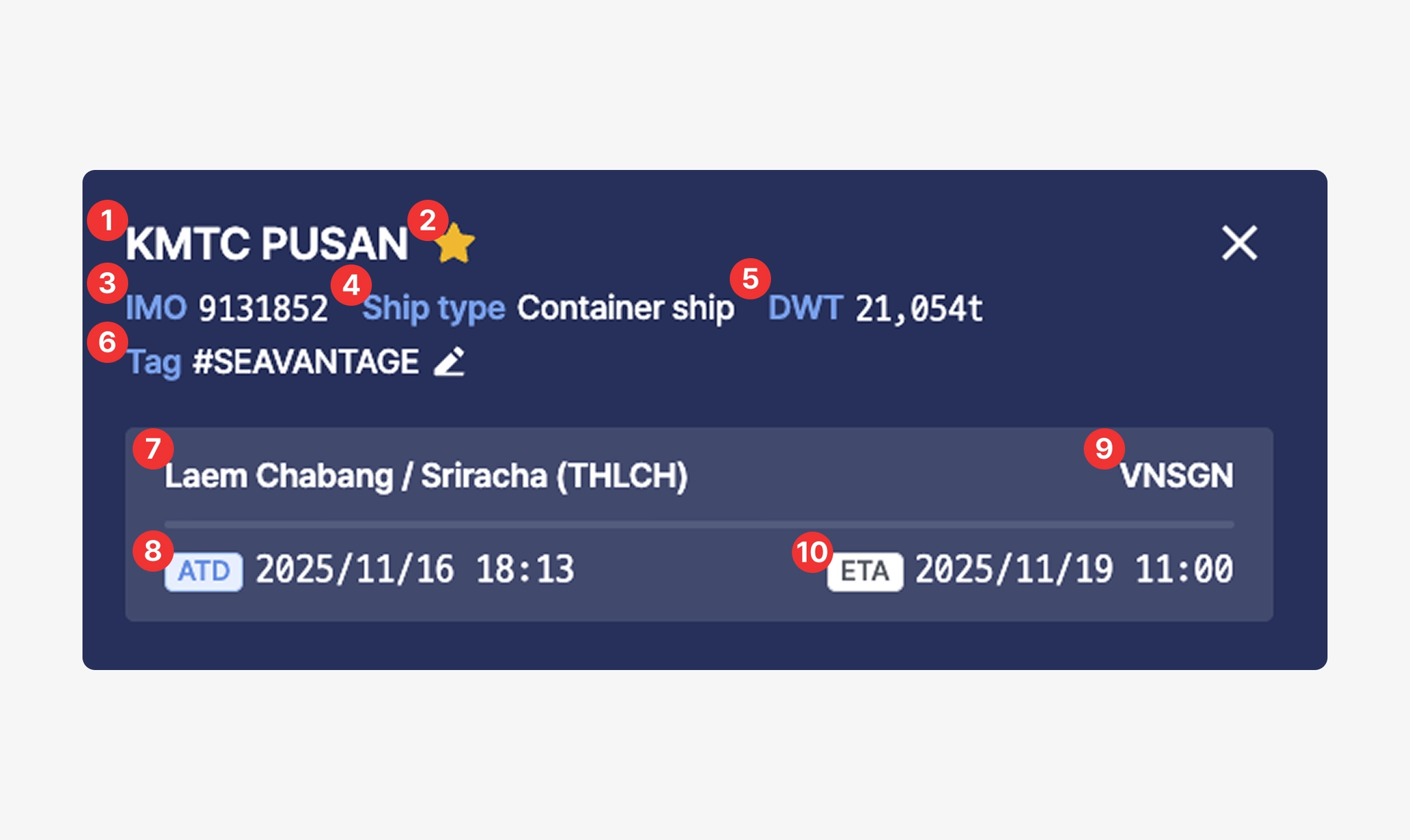
No. | Description | Example |
1 | Vessel Name | KMTC PUSAN |
2 | Favorite (Click the star icon to add or remove from favorites.) | |
3 | Vessel IMO Registration Number | 9131852 |
4 | Vessel Type | Container ship |
5 | Deadweight Tonnage (DWT) | 21,054t |
6 | SEAVANTAGE | |
7 | Most recent port name / UN/LOCODE based on SeaVantage Port Call data | Gwangyang (KRKAN) |
8 | ATD (Actual Time of Departure for the most recent port, based on SeaVantage Port Call data, in local time) | 2025/11/04 17:28 |
9 | Destination port predicted based on AIS Destination information | Ho Chi Minh City (VNSGN) |
10 | PTA (Predicted Time of Arrival / Berthing at the predicted destination port) | 2025/11/10 03:11 |
•
When you hover your cursor over the timestamp, you can view the PTB, PTA, and ETA information.
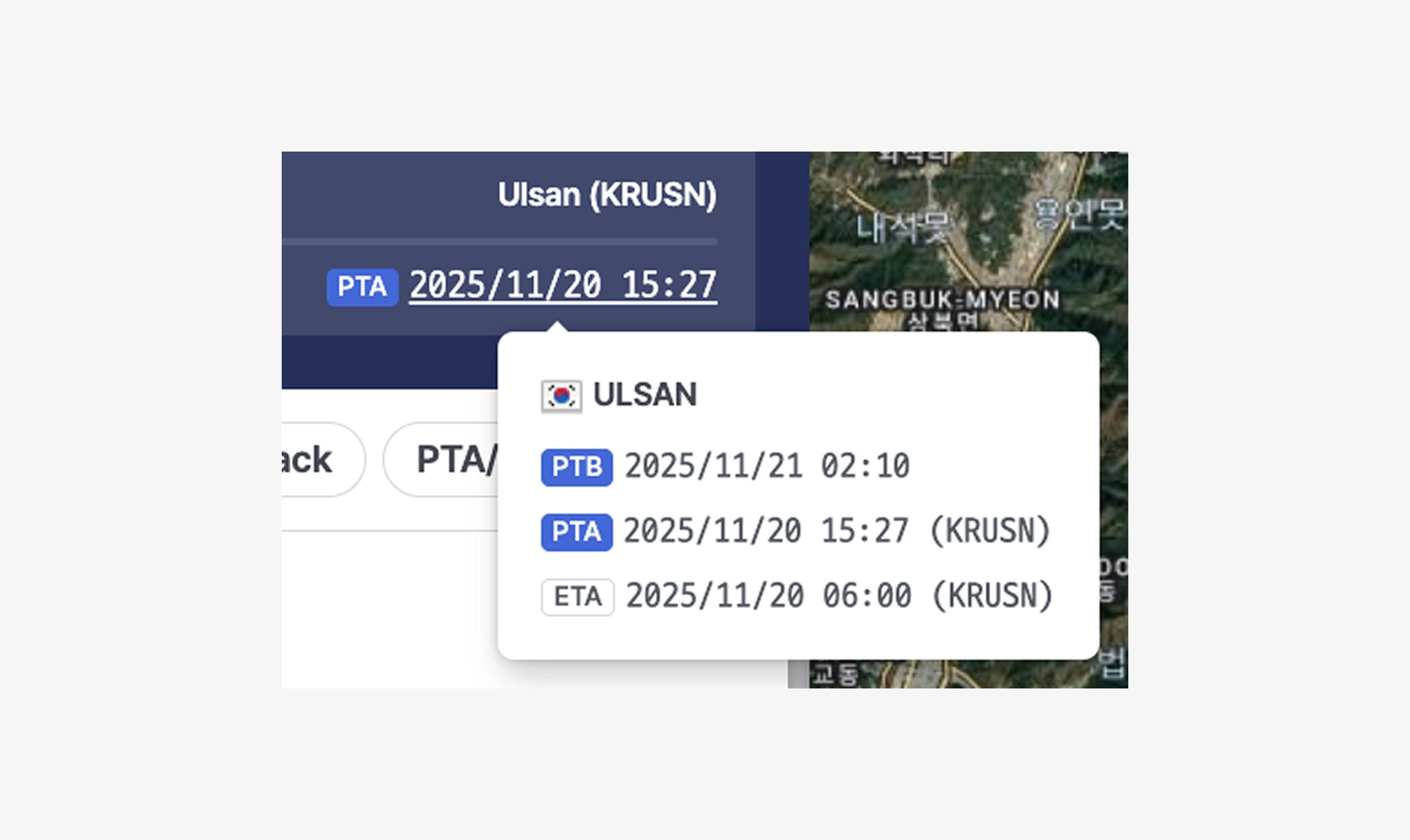
Ship Insight > Ship Pop-up > PTA/PTB Information
Item | Description |
PTB | Predicted Time of Berthing (Local Time), calculated using MTN + Port Congestion data.
*MTN : A maritime traffic network generated from years of accumulated AIS data and advanced analysis. |
PTA | Predicted Time of Arrival at the estimated destination port (Local Time) |
ETA | Estimated Time of Arrival collected from AIS data (UTC) |
Ship Info
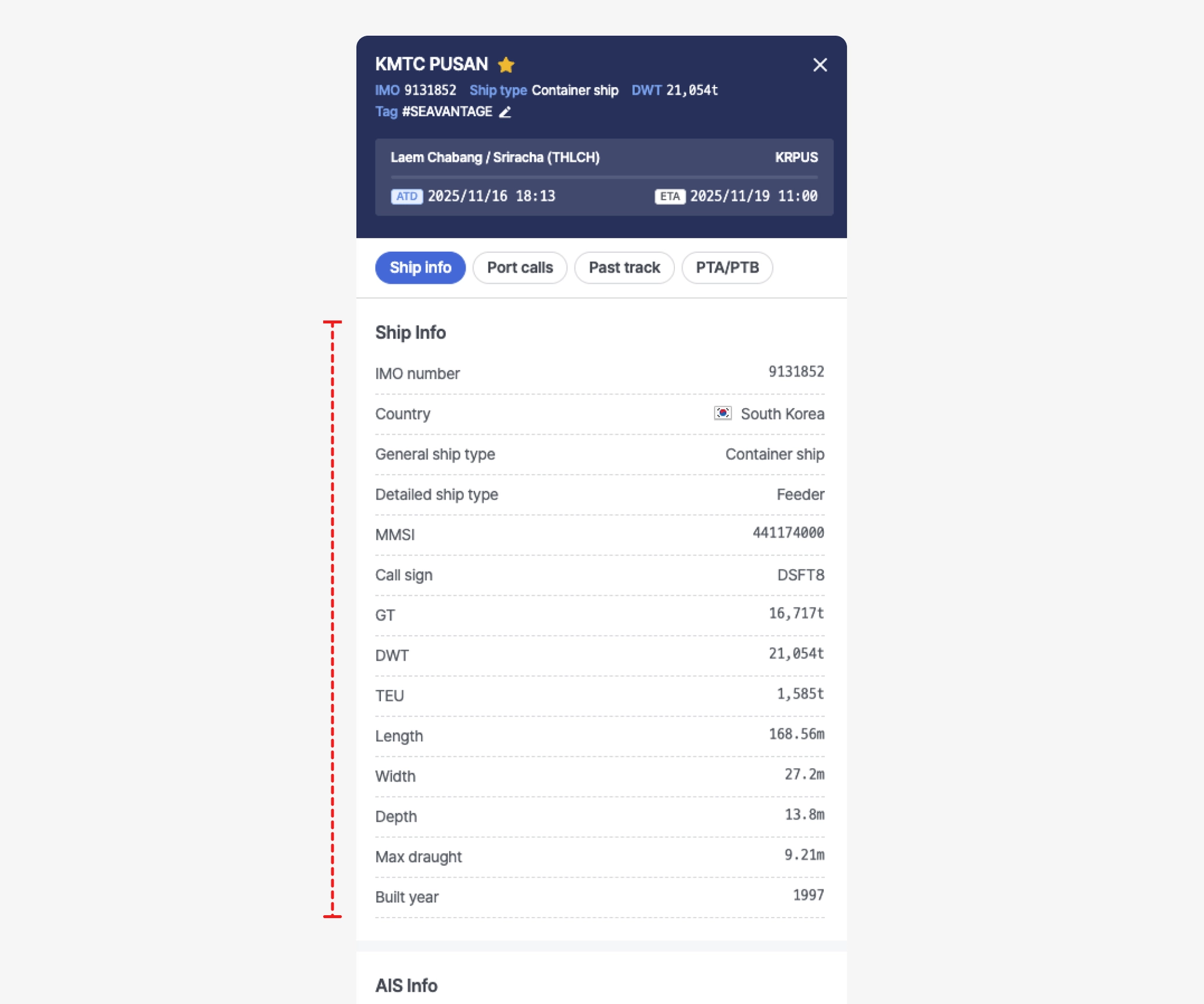
Ship Insight > Ship Pop-up > Ship Info Tab
Item | Description |
IMO number | Vessel’s International Maritime Organization (IMO) registration number |
Country | Flag State (Country of Registration) |
General ship type | |
Detailed ship type | |
MMSI | Vessel’s Maritime Mobile Service Identity (MMSI) registration number |
Call sign | Vessel's designated international call sign |
GT | Gross tonnage (GT) |
DWT | Deadweight tonnage (DWT) |
TEU | TEU capacity |
Length | Overall length |
Width | Overall width |
Depth | Overall depth |
Max draught | Maximum draught |
Built year | Year built |
AIS Info
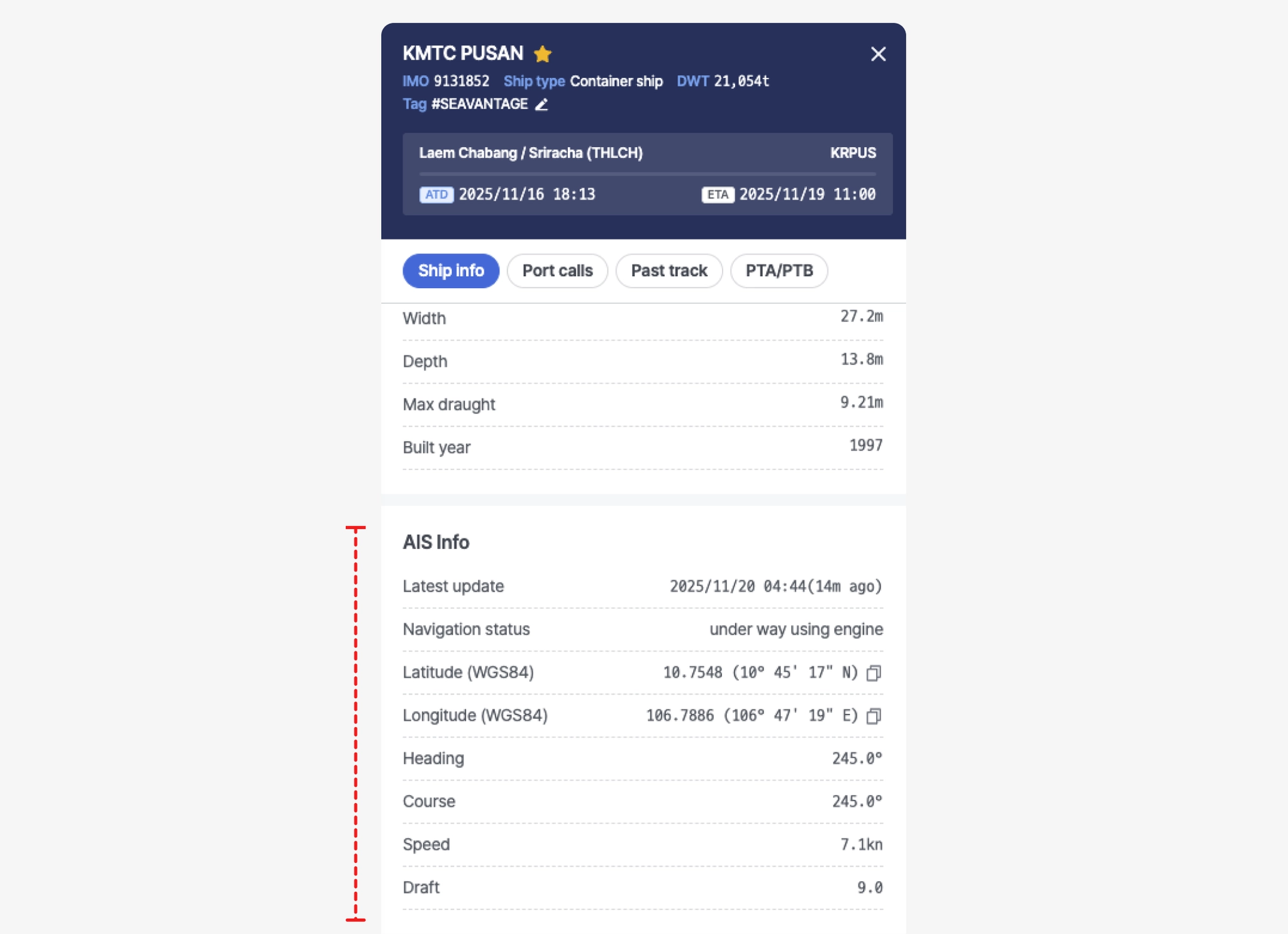
Ship Insight > Ship Pop-up > AIS Info Tab
Item | Description |
Latest update | Time of position received (UTC) |
Navigation status | Navigation status
(See Navigational Status table below) |
Latitude (WGS84) | Latitude (coordinate) |
Longitude (WGS84) | Longitude (coordinate) |
Heading | Vessel’s actual heading direction |
Course | Direction of the vessel’s movement (degrees) |
Speed | Current vessel speed relative to the Earth’s surface (in knots). |
Draft | Maximum draught |
Port calls
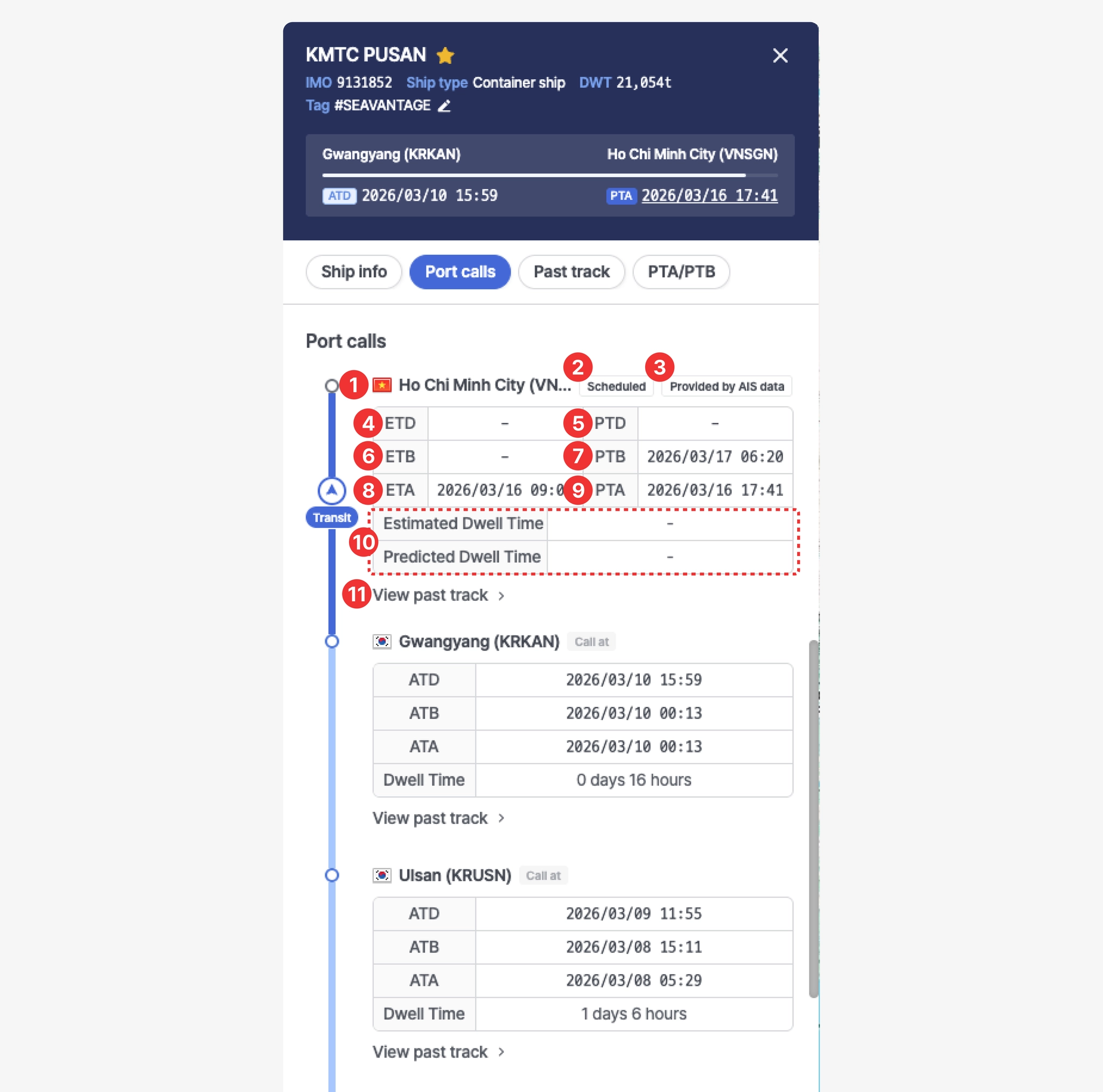
Ship Insight > Ship Pop-up > Port calls Tab
No. | Item | Description |
1 | Port Name | Displays the port name and UN/LOCODE |
2 | Port Call Status Label | • Call at : Previous port of call
• Scheduled : Port call is scheduled
• At Berth : Vessel is currently berthed |
3 | Data Source Label | • Provided by carrier : Destination based on carrier schedule data
• Provided by AIS data : Destination based on AIS data |
4 | Departure Time | • ETD : Estimated Time of Departure
• ATD : Actual Time of Departure |
5 | PTD | Predicted Time of Departure |
6 | Berthing Time | • ETB : Estimated Time of Berthing
• ATB : Actual Time of Berthing |
7 | PTB | Predicted Time of Berthing |
8 | Arrival Time | • ETA : Estimated Time of Arrival
• ATA : Actual Time of Arrival |
9 | PTA | Predicted Time of Arrival |
10 | Dwell Time | • Estimated Dwell Time
• Predicted Dwell Time
• Dwell Time : Actual dwell time |
11 | View Past Track | Click to view the vessel’s movement route between ports on the map |
Note
•
All times are displayed based on the local time of the respective port.
Past track
•
Select the desired date range using the date selector.
•
After choosing the period, click Apply to display the vessel’s past track for the selected range.
◦
Speed, navigation status, and draught are shown as time-series charts:
▪
Speed (blue line): Vessel speed over time
▪
Nvg Status (orange line): Vessel navigation status
▪
Draught (gray line): Vessel draught over time
◦
The vessel’s historical sailing route is also displayed on the map.
◦
The gray shaded area displayed on the chart represents the period during which the vessel was berthed at the port.
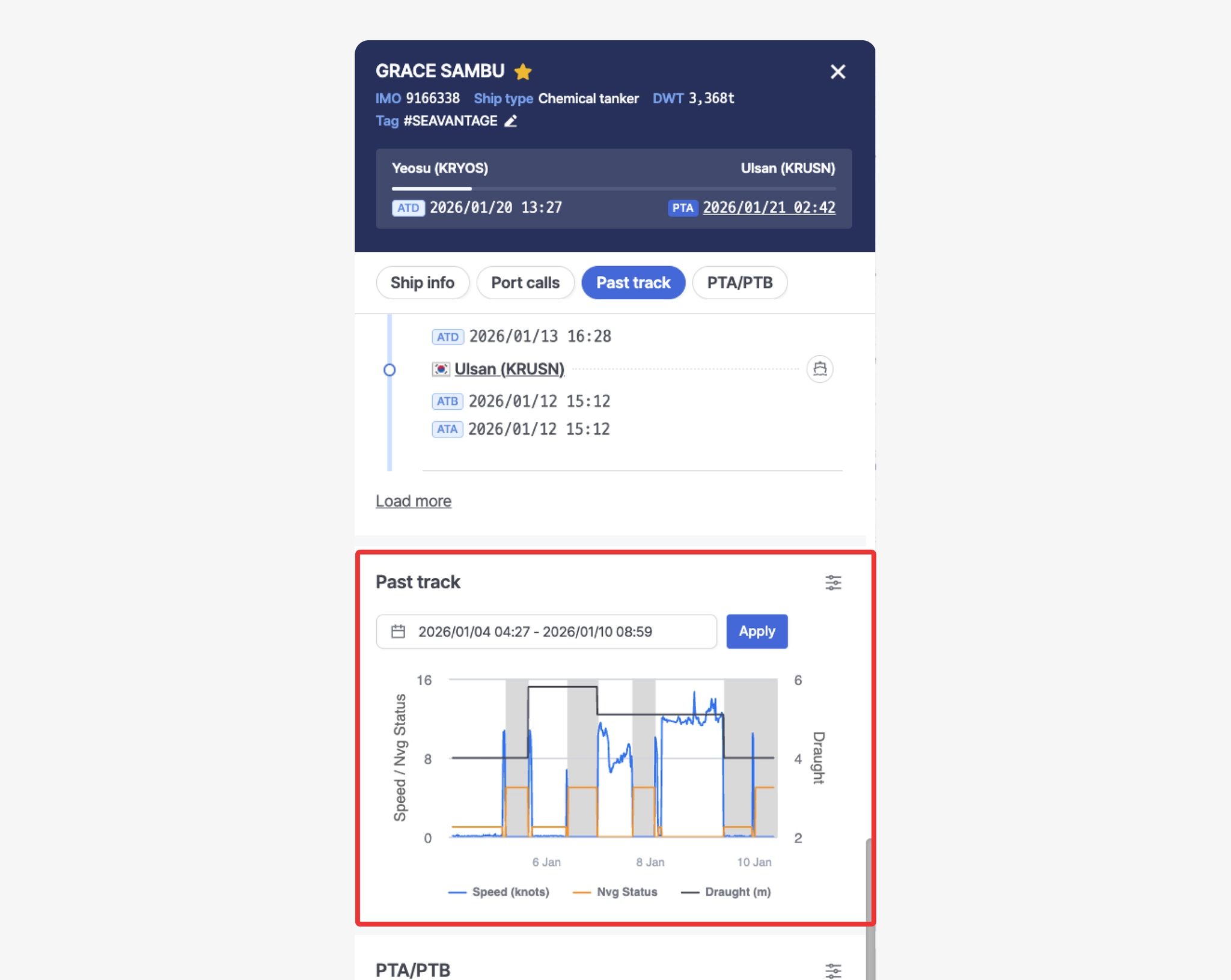
Ship Insight > Ship Pop-up > Past track Tab
•
When you hover over the chart, you can view the Speed, Navigation Status, and Draught values for that specific timestamp, and the vessel’s position at that moment is simultaneously shown on the map.
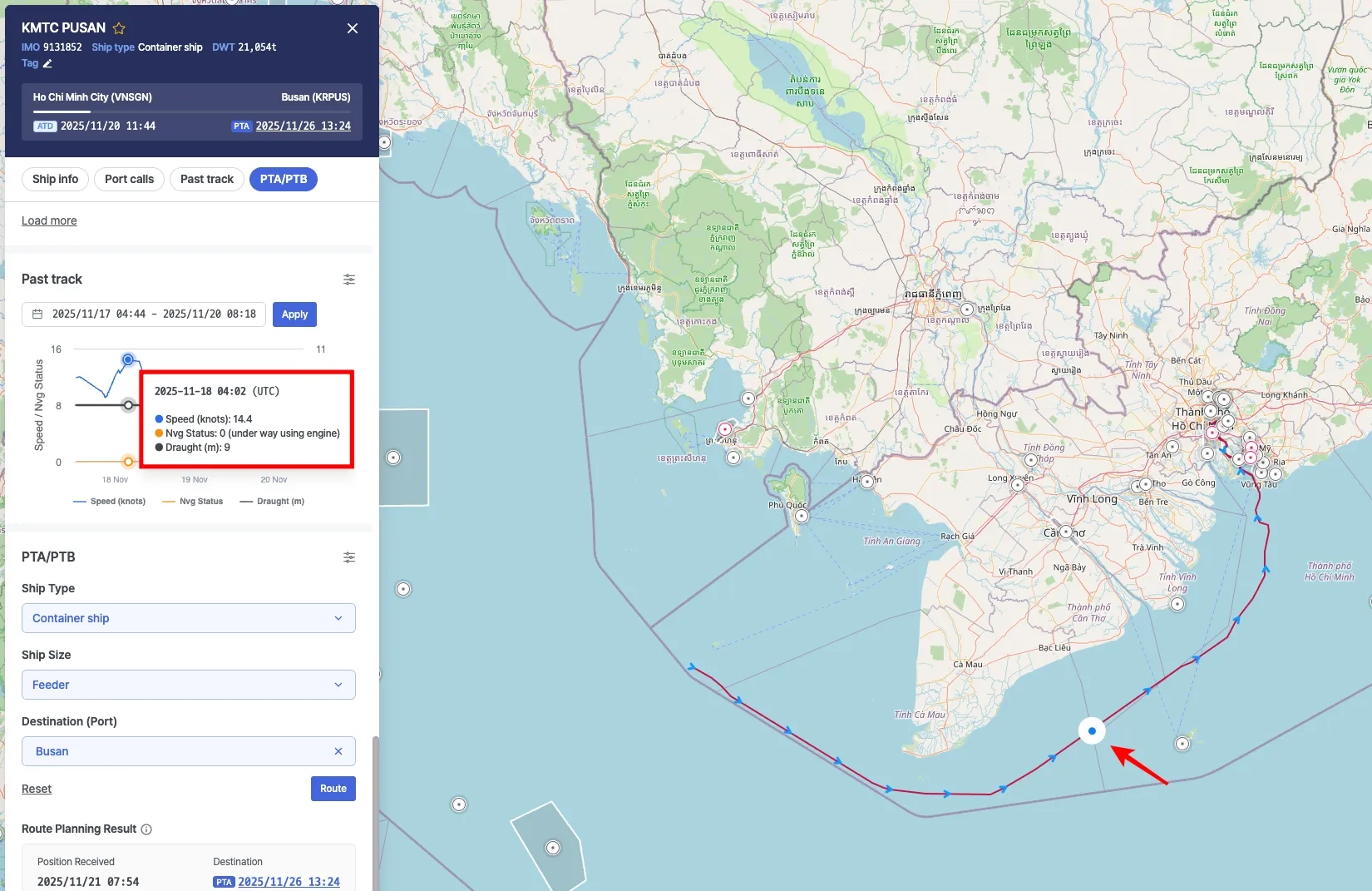
Ship Insight > Ship Pop-up > View historical vessel positions on the Past Track chart
•
When you drag to select a specific range on the chart, the chart and the vessel’s historical track on the map are updated to reflect the selected time period.
•
Click Reset zoom to clear the selection and return to the default time range.
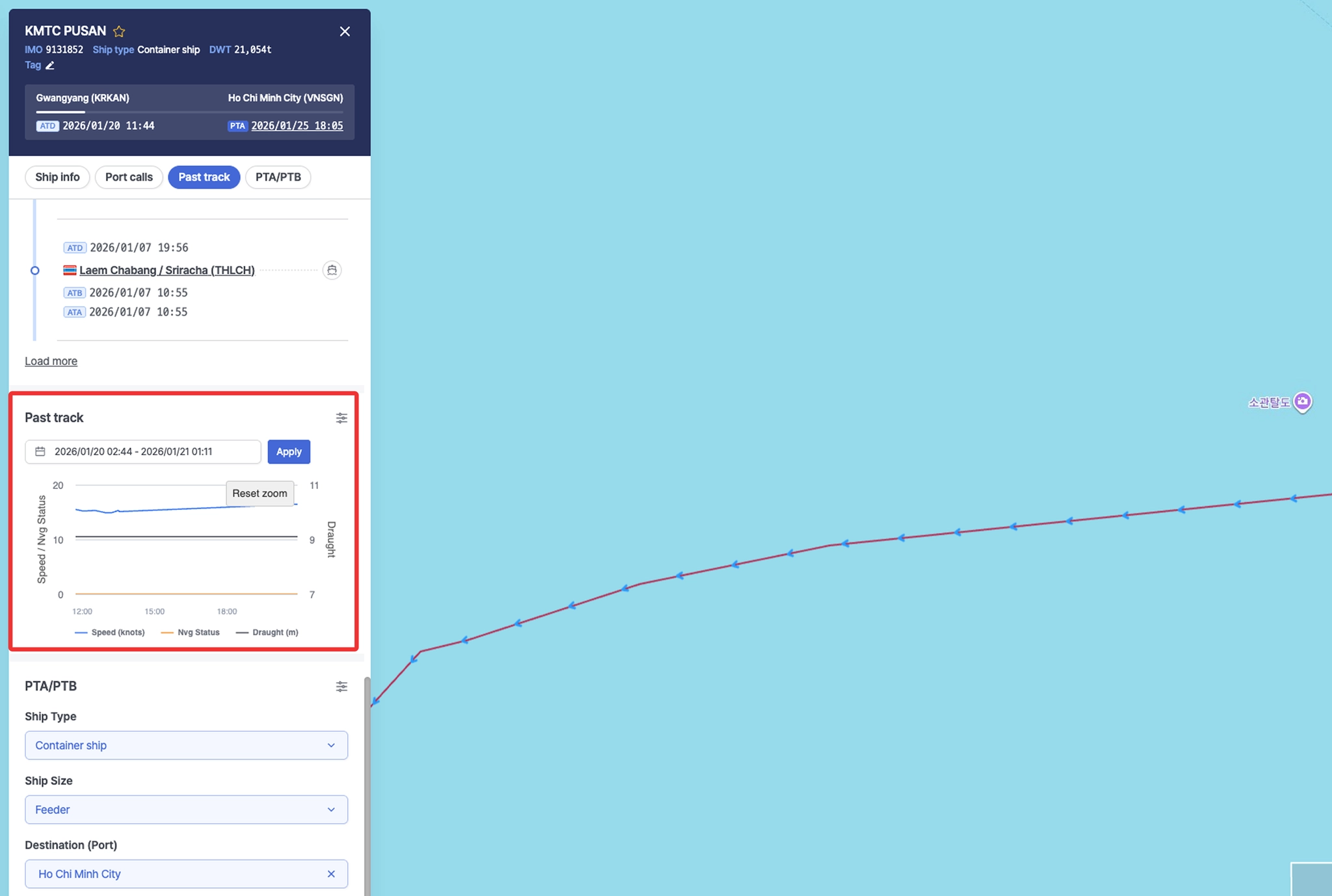
Ship Insight > Ship Pop-up > Select a time range and view historical vessel tracks
Note
The AIS timestamps displayed on the chart and map are shown based on the Timezone setting in your profile.
Optional
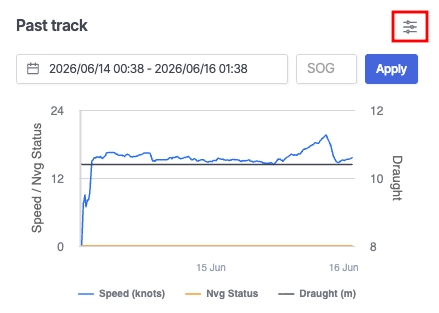
Ship Insight > Ship Pop-up > Past track
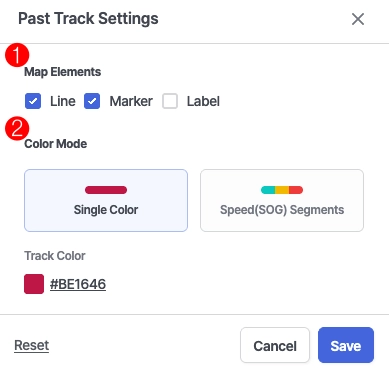
Ship Insight > Ship Pop-up > Past track Settings
No. | Item | Description |
1 | Map Elements | • Line: Display the vessel's historical track as a line on the map.
• Marker: Display markers along the historical track on the map.
• Label: Display the timestamp associated with each historical track marker. |
2 | Color Mode | • Single Color : Display the entire historical track using a single color.
• Speed(SOG) Segments : Display the historical track using different colors based on the vessel's Speed Over Ground (SOG) range. |
Map View
Users can visualize vessel locations on the map and configure map layers, custom monitoring zones, and weather settings.
Map Area
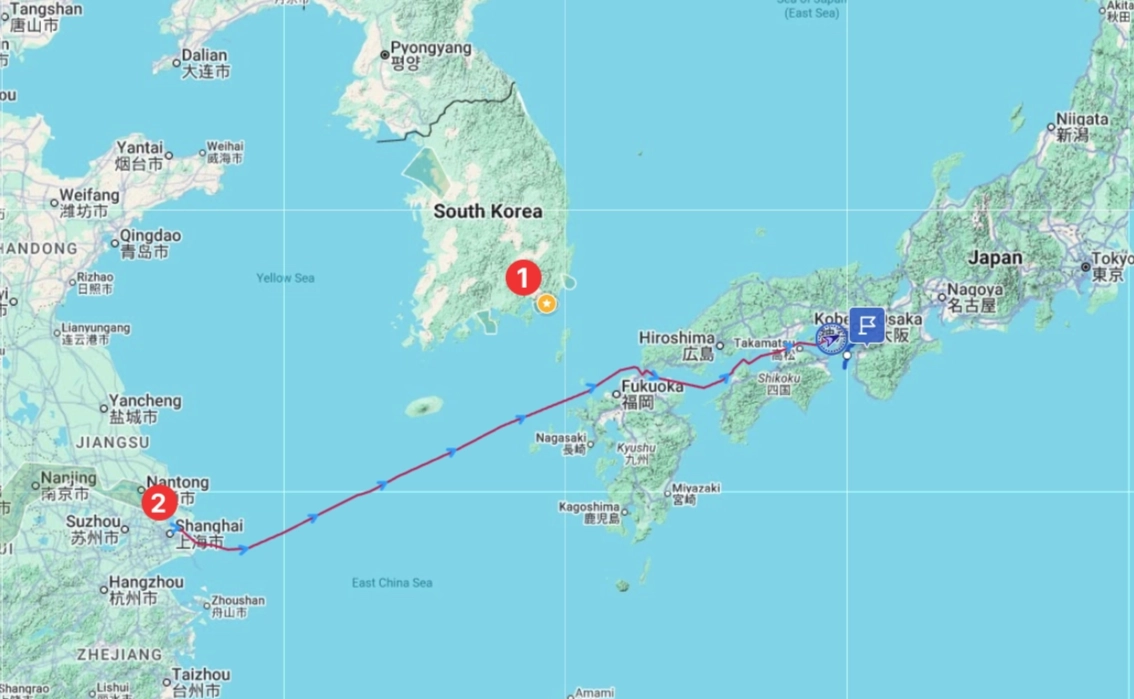
Ship Insight > Map
1. Port Markers
•
Zoom in on the map to view port areas and boundaries.
•
Color Indicators:

2. Route Display
•
Red line: Past vessel route
•
Dotted line: Predicted sailing route
•
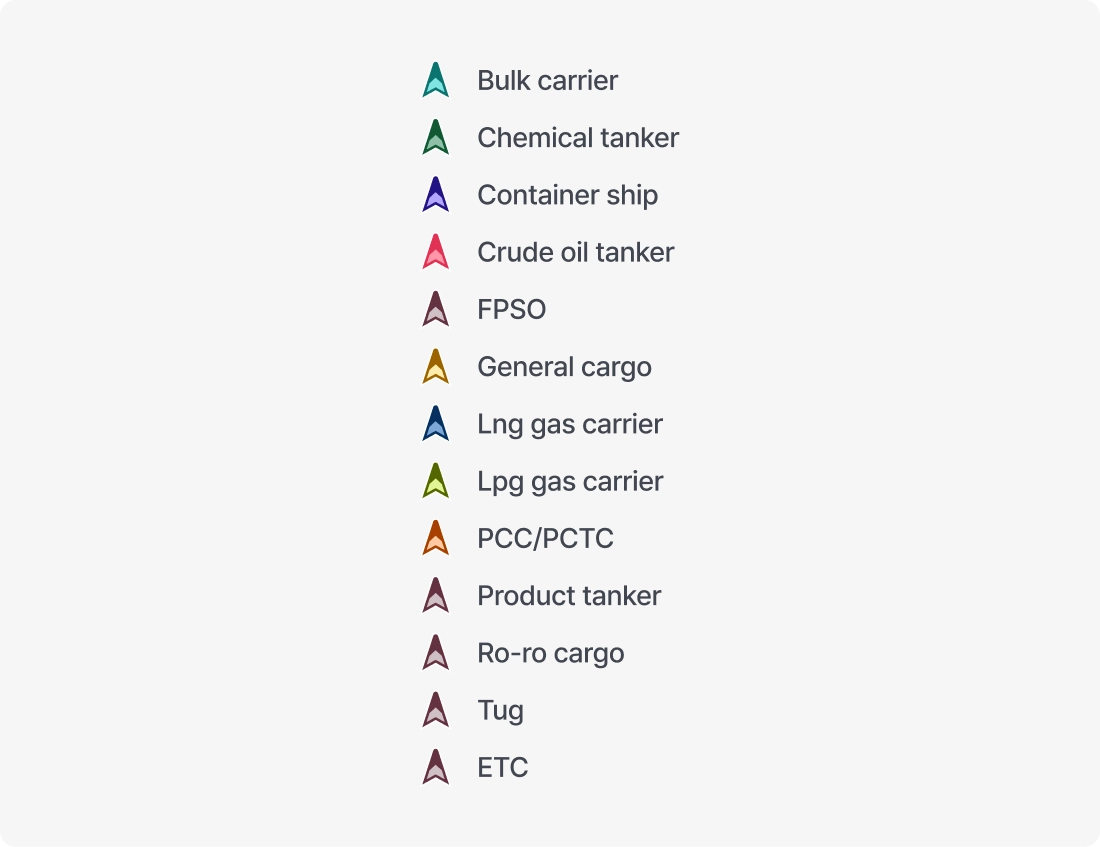
Arrow icon: Current vessel position
◦
Status Indicators:

◦
Vessel Type Colors:
Layer
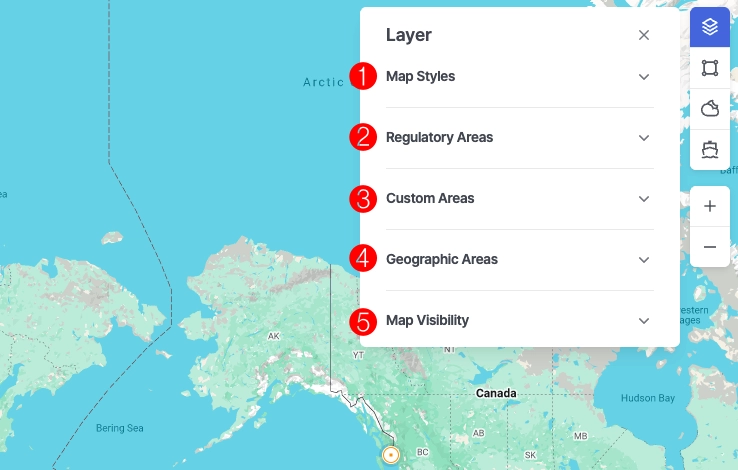
Ship Insight > Layer
1. Map Styles
•
Select the desired map style.
•
You can also change the list of available map styles displayed in the Layer panel by selecting preferred styles in Settings.
2. Regulatory Areas
•
Displays specific designated areas on the map.
◦
ECA (Emission Control Area)
◦
EEZ (Exclusive Economic Zone)
◦
JWC (Joint War Committee)
◦
HRA (High Risk Area)
◦
TSS (Traffic Separation Scheme)
◦
GPS Jamming (GPS Interference)
3. Custom Areas
•
Display user-defined areas on the map.
•
Custom areas can be created and managed in Custom Areas.
4. Geographic Areas
•
Display incidents, alerts, and risk zones defined by SeaVantage on the map.
5. Map Visibility
•
Ship: Enable or disable vessel icons displayed on the map.
•
Ship names : Show or hide vessel names displayed on the map.
•
Port: Enable or disable port icons displayed on the map.
Tools
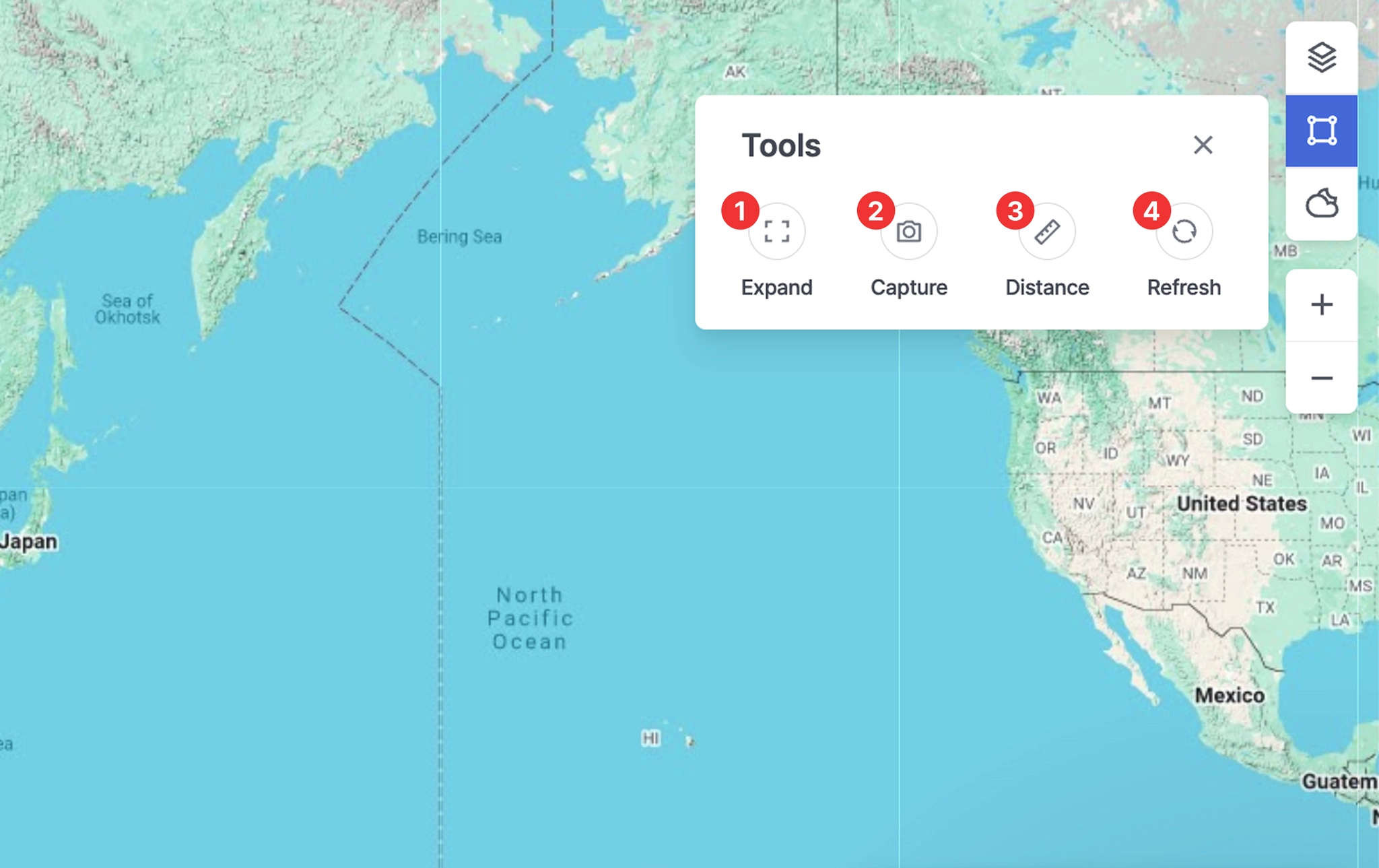
Ship Insight > Map Area > Tools
1. Expand
•
Switches the map to full-screen mode, allowing key information to be viewed more clearly.
•
Press the Esc key to exit full-screen mode.
2. Capture
•
Saves the current screen as an image, enabling users to share or archive it for reference.
3. Distance
•
A measurement tool that allows users to calculate the distance between selected points on the map.
•
Click the starting point and then the destination point in sequence to view the Bearing, Great Circle Distance, and Rhumb Line Distance.
•
Measurement instructions:
◦
Click to add points along the route while measuring.
◦
Double-click to stop drawing the line.
◦
Click the map again to start a new distance measurement.
◦
To completely exit distance measurement mode, press the Esc key or click the Distance button again.
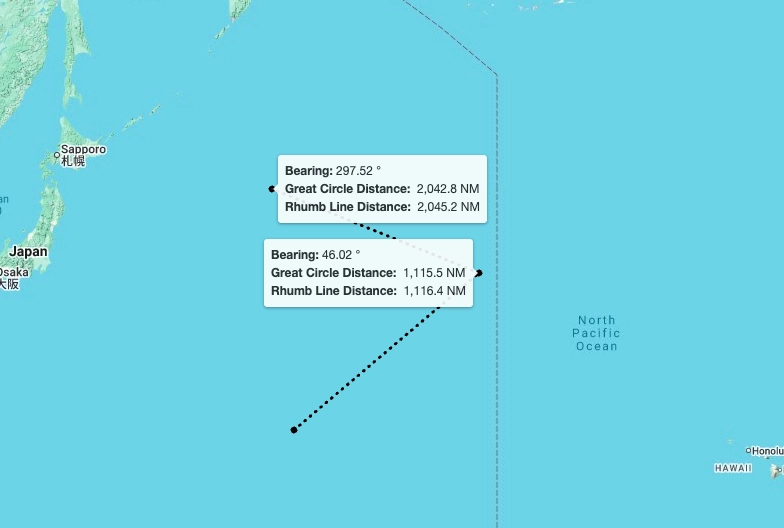
Ship Insight > Map Area > Tools > Distance Measurement View
4. Refresh
•
Reloads the latest data and immediately updates the information displayed on the screen.
Weather
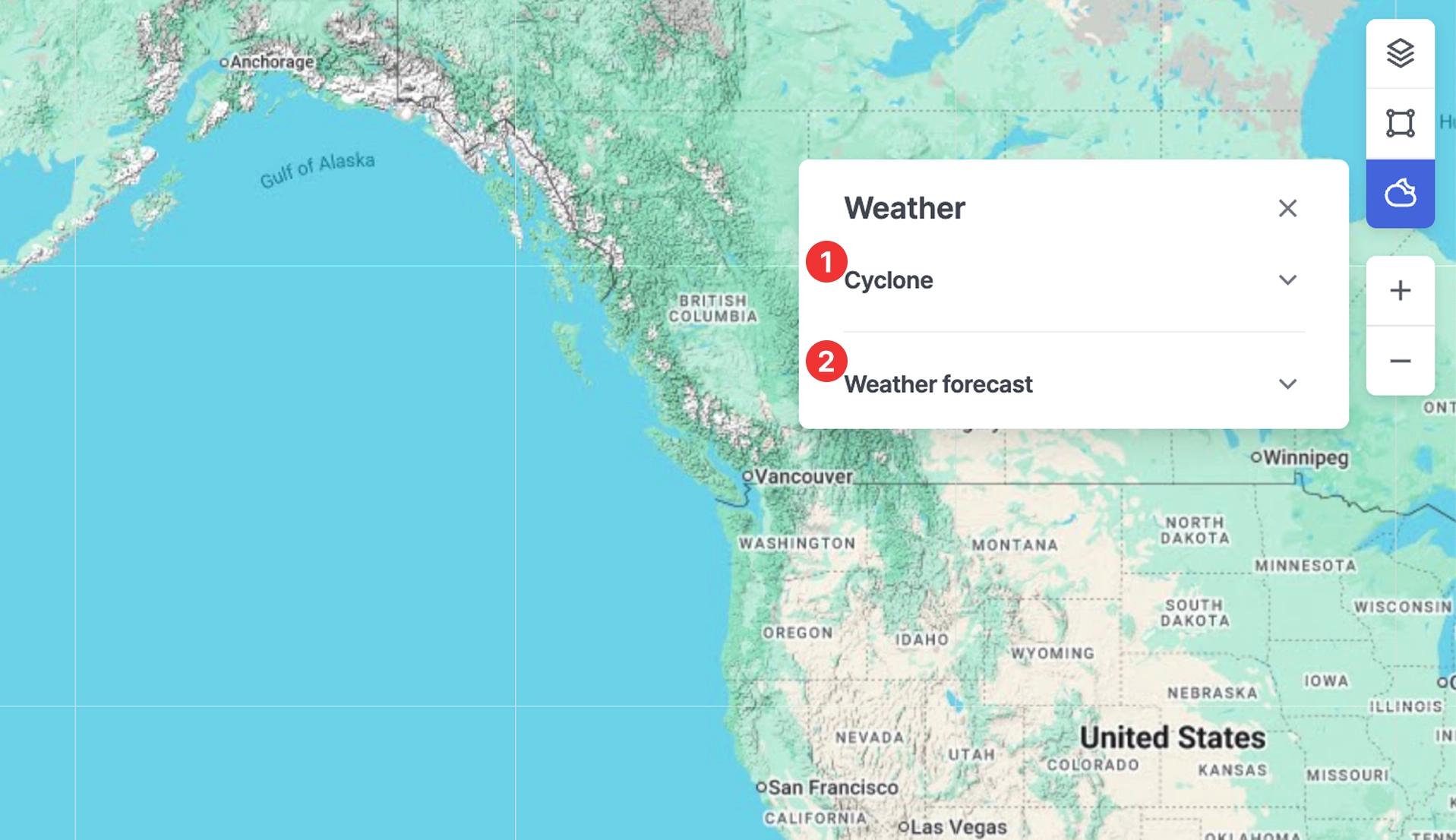
Ship Insight > Weather
1. Cyclone
•
Displays official cyclone alerts and forecast information issued by the Joint Typhoon Warning Center (JTWC) on the map.
•
Cyclone intensity is indicated by color, allowing users to assess severity.
•
Shows a list of currently active cyclones.
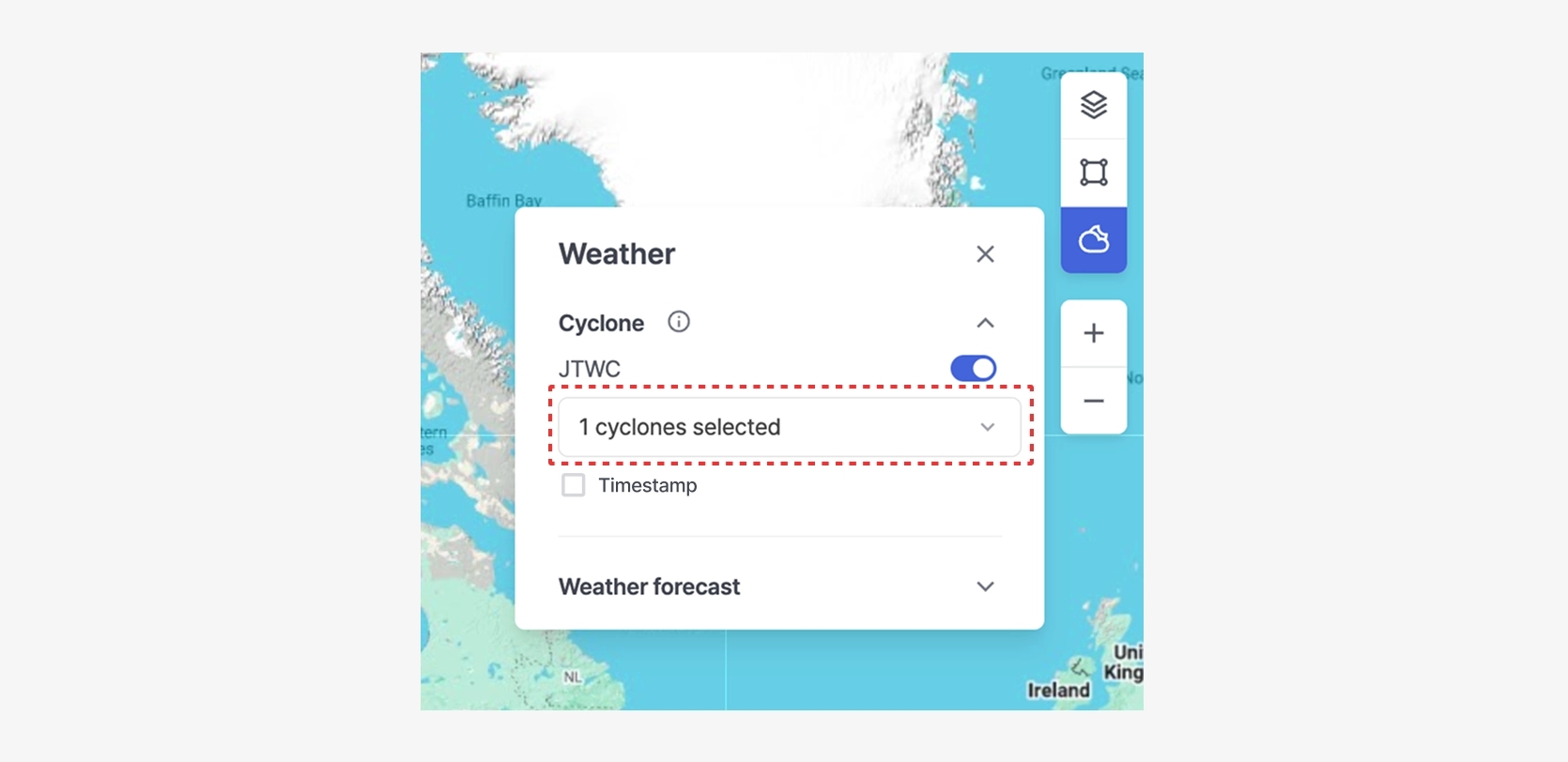
Ship Insight > Map Area > Weather > Cyclone — View with One Cyclone Selected
•
Displays the timestamp indicating when the cyclone information was received.
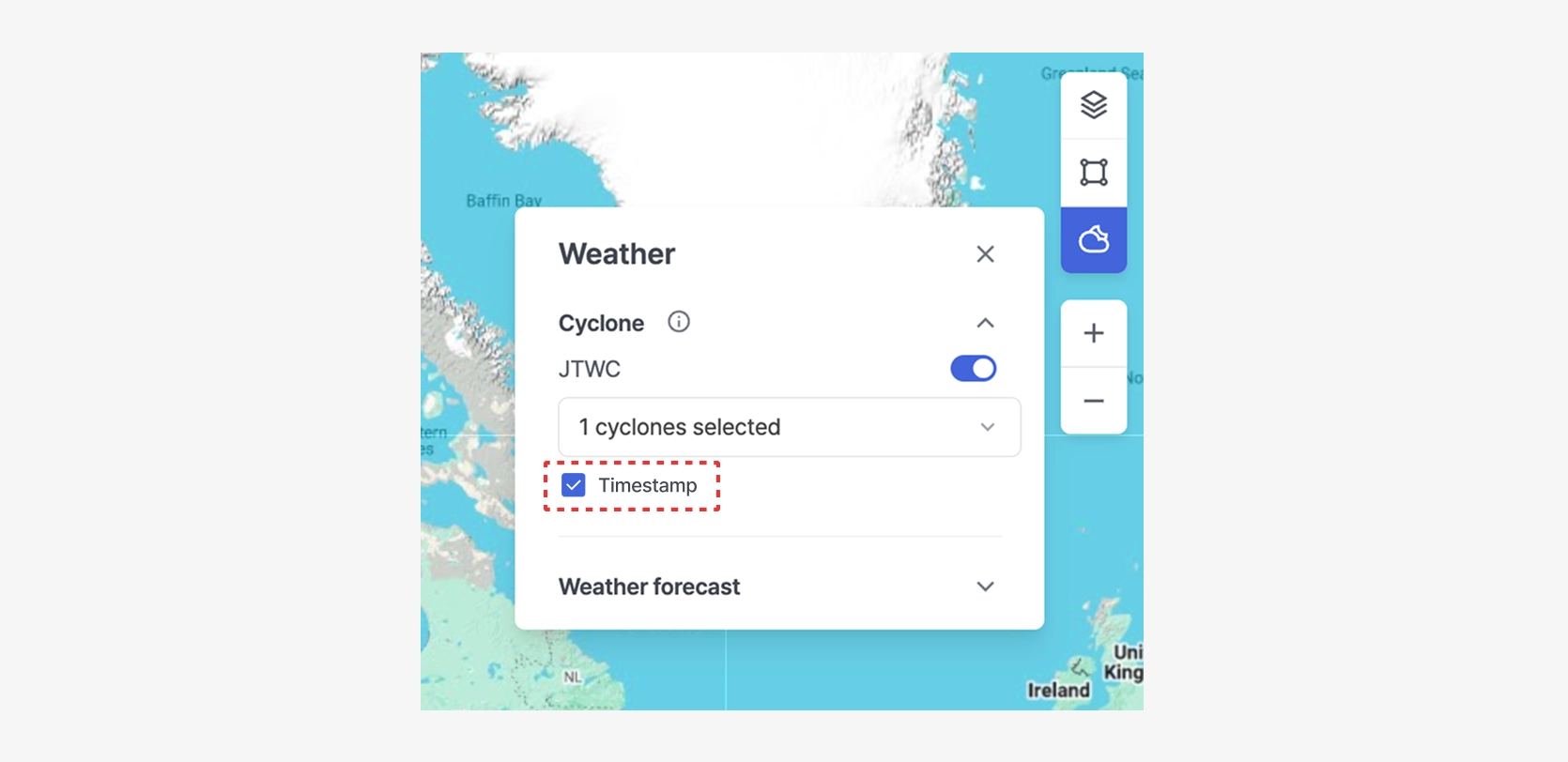
Ship Insight > Map Area > Weather > Cyclone — View with Timestamp Displayed
2. Weather Forecast
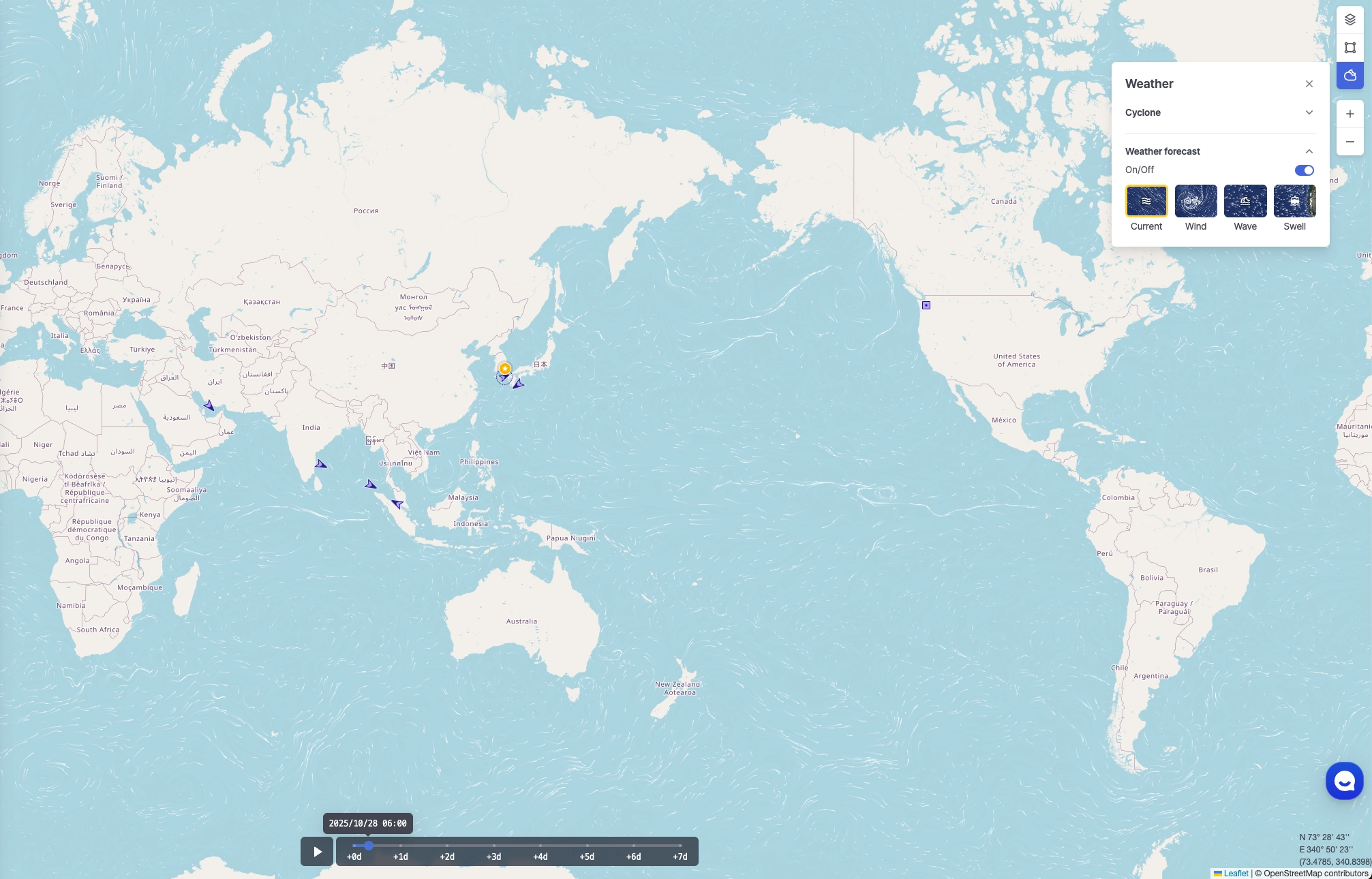
Ship Insight > Map Area > Weather Forecast
•
Current: Displays ocean current direction and speed.
•
Wind: Displays surface wind direction and wind speed.
•
Wave: Displays wave height and wave direction.
•
Swell: Displays swell height and direction (long-period waves generated offshore).
•
You can select the color used for the animation.
•
Select a date on the timeline to view forecast information for that specific date.
•
Click the play button on the timeline to view animated changes in the forecast over time.
Note: While playback is active, changing the zoom level or performing other interactions is not available.
•
Weather forecast data is displayed at a 1° resolution by default, switches to 0.5° resolution at zoom levels 6–7, and to 0.25° resolution at zoom levels 8 and above.
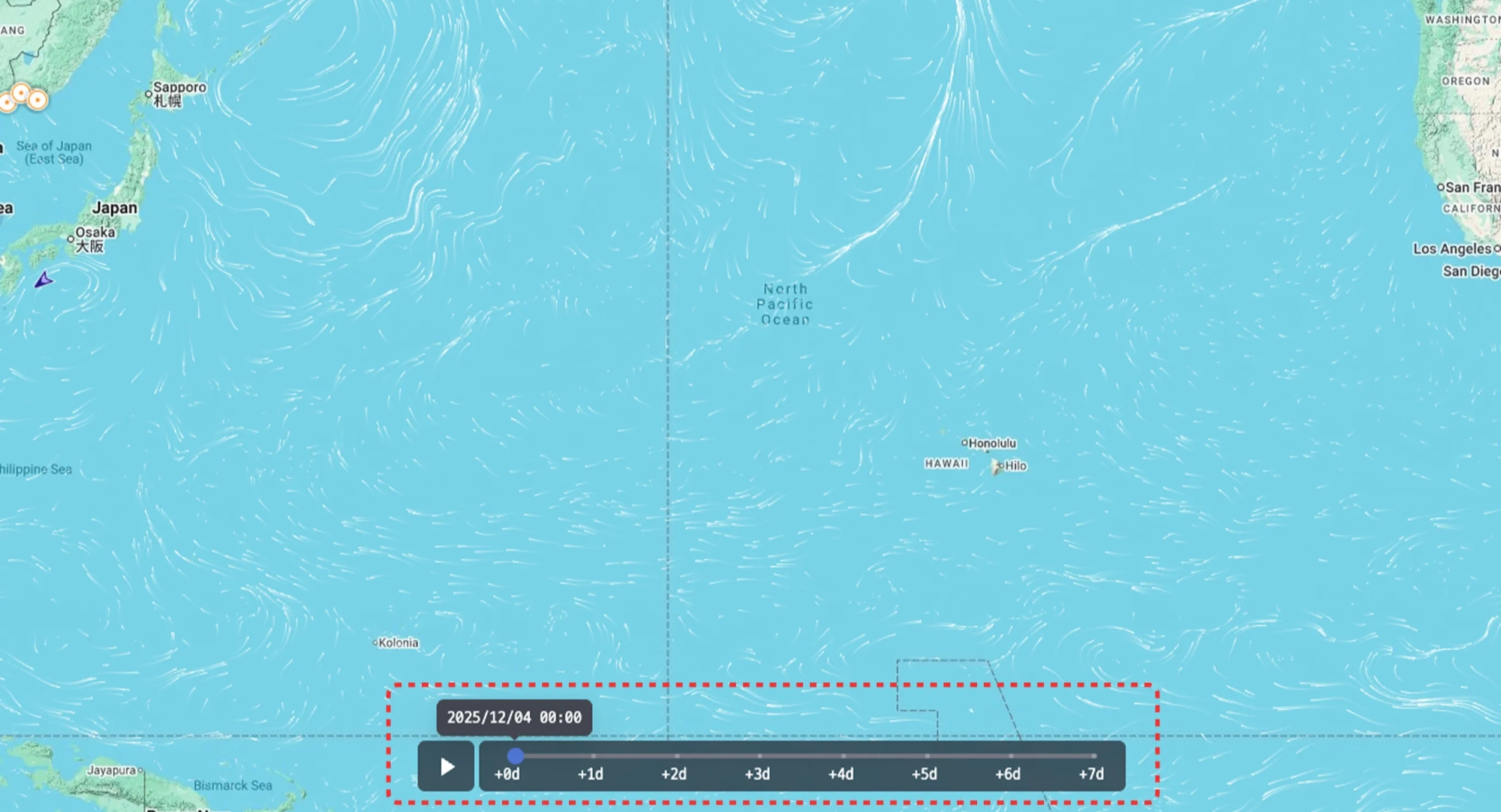
Ship Insight > Map Area > Weather Forecast — View Enabled
Ship
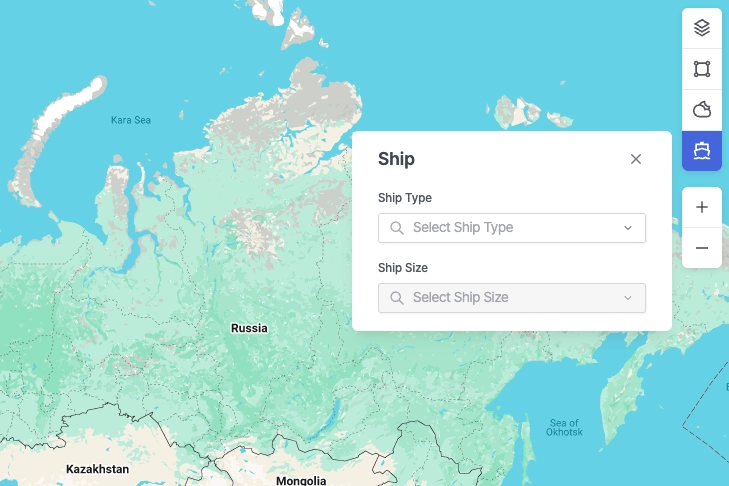
Ship Insight > Ship
•
Select the vessel types and size categories to be displayed on the map.
Appendix
Ship Type by Size Classification
Bulk Carrier
Classification Code | Classification | Lower Range (DWT) | Higher Range (DWT) |
BULK 05 | Handysize | 0 | 34,999 |
BULK 04 | Handymax | 35,000 | 59,999 |
BULK 03 | Panamax | 60,000 | 79,999 |
BULK 02 | Capesize | 80,000 | 179,999 |
BULK 01 | VLBC | 180,000 |
Cargo
Classification Code | Classification | Lower Range (DWT) | Higher Range (DWT) |
CARGO 04 | General Cargo | 0 | 2,999 |
CARGO 03 | General Cargo | 3,000 | 7,499 |
CARGO 02 | General Cargo | 7,500 | 37,999 |
CARGO 01 | General Cargo | 38,000 |
Chemical Tanker
Classification | Vessel Type | Classification |
CHEMICAL_TANKER01 | Product Tanker | Chemical tanker, combined chemical and oil tanker |
Container
Classification Code | Classification | Lower Range (TEU) | Higher Range (TEU) |
CONTAINER 07 | Small Feeder | 0 | 1,000 |
CONTAINER 06 | Feeder Containership | 1,001 | 2,000 |
CONTAINER 05 | Feedermax Containership | 2,001 | 3,000 |
CONTAINER 04 | Panamax Containership | 3,001 | 5,100 |
CONTAINER 03 | Post-Panamax Containership | 5,101 | 10,000 |
CONTAINER 02 | Neo-Panamax Containership | 10,001 | 14,500 |
CONTAINER 01 | ULCV Containership | 14,501 |
LNG
Classification Code | Classification | Lower Range (Gross Tonnes) | Higher Range (Gross Tonnes) |
LNG 03 | LNG Gas Carrier | 0 | 73,000 |
LNG 02 | LNG Gas Carrier | 73,001 | 147,000 |
LNG 01 | LNG Gas Carrier | 147,001 |
LPG
Classification Code | Classification | Lower Range (Gross Tonnes) | Higher Range (Gross Tonnes) |
LPG 03 | LPG Gas Carrier | 0 | 4,500 |
LPG 02 | LPG Gas Carrier | 4,501 | 26,000 |
LPG 01 | LPG Gas Carrier | 26,001 |
Pure Car Carrier (PCC)
Classification Code | Classification | Lower Range (Gross Tonnes) | Higher Range (Gross Tonnes) |
PCC 03 | PCC/PCTC | 0 | 35,000 |
PCC 02 | PCC/PCTC | 35,001 | 61,000 |
PCC 01 | PCC/PCTC | 61,001 |
Ro-ro
Classification Code | Classification | Lower Range (Gross Tonnes) | Higher Range (Gross Tonnes) |
RORO 03 | Ro-ro Cargo | 0 | 0 |
RORO 02 | Ro-ro Cargo | 8,501 | 48,000 |
RORO 01 | Ro-ro Cargo | 48,001 |
Tanker
Classification Code | Vessel Type | Classification |
TANKER 05 | Crude Oil Tanker | Tanker- Panamax |
TANKER 04 | Crude Oil Tanker | Tanker- Aframax |
TANKER 03 | Crude Oil Tanker | Tanker- Suezmax |
TANKER 02 | Crude Oil Tanker | Tanker- VLCC |
TANKER 01 | Crude Oil Tanker | Tanker- ULCC |
Product Tanker
Classification | Vessel Type |
PRODUCT_TANKER01 | Product Tanker |
Tug
Classification | Vessel Type |
TUG01 | Tug |
FPSO
Classification | Vessel Type | Classification |
FPSO01 | FPSO | Floating drilling production tanker,
floating gas production,
floating gas storage,
floating LNG production and storage FLNG,
floating power station,
floating production tanker,
floating storage tanker |
ETC
Classification | Vessel Type |
ETC01 | ETC All |
AIS Navigation Status Description
Code | Status | Description |
0 | Under way using engine | The vessel is actively moving through the water under engine power. |
1 | At anchor | The vessel is anchored and stationary. |
2 | Not under command | The vessel is unable to maneuver due to exceptional circumstances, such as engine failure or loss of steering. Other vessels should navigate with caution. |
3 | Restricted maneuverability | The vessel's ability to maneuver is limited due to operations or environmental conditions. Other vessels should keep clear. |
4 | Constrained by her draught | The vessel is restricted in its ability to deviate from its course due to its deep draught relative to water depth. |
5 | Moored | The vessel is secured by mooring lines, typically tied to a dock or port facility. |
6 | Aground | The vessel has run aground and is stuck in shallow water. It is immobile until freed. |
7 | Engaged in fishing | The vessel is currently engaged in fishing operations. Navigating vessels should allow space, as nets or lines may be deployed. |
8 | Under way sailing | Indicates that the vessel is currently sailing. This may include movement using sails instead of engine power. |
9 | Reserved for future amendment of navigational status | This value is reserved for future use to represent a specific navigation status not yet defined. |
10 | Reserved for future amendment of navigational status | This value is reserved for future use to represent a specific navigation status not yet defined. |
11 | Power-driven vessel towing astern (regional use) | The vessel is towing another vessel behind it. Most commonly used by tugboats. |
12 | Power-driven vessel pushing ahead or towing alongside (regional use) | The vessel is pushing another vessel ahead or towing it alongside. Common in inland waterway operations. |
13 | Reserved for future use | Reserved by standard bodies for future status codes. |
14 | AIS-SART (active), MOB-AIS, EPIRB-AIS | Distress-related AIS devices are active: AIS-SART (Search and Rescue Transponder), MOB-AIS (Man Overboard), or EPIRB-AIS (Emergency Beacon). Immediate attention may be required. |
15 | Undefined = default (also used by AIS-SART, MOB-AIS and EPIRB-AIS under test) | Represents the default status when the vessel’s navigation state is not explicitly defined. |
