



The Cargo Insight Dashboard provides a centralized view of active and delayed shipments registered under the Cargo Insight module. Users can monitor shipment status and key tracking information through both table and map views.
Period and Filter Settings
Configure the period and filters to view shipments in either Map View or List View

Shipment status metrics are displayed based on the date range configured in Required Fields.
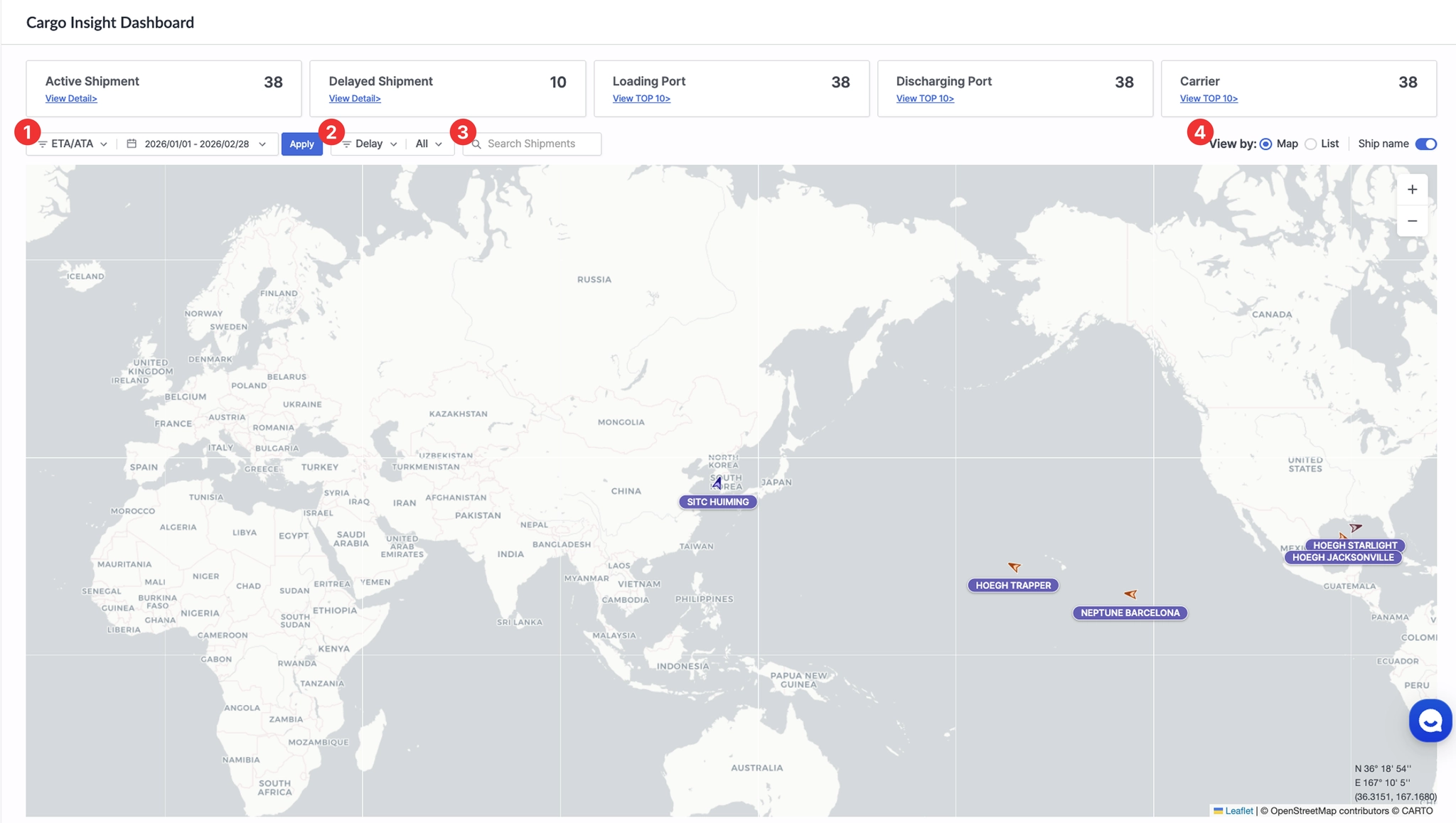
Cargo Insight Dashboard > Search Criteria Settings
No. | Item |
1 | Required Fields |
2 | Filter |
3 | Search Shipments |
4 | View by: Map or List |
1. Required Fields
All default queries in the Cargo Insight Dashboard are based on the date type and the from / to conditions set in Required Fields (ETA/ATA, ETD/ATD).
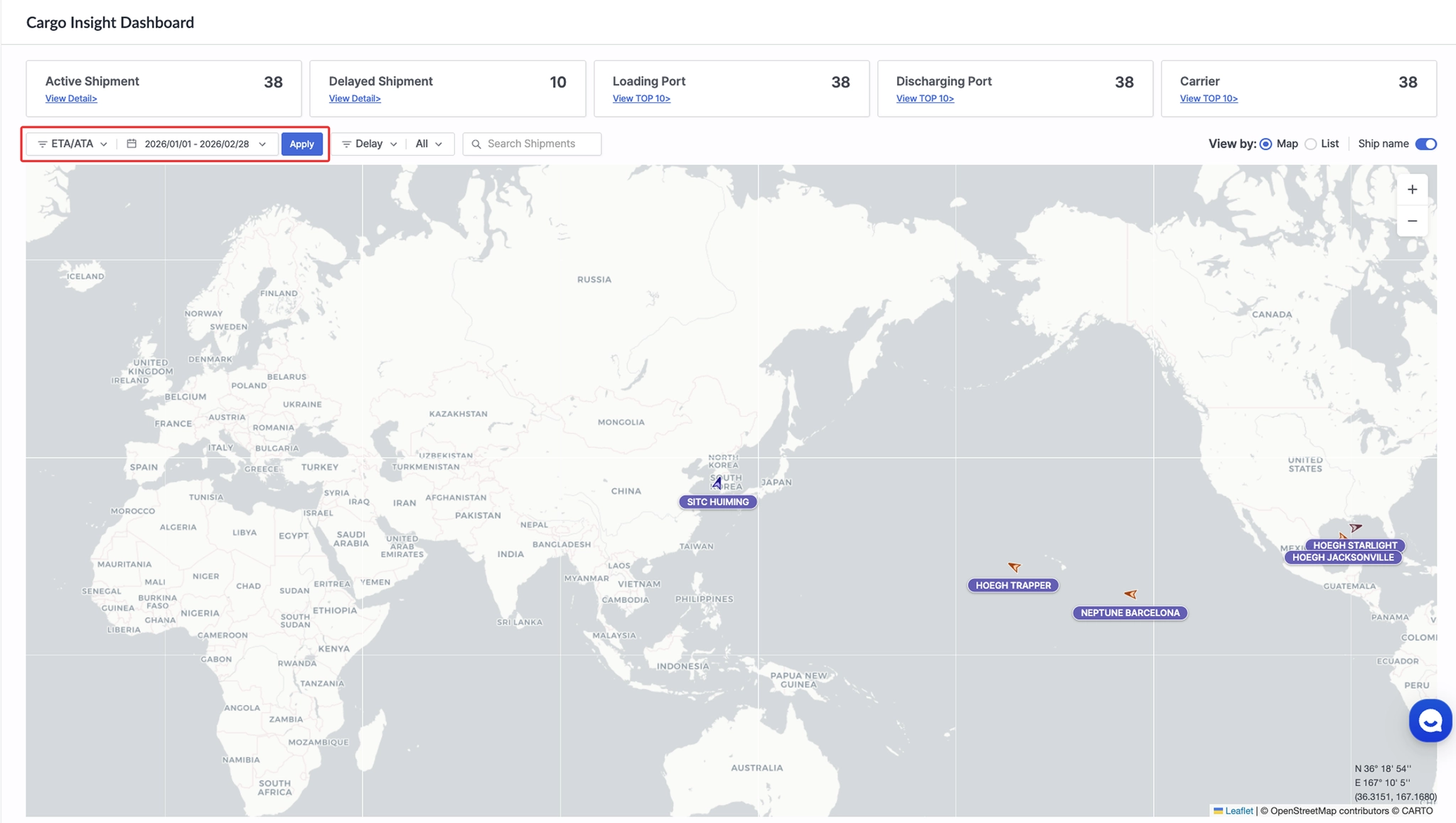
Cargo Insight Dashboard > Required Fields
Item | Description |
Date Type | Select the date type (ETA/ATA or ETD/ATD). |
Period | Set the time period for the shipment query. |
Apply | Click Apply to display shipments in Map View or List View. |
2. Filter
After applying the Required Fields, shipment-related information is displayed in the Map View and List View according to the selected filter settings.
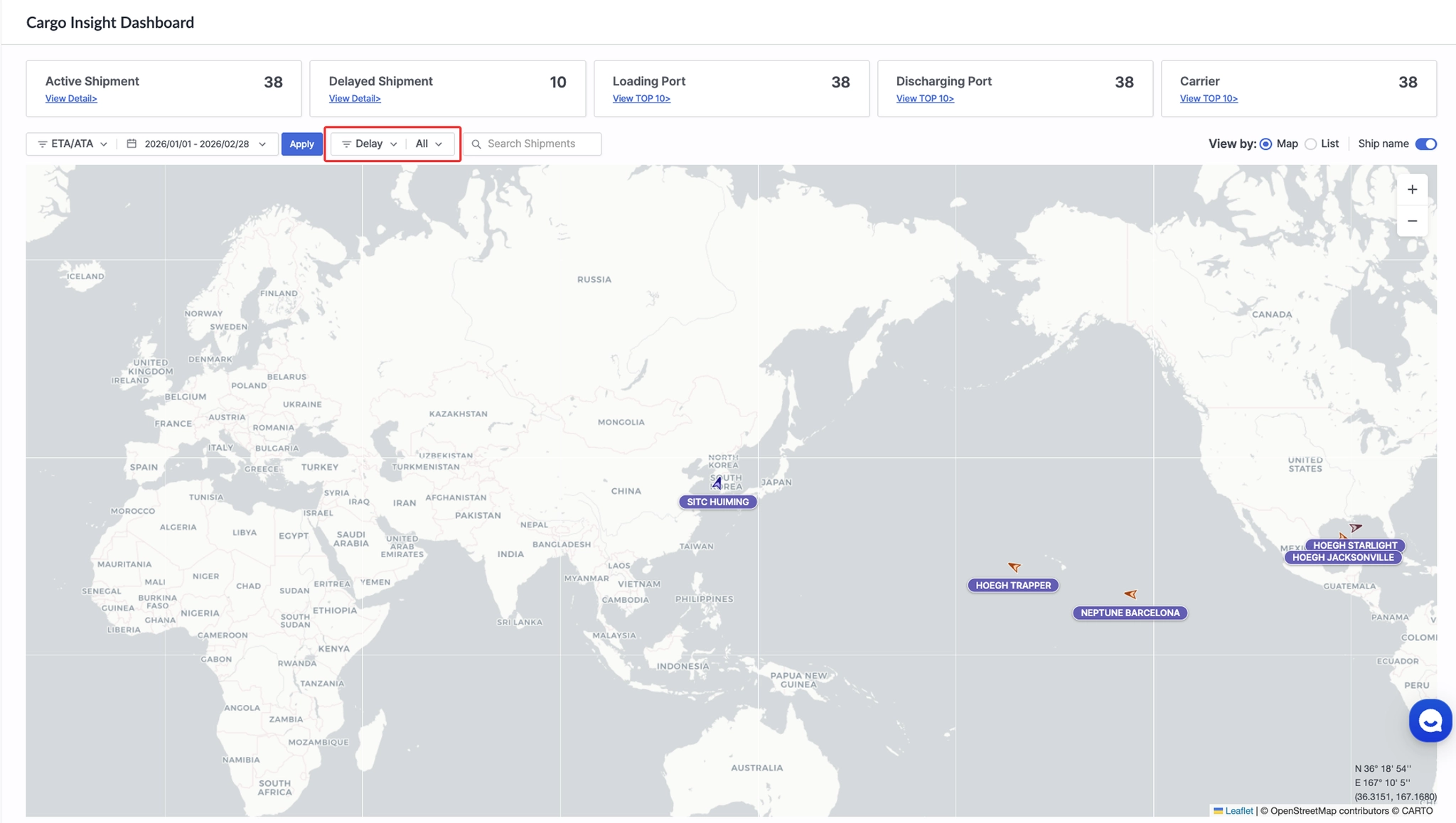
Cargo Insight Dashboard > Filter Configuration Screen
Item | Description |
Active | - Displays currently in-transit shipments in the List View and their related vessels in the Map View.
- When a vessel is selected in the sub-filter, only shipments associated with that vessel are shown in both List View and Map View. |
Delay | - Displays delayed shipments in the List View and their related vessels in the Map View.
- When a vessel is selected in the sub-filter, only shipments associated with that vessel are shown in both views. |
Carrier | - Displays currently in-transit shipments in the List View and their related vessels in the Map View.
- When a carrier is selected in the sub-filter, only shipments operated by the selected carrier are shown in both views. |
Loading Port | - Displays currently in-transit shipments in the List View and their corresponding loading ports in the Map View.
- When a loading port is selected in the sub-filter, only shipments associated with the selected loading port are shown in both views. |
Discharging Port | - Displays currently in-transit shipments in the List View and their corresponding discharging ports in the Map View.
- When a discharging port is selected in the sub-filter, only shipments associated with the selected discharging port are shown in both views. |
3. Search Shipments
Search and filter cargo data based on column values.
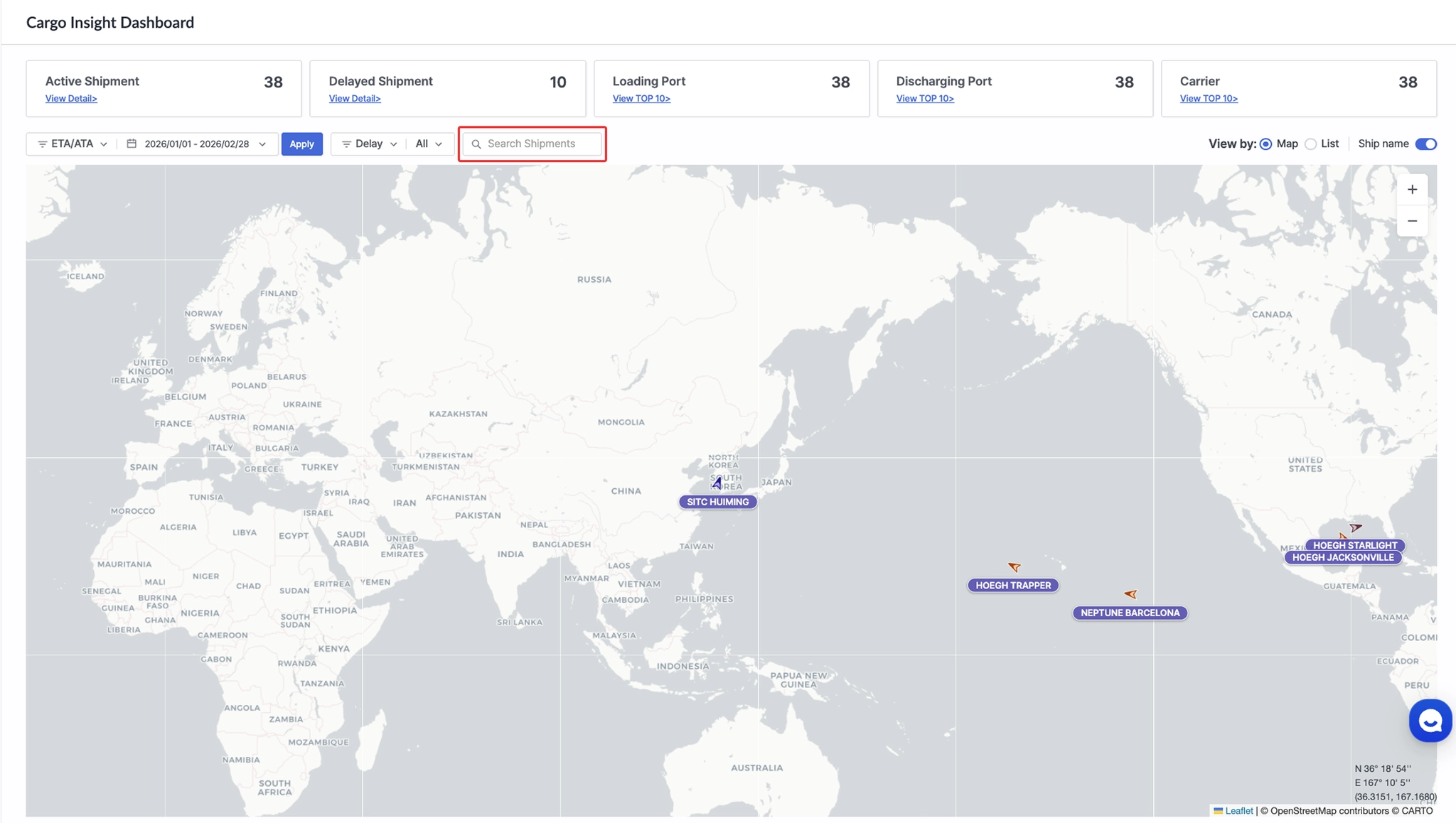
Cargo Insight Dashboard > Shipment Search
Item | Description |
Search Shipments | - When you enter a search keyword, data is filtered and retrieved based on the columns currently displayed in the List View.
- The columns available for searching vary depending on the Adjust Column settings. |
4. View by
Select the display mode: Map View or List View.
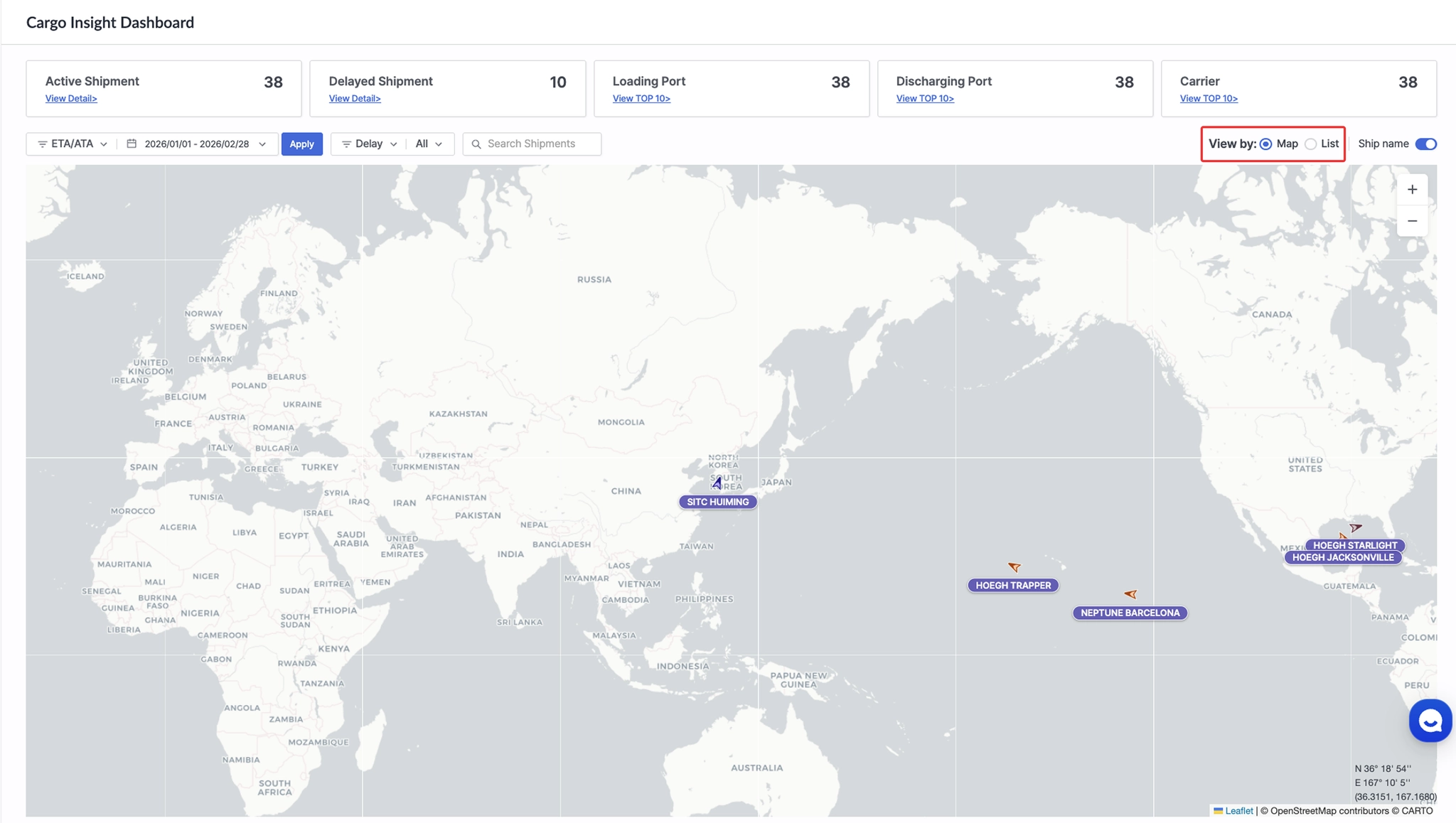
Cargo Insight Dashboard > View By
Item | Description |
Map View | View the locations of shipment-related vessels and ports on the map. |
List View | View the shipment list in a table format. |
Key Shipment Status Overview
View a summary of key shipment statuses for shipments registered in Cargo Insight
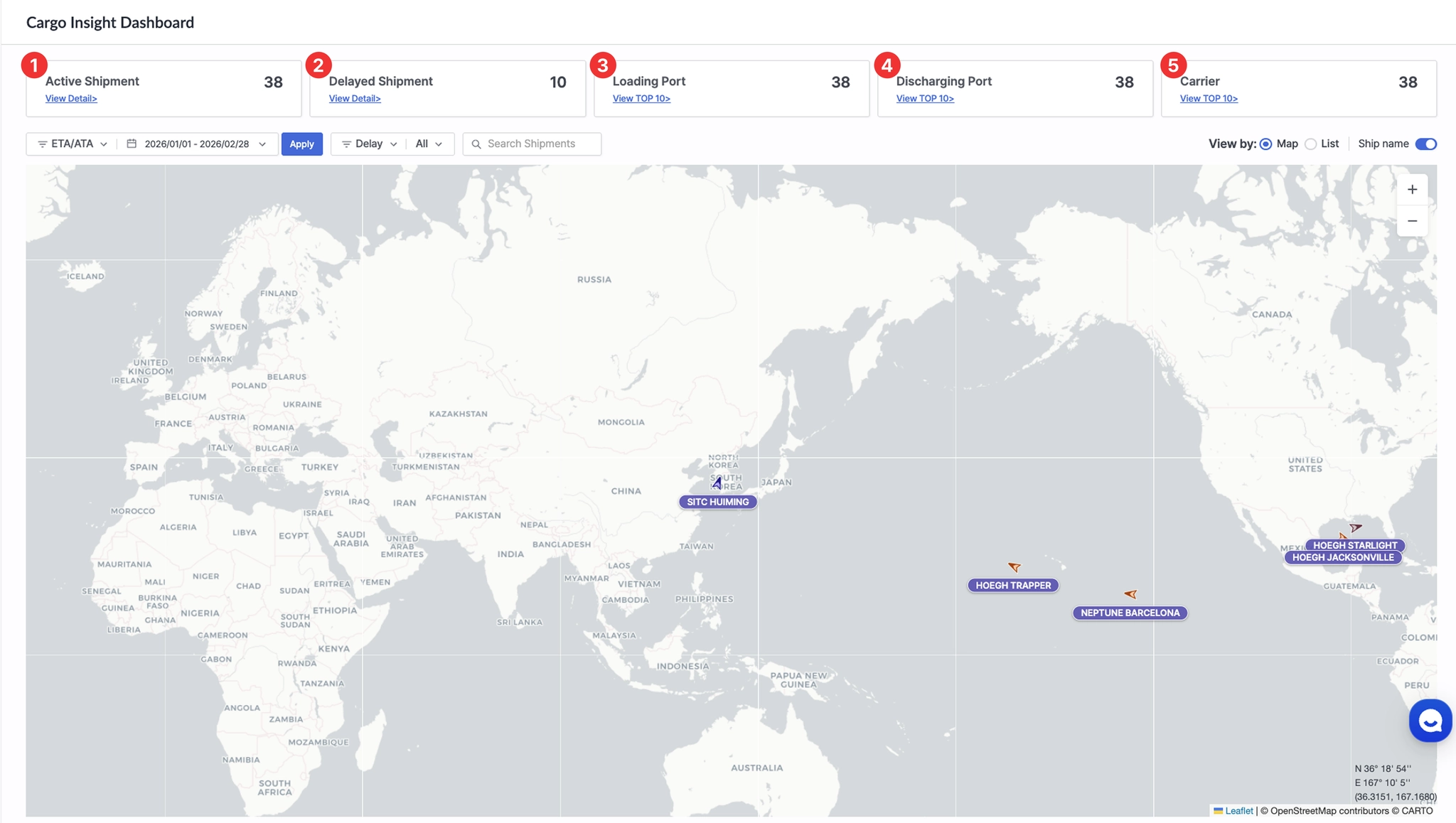
Cargo Insight Dashboard > Shipment Status Overview
No. | Item |
1 | Active Shipment |
2 | Delayed Shipment |
3 | Loading Port |
4 | Discharging Port |
5 | Carrier |
1. Active Shipment
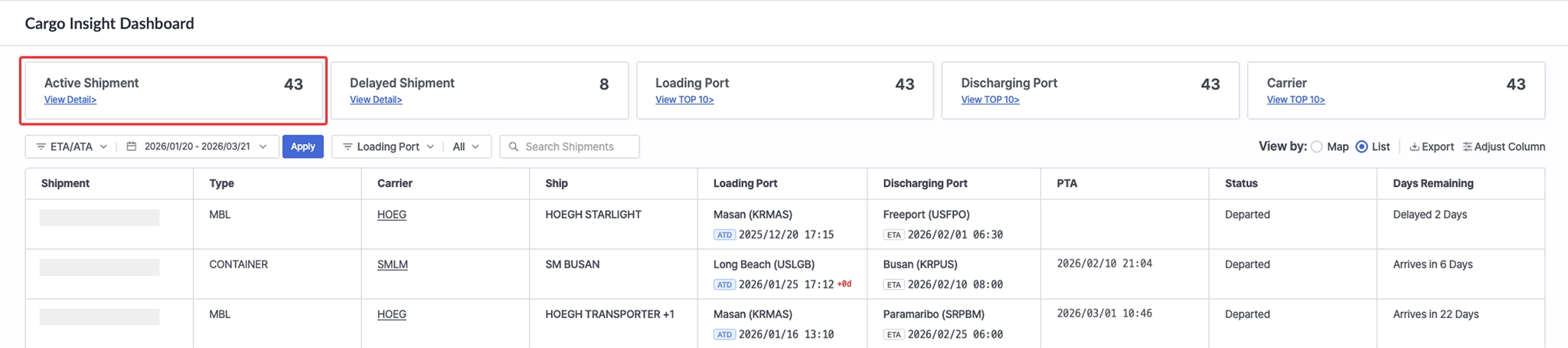
Cargo Insight Dashboard > Top Active Shipment card
•
Displays the number of shipments currently in transit.
•
Click View Detail to view the list of active shipments in List View.
2. Delayed Shipment
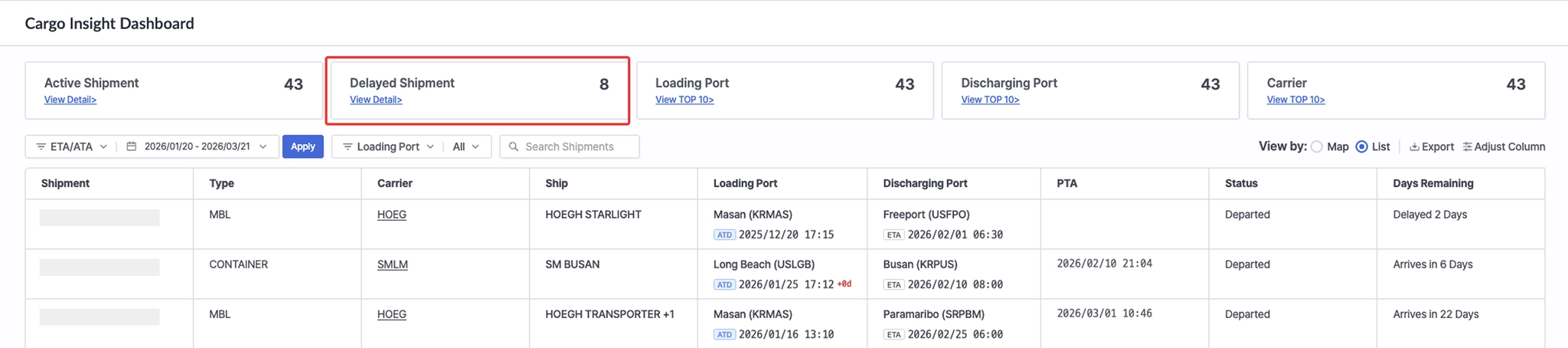
Cargo Insight Dashboard > Top Delayed Shipment card
•
Displays the number of in-transit shipments that have passed their scheduled arrival date (based on POD).
•
Click View Detail to view the list of delayed shipments in List View.
3. Loading Port
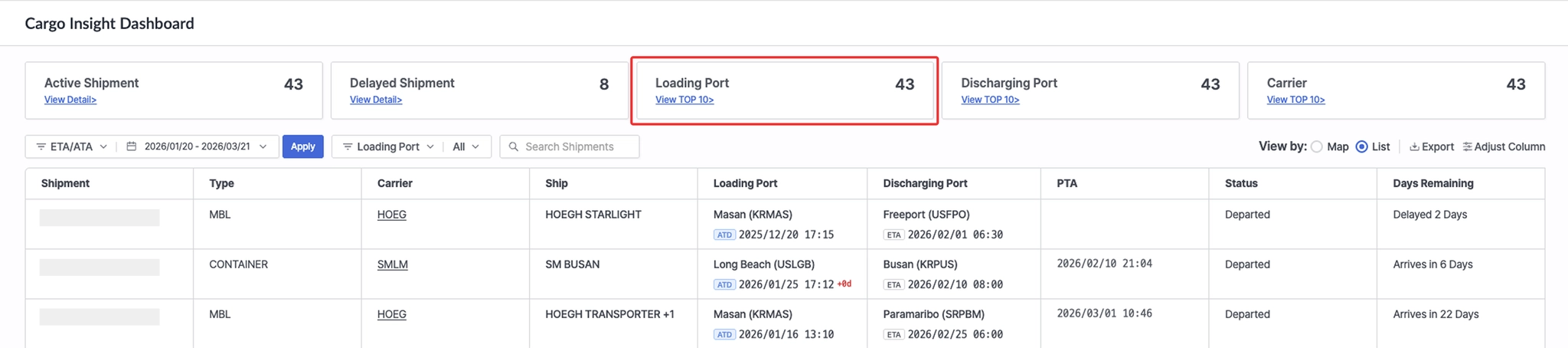
Cargo Insight Dashboard > Top Loading Port card
•
Displays the total number of loading ports based on in-transit shipments retrieved within the period set in Required Fields.
•
Click View TOP 10 to view the number and ratio of Active and Inactive shipments by loading port.
4. Discharging Port
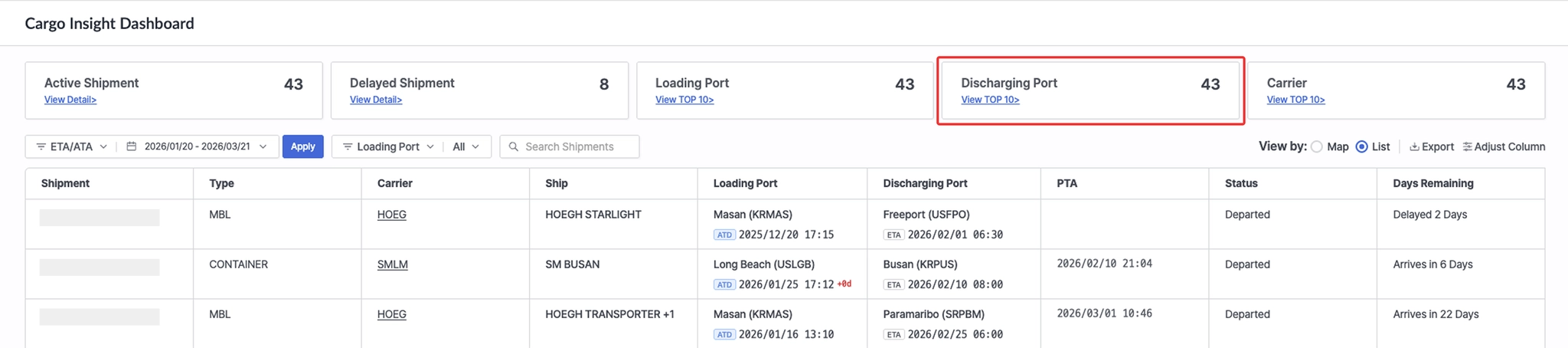
Cargo Insight Dashboard > Top Discharging Port card
•
Displays the total number of discharge ports based on in-transit shipments retrieved within the period set in Required Fields.
•
Click View TOP 10 to view the number and ratio of Active and Inactive shipments by discharge port.
5. Carrier
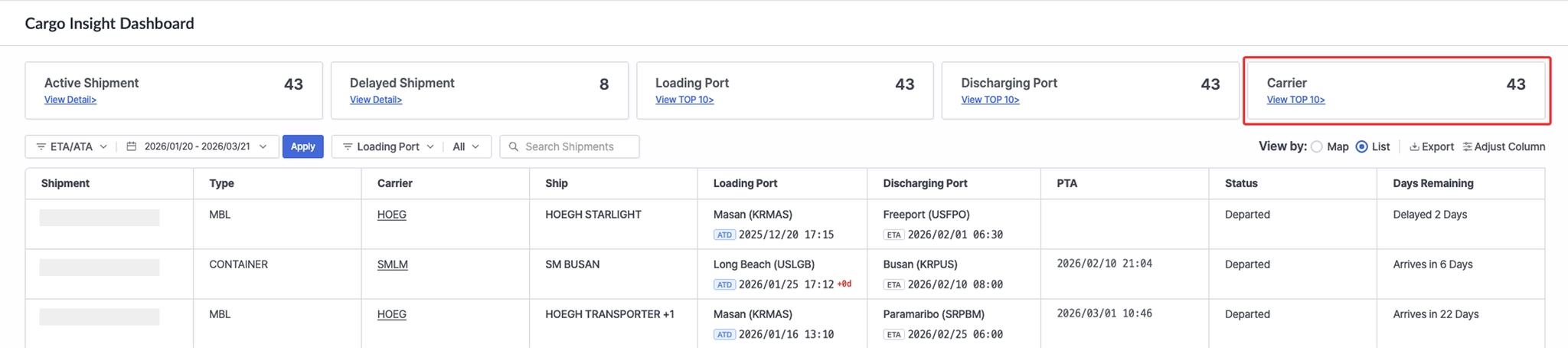
Cargo Insight Dashboard > Top Carrier card
•
Displays the number of in-transit shipments retrieved within the period set in Required Fields.
•
Click View TOP 10 to view the number and ratio of Active and Inactive shipments by carrier.
List View
View key shipment information and detailed tracking data for each shipment
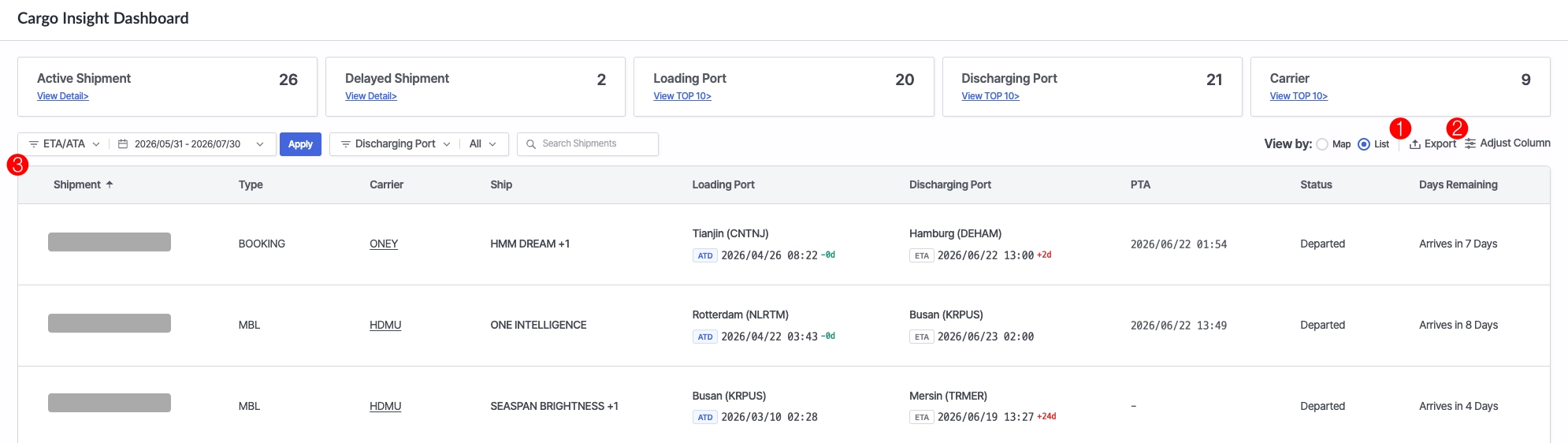
Cargo Insight Dashboard > View by: List
No. | Item |
1 | Excel File Download |
2 | Adjust Column |
3 | Shipment Information |
1. Export
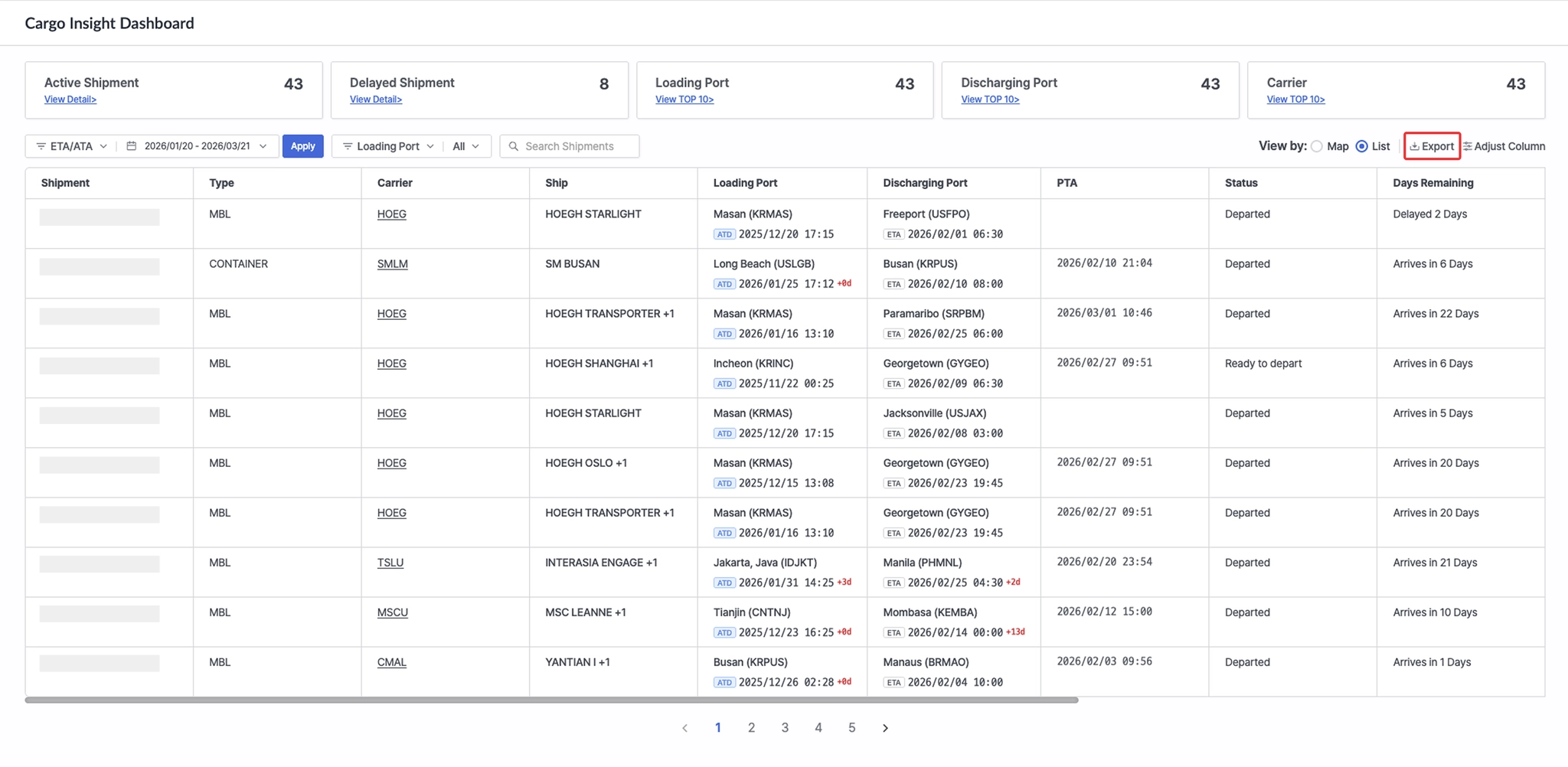
Cargo Insight Dashboard > Export Button (top-right)
•
Downloads the shipments currently displayed in the List View as an Excel file.
2. Adjust Column
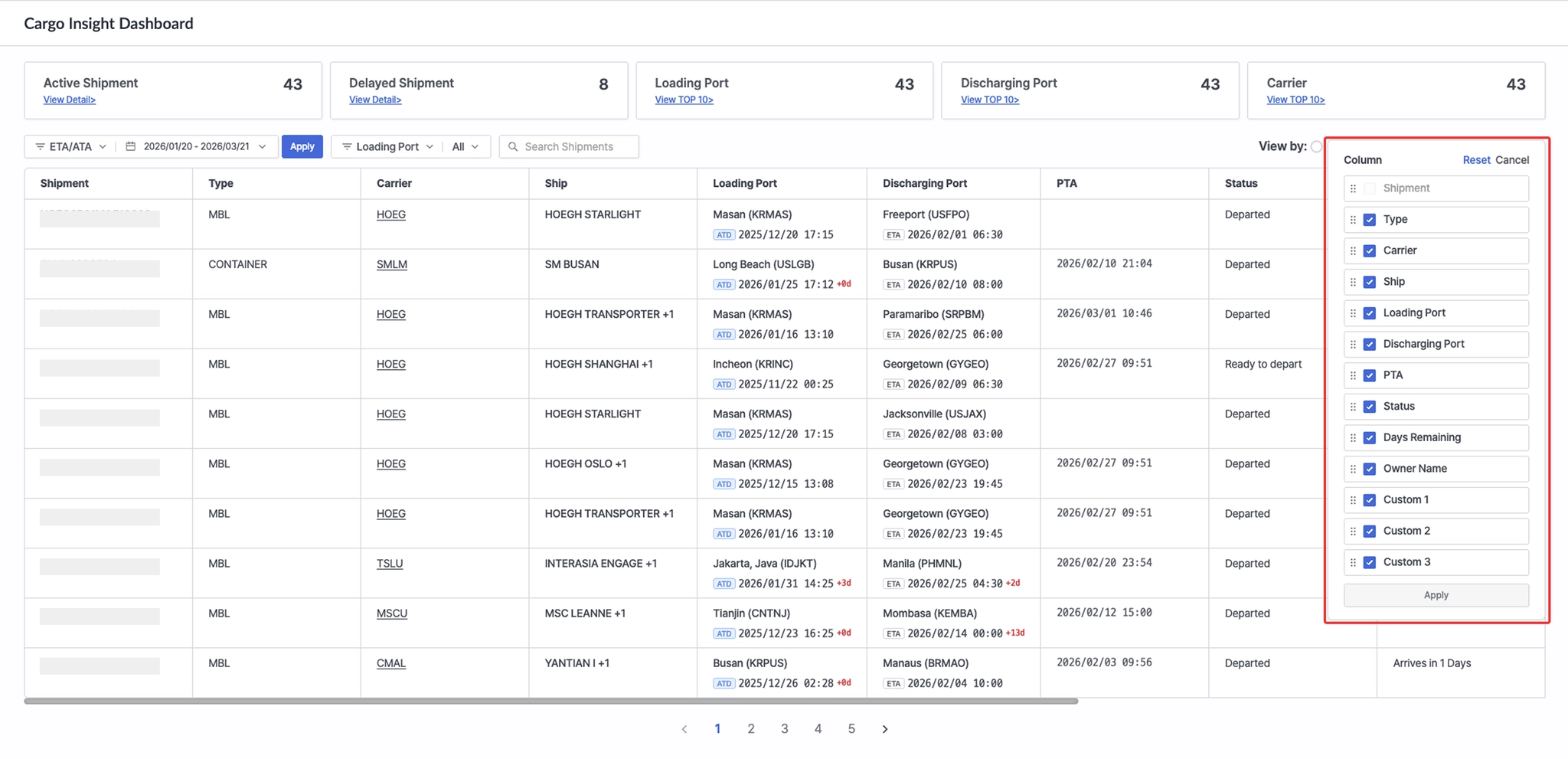
Cargo Insight Dashboard > Adjust Column Button (top-right)
•
Click Reset to restore the default column configuration.
•
Click Cancel to discard any changes and close the Adjust Column panel.
•
Select or deselect checkboxes to control which columns are displayed in List View.
•
Drag and drop columns to change their display order.
•
Owner name: When an H-B/L is registered via the [POST] /cargo API, the first owner name is displayed.
•
Custom1–Custom3: Displays the values entered when registering a shipment through the SaaS platform or provided via the [POST] /cargo API.
3. Shipment Information
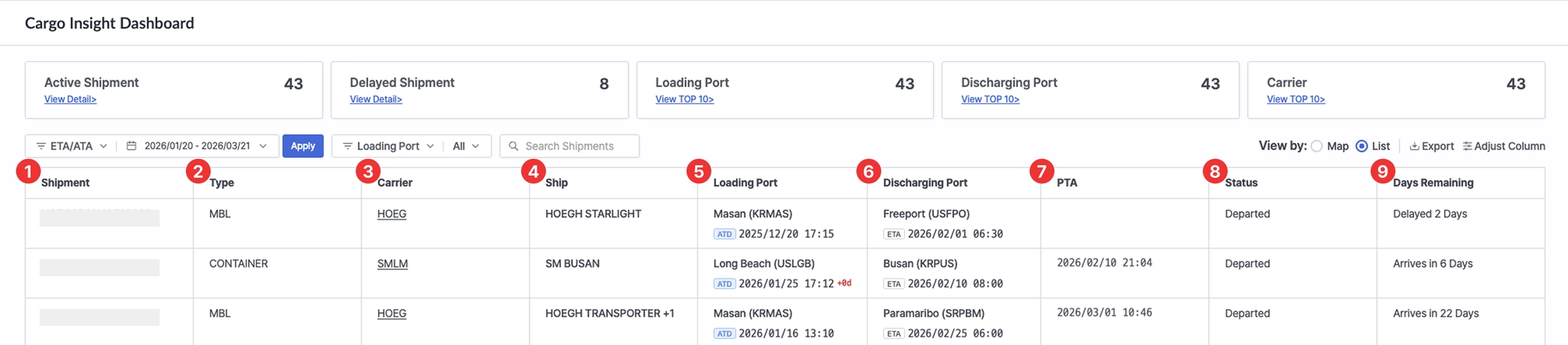
Cargo Insight Dashboard > Bottom Table
No. | Item | Description |
1 | Shipment | - Shipment identifier (one of M-B/L No., Booking No., or Container No.)
- Click the shipment number to open the shipment detail page |
2 | Type | Shipment identification type (M-B/L, Booking, or Container) |
3 | Carrier | - Carrier code
- Click the carrier code to open the carrier’s official website |
4 | Ship | - Vessel information related to the shipment
- Click the vessel to view vessel name, voyage, port name, ETD/ATD, and ETA/ATA |
5 | Loading Port | - Port of Loading (POL)- Click the +d / −d indicator next to ETD/ATD to view schedule differences between the shipment registration date and the current schedule |
6 | Discharging Port | - Port of Discharge (POD)- Click the +d / −d indicator next to ETA/ATA to view schedule differences between the shipment registration date and the current schedule |
7 | PTA | Predicted Time of Arrival |
8 | Status | Current shipment status |
9 | Days Remaining | Number of days remaining until arrival or number of delayed days |
Map View
View a visual overview of shipment progress through the real-time locations of vessels and related ports for shipments in transit.
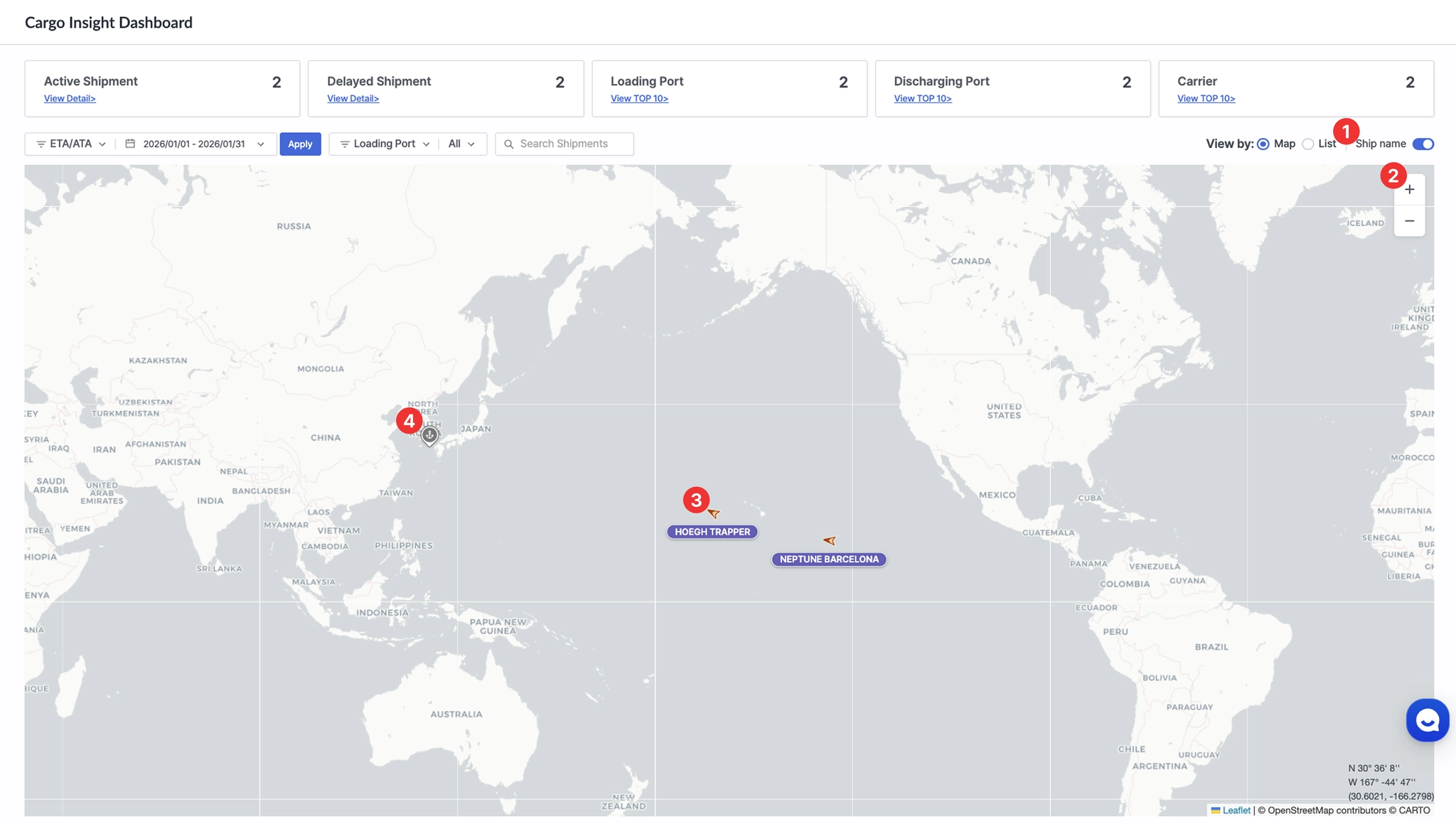
Cargo Insight Dashboard > View by set to Map with the Ship Name toggle enabled
No. | Item |
1 | Ship Name |
2 | Zoom Controls |
3 | Ship Icon |
4 | Port Icon |
1. Ship Name
Toggle this option to display the vessel name below the ship icon on the map.
•
You can choose whether to display vessel names on the map. When the toggle button is enabled, the vessel name is shown below the ship icon.
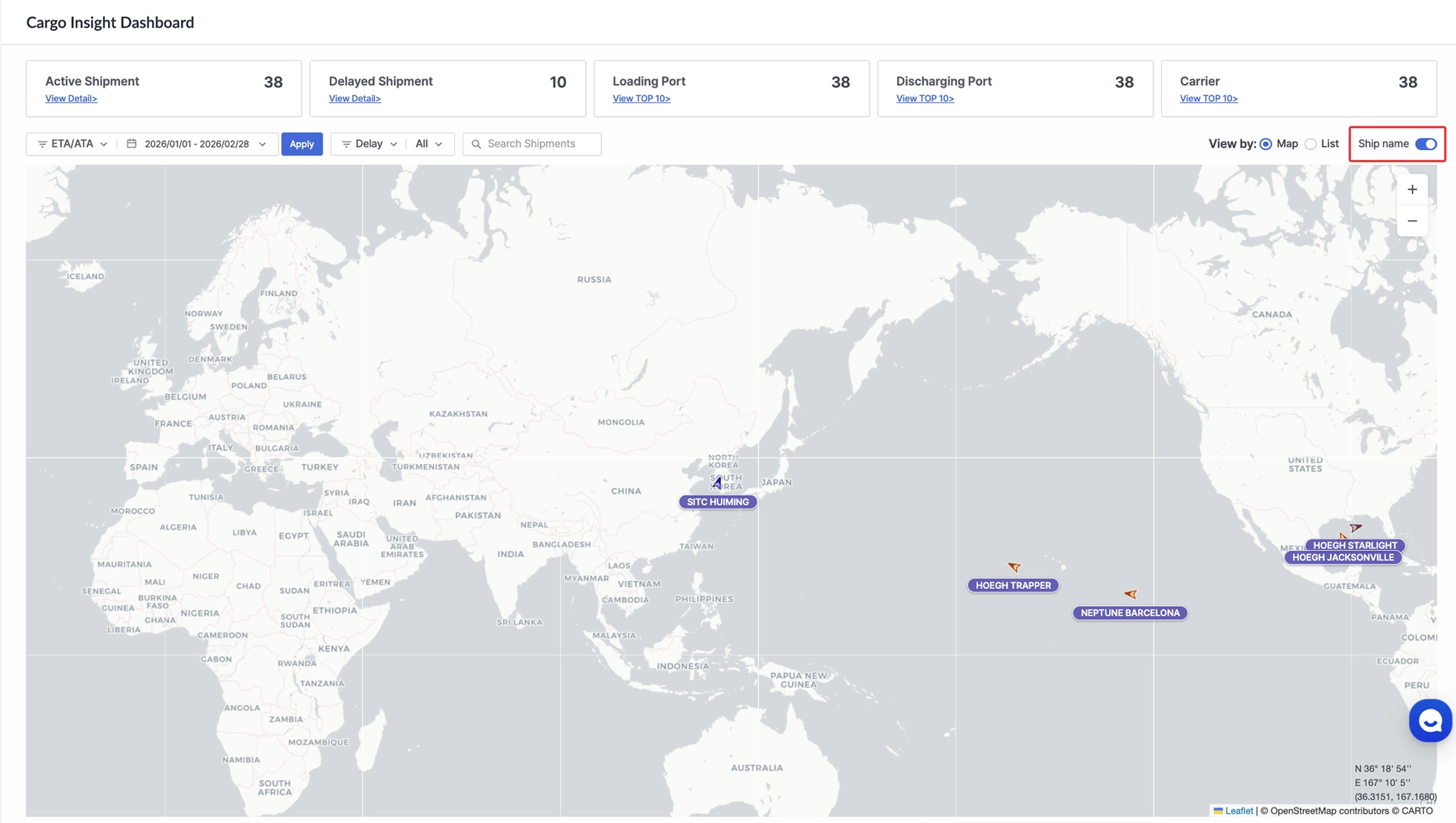
Cargo Insight Dashboard > Ship name toggle button to display ship names on the map
2. Zoom Controls
•
Adjust the map zoom level to change the visible area.
3. Ship Icon
•
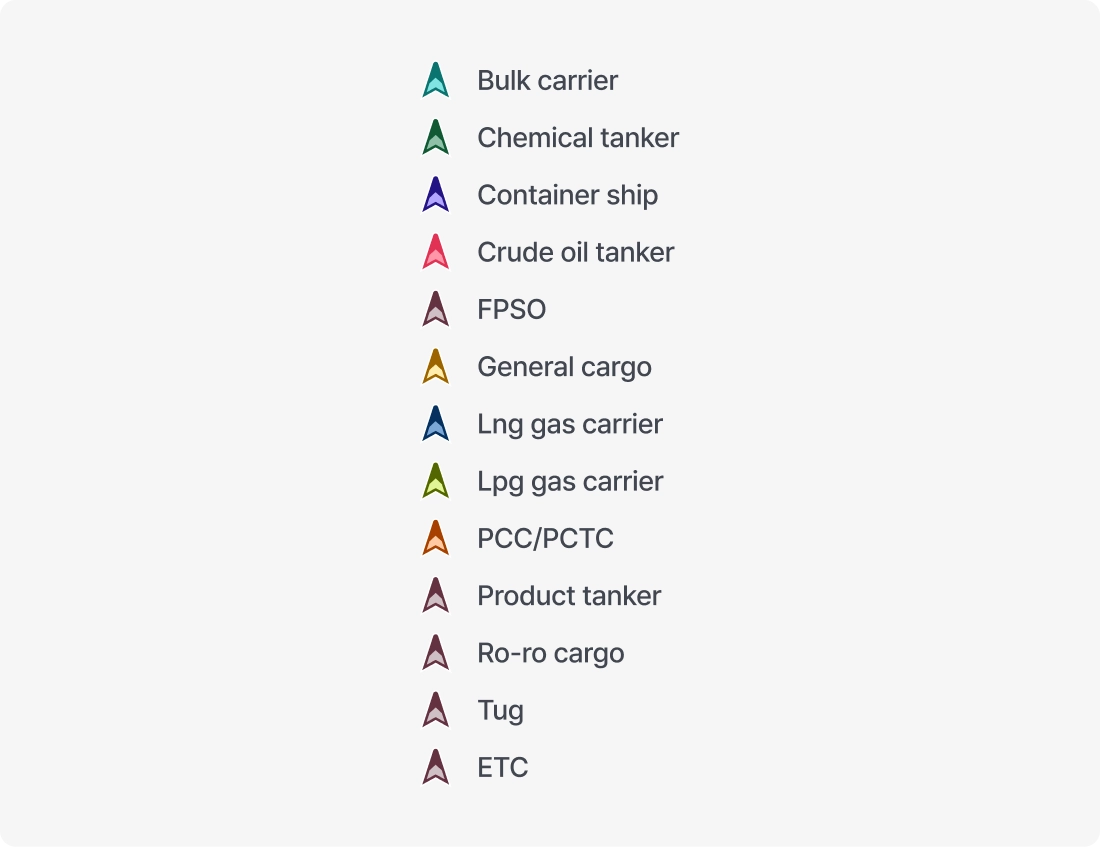
Indicates the real-time position of vessels related to tracked shipments.
•
Vessel status classification

•
Vessel type-based color coding
•
Click the ship icon to view shipment-related information for the vessel.
4. Port Icon

•
Indicates the location of ports related to registered shipments.
•
Clicking a gray marker displays the port name, UN/LOCODE, and number of related shipments. Click “Click to view detail” to move to List View and review the related shipments in detail.
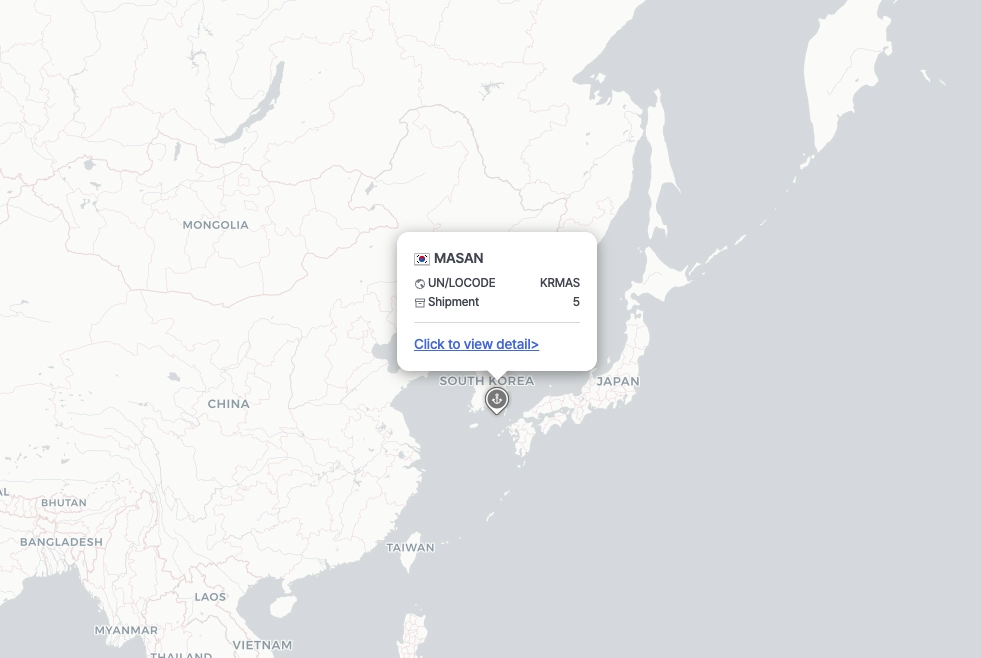
Cargo Insight Dashboard > Map – Real-time port locations
