


Users can receive summary reports and status change notification emails for specific shipments.
Summary Report
1.
2.
In the email body, please include the following information:
•
Account name that will receive the summary report emails
(An account created in SeaVantage Insight is required.
To receive emails, please sign up and create an account first.)
3.
The CX team will review your request and configure the alert settings.
4.
Once enabled, summary report emails are automatically sent every day at 9:00 AM (KST, GMT+9) to all active accounts within the workspace.

Note
If you do not receive the email, please check your spam folder.
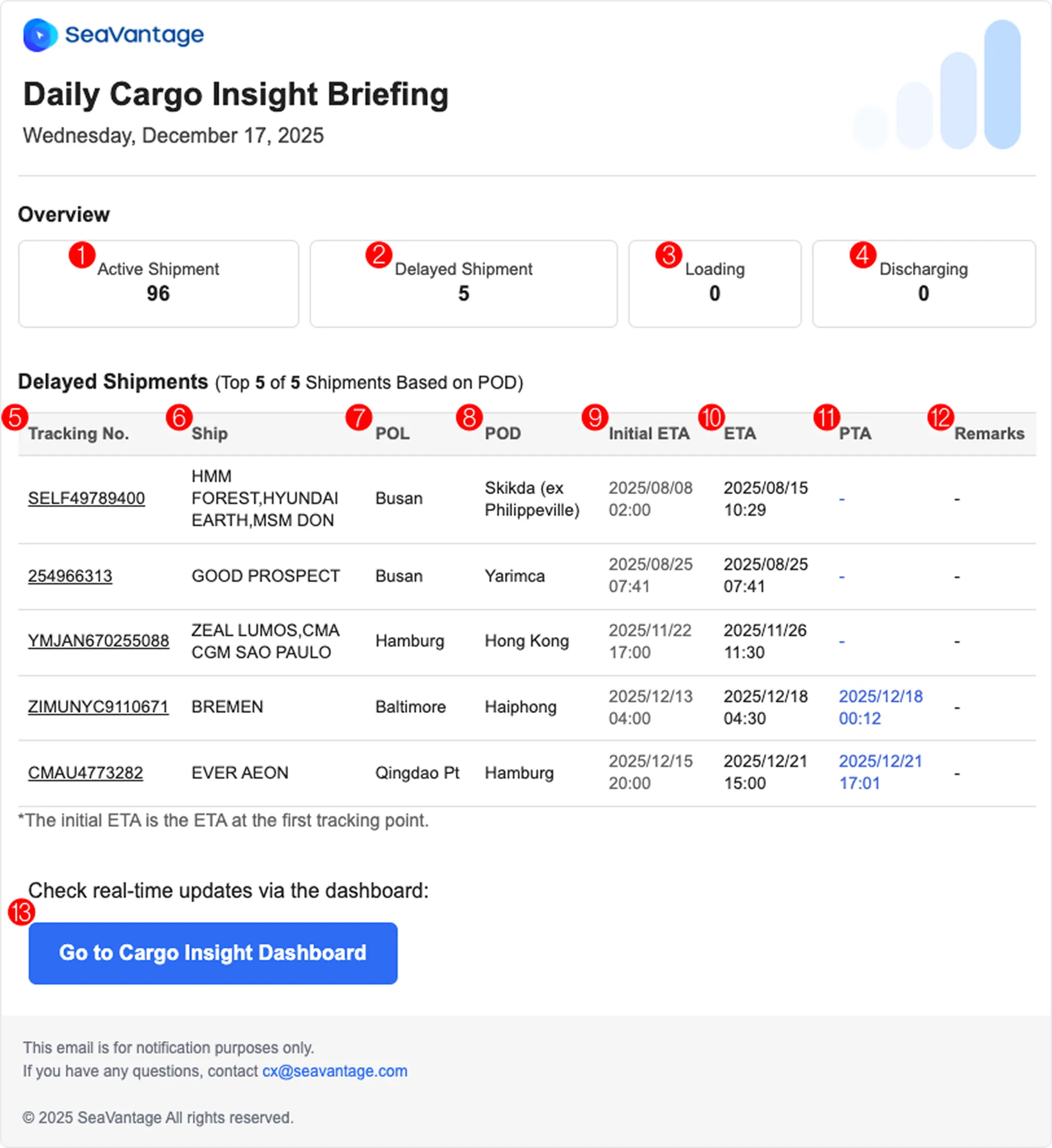
Daily Cargo Insight Briefing Email
No. | Item | Description |
1 | Active Shipment | Number of shipments currently in transit |
2 | Delayed Shipment | Number of in-transit shipments that have passed the scheduled arrival date (based on POD) |
3 | Loading | Number of shipments with a loading event occurring today |
4 | Discharging | Number of shipments with a discharging event occurring today |
5 | Tracking No. | Shipment identifier (one of M-B/L number, Booking number, or Container number) |
6 | Ship | Vessel information associated with the shipment |
7 | POL | Port of Loading (POL) |
8 | POD | Port of Discharge (POD) |
9 | Initial ETA | Initial Estimated Time of Arrival collected at the time of shipment registration |
10 | ETA | Most recently updated Estimated Time of Arrival |
11 | PTA | Predicted Time of Arrival |
12 | Remarks | Data displayed based on customer requirements |
13 | Go to Cargo Insight Dashboard | Navigate to the Cargo Insight Dashboard |
Shipment Status Alerts
1.
Go to SeaVantage Insight, sign up for an account, and log in.
2.
Register the shipment for which you would like to receive alerts.
•
For detailed instructions, refer to the Shipment Registration Guide.
3.
Click the bell ( ) icon (Alerts) for the registered shipment to open a pop-up window. In the pop-up, you can view and configure the following:
) icon (Alerts) for the registered shipment to open a pop-up window. In the pop-up, you can view and configure the following: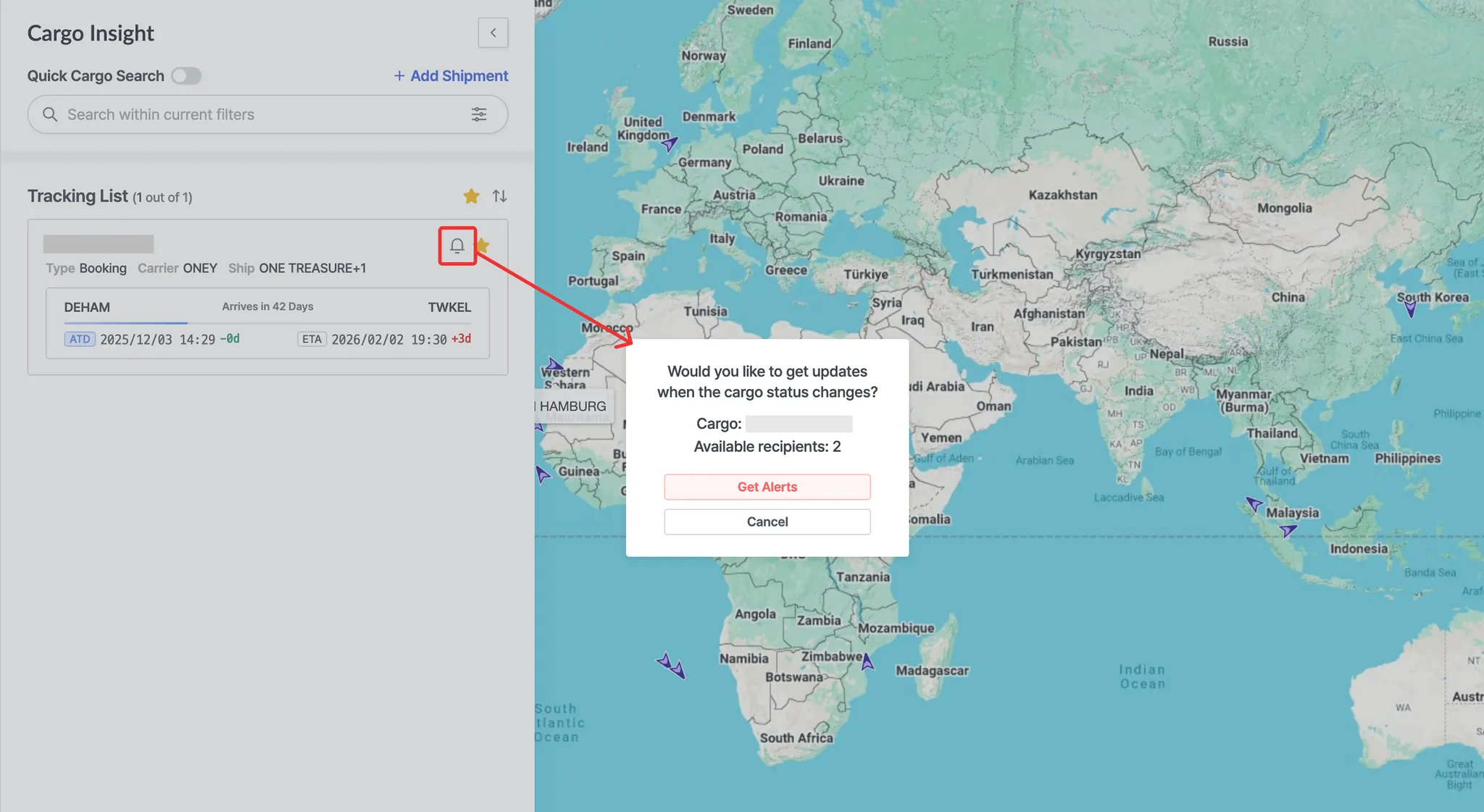
Cargo Insight > Click the shipment bell icon
•
Cargo : Shipment identifier
•
Available Slot : Number of remaining recipient slots for alert emails (up to 2 accounts per shipment)
•
Click the [Get Alerts] button to automatically receive email notifications when the shipment status changes.
4.
Alert emails are sent automatically whenever the shipment status changes:
•
When the shipment departs from POL (Port of Receipt)
•
When the shipment arrives at TSD (Transshipment Discharging)
•
When the shipment departs from TSL (Transshipment Loading)
•
When the shipment arrives at POD (Port of Discharging)
Note
If you do not receive the email, please check your spam folder.
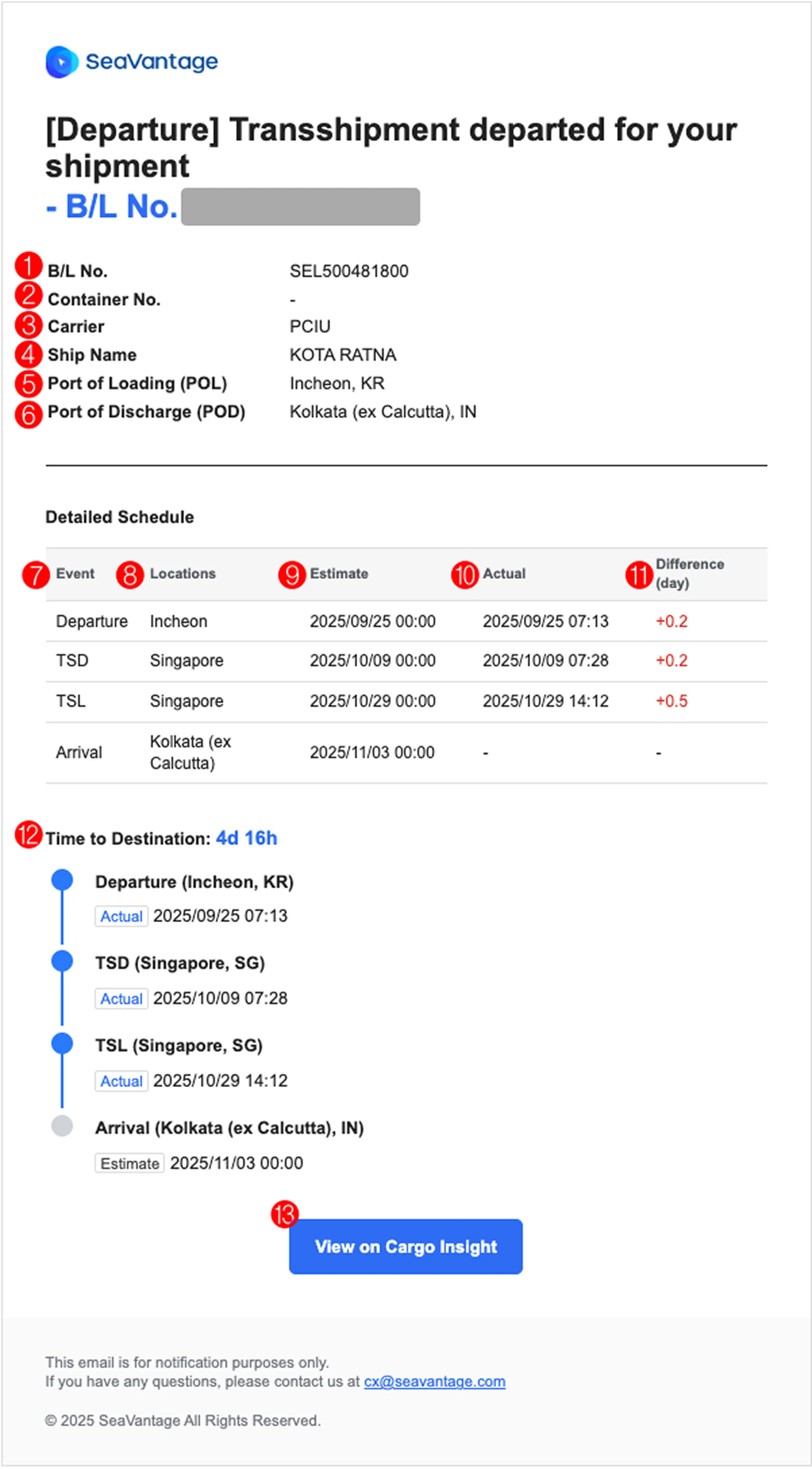
My Shipment Status Alert Email
No. | Item | Description |
1 | B/L No. | Master B/L number |
2 | Container No. | Container number |
3 | Carrier | Carrier code |
4 | Ship Name | Vessel information for the shipment |
5 | Port of Loading (POL) | Port of Loading |
6 | Port of Discharge (POD) | Port of Discharge |
7 | Event | - Departure: Departure from POL
- TSD: Arrival at transshipment port (Discharging)
- TSL: Departure from transshipment port (Loading)
- Arrival: Arrival at POD |
8 | Locations | Port name |
9 | Estimate | - If Event is Departure: Estimated departure date
- If Event is TSD: Estimated arrival date
- If Event is TSL: Estimated departure date
- If Event is Arrival: Estimated arrival date |
10 | Actual | - If Event is Departure: Actual departure date
- If Event is TSD: Actual arrival date
- If Event is TSL: Actual departure date
- If Event is Arrival: Actual arrival date |
11 | Difference (day) | Schedule difference (in days) between the time of shipment registration and the current schedule |
12 | Time to Destination | Remaining days until arrival or number of delayed days |
13 | View on Cargo Insight | Link to the Cargo Insight Dashboard |