



In the Port Insight map, you can view vessels associated with the port, real-time congestion levels, and the overall vessel situation at a glance.
Vessel View
•
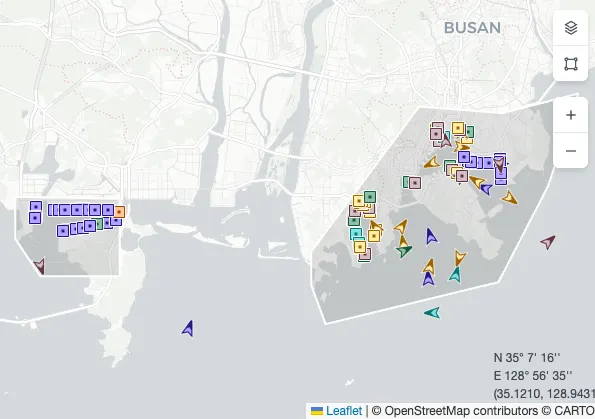
Vessels related to the selected port are displayed on the map, and you can check the port’s real-time congestion status.
•
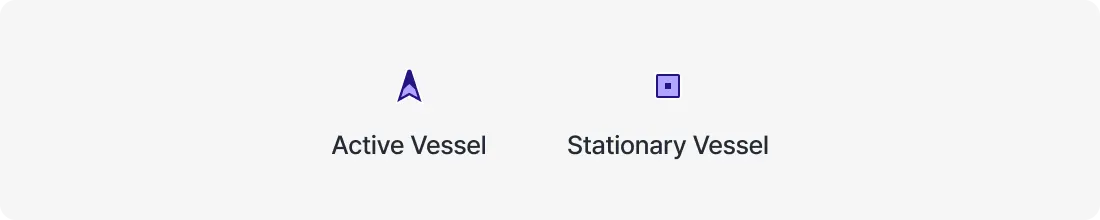
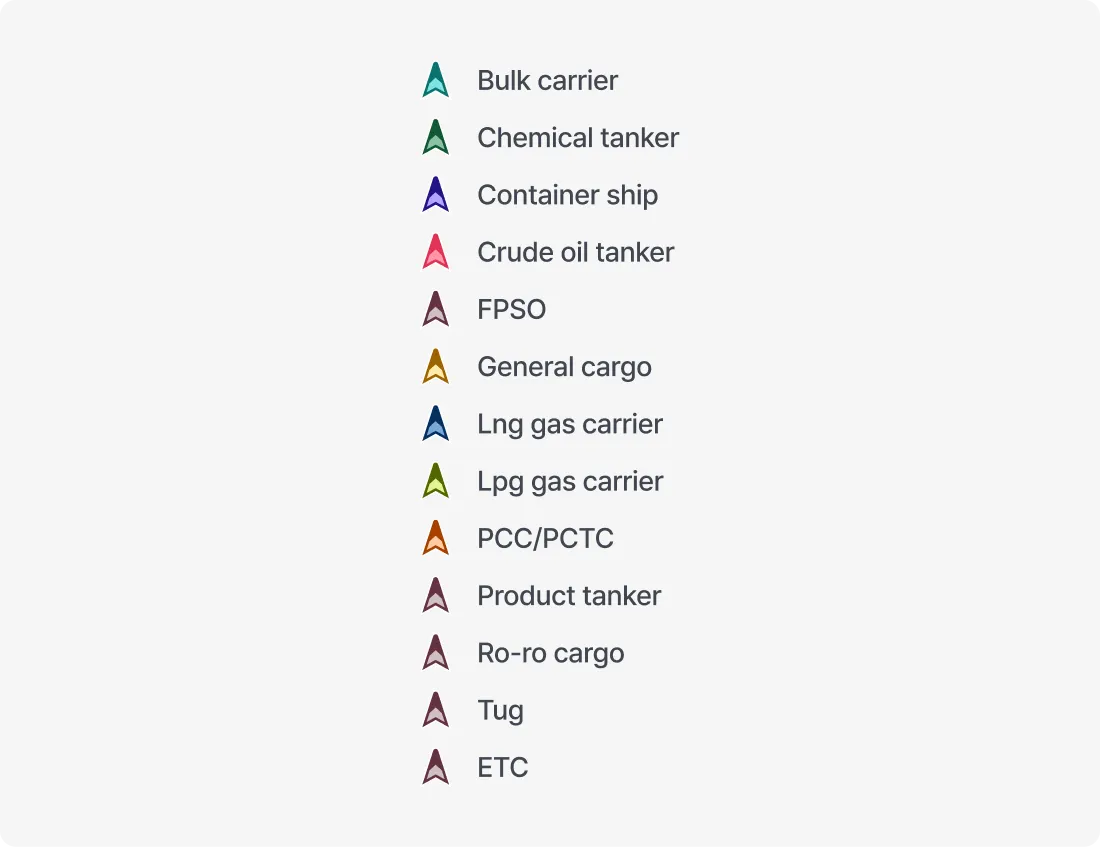
Vessel icons are displayed with different shapes and colors to indicate vessel type and status.
Berth View
•
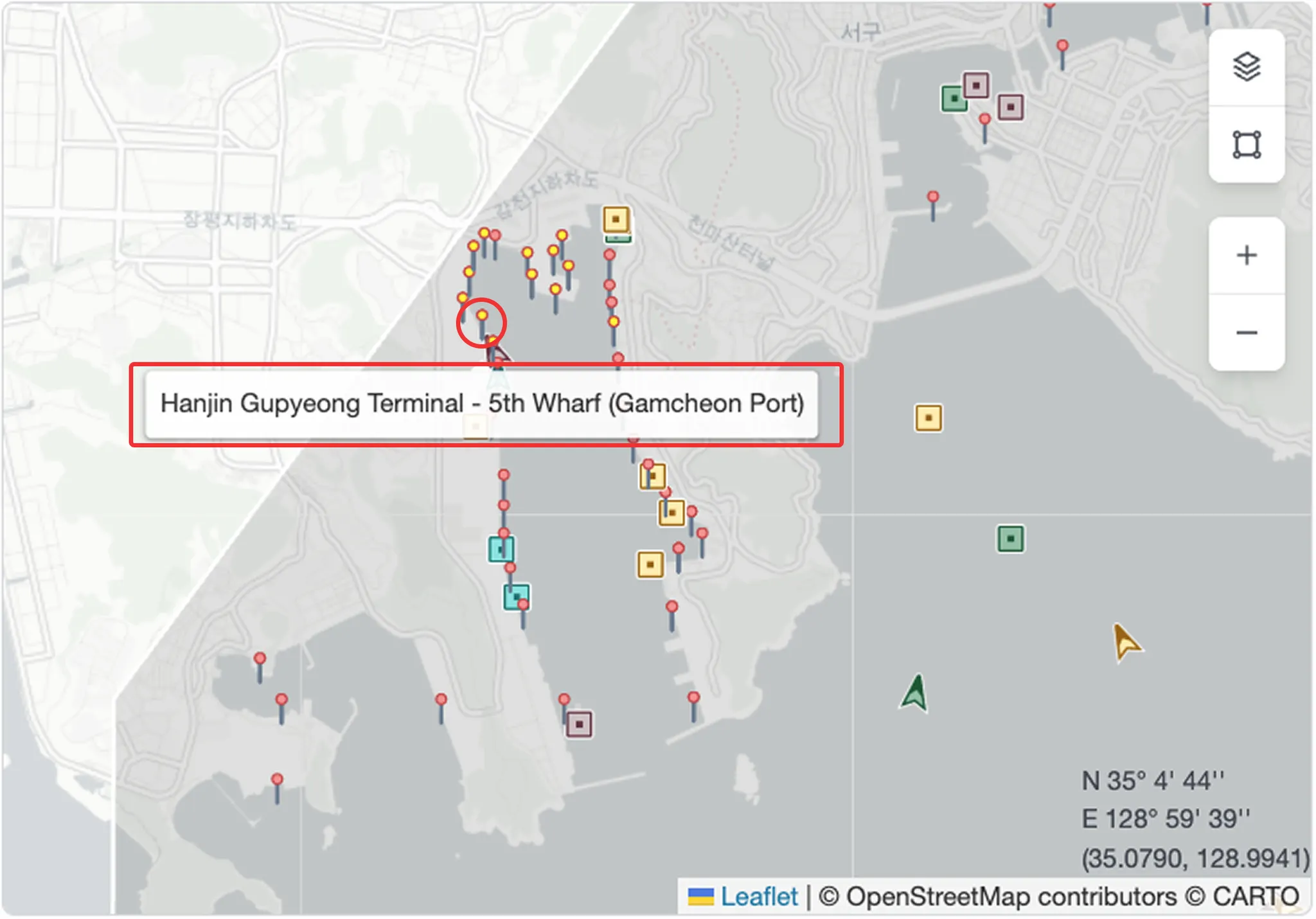
When zooming in, berth locations are displayed in greater detail. Hovering over a berth shows the terminal name.
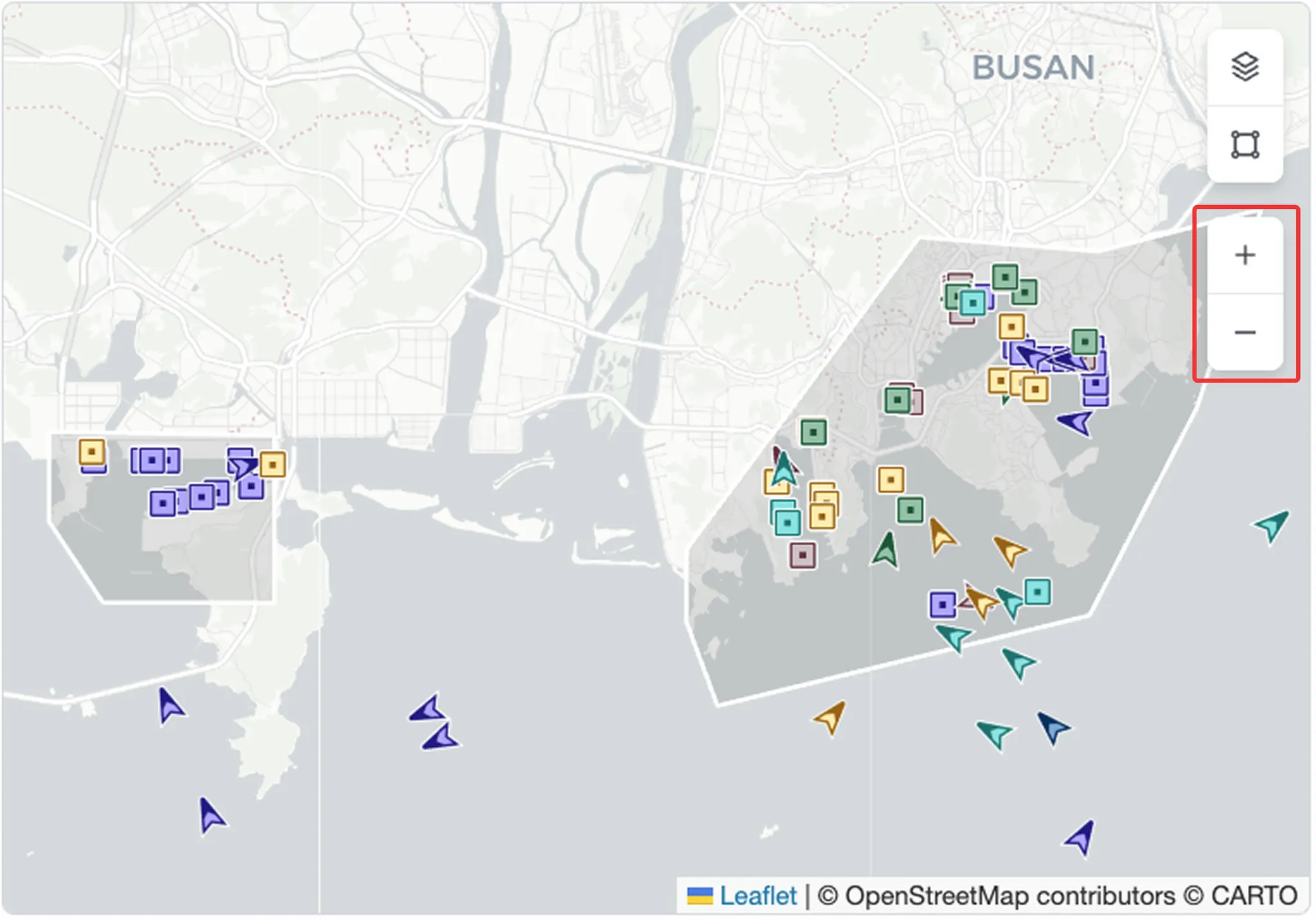
Zoom In/Out
•
Use zoom controls to view detailed information such as berth locations, or zoom out to view all vessels around the port, including arriving, waiting, working, and departing vessels.
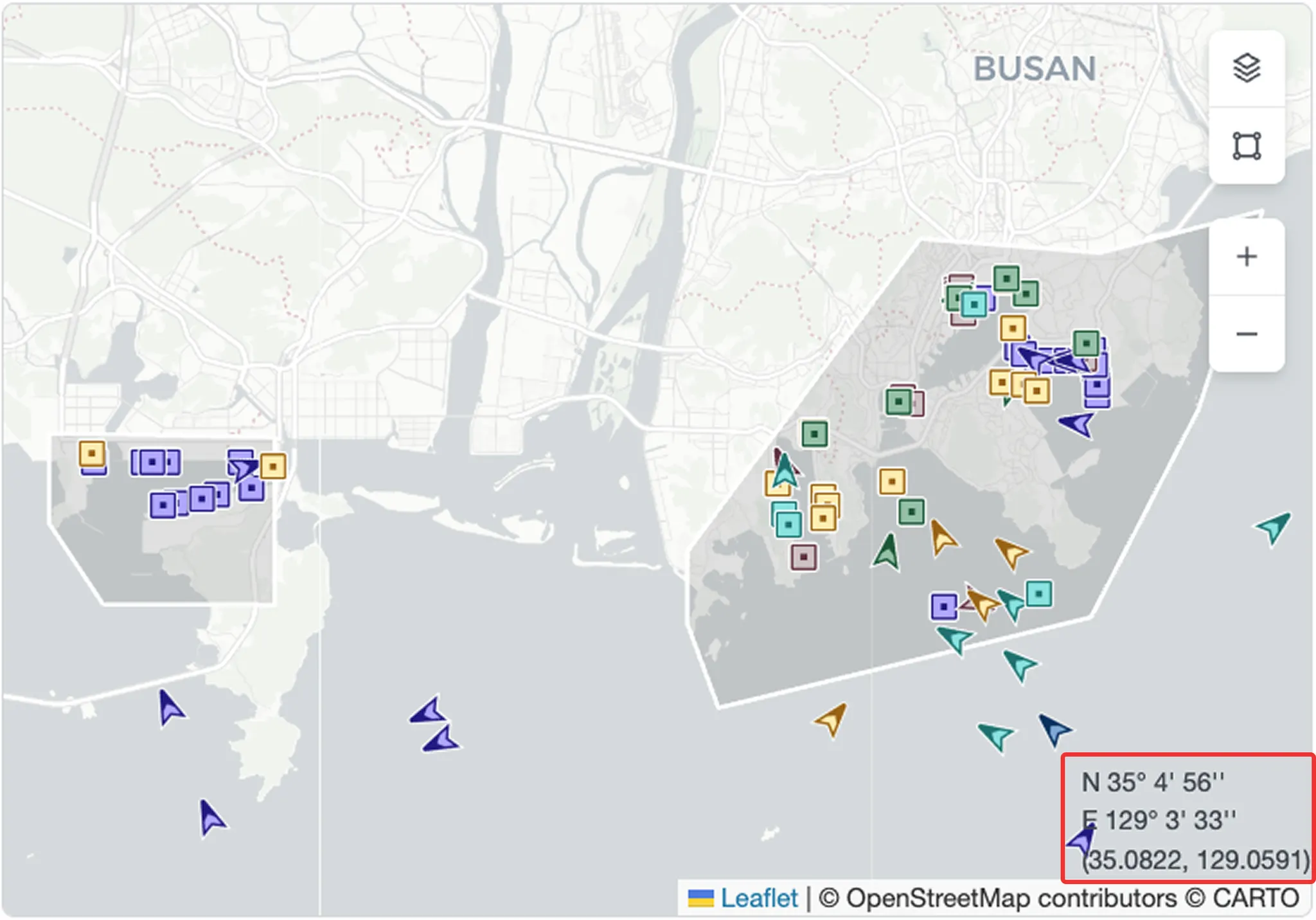
Coordinate Display
•
Shows the latitude and longitude of the cursor position on the map.
Layer Settings
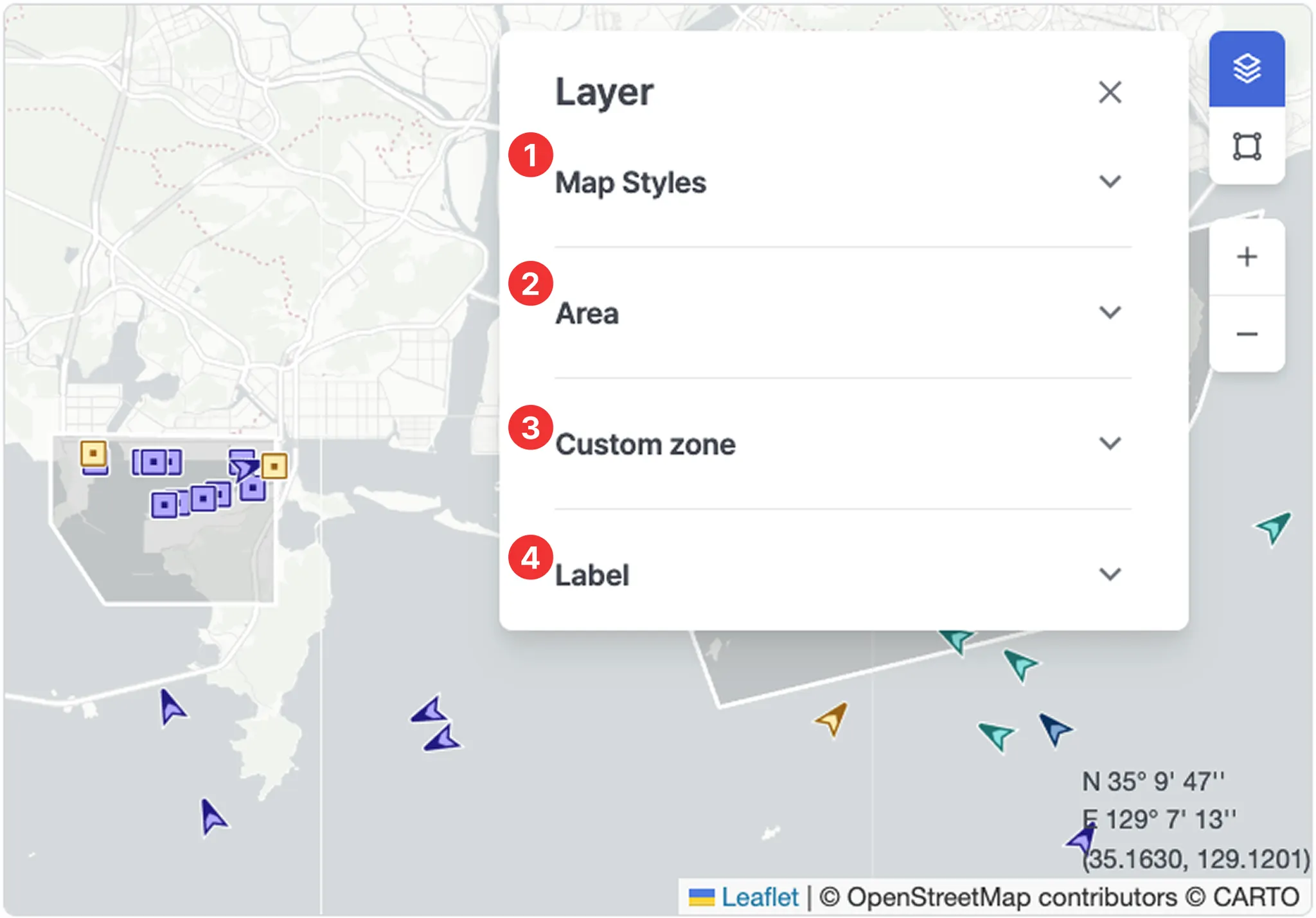
1. Map Styles
•
Select a map style.
•
You can also select preferred map styles in Settings to change which styles appear in the Layer panel.
2. Area
•
Displays specific zones on the map.
◦
ECA (Emission Control Area)
◦
EEZ (Exclusive Economic Zone)
◦
JWC (Joint War Committee – War Risk Area)
◦
HRA (High Risk Area)
◦
TSS (Traffic Separation Scheme)
3. Custom zone
•
Displays user-defined zones on the map.
4. Label
•
Ship name: Displays the vessel name below the vessel icon.
Tools
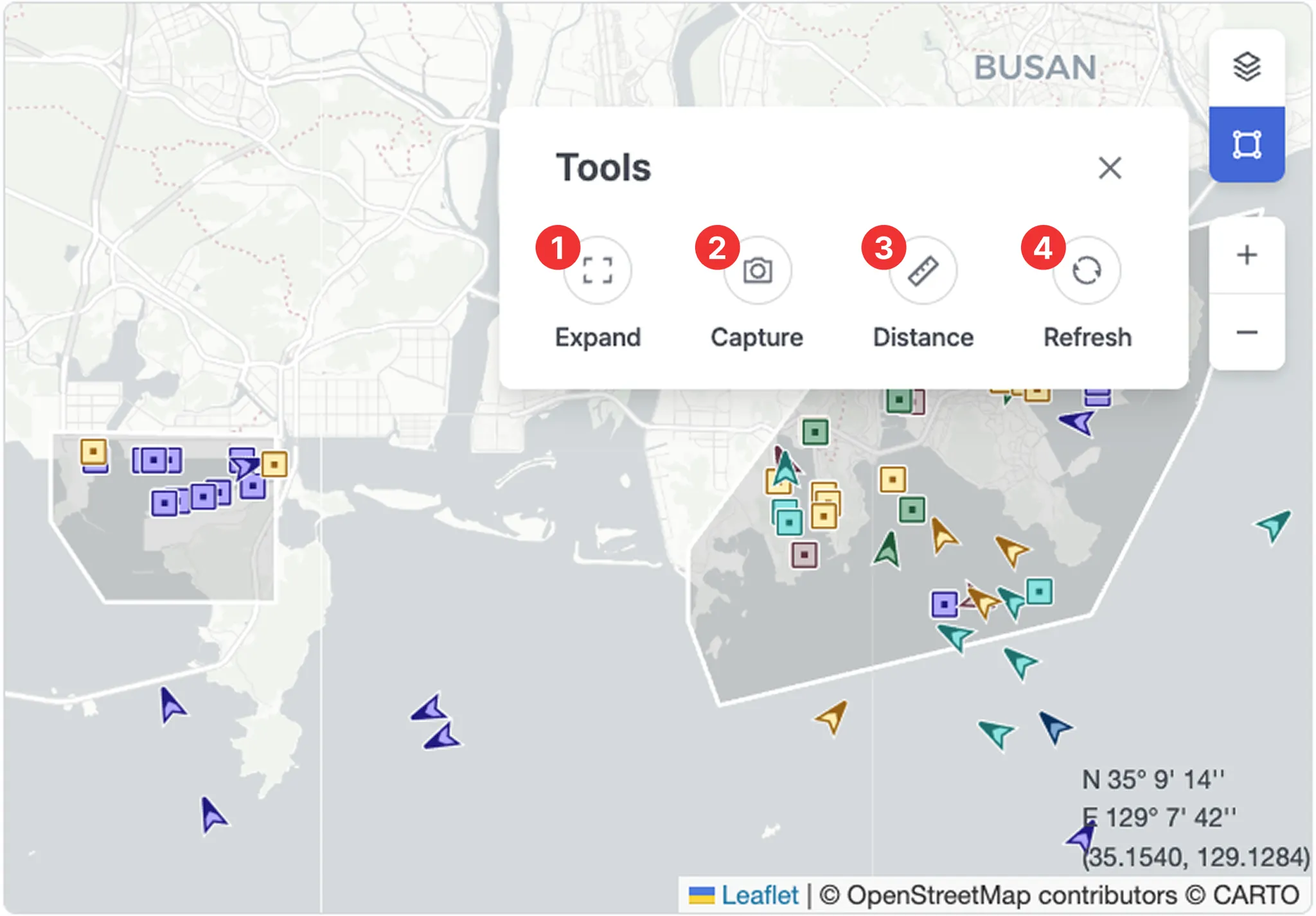
1. Expand
•
Switches the screen to fullscreen mode to view information more clearly.
•
Press Esc to exit fullscreen.
2. Capture
•
Saves the current screen as an image for sharing or documentation.
3. Distance
•
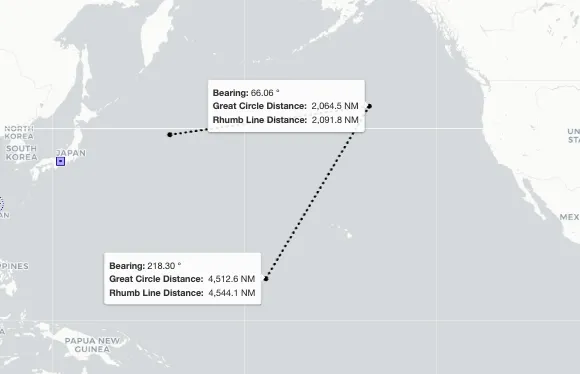
A measurement tool used to check the distance between selected points.
•
Click the starting point and the destination to view Bearing, Great Circle Distance, and Rhumb Line Distance.
•
Click multiple points to draw the measurement path. Double-click to complete the line.
•
Click again to start a new measurement.
•
Press Esc or click the Distance button again to exit the measurement mode.
4. Refresh
•
Reloads the latest data and updates the map immediately.