



The Cargo Report module allows users to monitor container dwell time and quickly identify potential demurrage cost risks caused by extended container stays.
View by Period
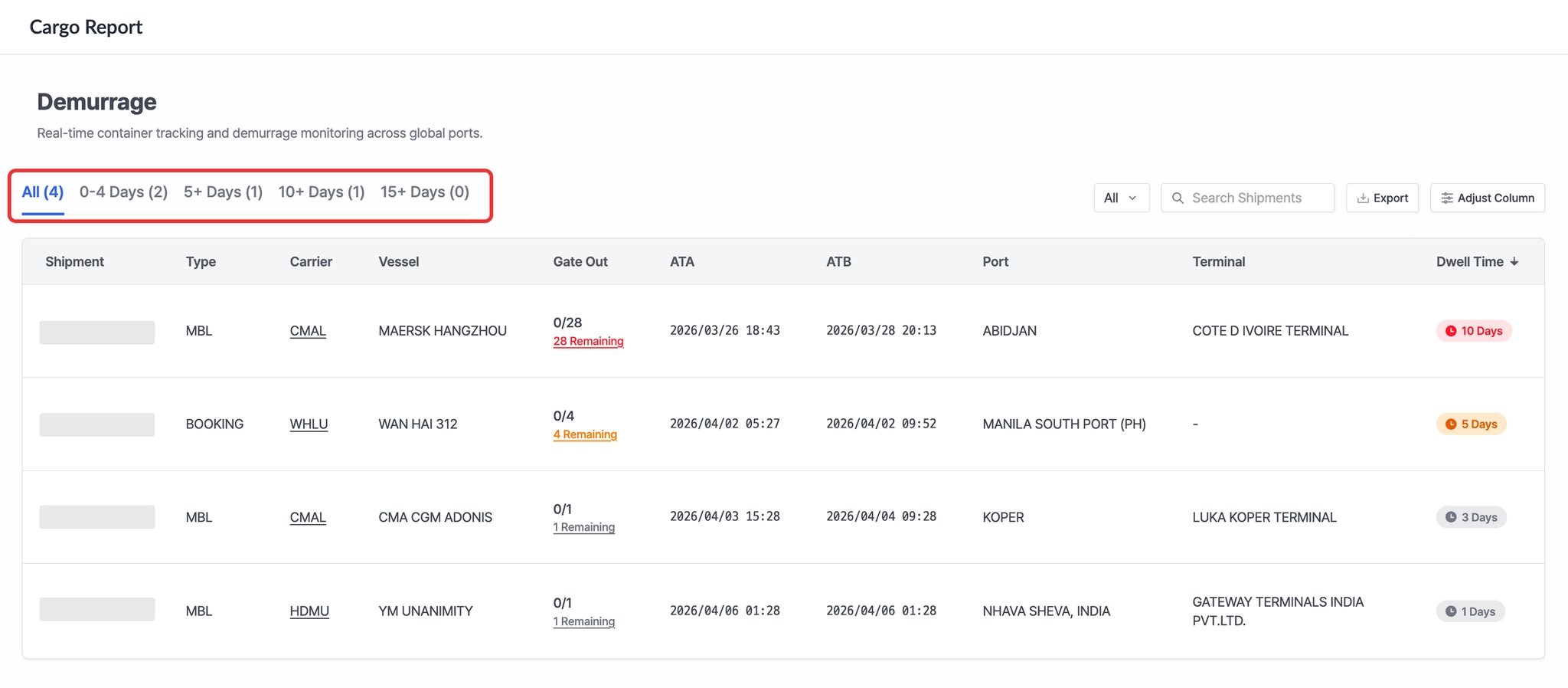
Cargo Report > Top Tabs (View by Period)
•
You can view shipments categorized by dwell time duration.
Search & Settings
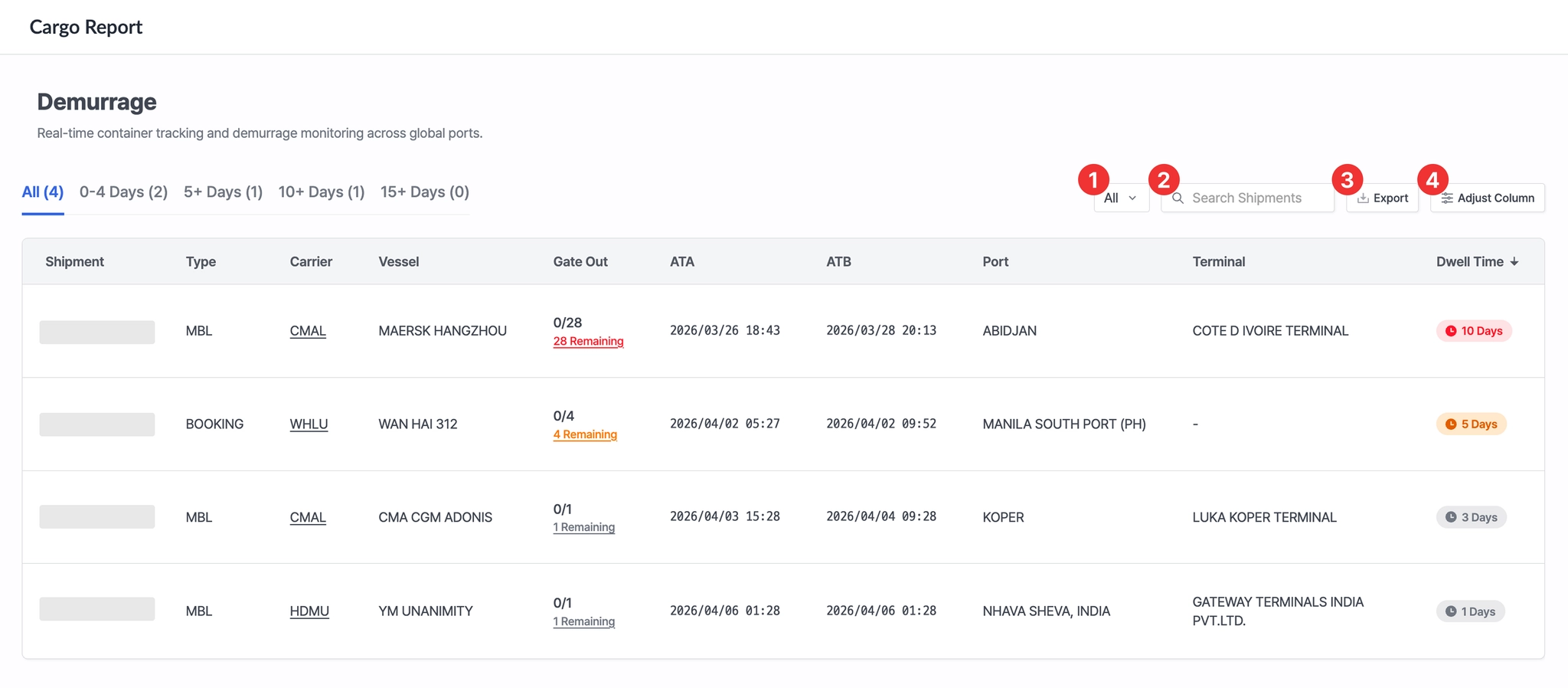
Cargo Report > Top Toolbar (Filter / Search / Export / Column Settings)
No. | Field | Description |
1 | POD Filter | Set a filter based on the Port of Discharge (POD). |
2 | Search Shipments | Search and filter shipments based on column values. |
3 | Export | Download the current shipment list as an Excel file. |
4 | Adjust Column | Customize and configure the columns displayed in the table. |
Shipment List
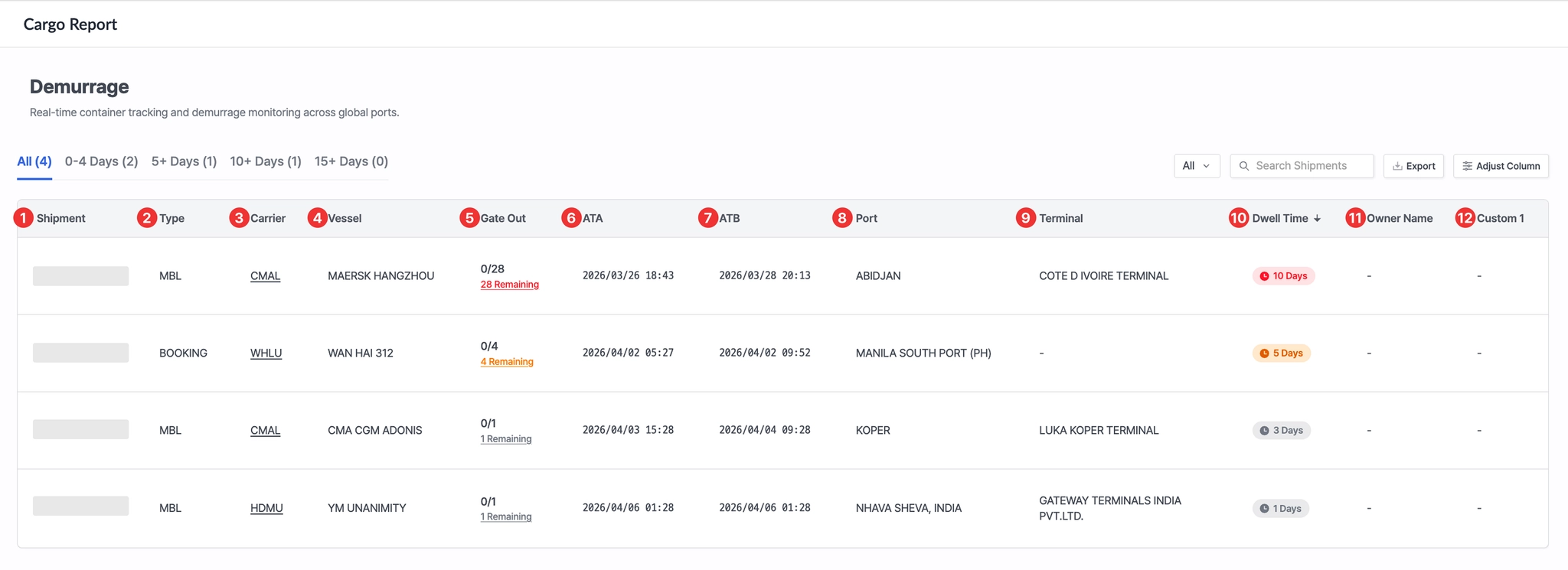
Cargo Report > Demurrage Table
No. | Field | Description |
1 | Shipment | - Shipment identifier (one of M-B/L No., Booking No., or Container No.)
- Click the shipment number to view the detailed page |
2 | Type | Shipment identification type (MBL, Booking, or Container) |
3 | Carrier | - Carrier code
- Click the carrier code to navigate to the carrier’s website |
4 | Vessel | Vessel name arriving at POD |
5 | Gate Out | - Container gate-out status and remaining quantity
- Click Remaining to view detailed gate-out status by container |
6 | ATA | Actual Time of Arrival |
7 | ATB | Actual Time of Berthing |
8 | Port | Port of Discharge (POD) |
9 | Terminal | Terminal at POD |
10 | Dwell Time | Terminal dwell time (calculated from ATB to Gate Out) |
11 | Owner Name | Shipper name (displays the ownerName from the first H-B/L registered via API) |
12 | Custom 1 | User-defined field |
