



You can configure the period and filters to view shipments in Map View or List View.
Required Fields
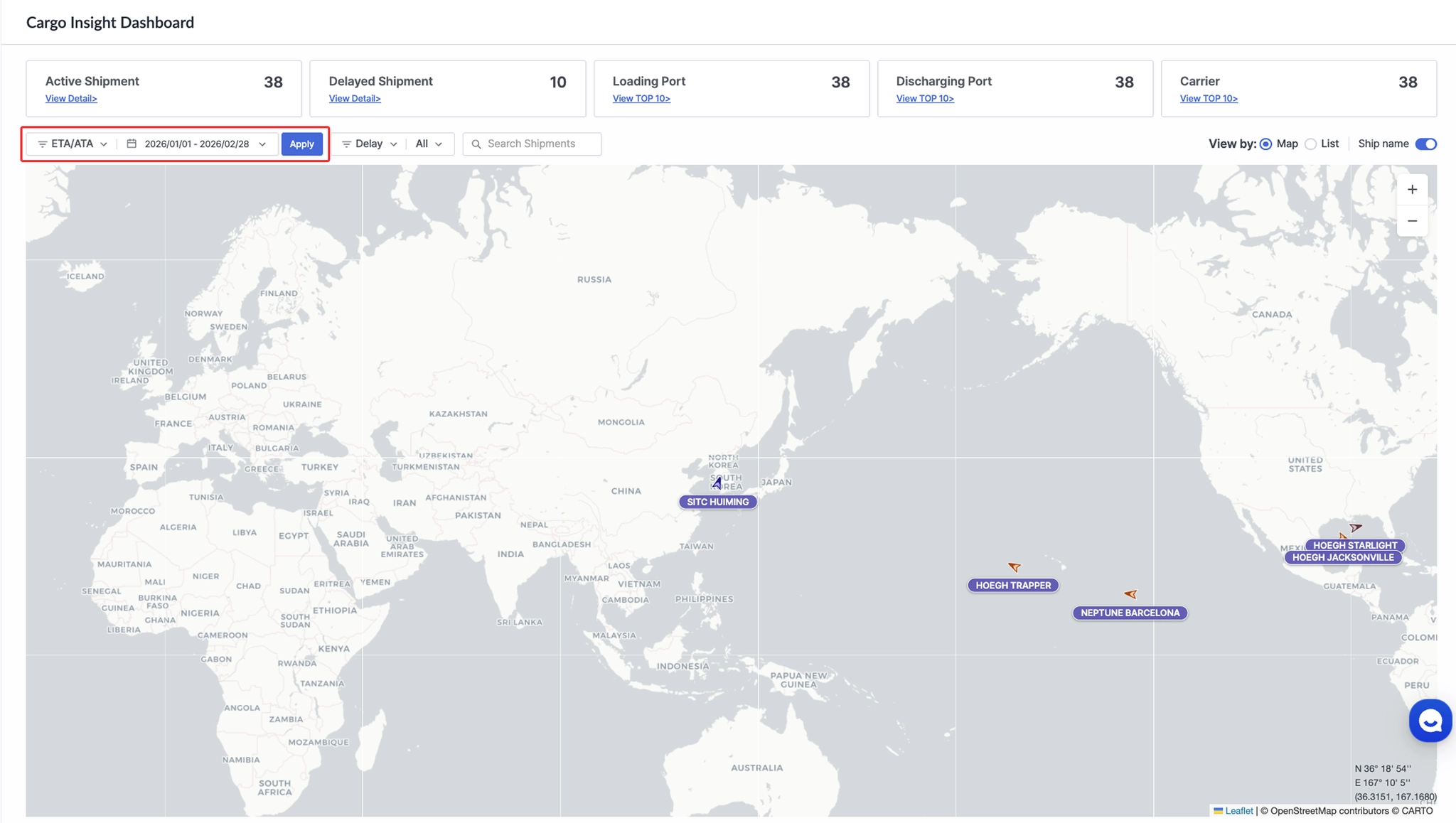
Cargo Insight Dashboard > Required Fields
Item | Description |
Date Type | Select the date type (ETA/ATA or ETD/ATD). |
Period | Set the time period for the shipment query. |
Apply | Click Apply to display shipments in Map View or List View. |
Filter
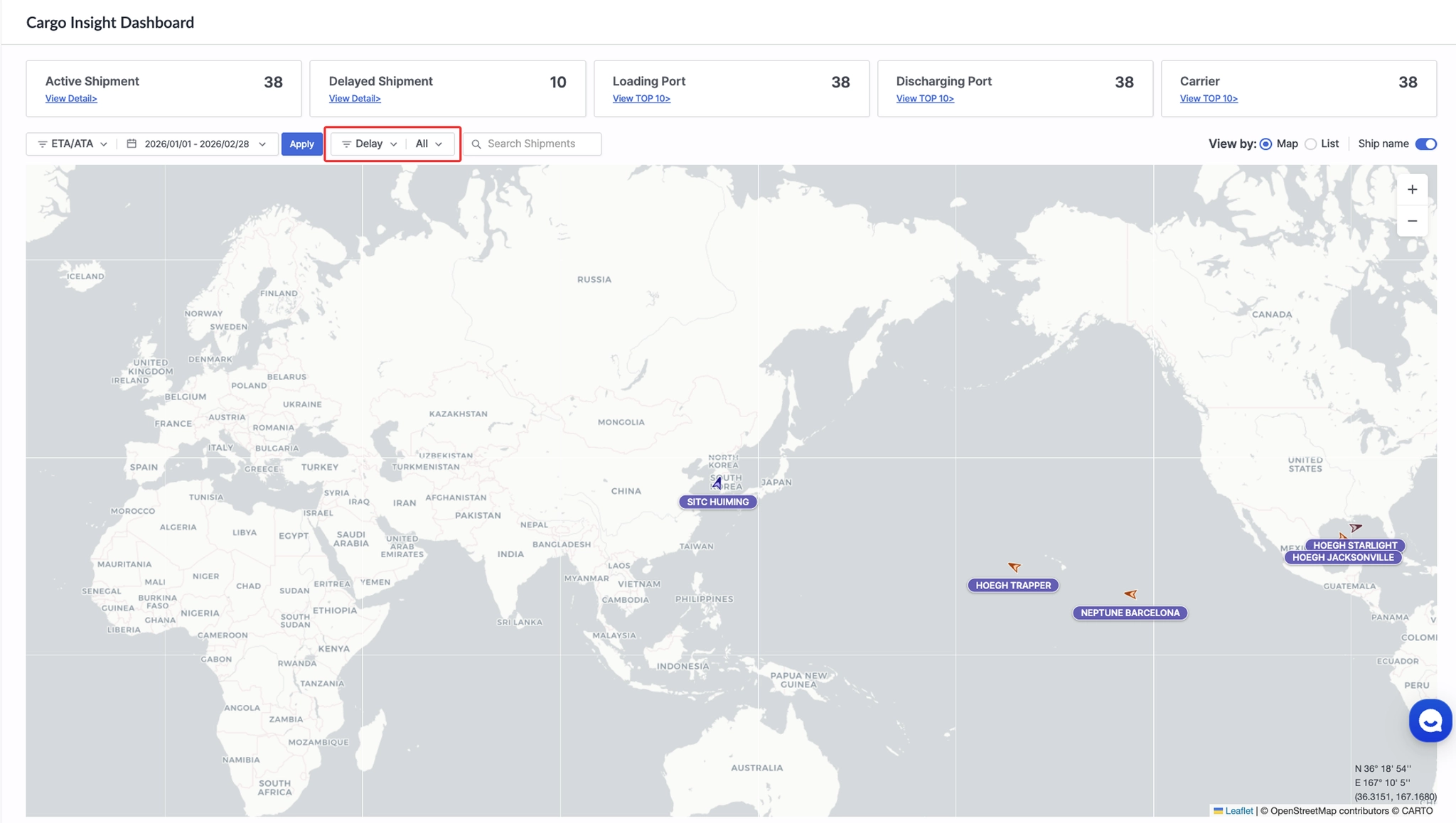
Cargo Insight Dashboard > Filter Configuration Screen
Item | Description |
Active | - Displays currently in-transit shipments in the List View and their related vessels in the Map View.
- When a vessel is selected in the sub-filter, only shipments associated with that vessel are shown in both List View and Map View. |
Delay | - Displays delayed shipments in the List View and their related vessels in the Map View.
- When a vessel is selected in the sub-filter, only shipments associated with that vessel are shown in both views. |
Carrier | - Displays currently in-transit shipments in the List View and their related vessels in the Map View.
- When a carrier is selected in the sub-filter, only shipments operated by the selected carrier are shown in both views. |
Loading Port | - Displays currently in-transit shipments in the List View and their corresponding loading ports in the Map View.
- When a loading port is selected in the sub-filter, only shipments associated with the selected loading port are shown in both views. |
Discharging Port | - Displays currently in-transit shipments in the List View and their corresponding discharging ports in the Map View.
- When a discharging port is selected in the sub-filter, only shipments associated with the selected discharging port are shown in both views. |
Search Shipments
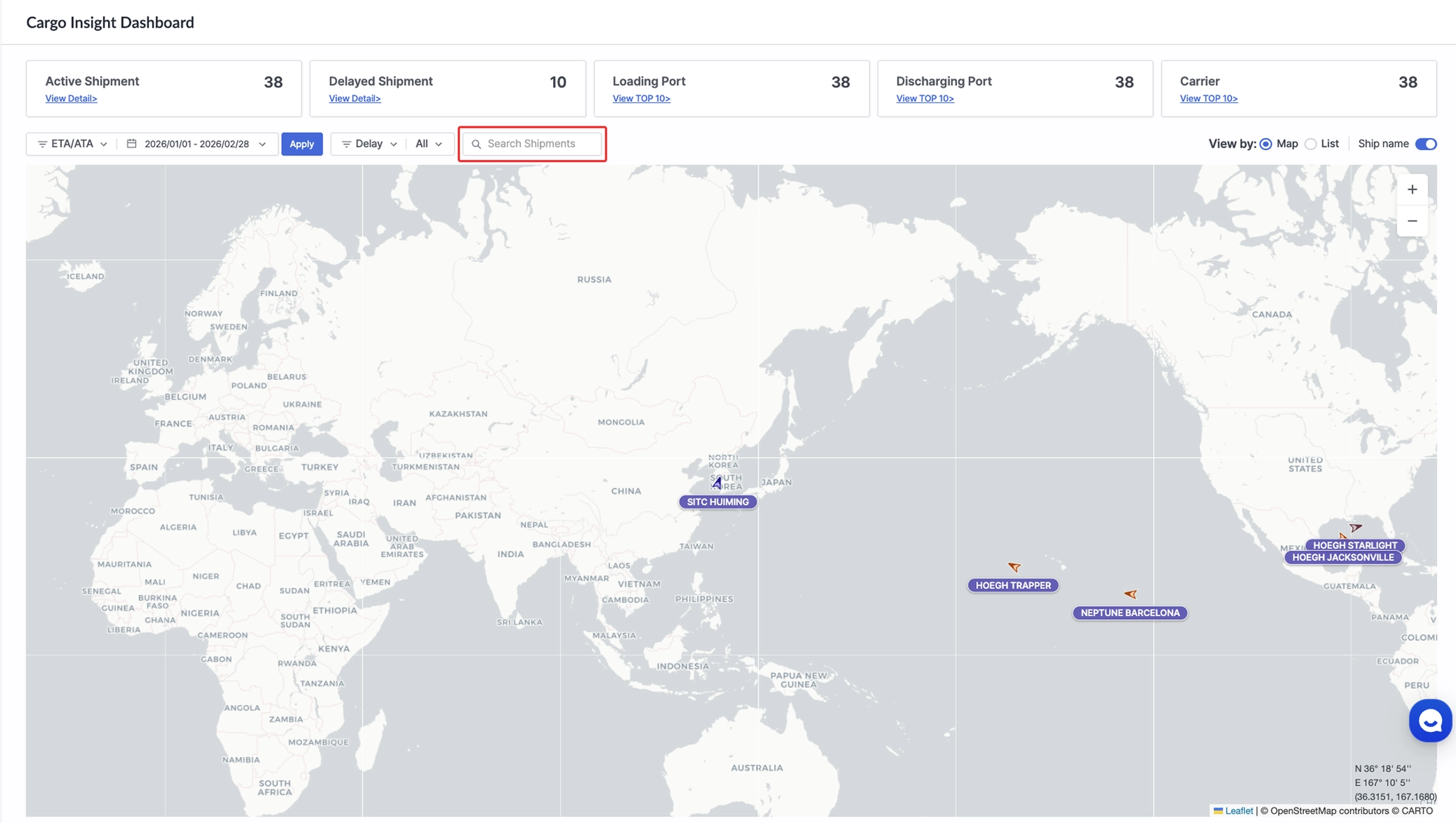
Cargo Insight Dashboard > Shipment Search
Item | Description |
Search Shipments | - When you enter a search keyword, data is filtered and retrieved based on the columns currently displayed in the List View.
- The columns available for searching vary depending on the Adjust Column settings. |
View by
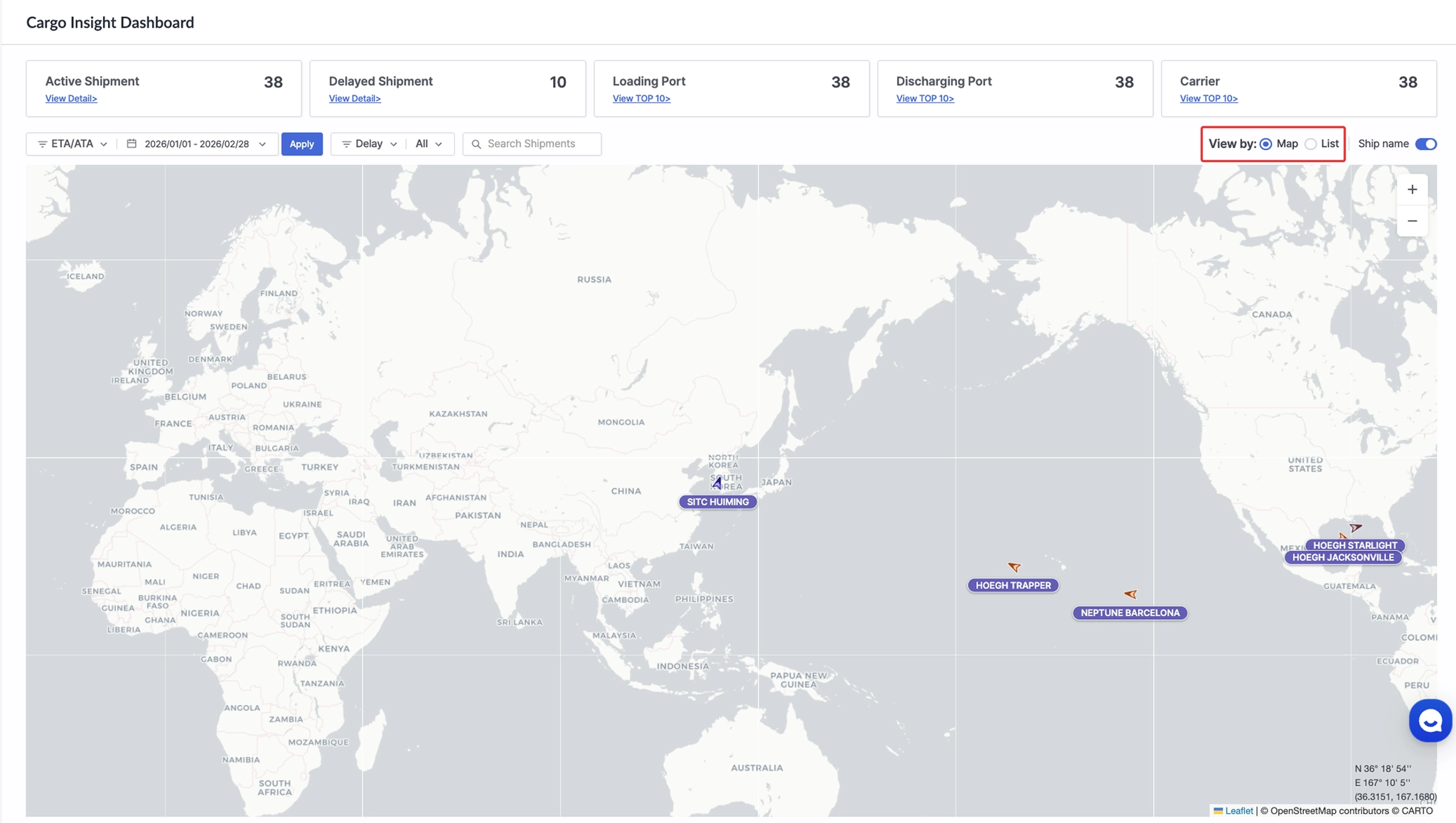
Cargo Insight Dashboard > View By
Item | Description |
Map View | View the locations of shipment-related vessels and ports on the map. |
List View | View the shipment list in a table format. |