



This screen allows users to view the location, status, and estimated arrival information of cargo registered by the customer (B/L, Booking, or Container).
Cargo Insight Shipment Search & Results
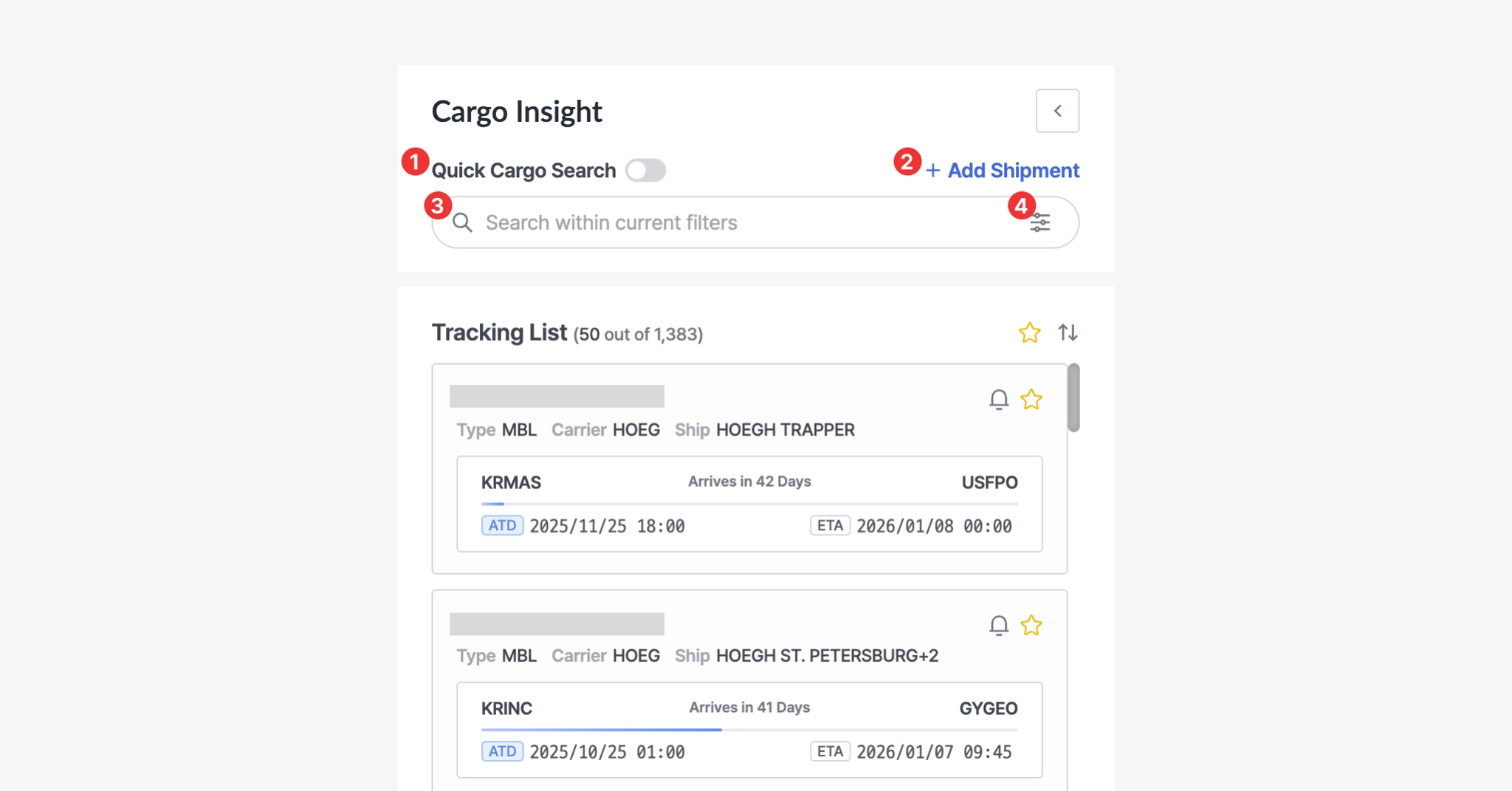
1. Quick Cargo Search
•
Click the toggle button to quickly search registered shipments by entering an M-B/L number, Booking number, or Container number without applying additional filters.
2. Add Shipment
•
Used to register shipments that you want to track.
3. Search Bar
•
You can search by entering any registered identifier, such as vessel name, IMO, carrier code, M-B/L number, Booking number, or Container number.
Search results will vary depending on the selected filter conditions.
4. Filter
•
Filter the shipment list by carrier, shipment status, identifier type, and date range.
Tracking List
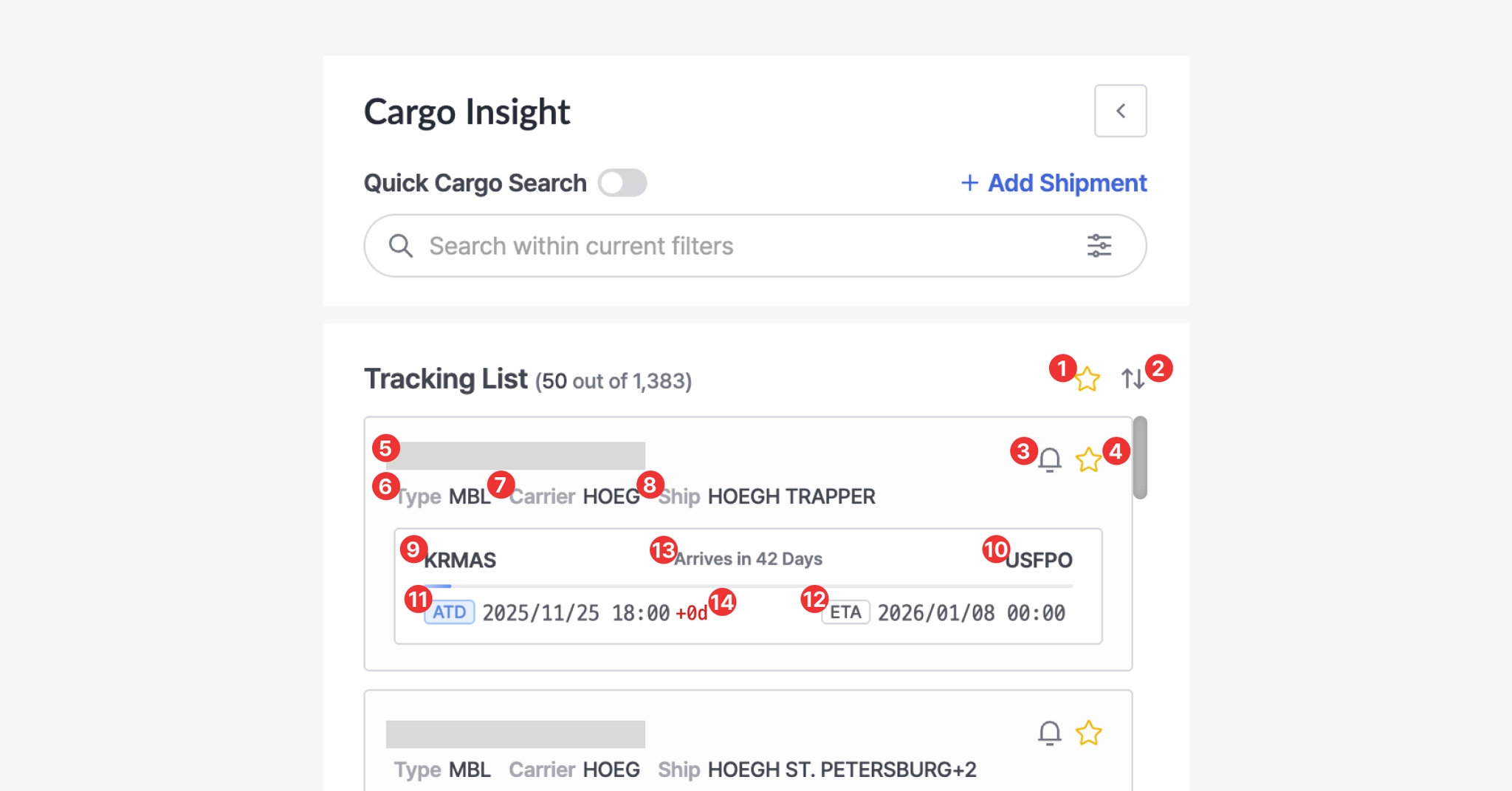
No. | Description |
1 | View shipments marked as favorites |
2 | Sort by ETA |
3 | Email notification setting for shipment status updates |
4 | Add or remove from favorites |
5 | Shipment identifier (M-B/L, Booking, or Container number) |
6 | Shipment identifier type (M-B/L, Booking, or Container) |
7 | Carrier code |
8 | Vessel information for the shipment |
9 | Port of Loading (POL) |
10 | Port of Discharge (POD) |
11 | Estimated and actual departure dates
(ETD: Estimated Time of Departure / ATD: Actual Time of Departure) |
12 | Estimated and actual arrival dates
(ETA: Estimated Time of Arrival / ATA: Actual Time of Arrival) |
13 | Remaining days until arrival or total delay days |
14 | Difference between the schedule at the time of registration and the current schedule |
Map View
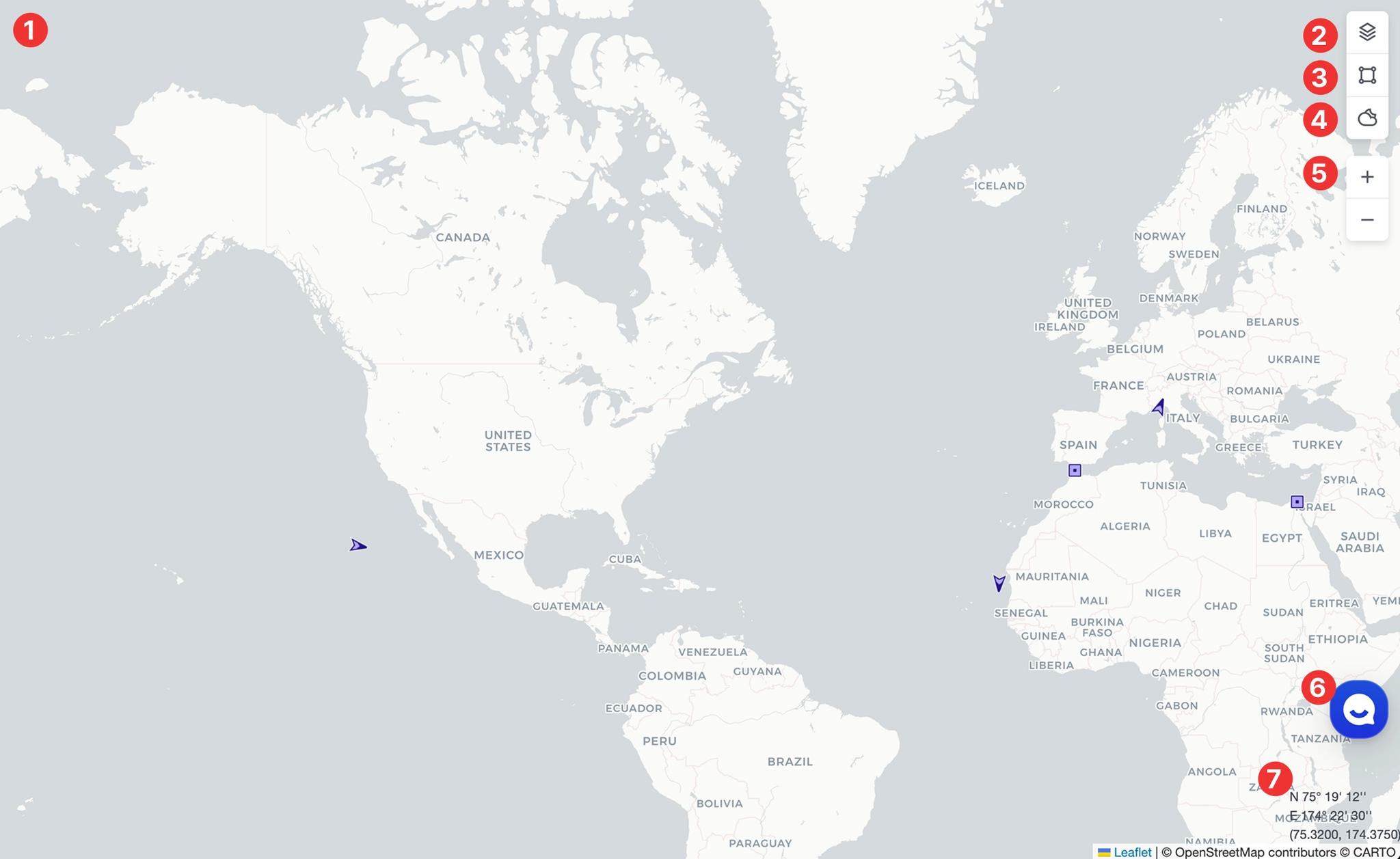
1. Map
•
For shipments registered in Cargo Insight, vessels currently in transit are displayed on the map.
2. Layer Settings
•
Configure the map style, area display, label visibility, and the On/Off display of vessel and port markers.
3. Tools
•
Use fullscreen mode, capture, distance measurement, and auto-refresh features.
4. Weather Settings
•
View typhoon information and weather forecasts.
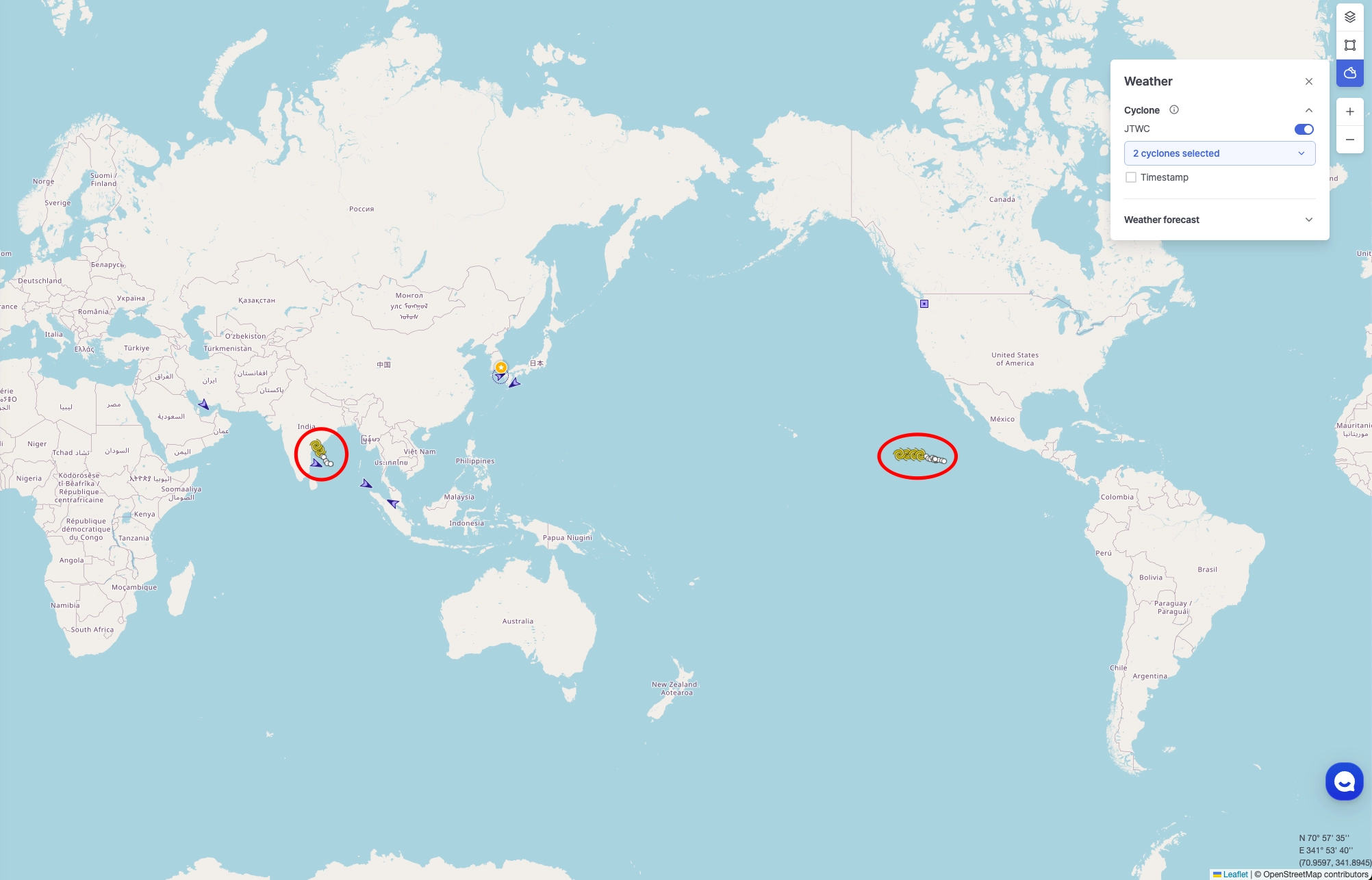
Weather > Cyclone > Screen with two cyclones selected from JTWC
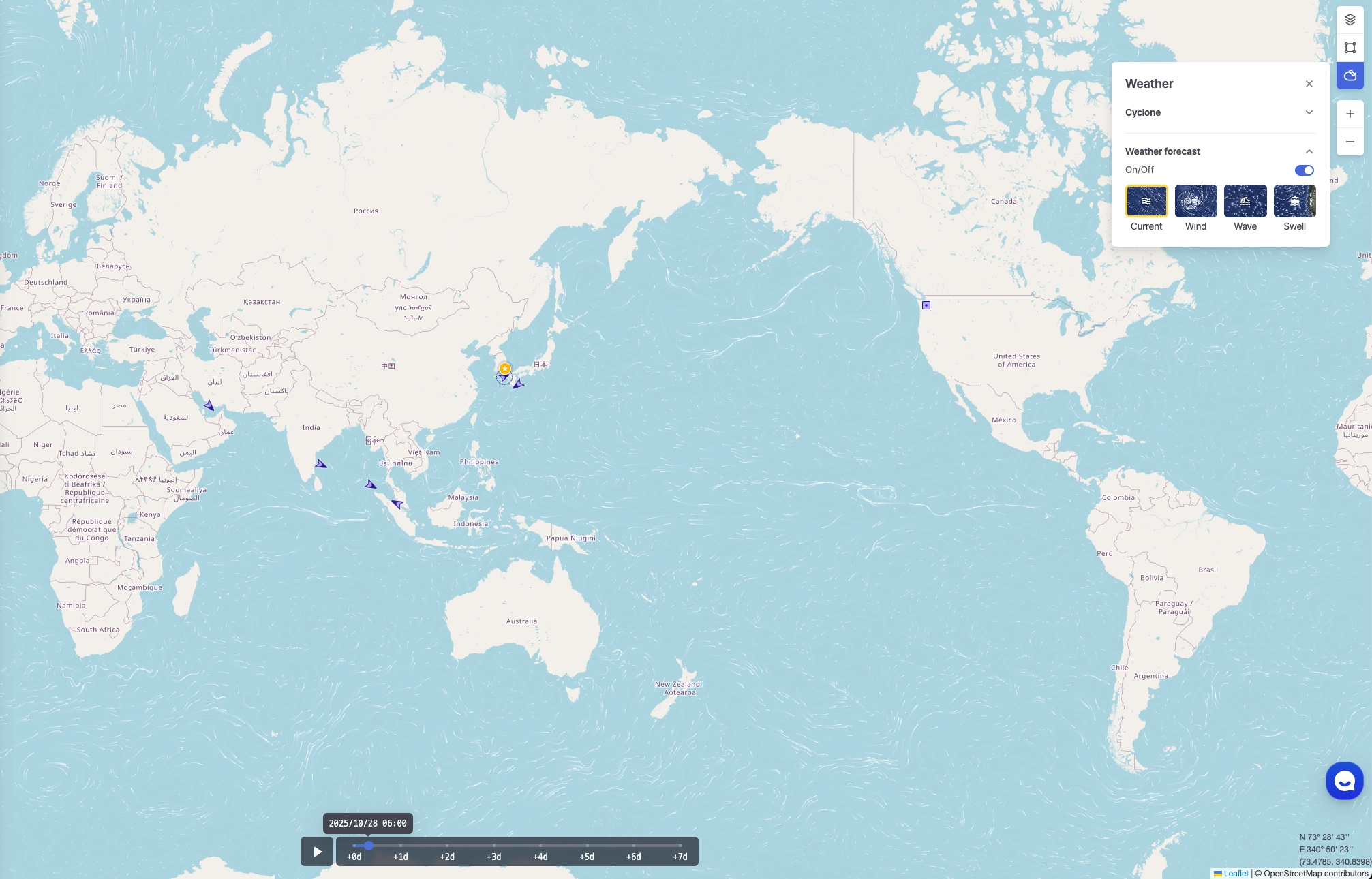
Weather > Weather forecast > Screen with “Current” selected
5. Zoom In/Out
•
Adjust the viewing range of the map.
6. Chat
•
Contact the CX team in real time for support.
7. Coordinates
•
Displays the latitude and longitude of the cursor position on the map.