


Track the Location of Your Shipments
Cargo location monitoring can be monitored in IoT Cargo Monitoring.
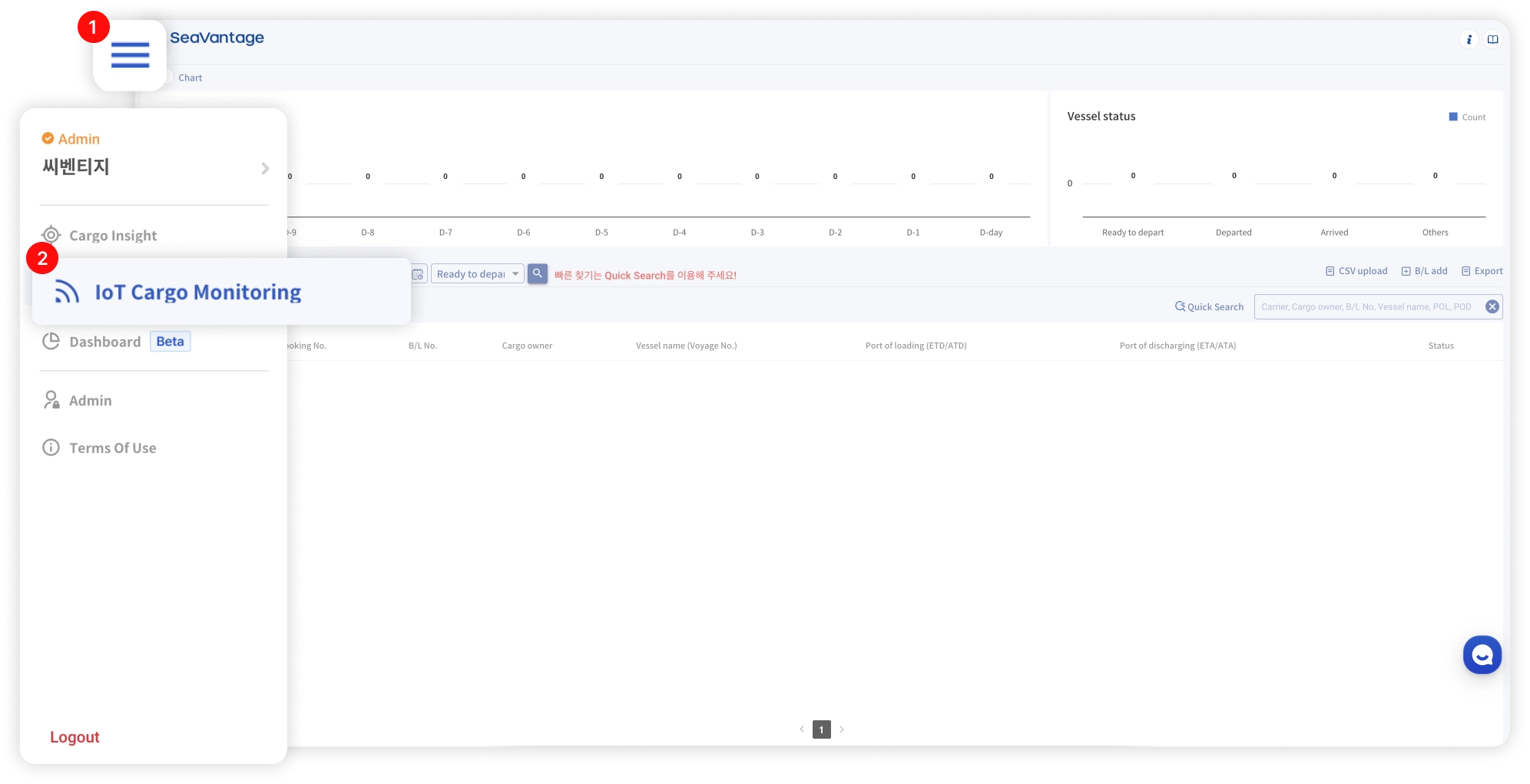
1.
In the dashboard, click the Booking No. or M-B/L No. of the shipment you want to track.
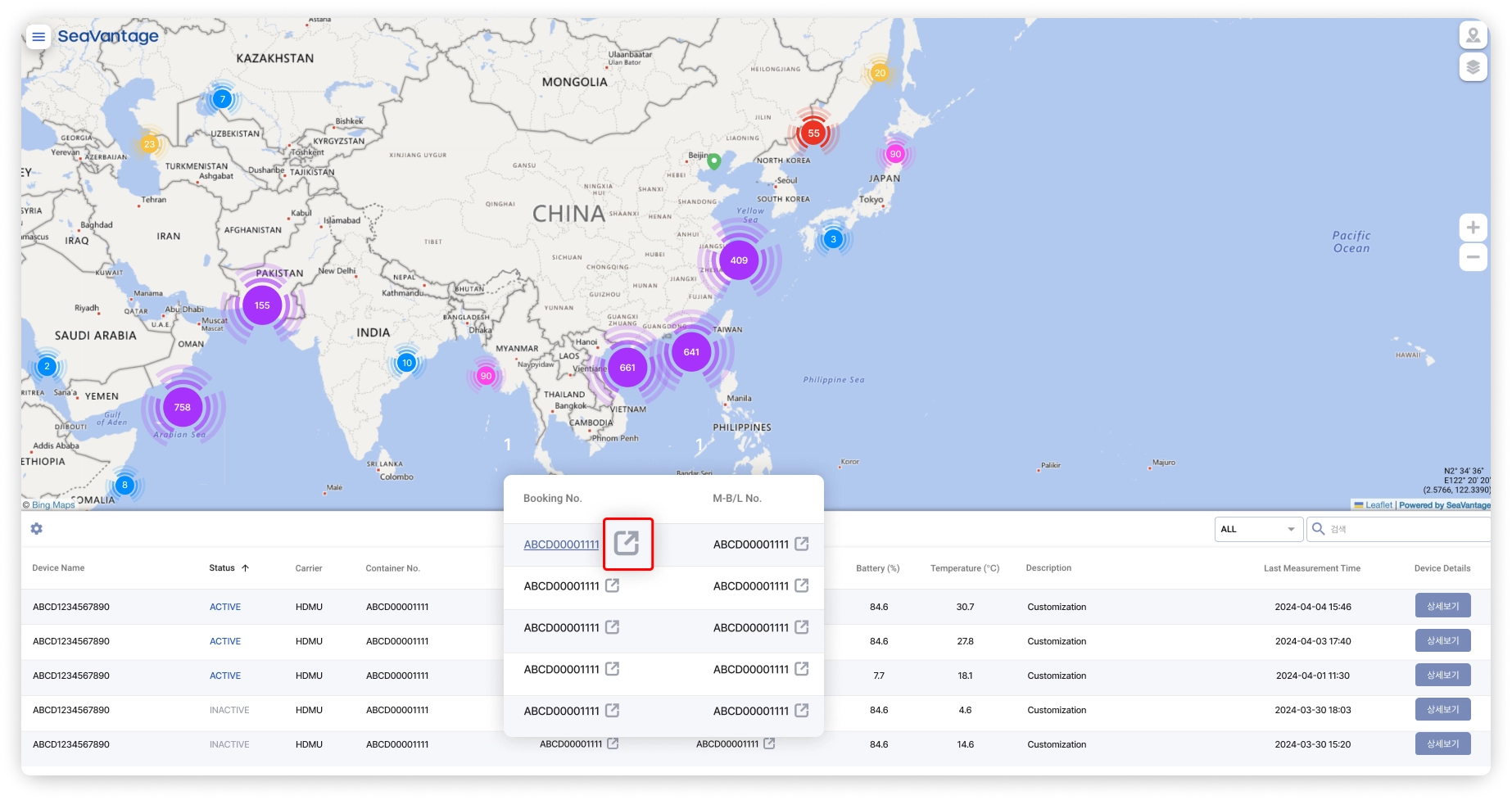
Dashboard - Overall Summary
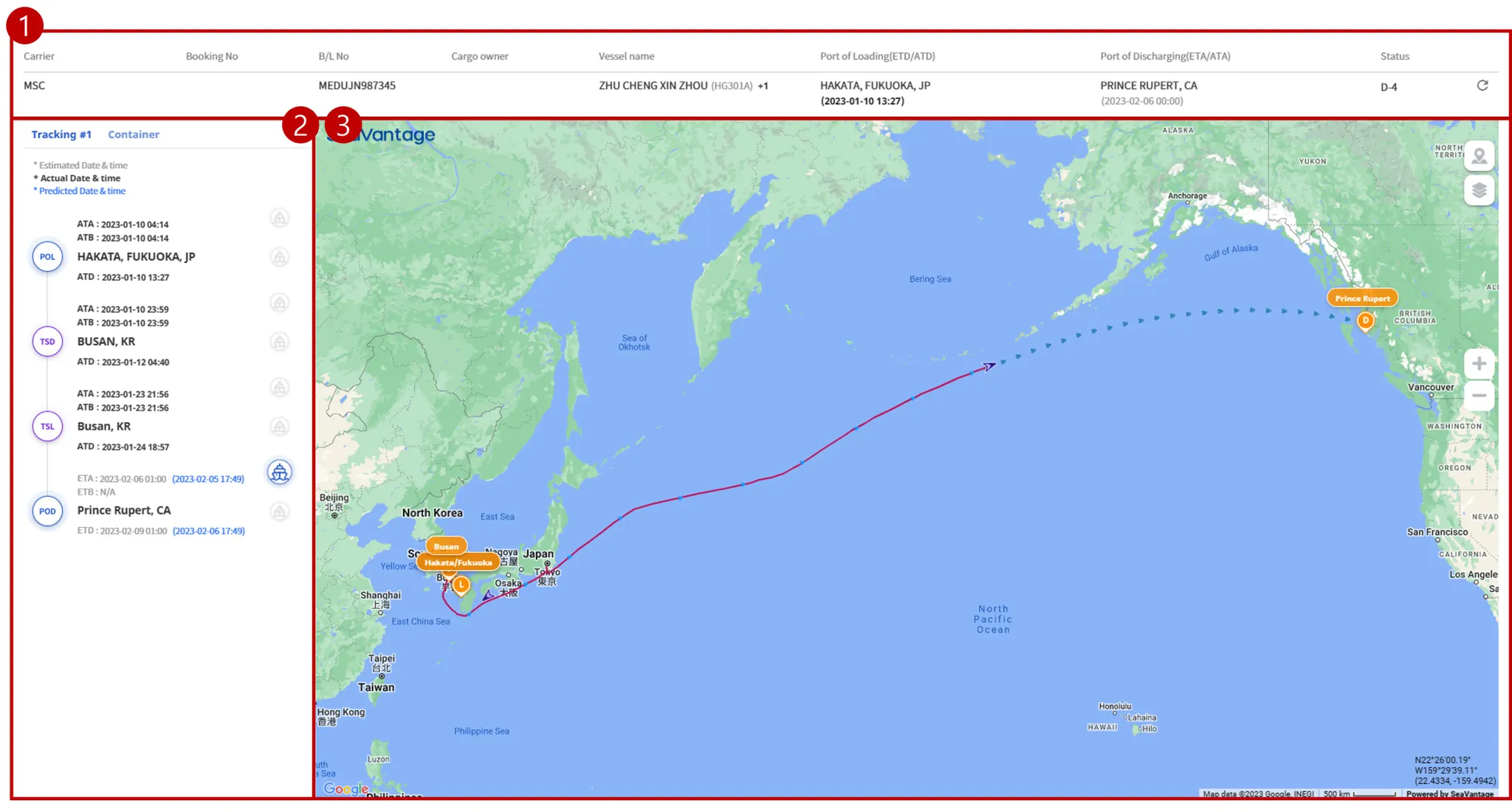
① Displaying B/L information
•
Indicates the B/L data you are tracking.
② View vessel schedules and container events
•
Tracking : You can see the schedule for each ship, and all the ports your cargo has traveled through.
•
Container : View detailed events per container
③ Map Screen
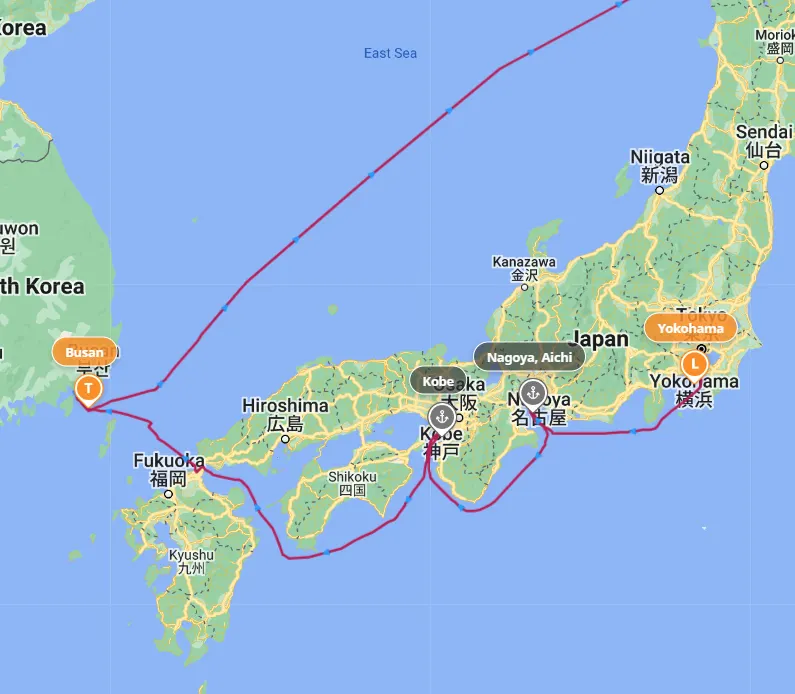
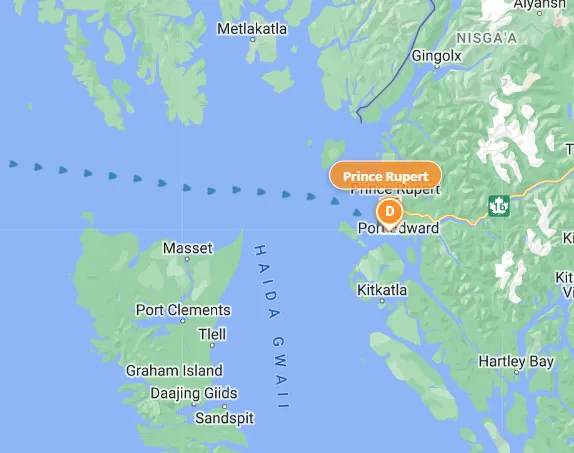
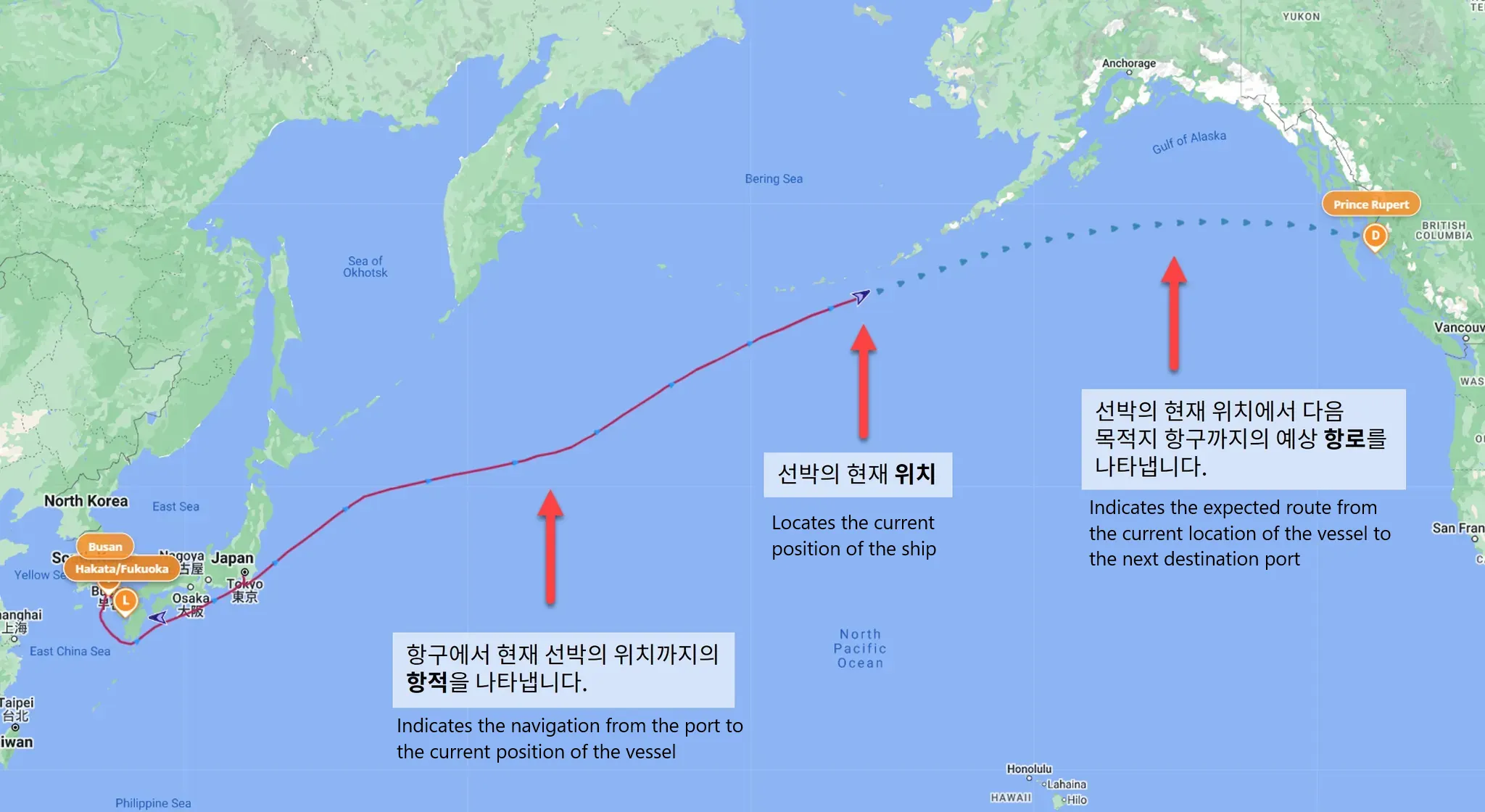
Historical voyages, predicted voyages, and the vessel's current position on a map
•
Solid line: Historical voyage (based on AIS data)
•
Dotted line: Route forecast (based on Seaventure MTN data)
•
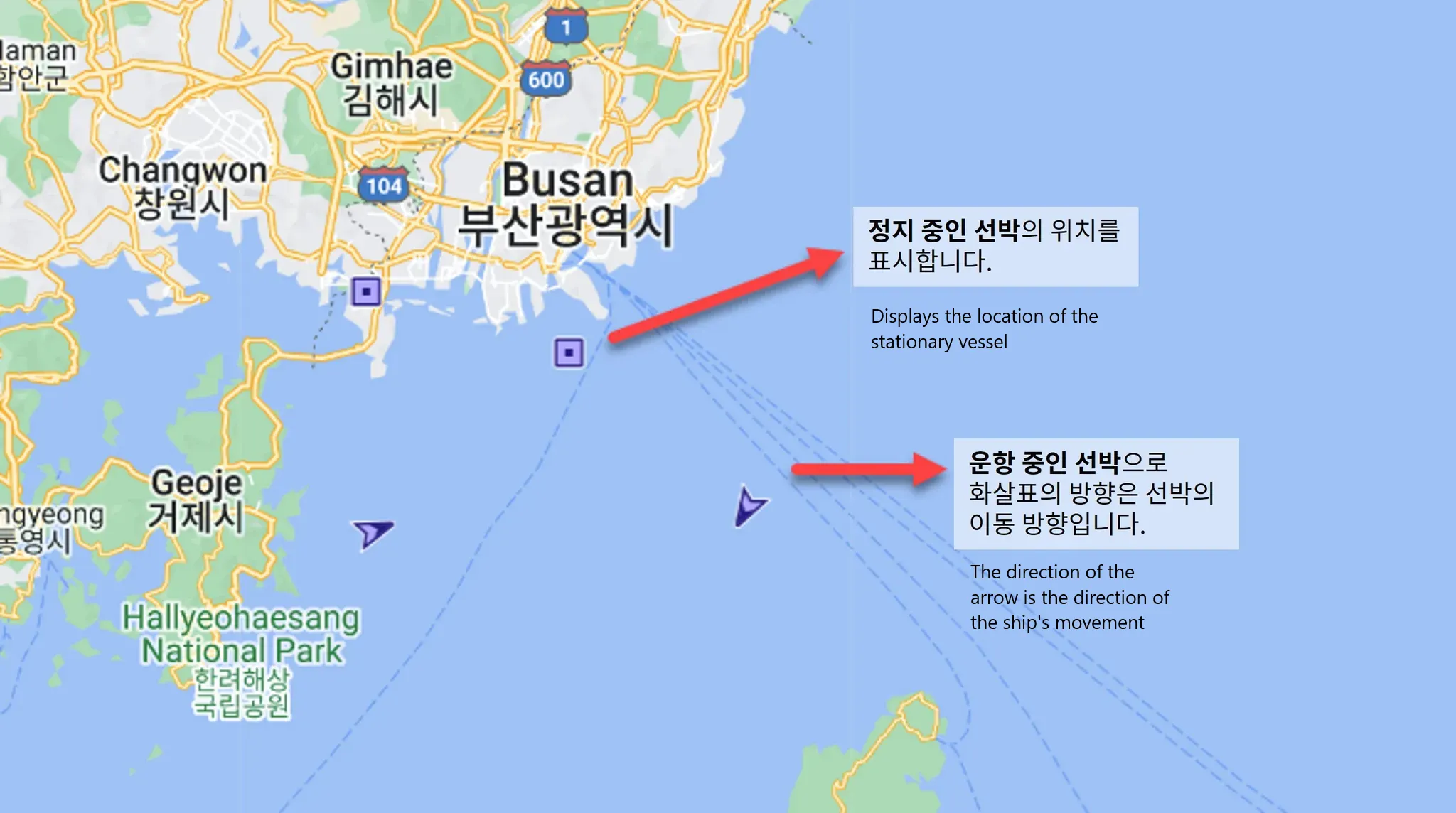
Arrow: current ship's position
Dashboard - Vessel Scheduling and Tracking
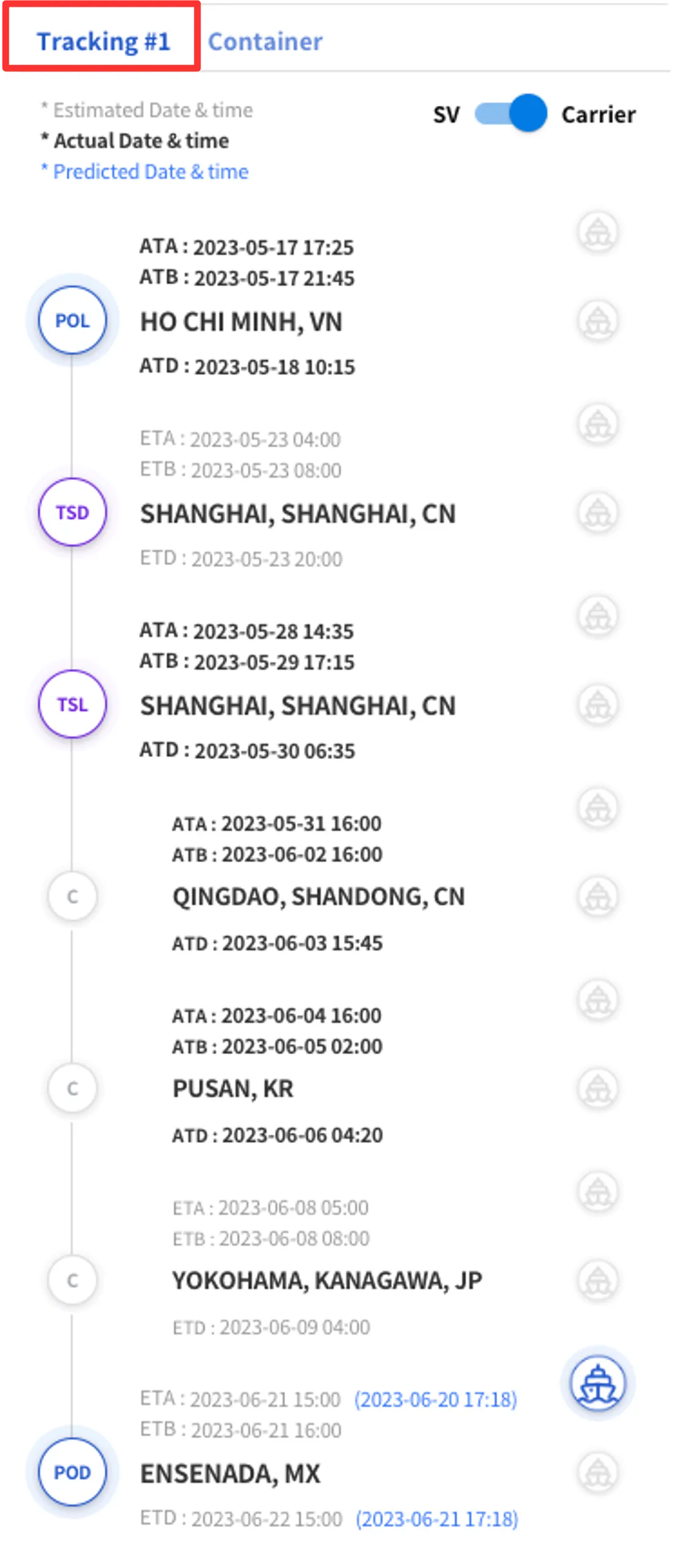
Glossary
•
POL : Port of Loading
•
TSD : Transit Discharging
•
TSL : Transit Loading
•
POD : Port of Discharging
•
C : Port of Calling
Font Color
•
Eestimated Data & Time : Displays the estimated time of arrival and departure provided by the shipping line.
•
Actual Data & Time : Displays the actual time of arrival and departure as provided by the shipping line.
•
Predicted Data & Time : Shows time predictions that are sophisticatedly estimated using Seaventure's own data and analytics technology.
Ship Icon
The ship icon, colored blue, shows the progress of the current ship and, when clicked, shows the ship on the map.
Ship Icon Location
•
When in a port: icons on the same line as the port are active
•
When sailing: icons between ports and ports are active
Toggle Schedule Information
•
SV : SeaVantage Real-Time Geolocation
•
Carrier : Pre-shipment Information
Dashboard - Container Tracking
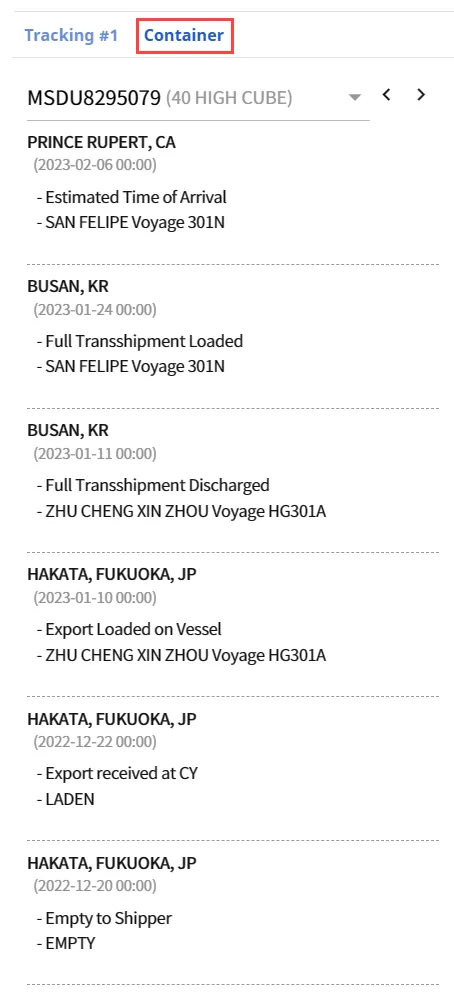
Container Tracking
•
Click the Container tab to see a detailed list of events in the container.
•
If you have more than one container, you can click the left/right arrows to see the tracking results for each container.

You can view all events in a container on a per-container basis, not just B/L.
Dashboard - Map Icon
Show Ports
•
L : Port of Loading
•
T : Transit Port
•
D : Port of Discharging
•
 : Port of Calling