


This feature allows you to filter or sort the registered vessel list based on specific conditions.
Favorite
1. Adding or Removing Favorites
•
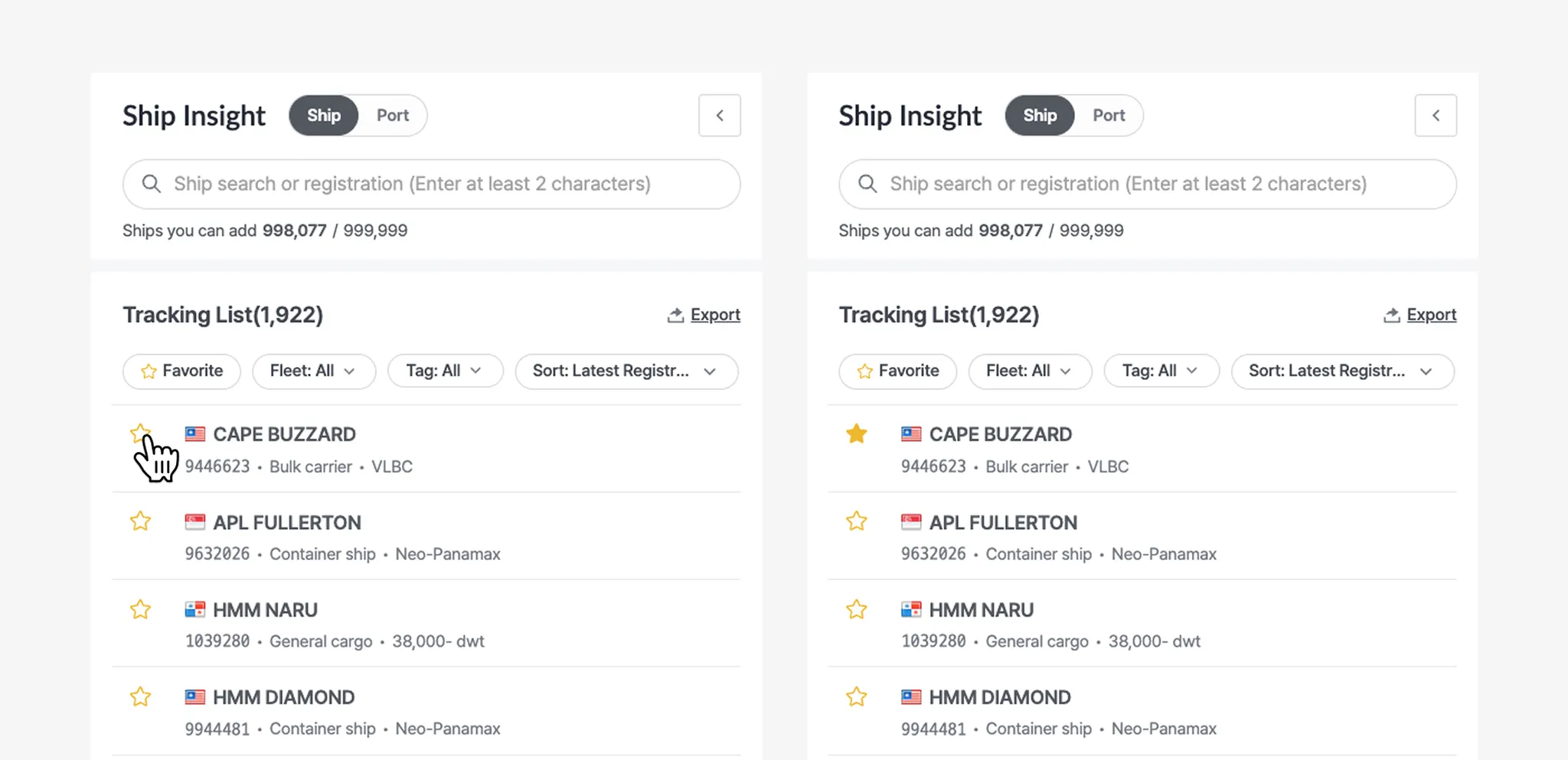
To easily monitor vessels you frequently track, click the star icon to the left of the vessel name to add or remove it from your favorites.
2. Viewing Favorite Vessels
•
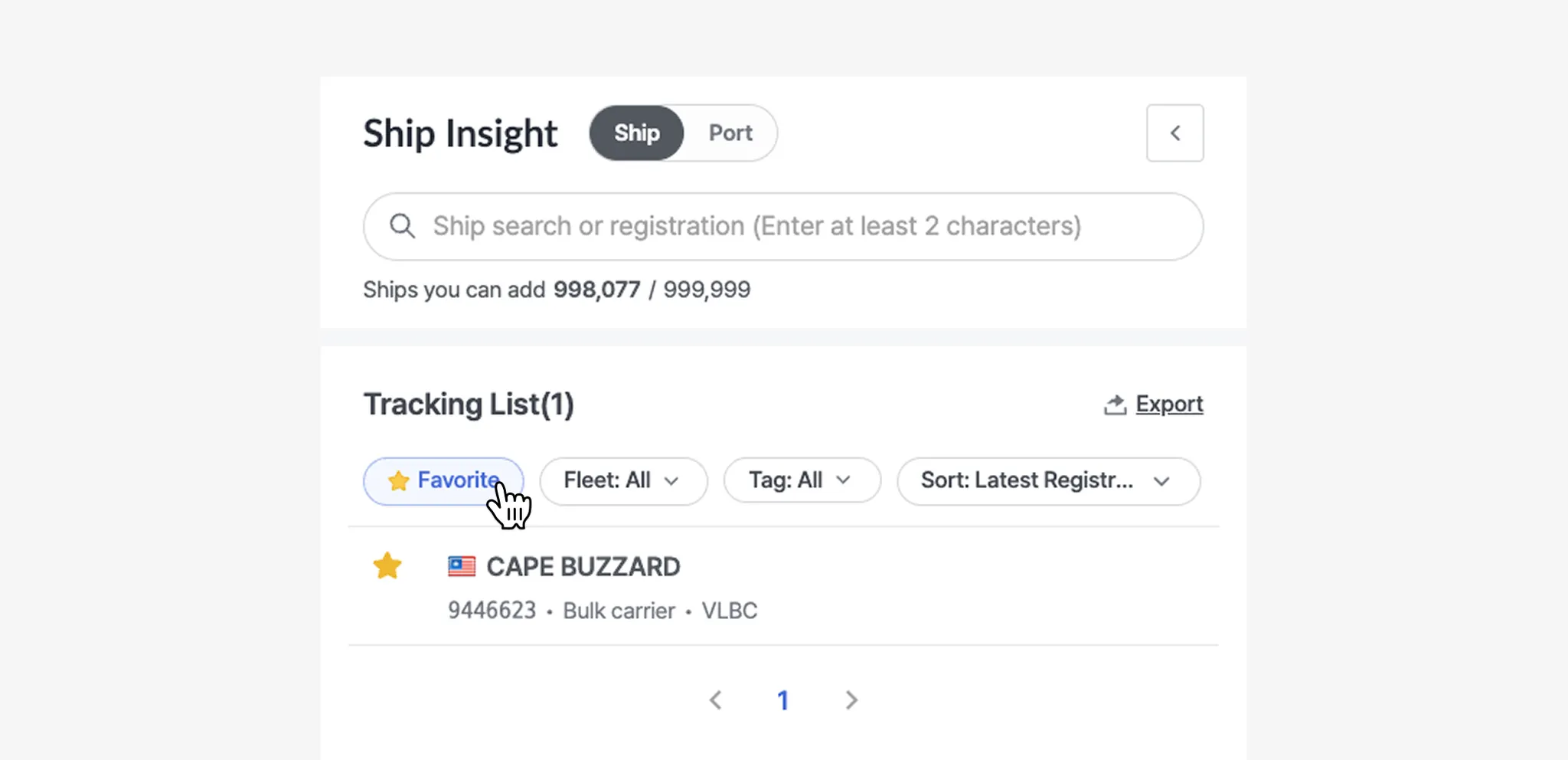
By clicking the Favorite button, you can filter the list to display only the vessels marked as favorites.
Fleet
•
Fleet is a feature that allows you to group vessels based on your operational purpose.
•
This is a workspace-level shared filter, meaning all users within the same workspace can use the same fleet groups.
•

Tag
1. Adding Tags
•
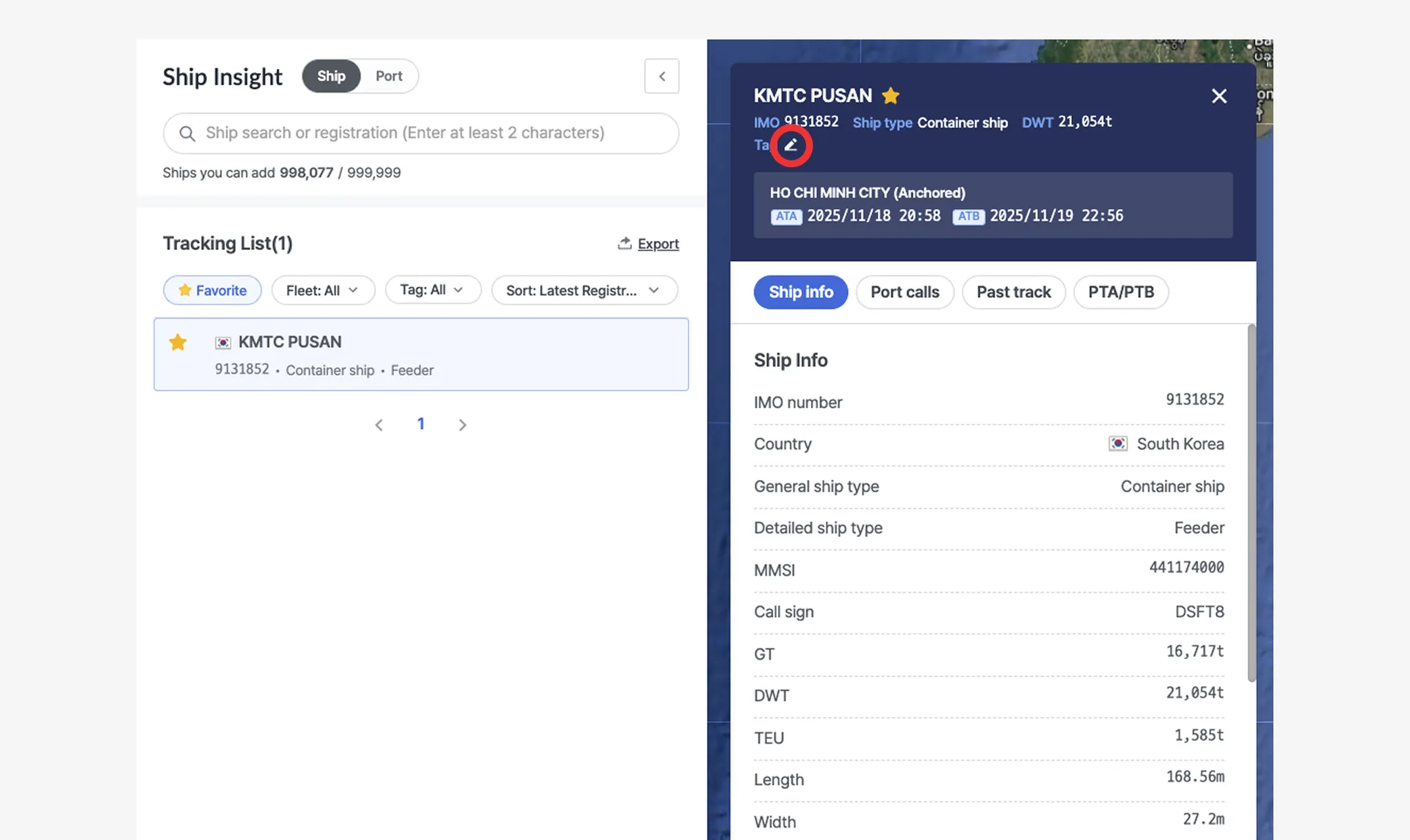
In the vessel popup, click the tag icon.
•
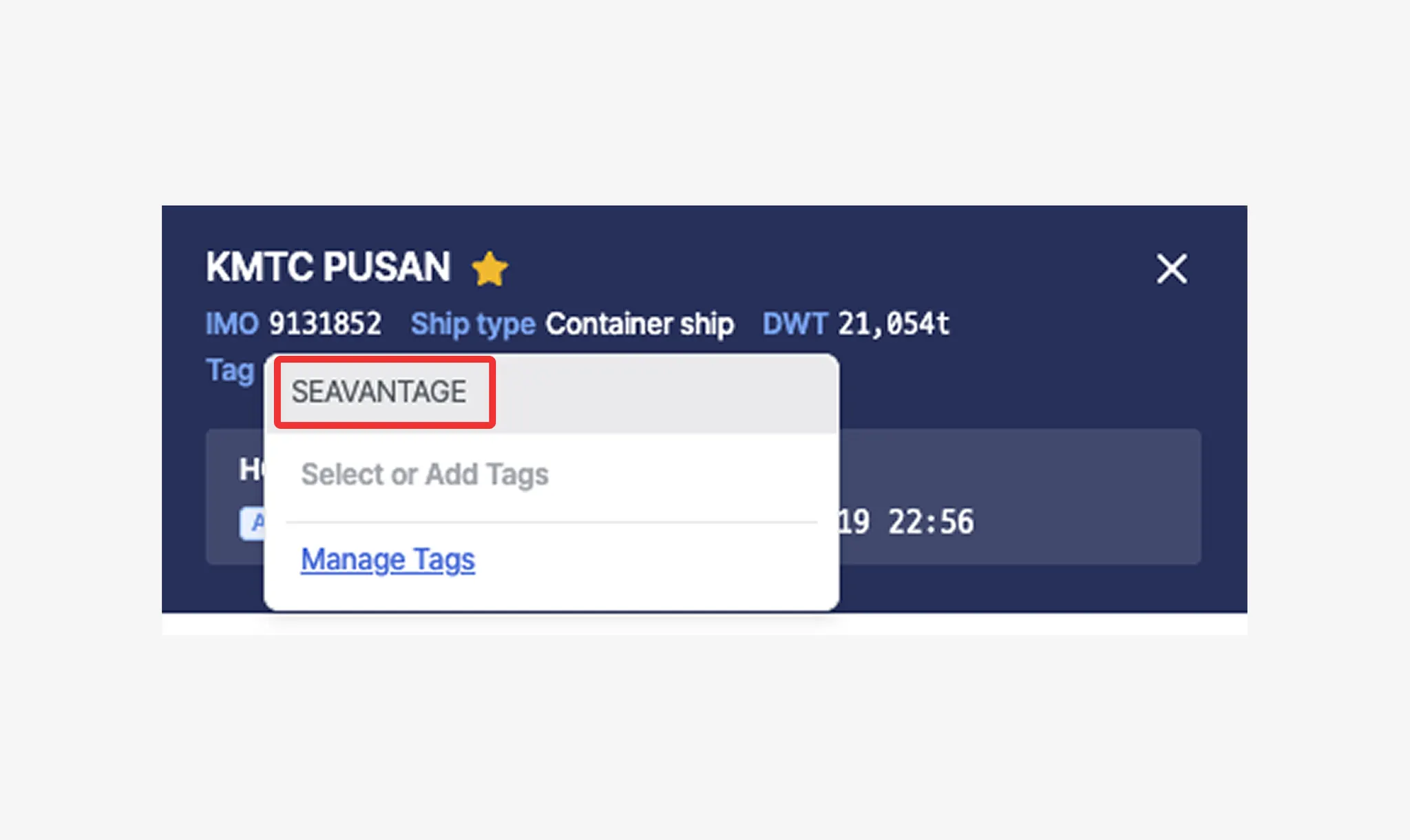
When the tag settings pop-up opens, enter the desired tag name in the input field and press Enter. A new tag will be created and applied to the selected vessel.
•
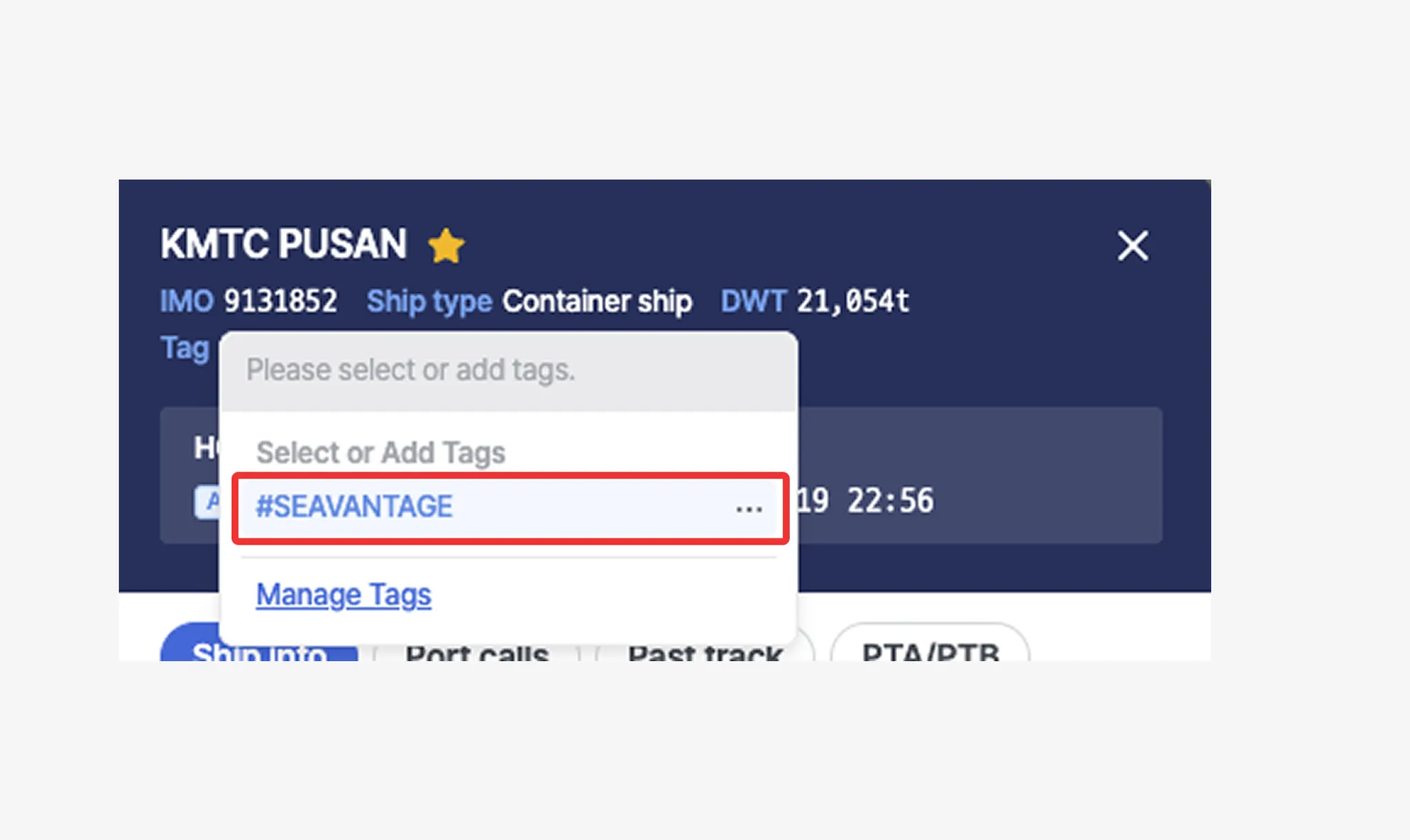
To apply an existing tag, simply click one of the tags displayed below the input field.
2. Editing and Deleting Tags
•
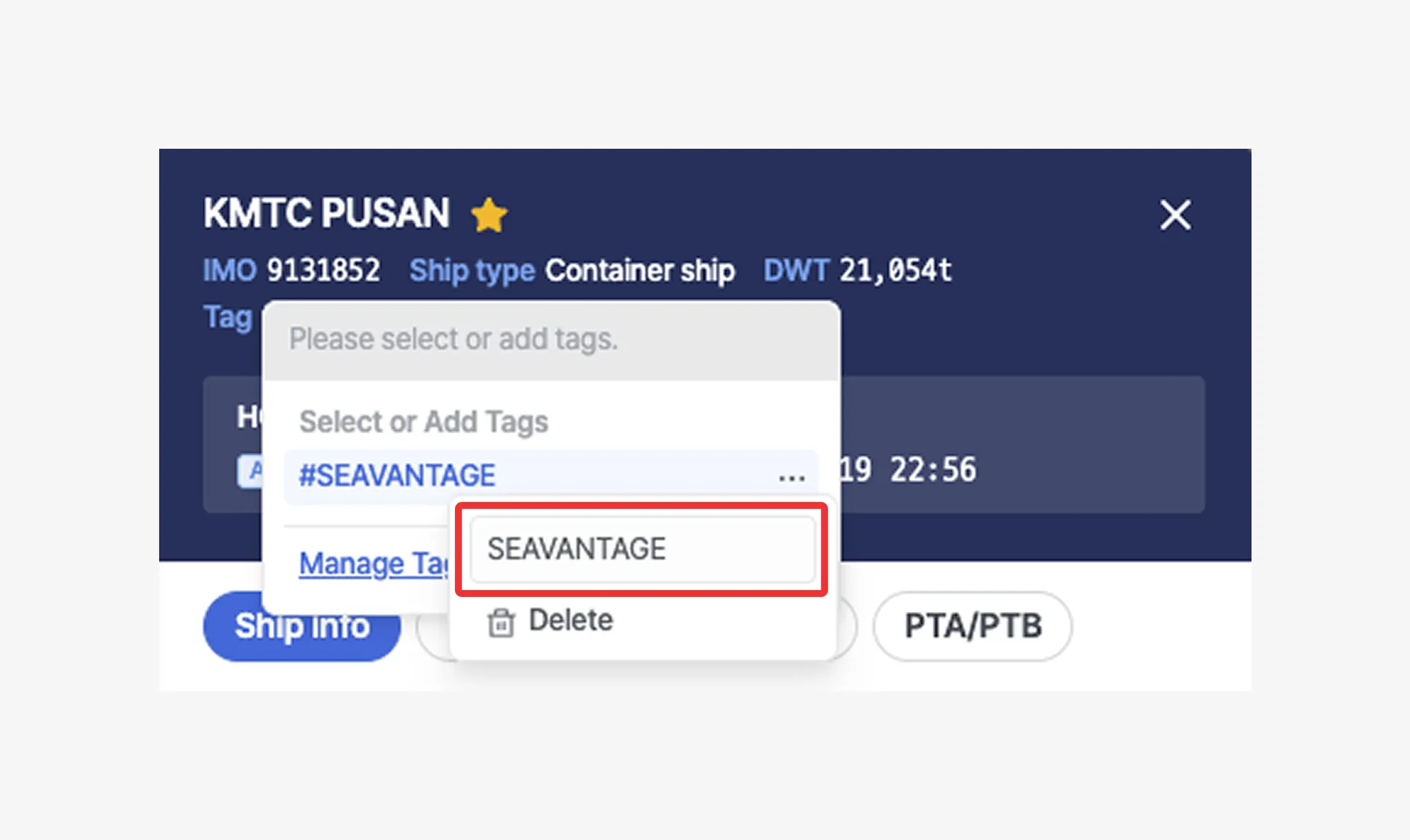
Click the ellipsis icon (⋯) next to the tag name to edit it.
When edited, the updated name will be applied to all vessels that use the same tag.
•
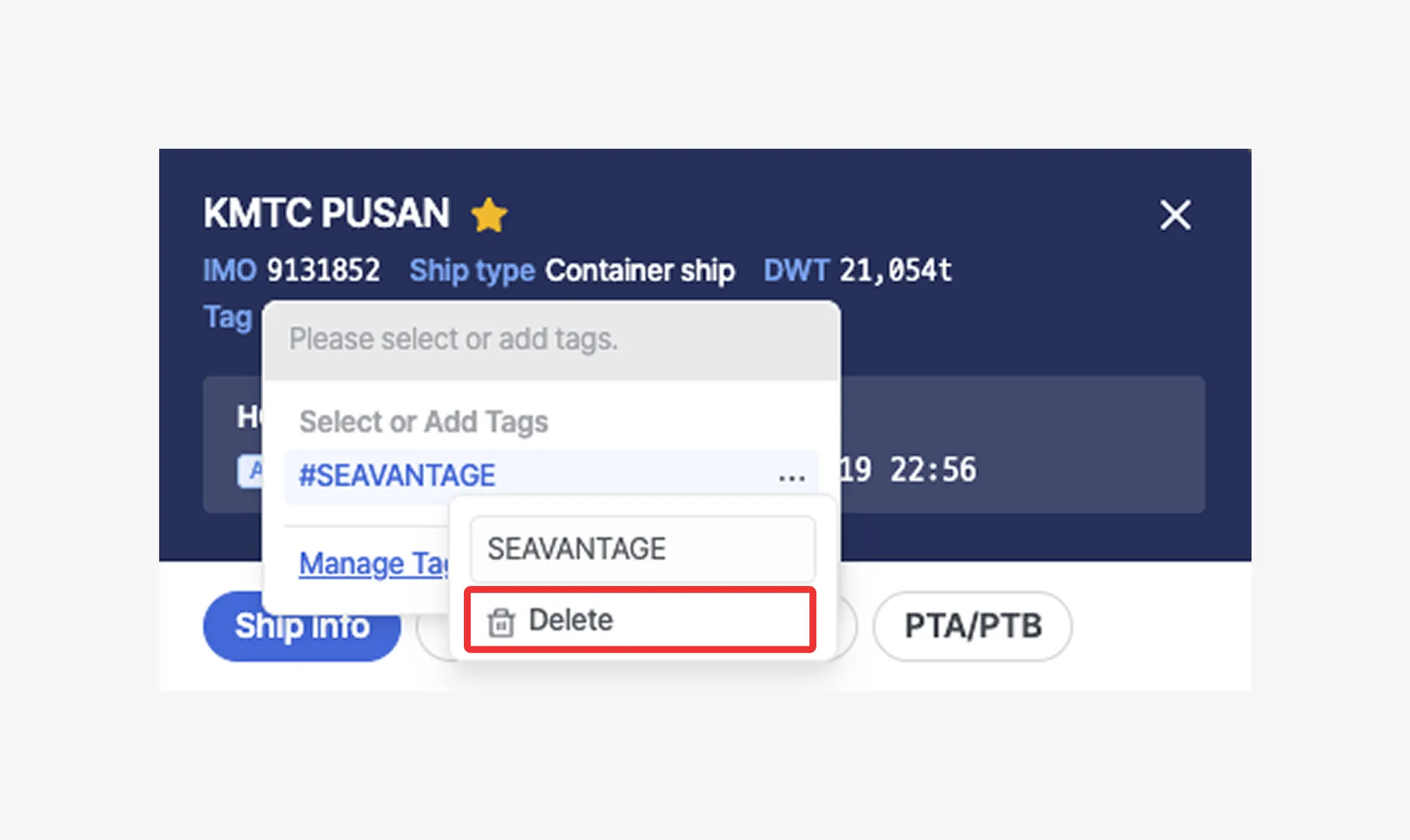
Click the trash icon to delete the tag.
Once deleted, the tag will be removed from all vessels where it was applied.
3. Tag Management Page
•
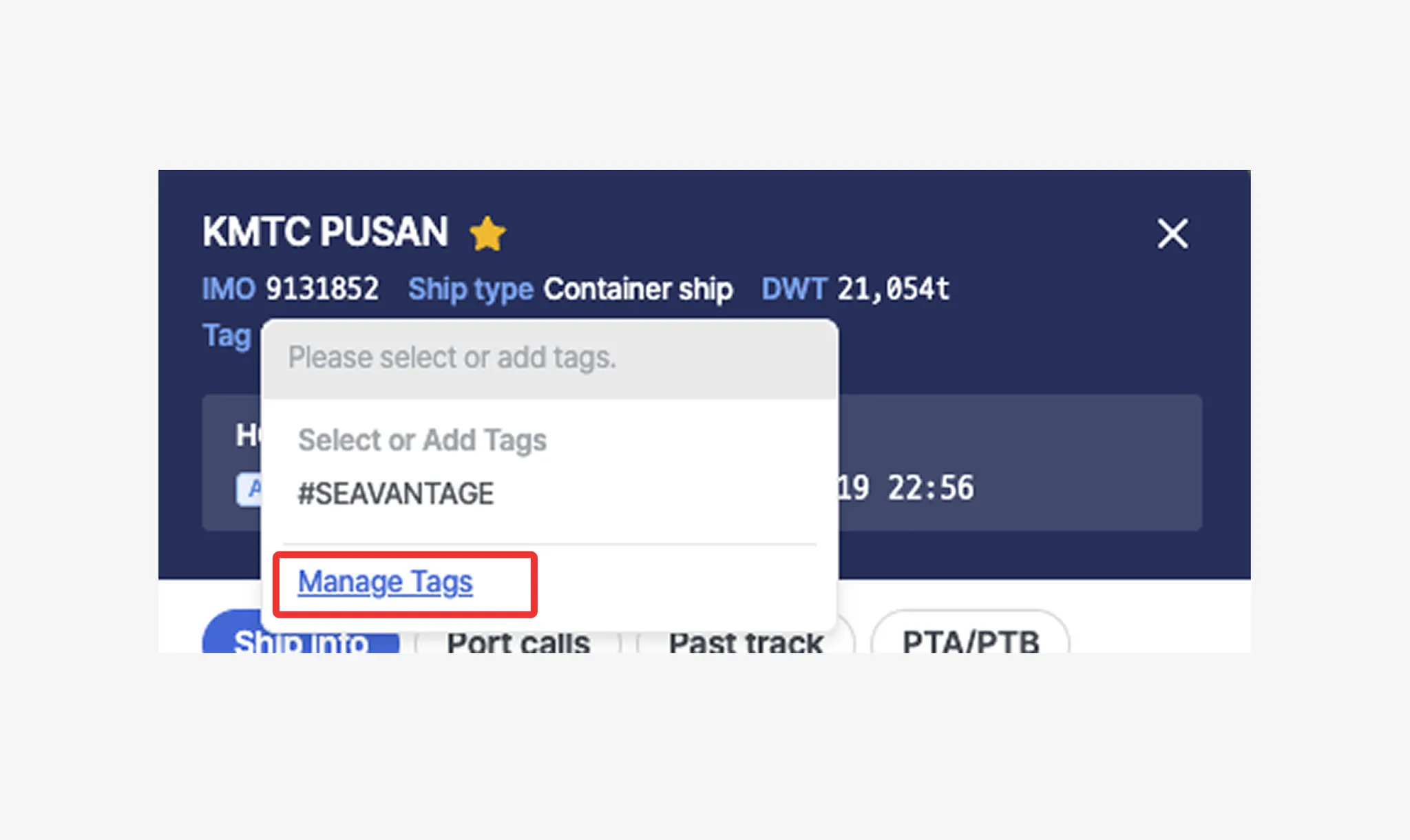
Click Manage Tags below the input field to view a list of vessels associated with each tag.
•
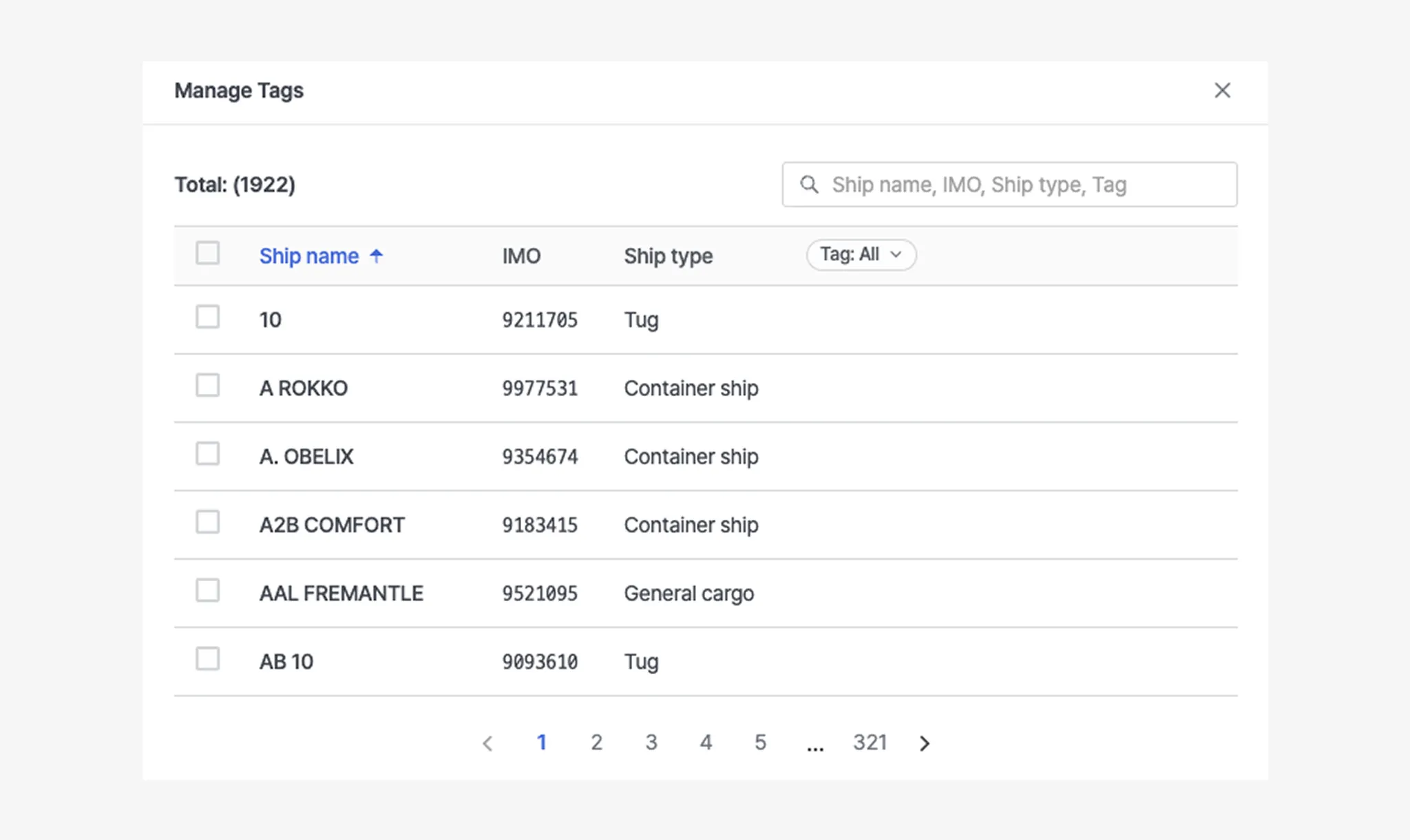
When entering the management page, if no tags exist, all registered vessels will be displayed.
If at least one tag exists, only vessels with applied tags will be shown.
•
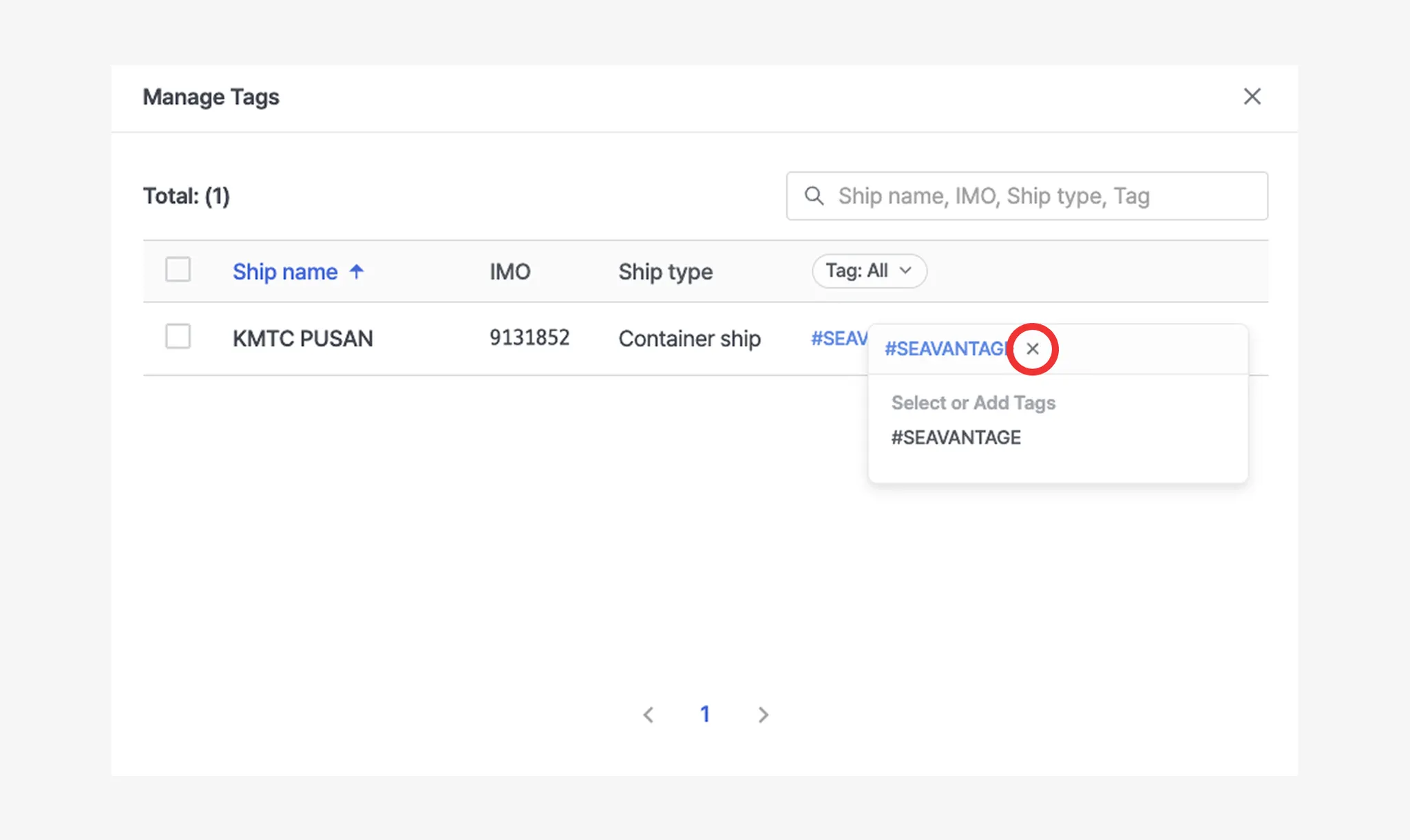
Click the X button next to a tag to remove that tag from a specific vessel only.
•
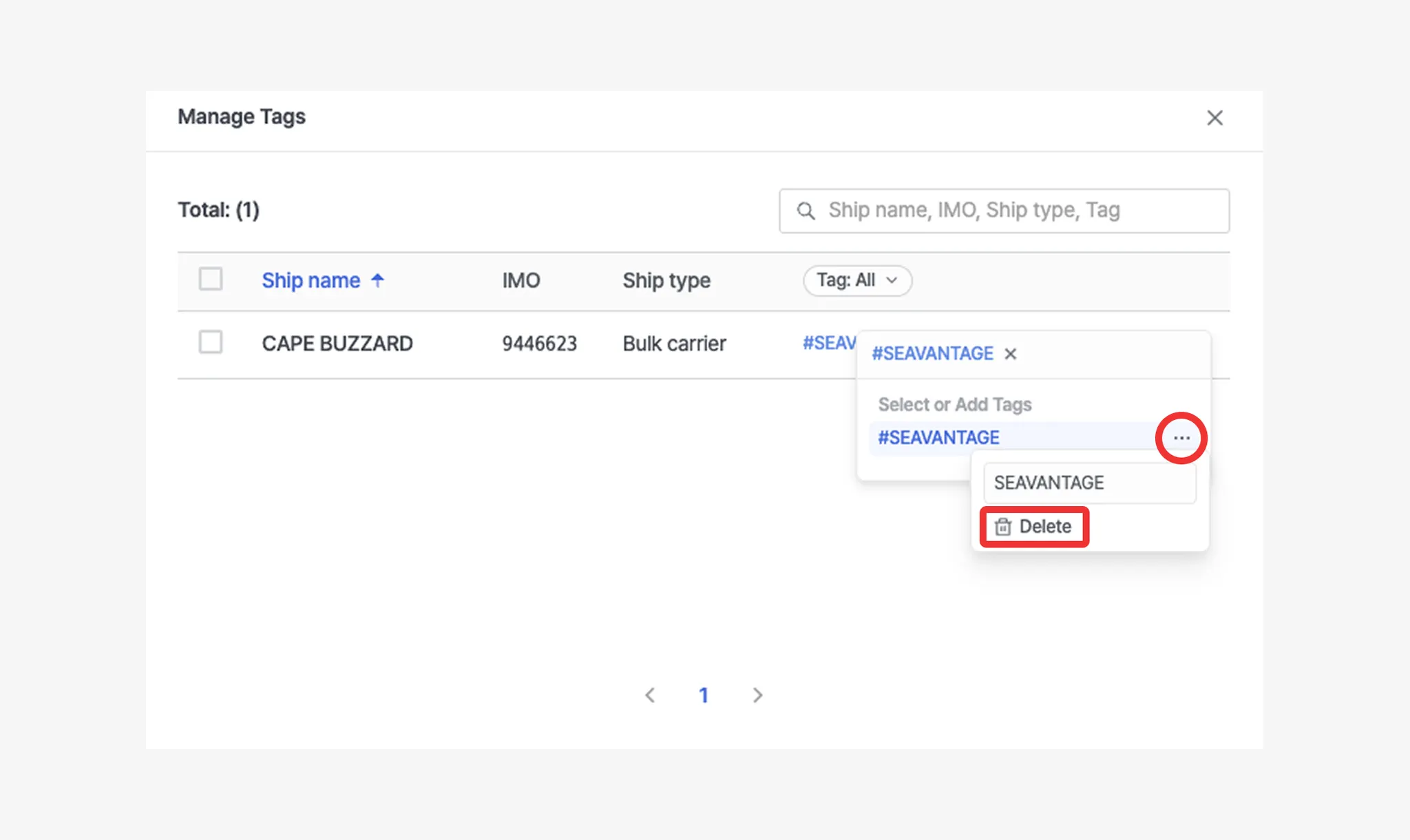
At the bottom, click the ellipsis icon (⋯) to rename the tag in bulk, or click the trash icon to delete the tag from all vessels at once.
•
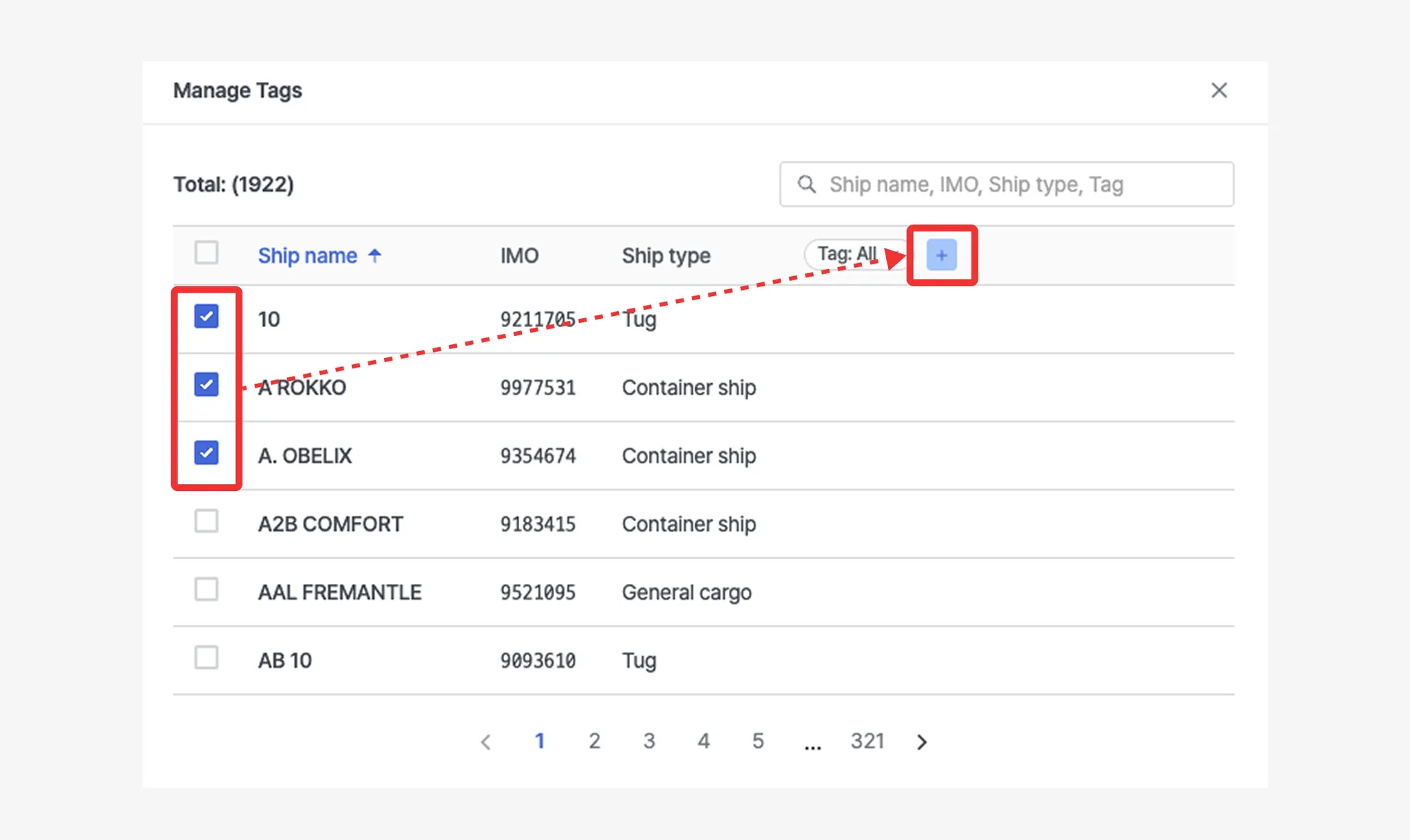
To create a new tag, select one or more vessels, click the + button, enter the tag name, and press Enter to add it. (When multiple vessels are selected, the new tag will be applied to all selected vessels at once.)